|
VOOZH | about |
|
VOOZH | about |
With Office 365, Microsoft has created its most collaborative platform ever. Microsoft Teams has been accessible for Linux users since 2019. This application is well-known across the world since it allows users to employ an endless number of features in a single forum.
Audio and video calls, chats, online meetings, file and data sharing, extensibility tools, and much more are among Microsoft Teams' most significant features. Whether you have a small or large company, once Microsoft Teams is deployed, you will be able to accomplish the project swiftly and efficiently. In this post, we'll show you how to install Microsoft Teams on Ubuntu.
There are three methods to install Microsoft Teams on Ubuntu:
Let's go through the installation methods on Ubuntu.
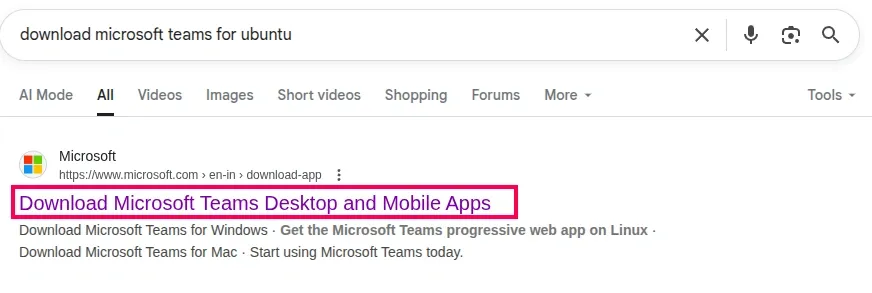
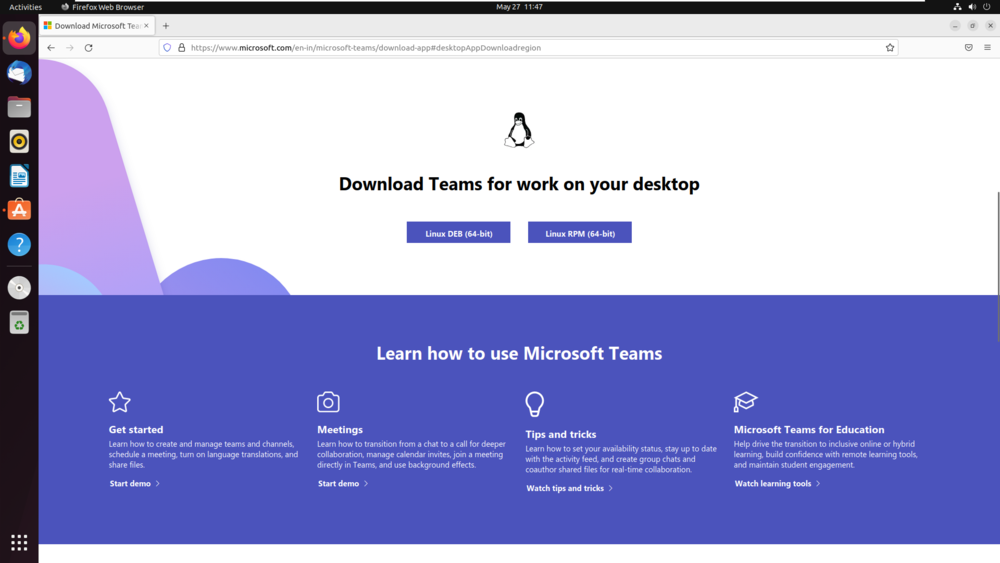
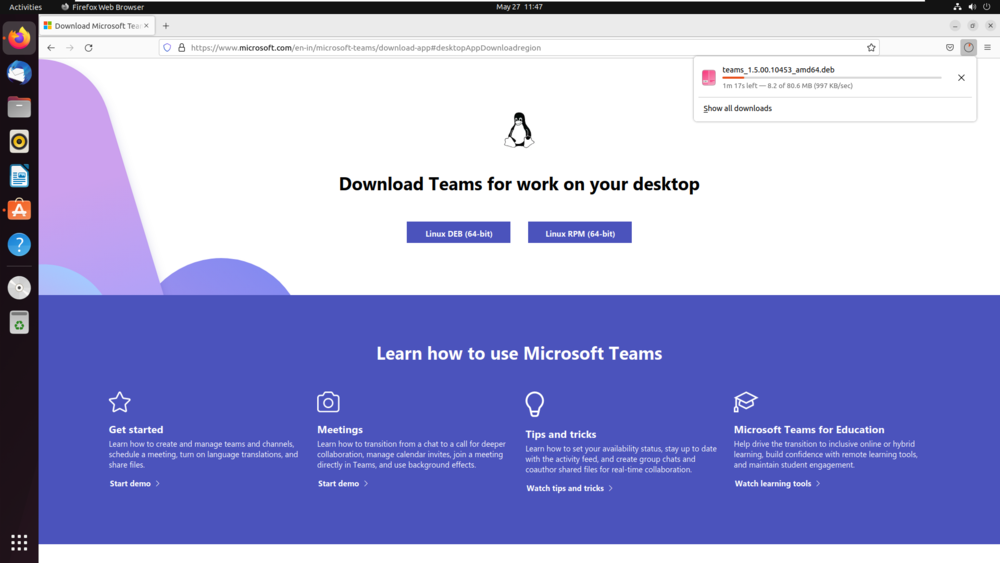
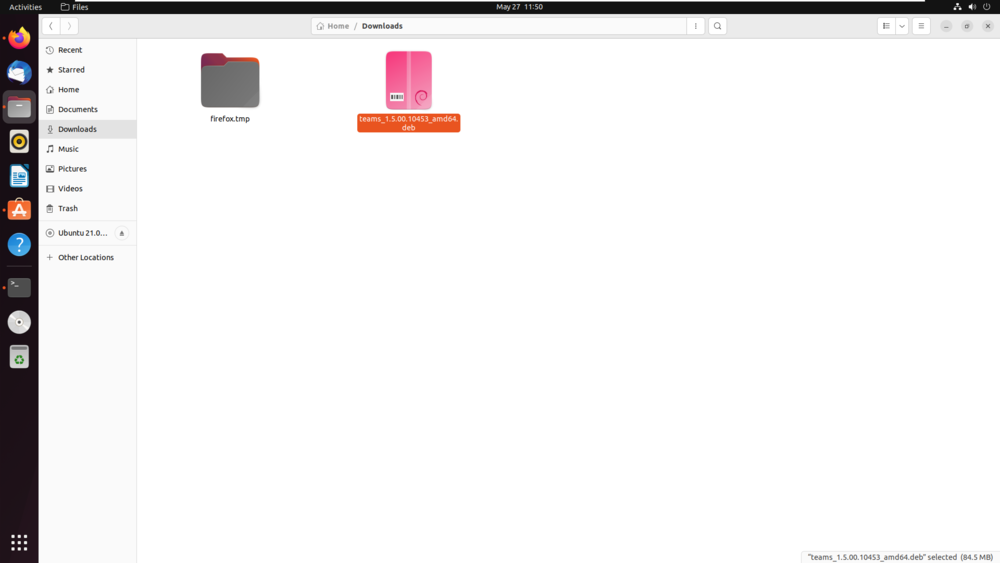
Below are the steps to install Microsoft Teams using the GUI:
Below are the steps to install Microsoft Team using the terminal:
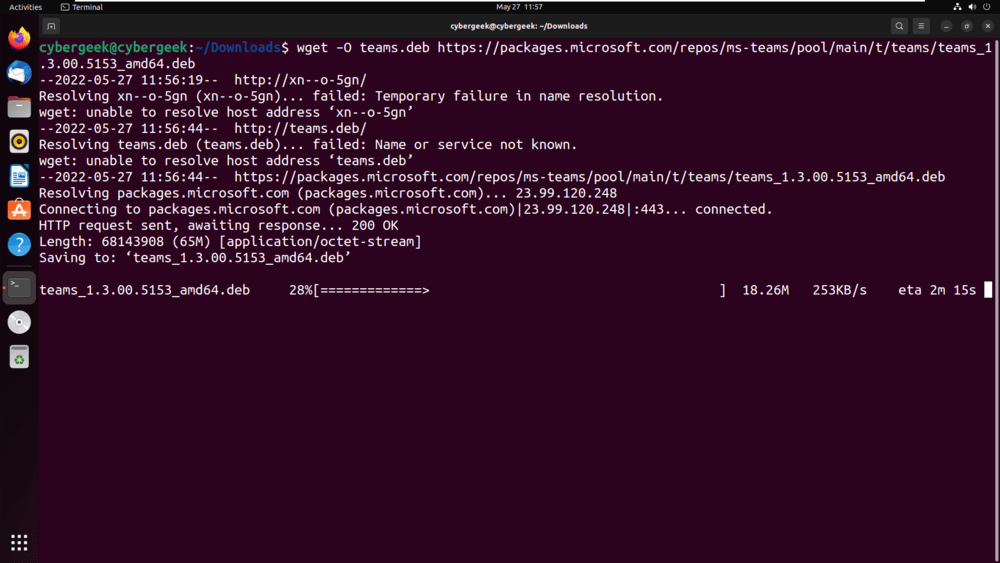
Step 1: Firstly, get the official .deb file from Microsoft's website. Execute the below command in the terminal.
Syntax:
wget –O teams.deb https://packages.microsoft.com/repos/ms-teams/pool/main/t/teams/teams_1.3.00.5153_amd64.debStep 2: Now, install the .deb file through the terminal. Execute the below command in the terminal.
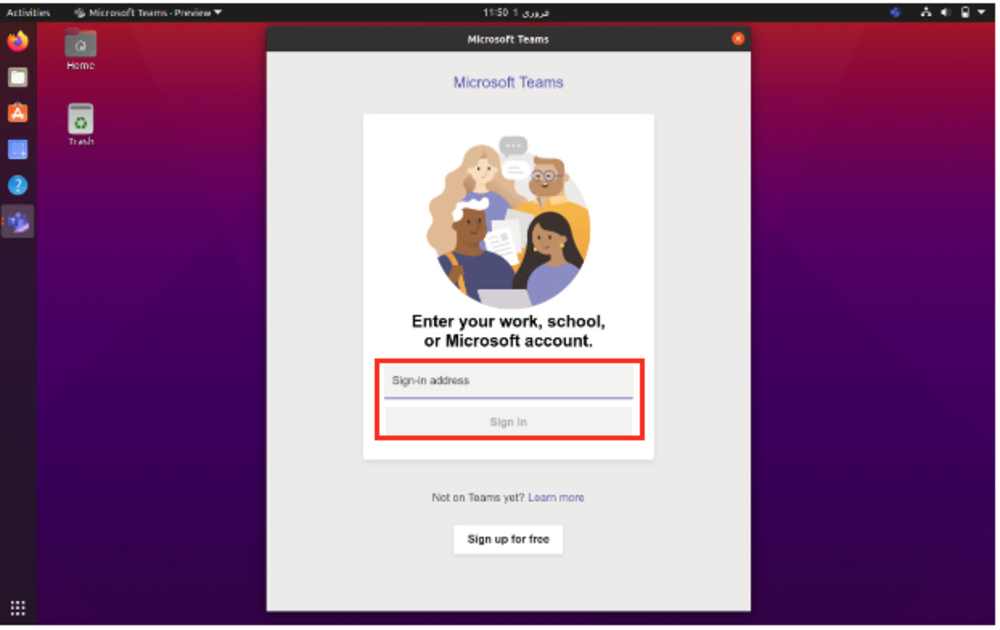
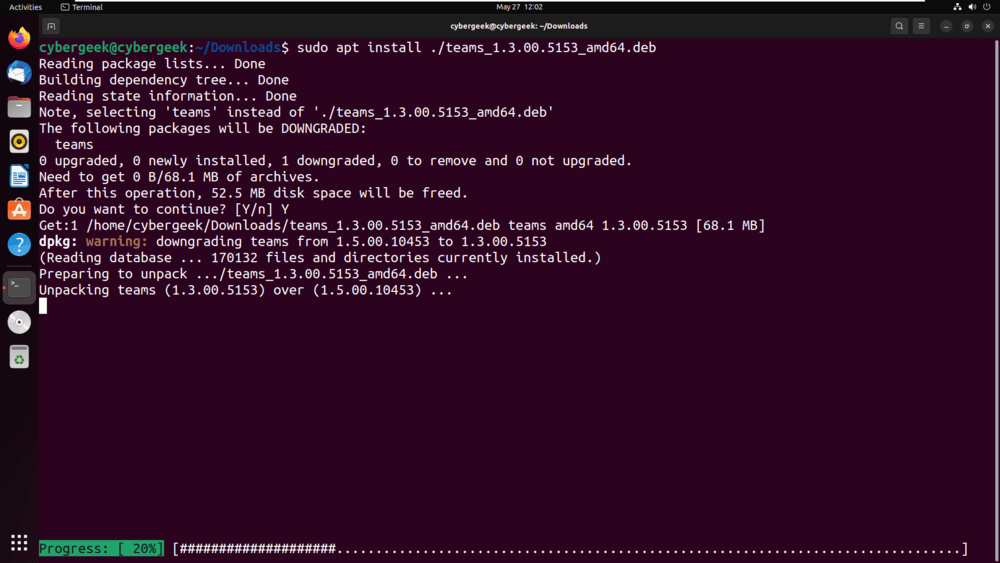
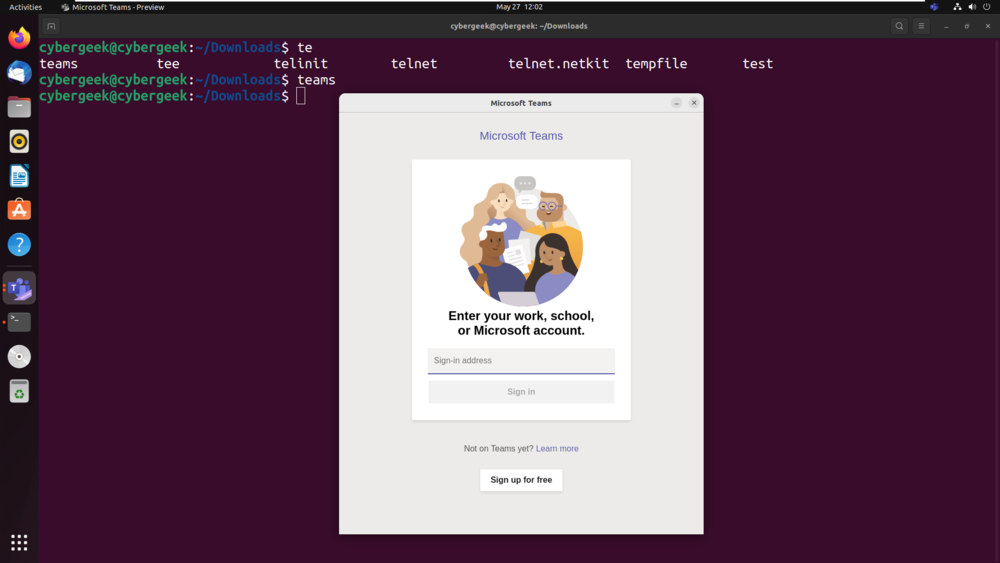
sudo apt install ./teams_1.3.00.5153_amd64.debStep 3: Our application is been installed on the System. Run the below command in the terminal to open the application.
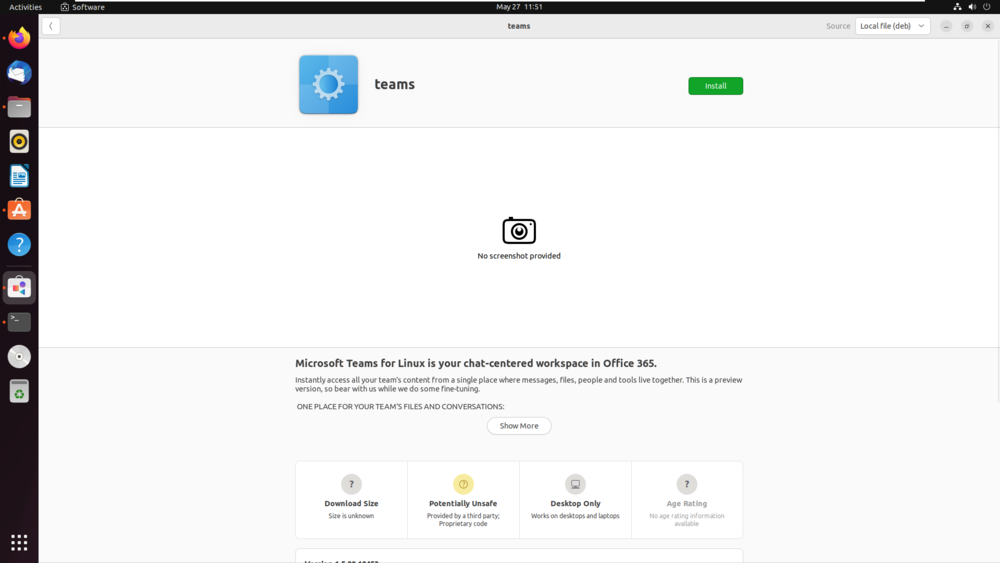
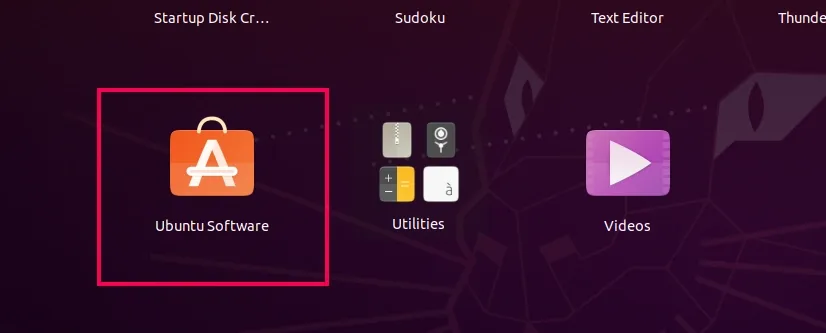
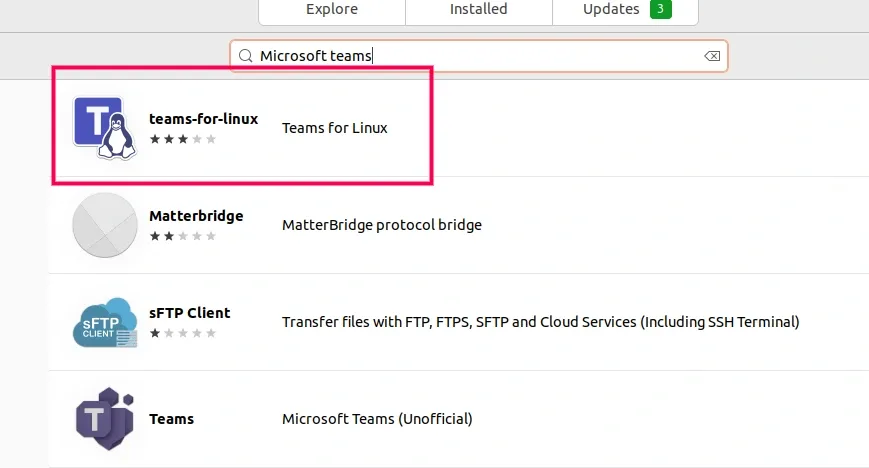
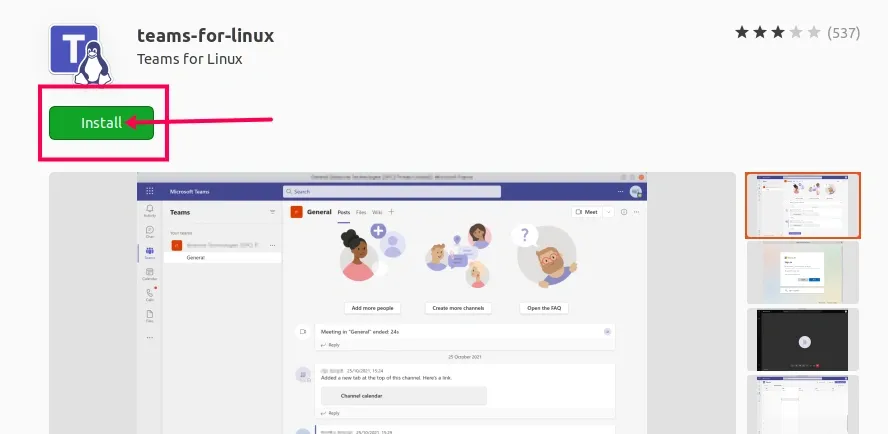
teamsAnother method to install Microsoft Teams (teams-for-Linux) is by downloading it from Ubuntu Software Store. Follow these steps to download Microsoft Teams:
Once all the steps are completed, Microsoft Teams will install and be available on Ubuntu.
Also Check: