|
VOOZH | about |
|
VOOZH | about |
Notepad++ is free and open-source computer software that is mainly used as a code editor or text editor. It was developed by Don Ho. It is available in nearly 90 languages. It provides the ability to work with multiple files in a single window. It is available for Windows operating system only. It was first released on 24 November 2003 and its latest version is 8.1.9.3. It is written in the C++ programming language. It has an easy interface.
Follow the below steps to install Notepad++ on Windows:
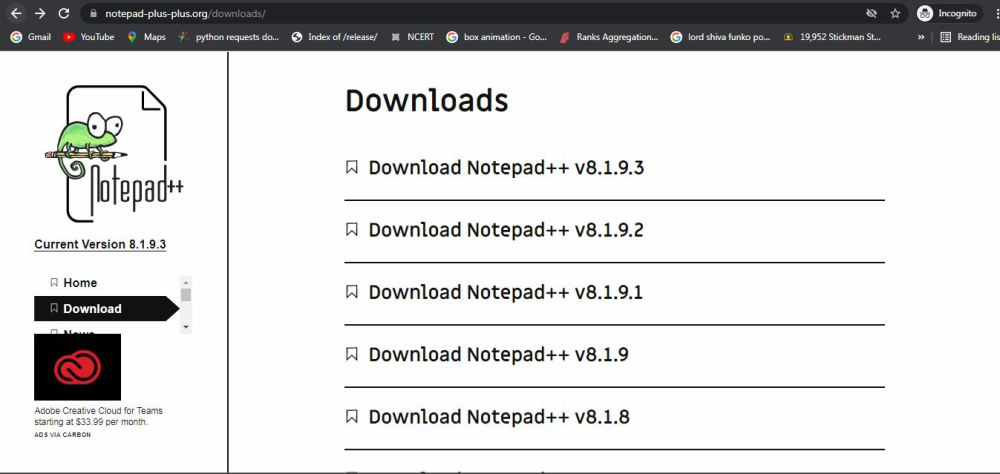
Step 1: Visit the official Notepad++ website on any web browser. Click on Download Notepad++ v8.1.9.3.
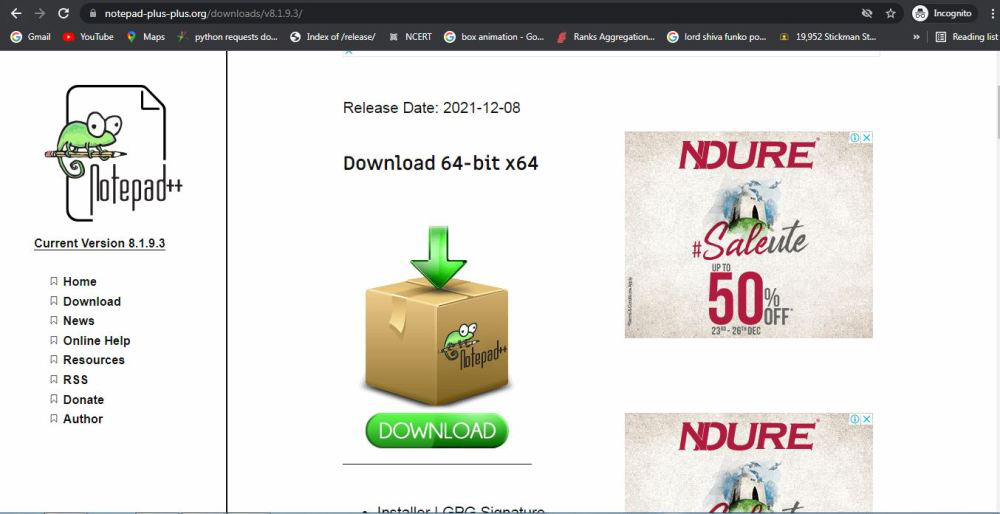
👁 official Notepad++ websiteStep 2: On the next webpage, different installer files are listed, click on the Download button. Downloading of the executable file will start shortly. It is a small 4.19 MB file that will hardly take a minute.
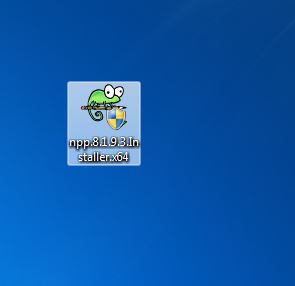
👁 download the executable fileStep 3: Now check for the executable file in downloads in your system and run it.
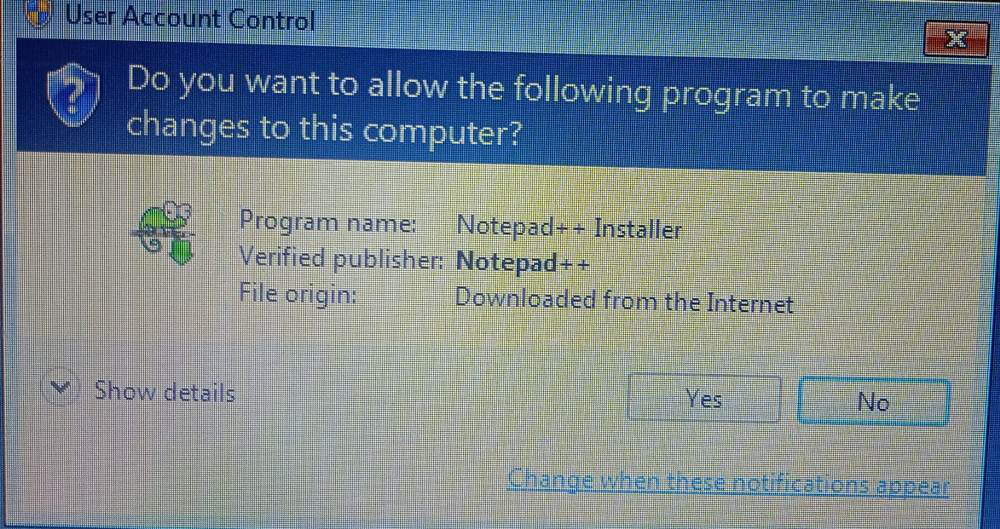
👁 executable fileStep 4: It will prompt confirmation to make changes to your system. Click on Yes.
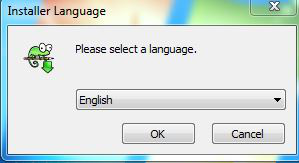
👁 confirmation to make changes to your systemStep 5: Next screen is of selecting language, click OK.
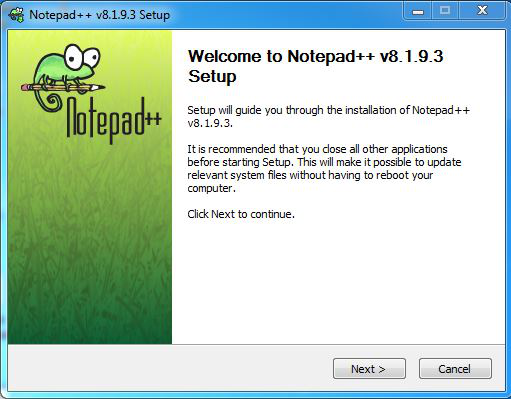
👁 select language for installationStep 6: Setup screen will appear, click on Next.
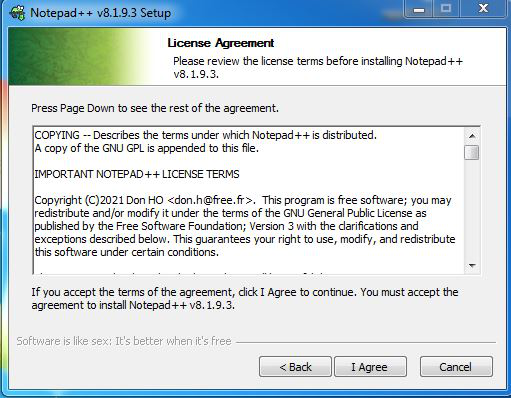
👁 Setup screenStep 7: The next screen will be of License Agreement, click on I Agree.
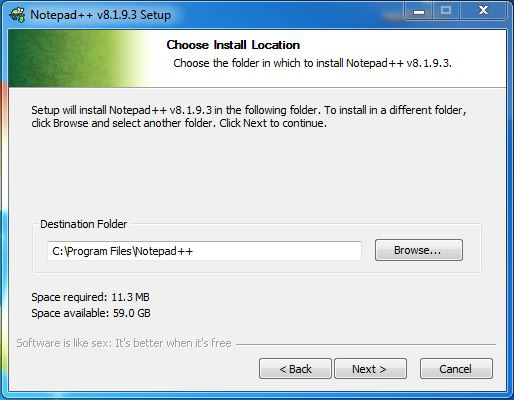
👁 License AgreementStep 8: The next screen will be of installing location so choose the drive which will have sufficient memory space for installation. It needed a memory space of 11.3 MB.
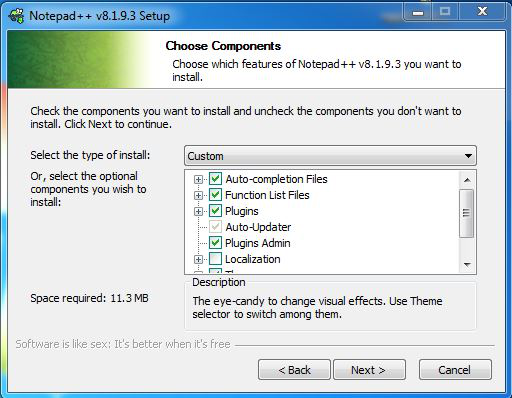
👁 choose installation locationStep 9: Next screen is of choosing components, all components are already marked so don’t change anything just click on the Next button.
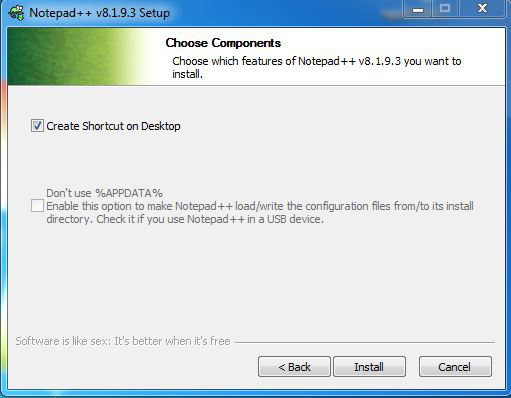
👁 choose componentsStep 10: Next screen is to create a desktop icon so check the box and click install. The installation will be completed in a few seconds.
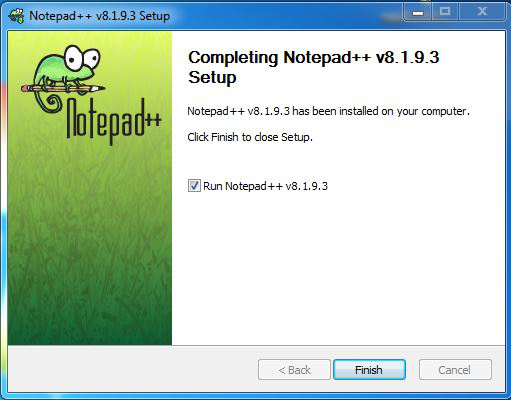
👁 create a desktop iconStep 11: Click on Finish to finish the installation process.
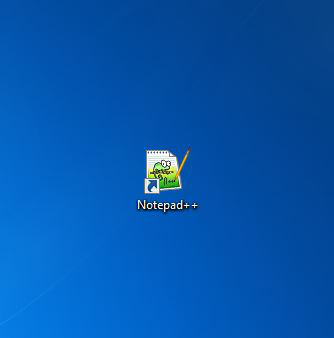
👁 finish installationNotepad++ is successfully installed on the system and an icon is created on the desktop.
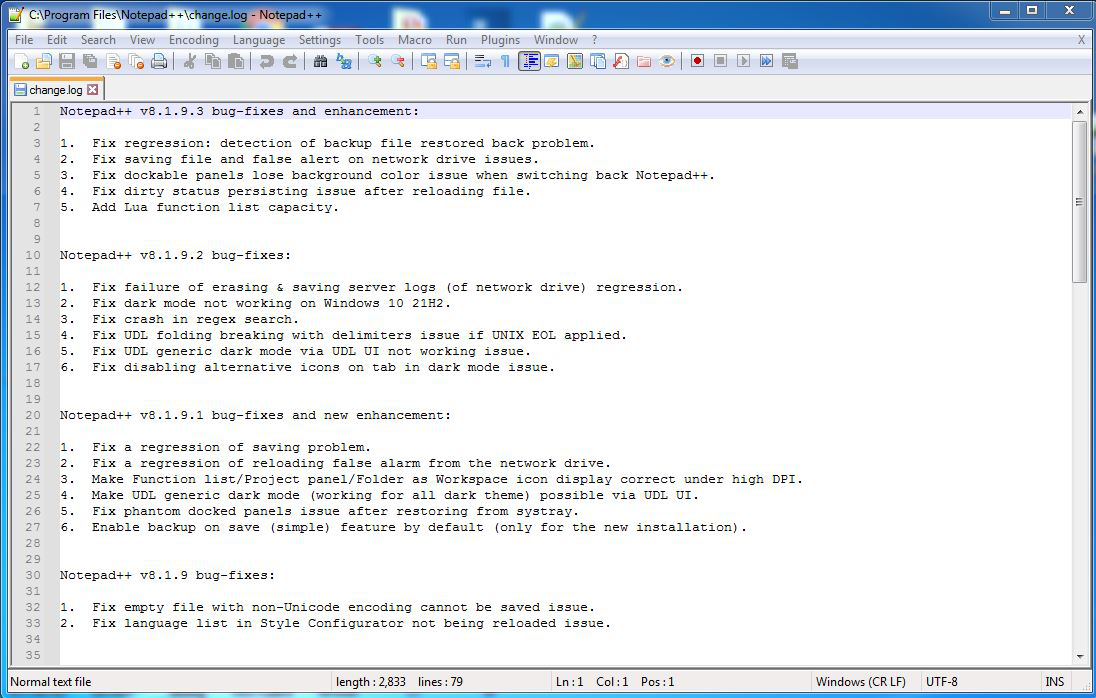
👁 notepad++ iconRun the software and see the interface.
👁 notepad++ interfaceCongratulations!! At this point, you have successfully installed Notepad++ on your windows system.