|
VOOZH | about |
|
VOOZH | about |
PowerShell is well-known among Windows administrators. It is a.NET-based task-based command-line shell and scripting language. You can quickly automate tasks for operating system maintenance and much more with PowerShell. PowerShell was once only available for Microsoft Windows. This admin tool, on the other hand, can now be installed and used on Linux.
1. The least complex approach to install PowerShell using snap is as per the following :
sudo snap install powershell --classic
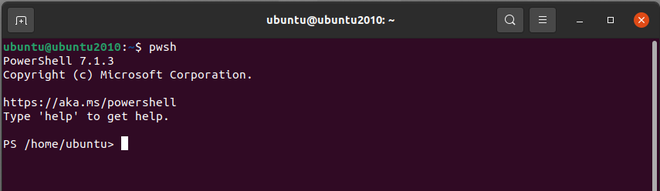
2. Now you can simply launch PowerShell by using a simple command :
pwsh
Installing PowerShell from a package repository is the preferred approach in Linux.
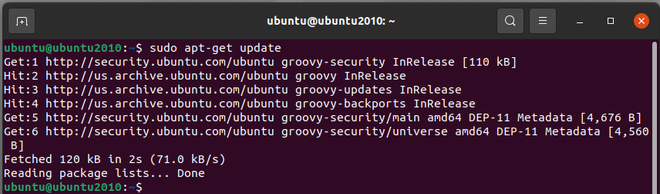
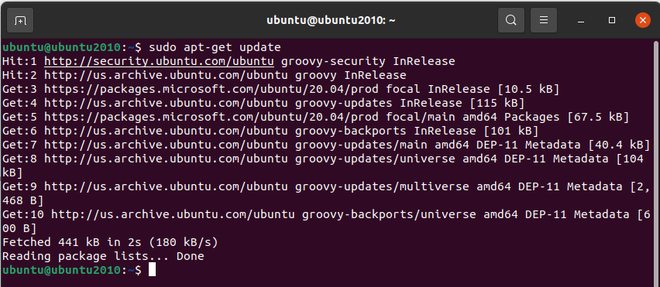
1. First update list of system packages using below command :
sudo apt-get update
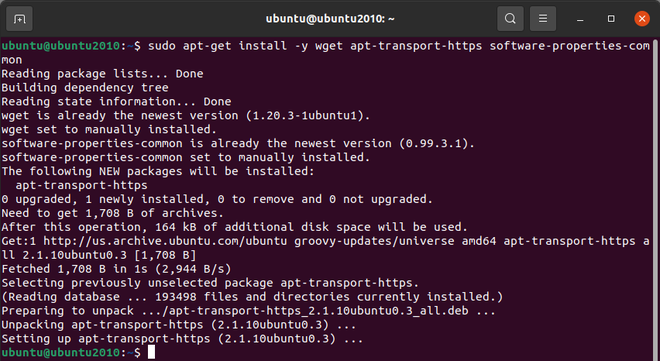
2. Install pre-requisite packages using the below command :
sudo apt-get install -y wget apt-transport-https software-properties-common
3. Now download the Microsoft repository GPG keys :
wget -q https://packages.microsoft.com/config/ubuntu/20.04/packages-microsoft-prod.deb
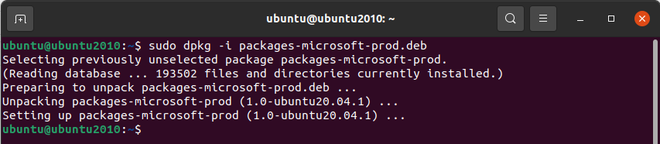
4. Then register the Microsoft repository GPG keys :
sudo dpkg -i packages-microsoft-prod.deb
5. Then update the system source :
sudo apt-get update
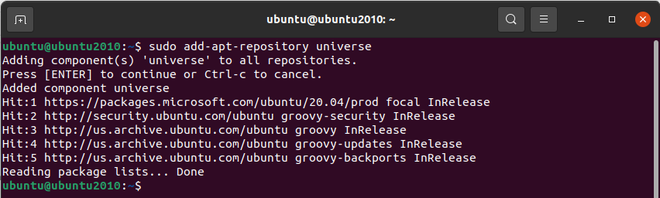
6. Enabling the universe repositories :
sudo add-apt-repository universe
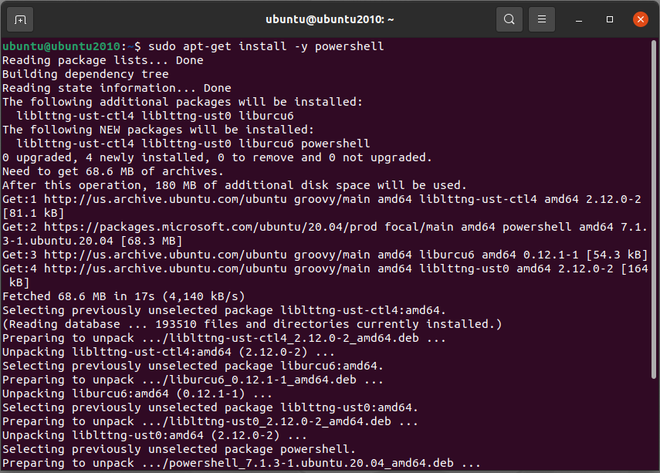
7. Now we can finally install PowerShell using the below command :
sudo apt-get install -y powershell
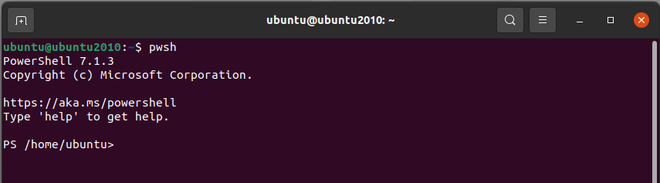
8. Now we can start PowerShell by simply typing the below command :
$ pwsh