|
VOOZH | about |
|
VOOZH | about |
The VLC media player (formerly known as the VideoLAN Client and simply VLC) is a free and open-source, portable, cross-platform media player and streaming media server created by the VideoLAN project. VLC is compatible with desktop and mobile platforms, including Android, iOS, and iPadOS. VLC may also be downloaded via Apple's App Store, Google Play, and the Microsoft Store.
VLC supports audio and video compression methods and file formats such as DVD-Video, Video CD, and streaming protocols. It can convert multimedia files and transmit media via computer networks.
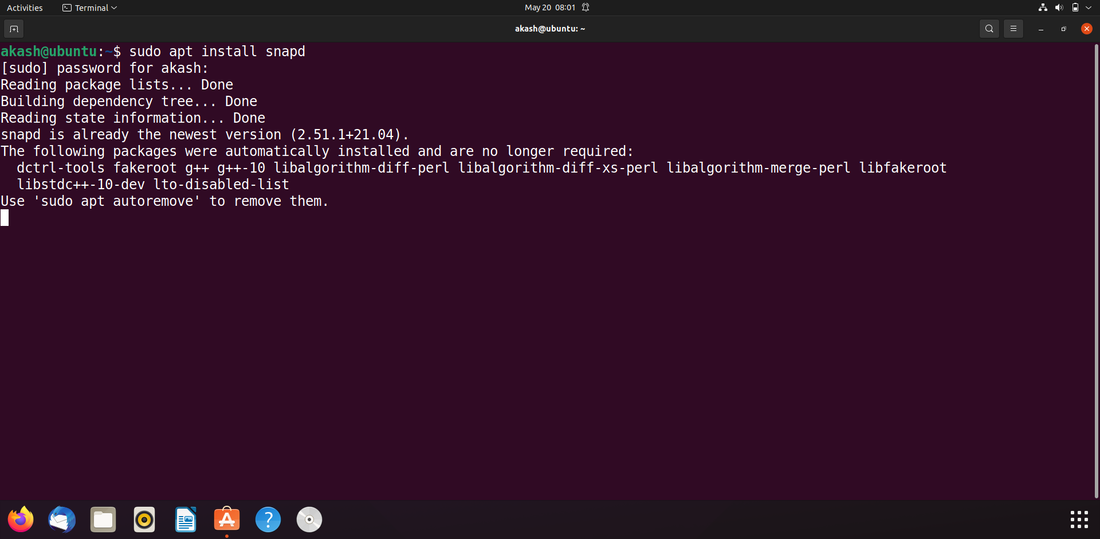
To install VLC using snap packages, do the following command in the terminal. When asked, type sudo password and press 'y' on the keyboard.
sudo apt install snapd
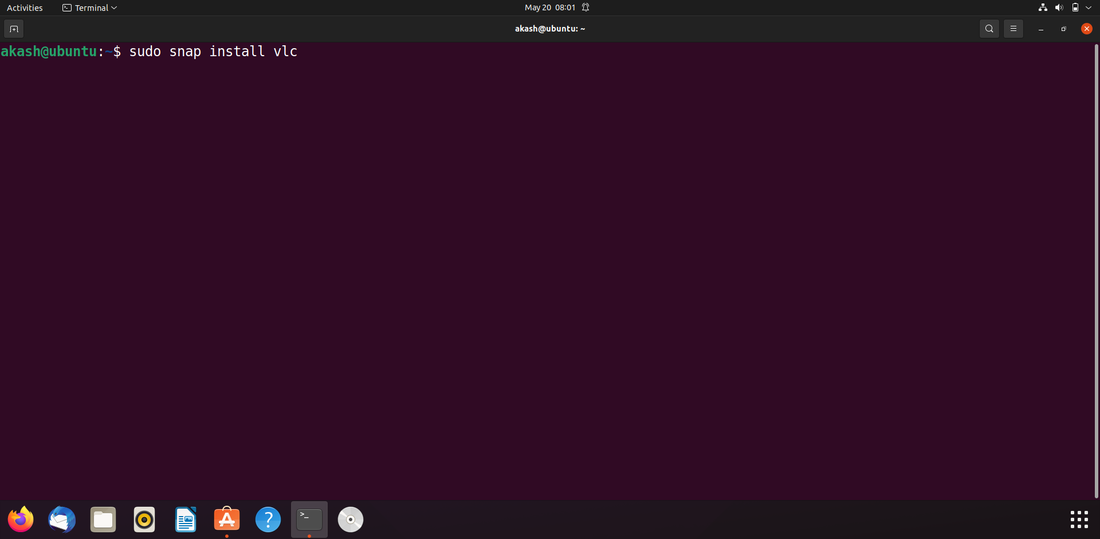
The installation process should now begin. If the installation fails, the snap utility is not installed on your computer. In such a situation, use the following command to install the snap tool and then install the program again.
sudo snap install vlc
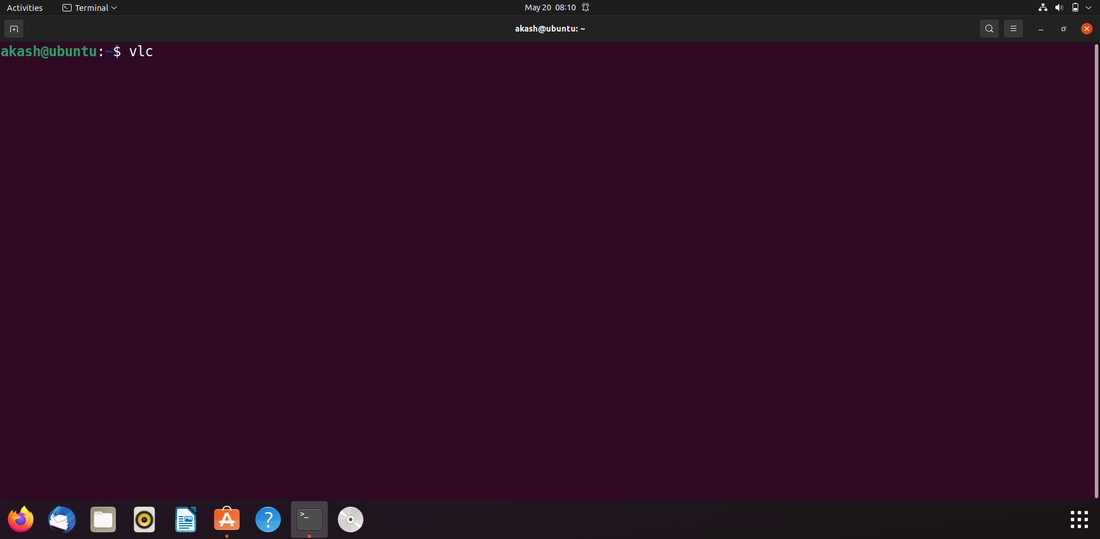
Start the program by entering 'vlc' in the terminal or searching for it in the 'Applications' search box.
vlc
Accept the privacy and network access policy by clicking Continue.
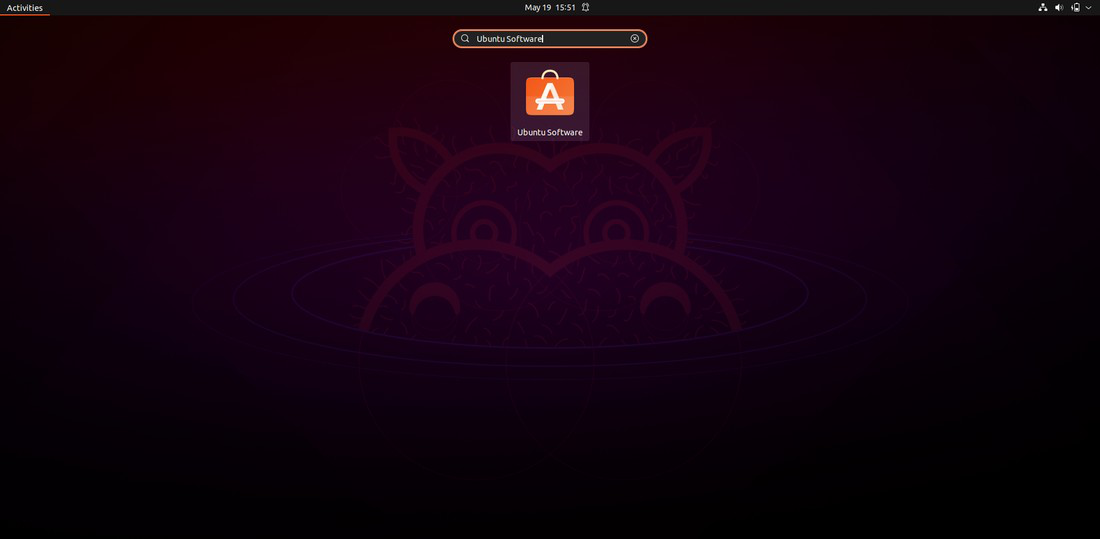
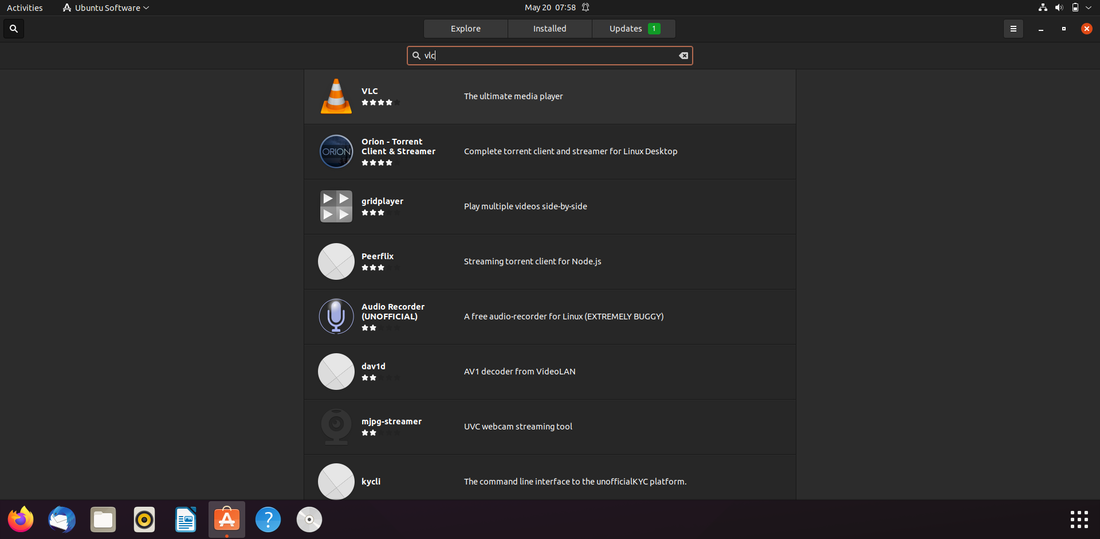
Click the bottom left icon to open 'Applications,' then search for Ubuntu software in the search field.
The Ubuntu Software Center will open when you click on the 'Ubuntu Software' icon.
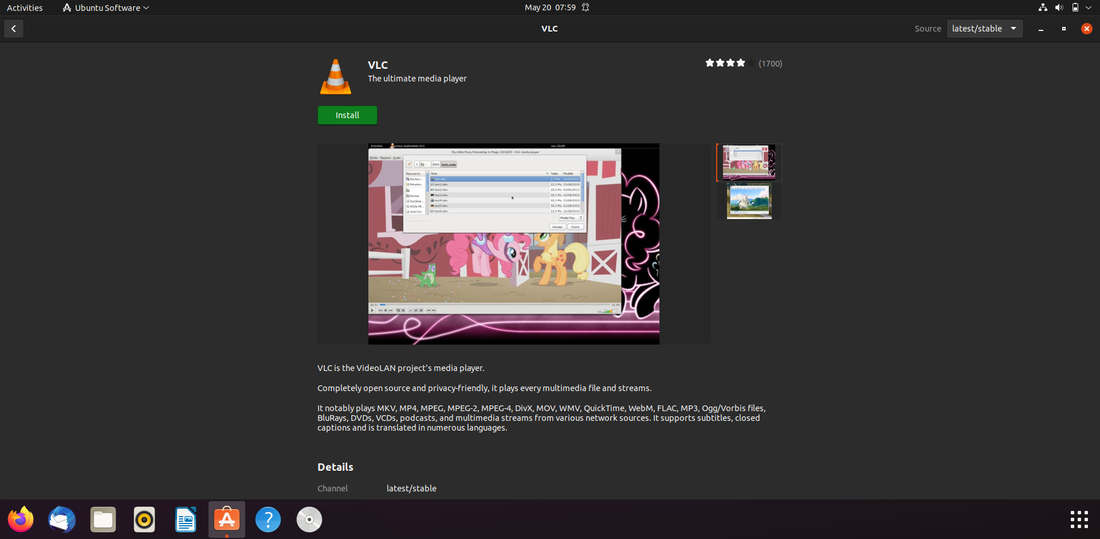
When VLC is located, search for it in the Ubuntu Software Center search field and click its icon.
To install the program, click the install button.
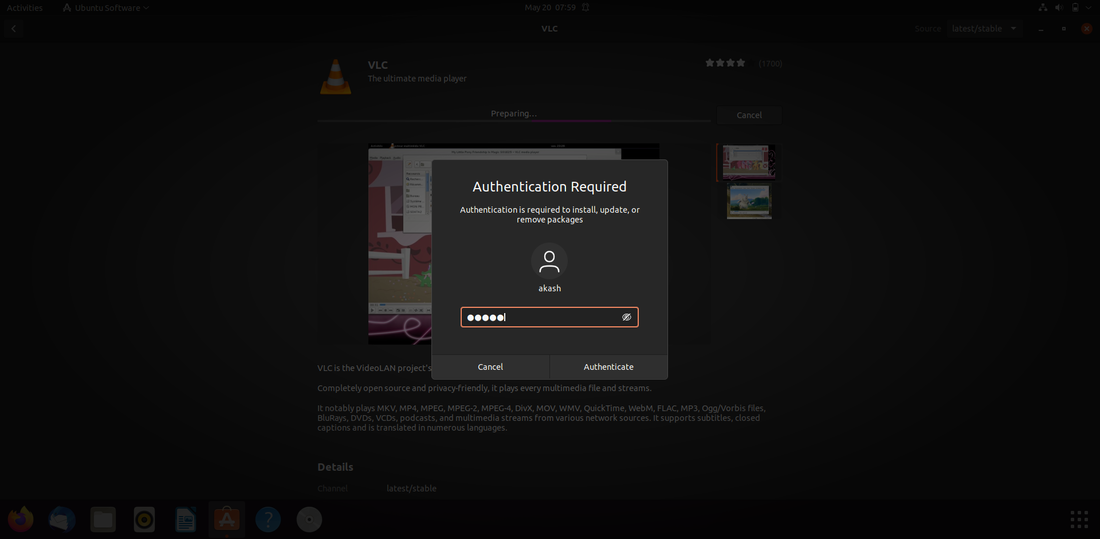
When requested for login, enter your password and press the authenticate button to continue with the installation.
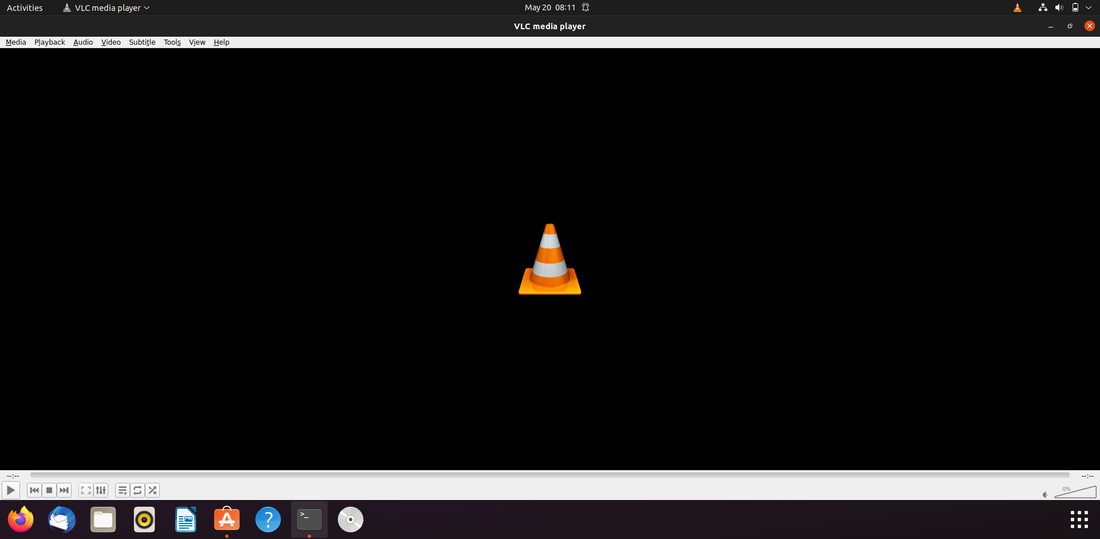
After installing the VLC program, run it from the 'Applications' or terminal.