|
VOOZH | about |
|
VOOZH | about |
VLC (or VideoLAN Client) media player is a lightweight application created by an open-source development group known as the VideoLAN project. This video and media player has been leading the industry for years in terms of popularity, and it’s not hard to see why. You can use a VLC media player to open audio and video files in just about any format without having to hunt down extra codecs. VLC also works for streaming media such as podcasts and online radio stations. But perhaps the greatest VLC media player feature is playback control. You can change almost everything about how your media is displayed from hardware optimization to adding subtitle files from third-party sources. It is very easy to use.
Follow the below steps to install VLC Media Player on Windows :
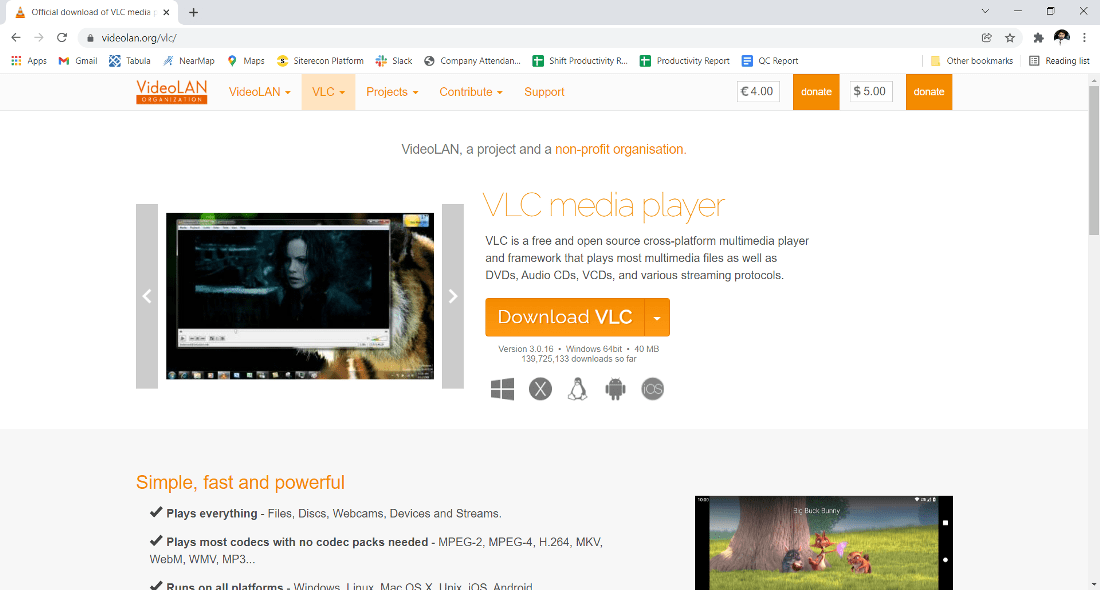
Step 1: Visit the official VLC website using any web browser.
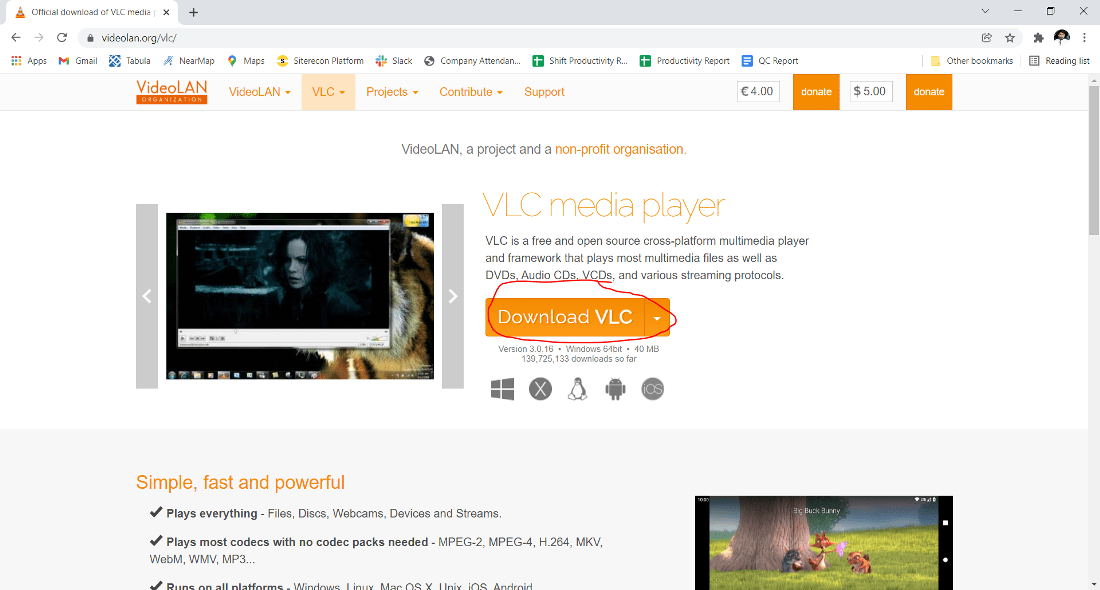
👁 official VLC websiteStep 2: Click on Download VLC.
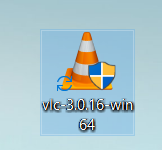
👁 download VLCStep 3: Now check for the executable file in downloads in your system and run it.
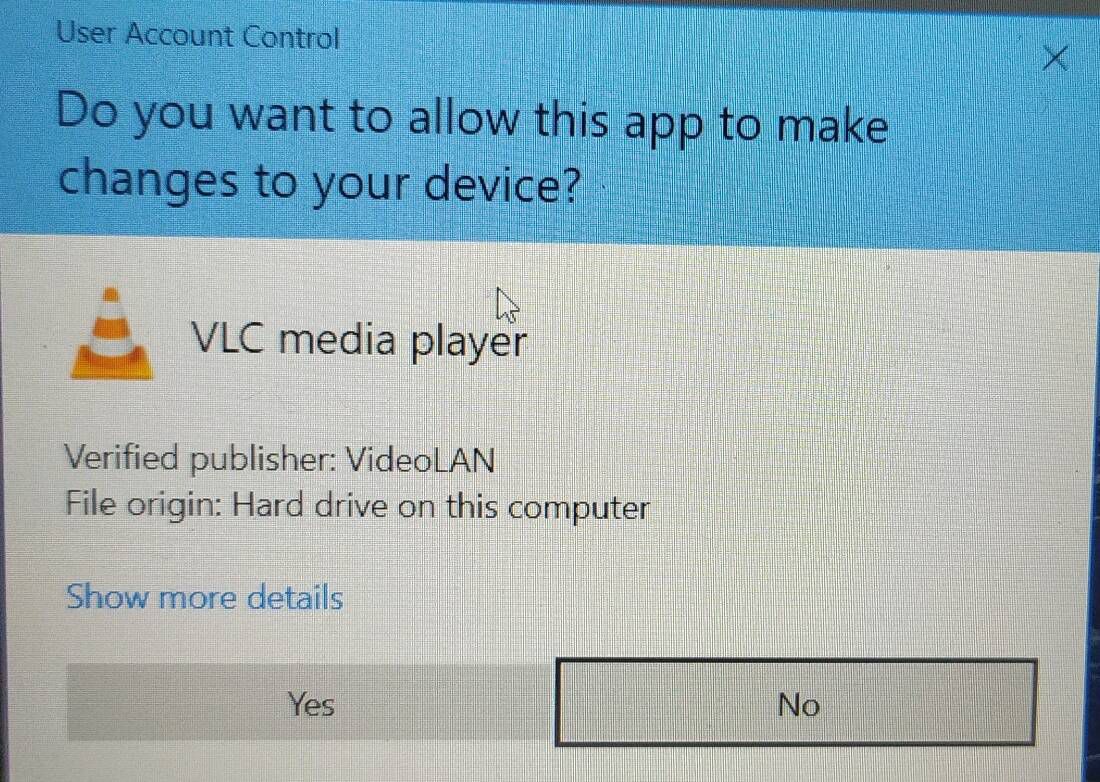
👁 executable fileStep 4: It will prompt confirmation to make changes to your system. Click on Yes
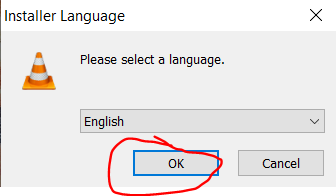
👁 confirmation to make changes to your systemStep 5: The next screen is to choose your setup language which you want to choose and click on OK.
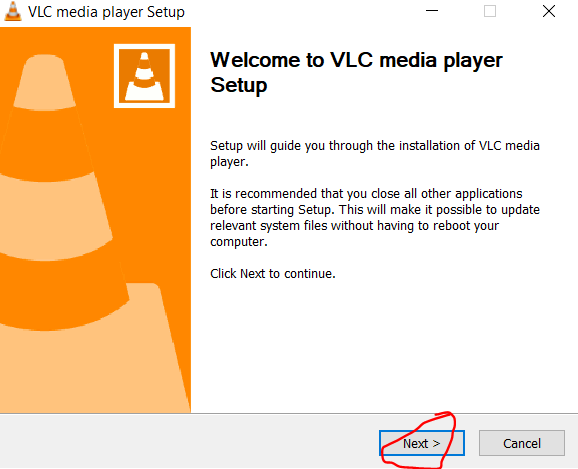
👁 choose your setup languageStep 6: The setup will start now click on next.
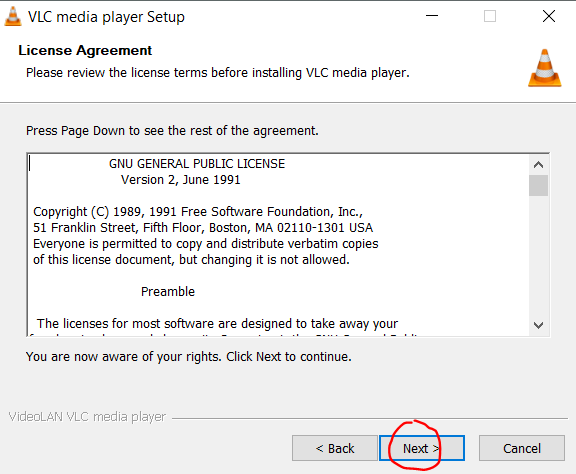
👁 setup windowStep 7: The next screen will be of License Agreement, click on Next.
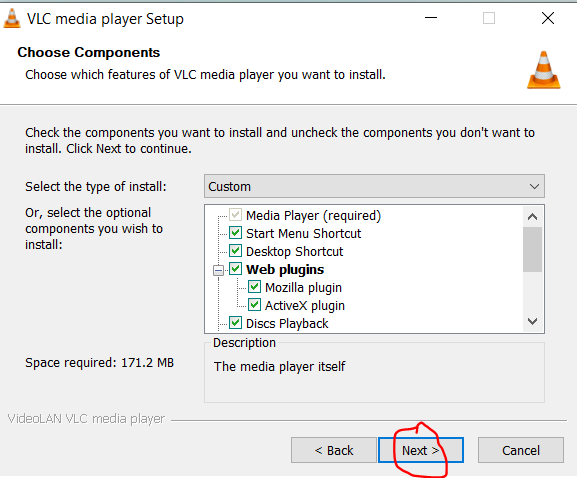
👁 License AgreementStep 8: Next screen is of choosing components, all components are already marked so don’t change anything just click on the Next button.
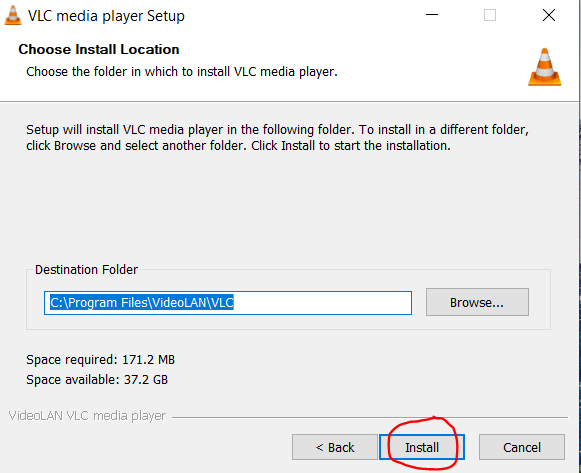
👁 choose componentsStep 9: The next screen will be of installing location so choose the drive which will have sufficient memory space for installation. It needed a memory space of roughly 171.2 MB. Click on the Next button.
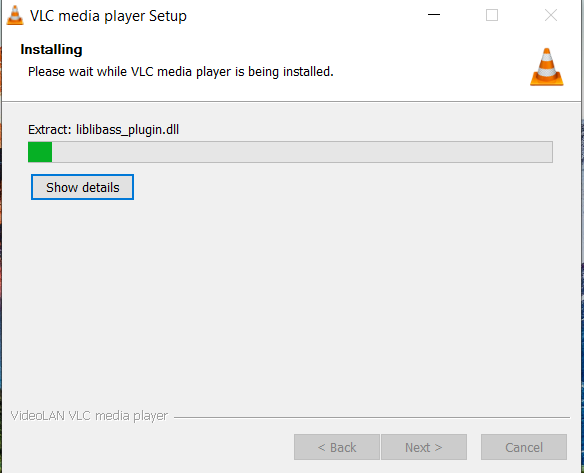
👁 choose installing locationStep 10: After this installation process will start and it might take 2 - 5 minutes depending on your computer speed and specification to complete the installation.
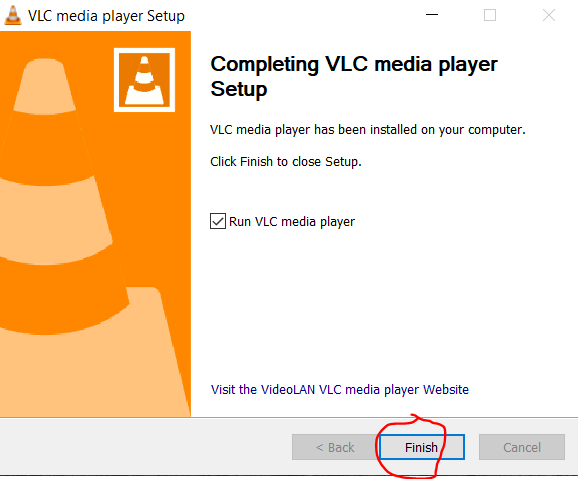
👁 installing vlc on windowsStep 11: Click on the Finish button after the installation process is complete.
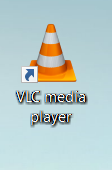
👁 finish installationAt this point, VLC Media Player is successfully installed on the system and an icon is created on the desktop.
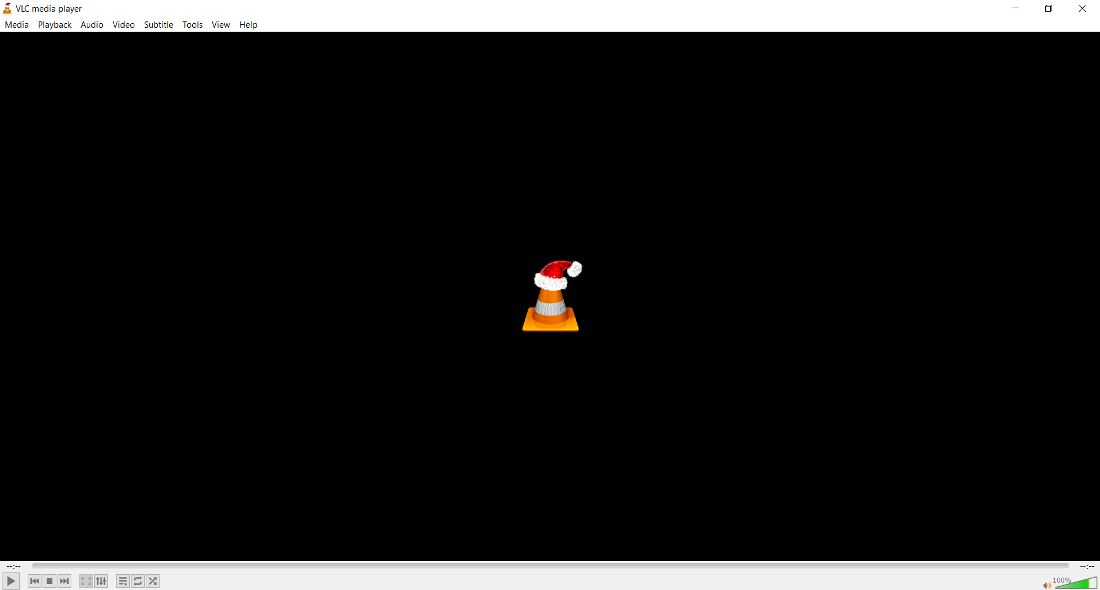
👁 vlc iconRun the software and see the interface.
👁 vlc interfaceCongratulations!! At this point, you have successfully installed VLC Media Player on your Windows system.