|
VOOZH | about |
|
VOOZH | about |
Weka stands for Waikato Environment for Knowledge Analysis, it is software that is used in the data science field for data mining. It is free software. It is written in Java hence it can be run on any system supporting Java, so weka can be run on different operating systems like Windows, Linux, Mac, etc. Weka provides a collection of visualization tools that can be used for data analysis, cleaning, and predictive modeling. Weka can perform a number of tasks like data preprocessing, clustering, classification, regression, visualization, and feature selection.
Follow the below steps to install Weka on Windows:
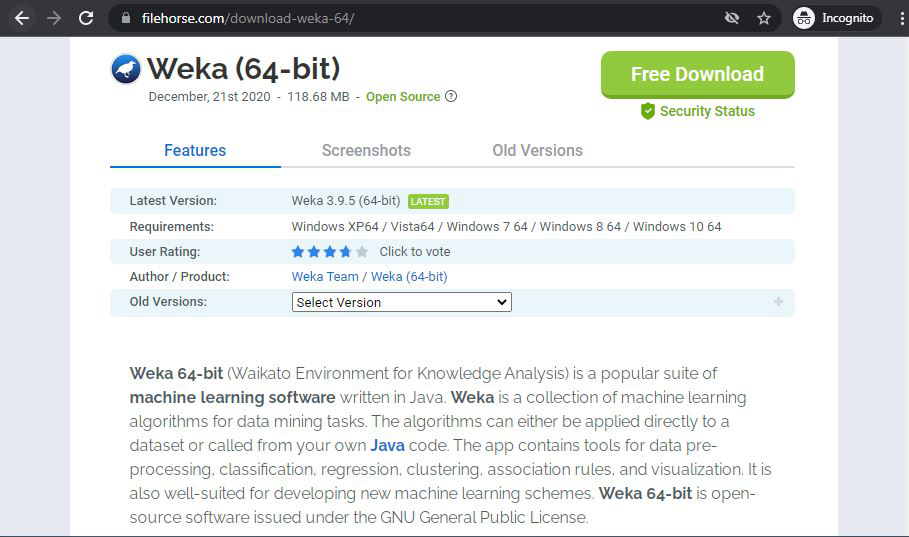
Step 1: Visit this website using any web browser. Click on Free Download.
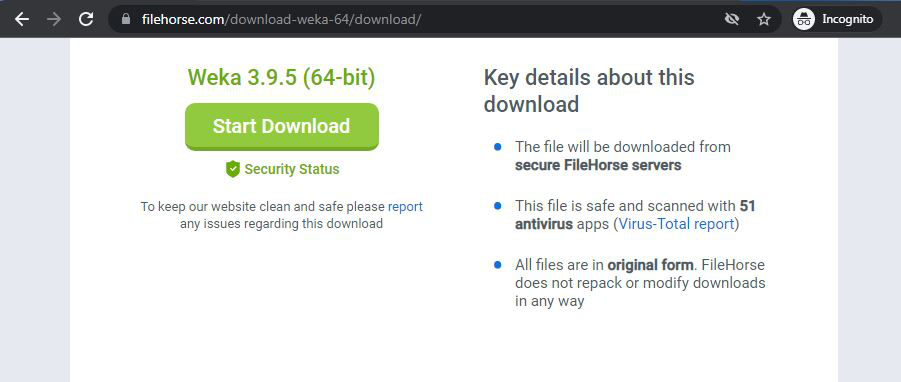
👁 Weka download pageStep 2: It will redirect to a new webpage, click on Start Download. Downloading of the executable file will start shortly. It is a big 118 MB file that will take some minutes.
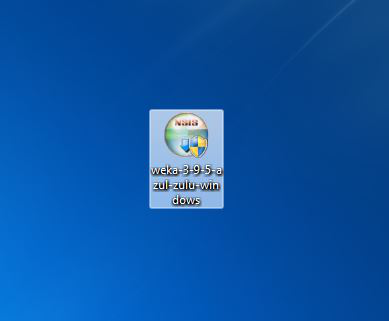
👁 Downloading wekaStep 3: Now check for the executable file in downloads in your system and run it.
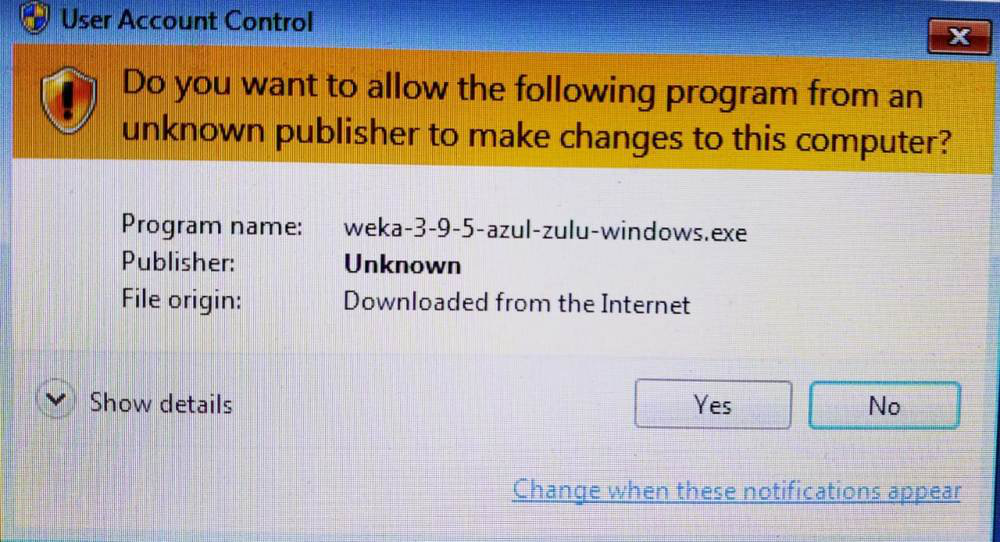
👁 Weka installerStep 4: It will prompt confirmation to make changes to your system. Click on Yes.
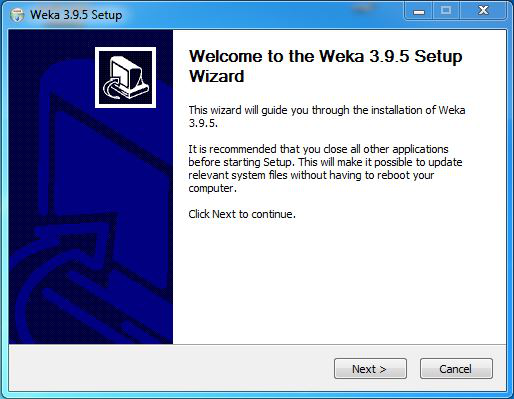
👁 confirm installationStep 5: Setup screen will appear, click on Next.
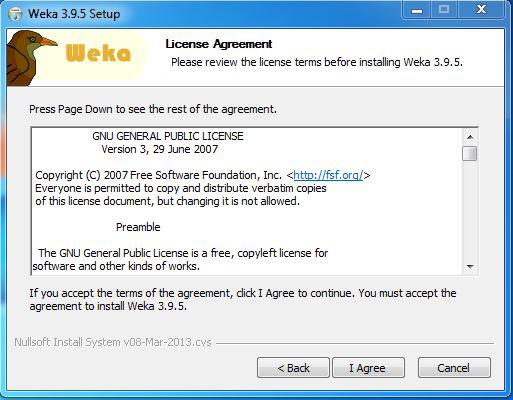
👁 Setup screenStep 6: The next screen will be of License Agreement, click on I Agree.
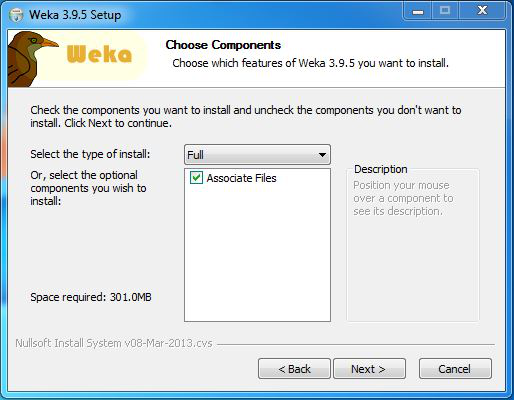
👁 License AgreementStep 7: Next screen is of choosing components, all components are already marked so don't change anything just click on the Install button.
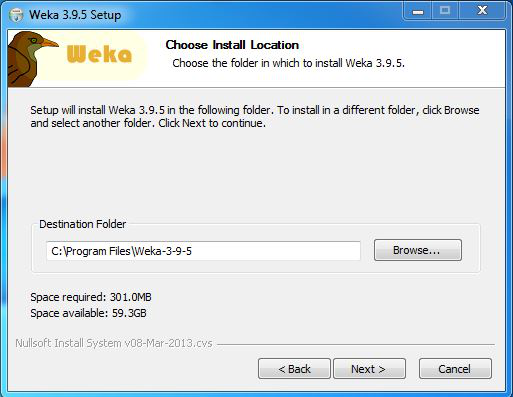
👁 Start installationStep 8: The next screen will be of installing location so choose the drive which will have sufficient memory space for installation. It needed a memory space of 301 MB.
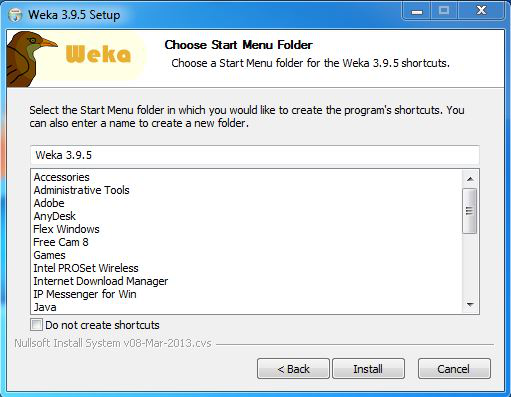
👁 select installation locationStep 9: Next screen will be of choosing the Start menu folder so don't do anything just click on Install Button.
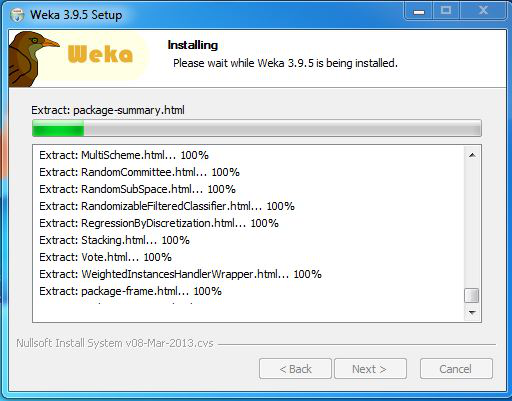
👁 Start menuStep 10: After this installation process will start and will hardly take a minute to complete the installation.
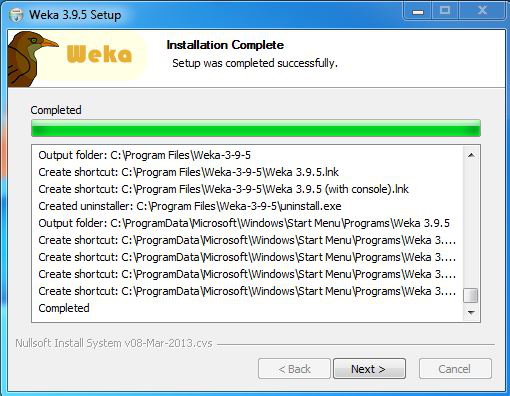
👁 installing wekaStep 11: Click on the Next button after the installation process is complete.
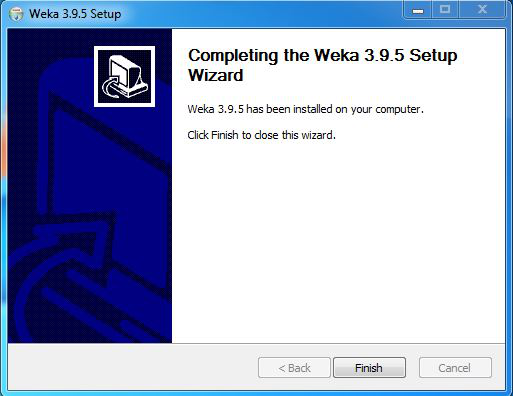
👁 Installation completedStep 12: Click on Finish to finish the installation process.
👁 Finish installationStep 13: Weka is successfully installed on the system and an icon is created on the desktop.
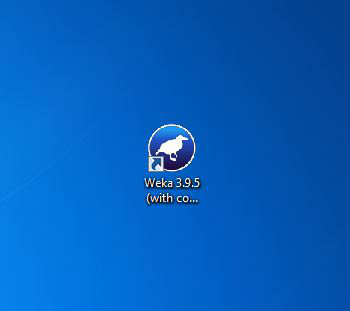
👁 Weka iconStep 14: Run the software and see the interface.
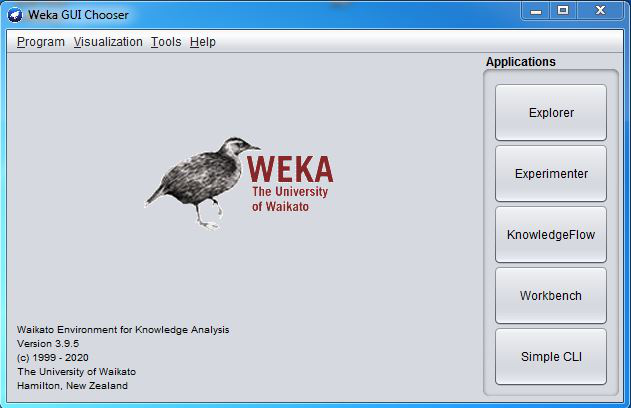
👁 Weka GUI chooserCongratulations!! At this point, you have successfully installed Weka on your windows system.