|
VOOZH | about |
|
VOOZH | about |
To run JavaScript outside a browser or use frameworks like React or Express, you need Node.js. Let's see how to install Node.js on Windows, Linux, and Mac systems, ensuring you’re ready for JavaScript development.
In this section, we'll discuss the three different methods that can used to download and install Node.js for Windows users.
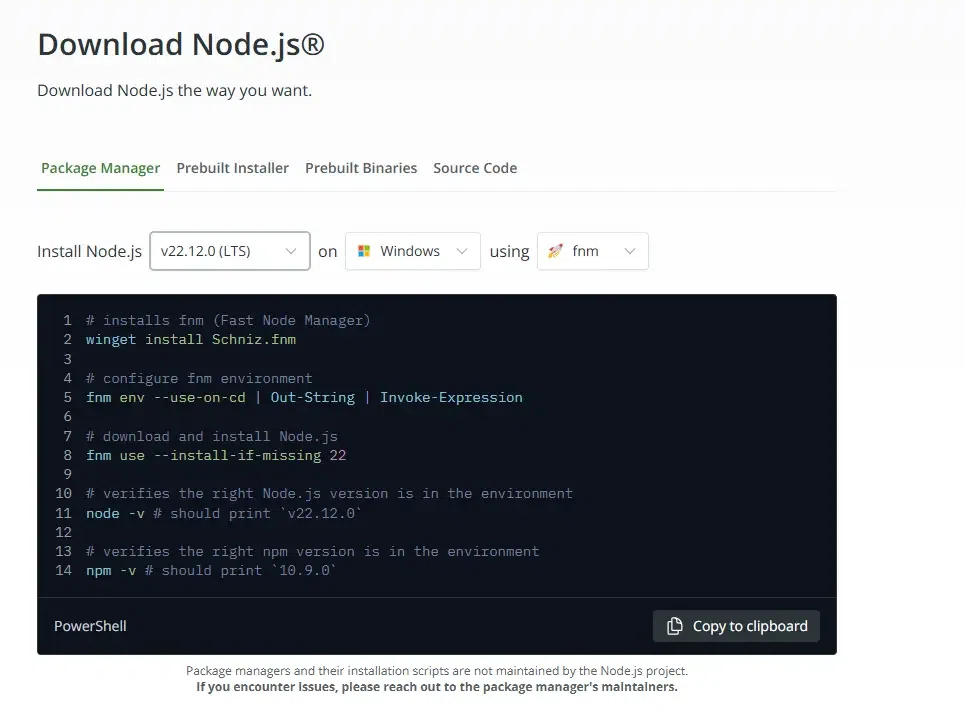
Visit the official Node.js download page and choose your suitable download either long-term support (LST) version 22.12.0 or the current version v23.3.0
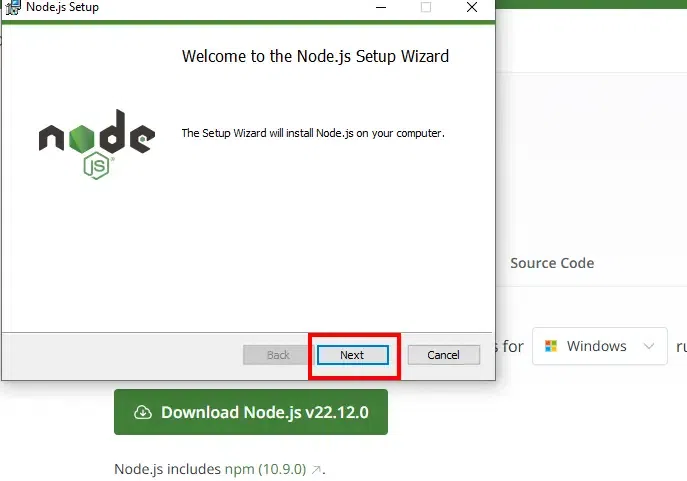
Open the .msi installer once downloaded.
During installation, make sure to add Node.js to your PATH to ensure that both Node.js and npm are accessible globally in the command line.
Open Command Prompt and run the following to check if Node.js and npm are correctly installed:
node -vnpm -v
This will display the installed versions of Node.js and npm.
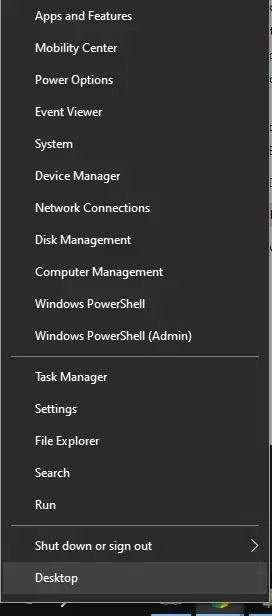
Right-click the Start menu and select Windows PowerShell (Admin).
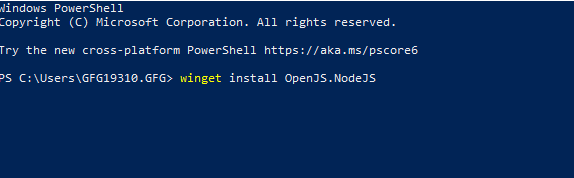
Execute the following command to install Node.js:
winget install OpenJS.Node.jsAlso, check the installed versions of Node.js and npm once the installation is complete using the following command:
node -vnpm -v
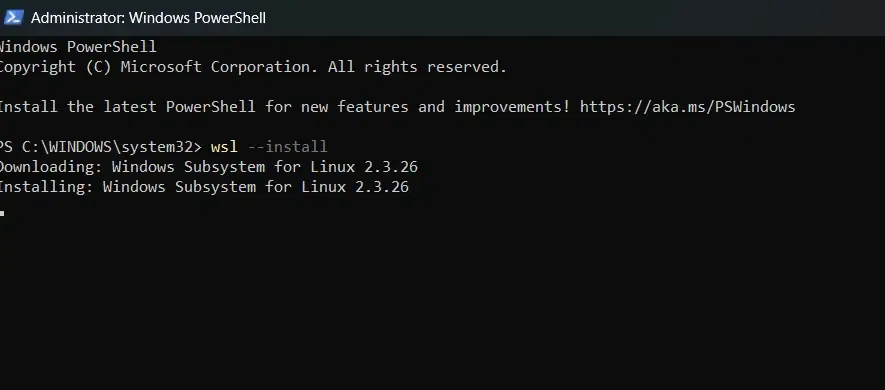
Open PowerShell as Administrator and run the following command:
wsl --installChoose your preferred Linux distribution (Ubuntu is widely used).
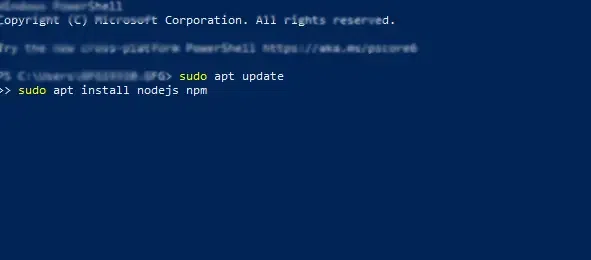
Once your Linux subsystem is set up, you can install Node.js via your chosen Linux distribution:
sudo apt updatesudo apt install Node.js npm
Later, you can run the following commands to verify the installation:
node -vnpm -v
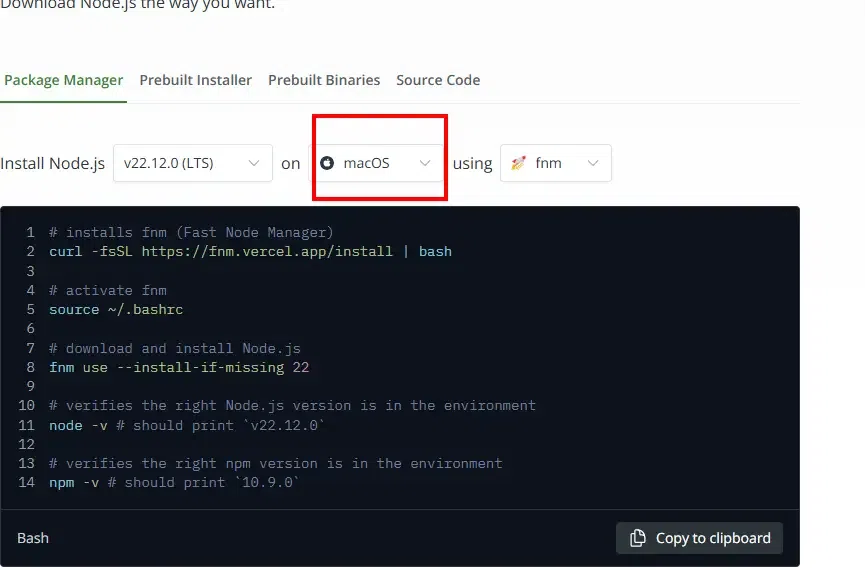
You may download and install node on macOS using these 3 defined methods below, let's check them out along with their steps:
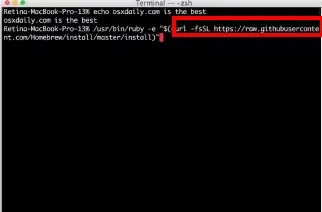
Open Terminal and run the following command to install homebrew version 23.3.0 (if you haven’t already):
/bin/bash -c "$(curl -fsSL https://raw.githubusercontent.com/Homebrew/install/HEAD/install.sh)"After Homebrew is installed, run the following command to install Node.js:
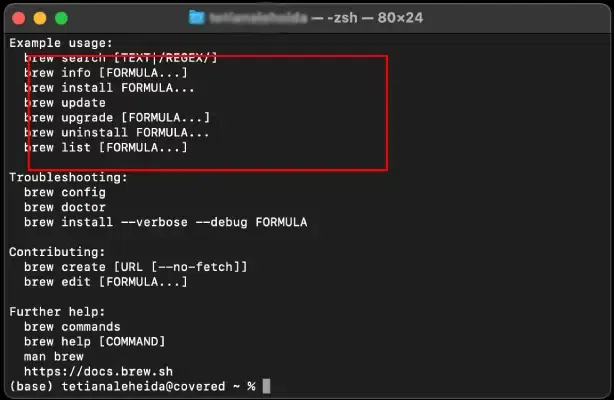
brew install nodeOnce the installation is complete, you may check if Node.js and npm are successfully installed by running:
node -vnpm -v
Node js offer users to get the download done from it's official website as well and this might be the simplest method to download and install Node in your system.
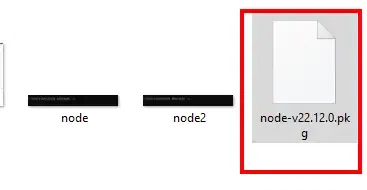
Visit the Node.js official site and download the macOS installer for either the LTS v22.12.0 or Currentversion v23.3.0
Open the downloaded .pkg file and follow the instructions to complete the installation.
Once installed, open Terminal and check the Node.js and npm versions:
node -vnpm -v
Step 1: Install NVM
Run the following command to install NVM (a version manager for Node.js):
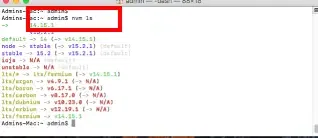
curl -o- https://raw.githubusercontent.com/nvm-sh/nvm/v0.39.0/install.sh | bashStep 2: Install Node.js Using NVM v22.12.0 (LTS)
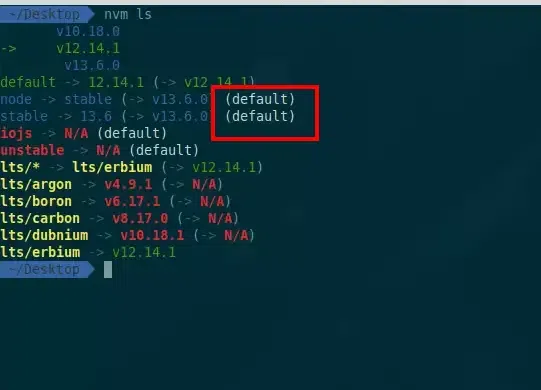
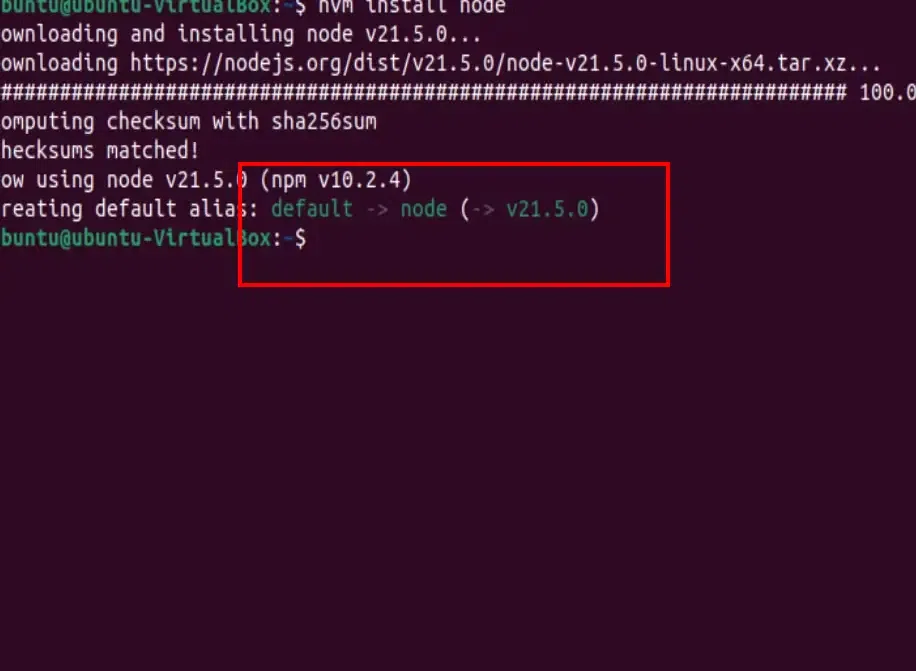
After NVM is installed, you can install any version of Node.js:
nvm install node # Installs the latest version of Node.jsAlso, you can verify Installation using the following command
node -vnpm -v
Now, we'll be discussing the 3 methods to Install Node on your Linux system.
Go to Terminal and execute the following command:
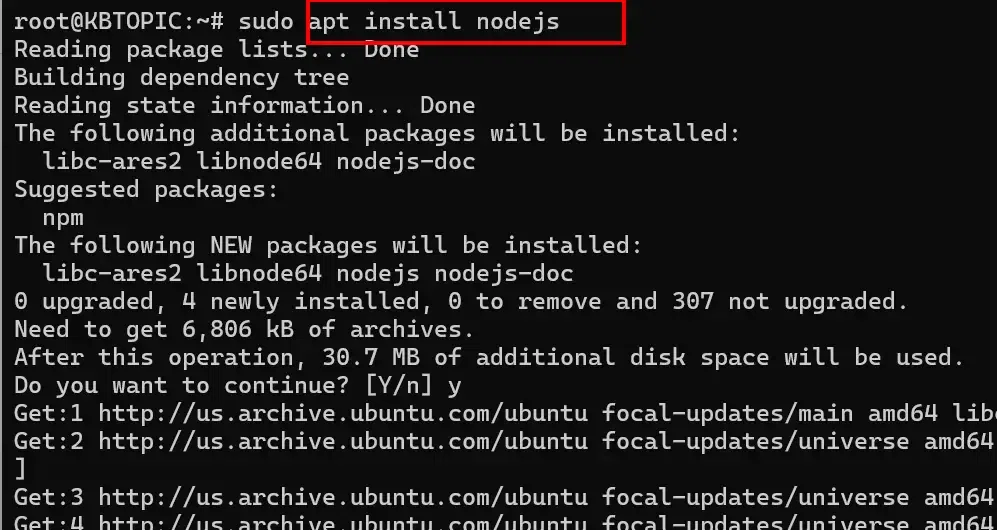
sudo apt updateNow, run the following command to Install Node.js and npm:
sudo apt install Node.js npmOnce the installation is complete, you may check the installed versions using the following command:
node -vnpm -v
Open Terminal and run
sudo dnf install Node.jsAfter installation, verify Node.js and npm by using the following command:
node -vnpm -v
Run this command to install NVM, which helps manage different versions of Node.js:
curl -o- https://raw.githubusercontent.com/nvm-sh/nvm/v0.39.0/install.sh | bashAfter installing NVM, run
nvm install node # Installs the latest versionRun the following command to verify node installation:
node -vnpm -v
If node or npm commands are not recognized, ensure Node.js is added to your system’s PATH. This is particularly common with manual installation methods.
When installing Node.js globally, you may face permission issues. You can resolve this by running the commands with sudo (on Linux/macOS) or by using an administrator account (on Windows). Alternatively, use NVM to avoid these problems.
If you're using an outdated version of Node.js or npm, you can upgrade to the latest version by running:
npm install -g npm