|
VOOZH | about |
|
VOOZH | about |
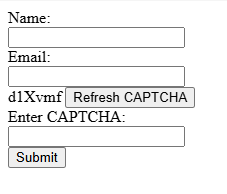
To add CAPTCHA functionality to a preexisting contact form using JavaScript, you can create a simple text-based CAPTCHA or use a third-party service like Google reCAPTCHA. Here is how you can add a basic text-based CAPTCHA manually using JavaScript:
Output:
div to display the CAPTCHA and a button to refresh it.generateCaptcha() generates a random string of 6 alphanumeric characters.displayCaptcha() sets the CAPTCHA text in the appropriate <span>.To integrate Google reCAPTCHA, follow these steps:
1. Sign Up for Google reCAPTCHA and obtain site and secret keys.
2. Include the reCAPTCHA Script in your HTML:
3. Add the reCAPTCHA Widget to your form:
4. Verify reCAPTCHA on the Server Side after form submission by sending a POST request to Google's reCAPTCHA API for validation.
This provides more robust protection and is widely used for preventing spam and automated submissions