|
VOOZH | about |
|
VOOZH | about |
You may be wondering how a website looks with or without JavaScript. On Chrome, JavaScript is enabled by default, but you can disable it fairly quickly to see the impact on a site's functionality and appearance.
Modern websites rely heavily on JavaScript to provide dynamic content and interactive features. Here are some reasons to consider:
The easiest way to access the JavaScript options menu on Google Chrome is by entering this URL in the address bar in Chrome. Alternatively, you can follow the following series of steps to reach the Javascript option on the settings page.
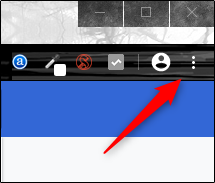
Step 1: Select the three vertical dots icon in the top-right corner of the browser window.
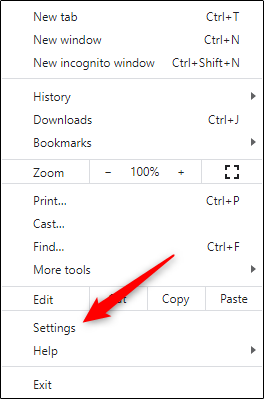
Step 2:Towards the bottom of the drop-down menu that appears, select Settings.
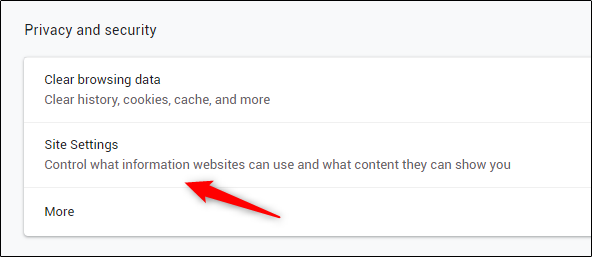
👁 Select Setting OptionStep 3: Find the Privacy and Security section and select Site Settings.
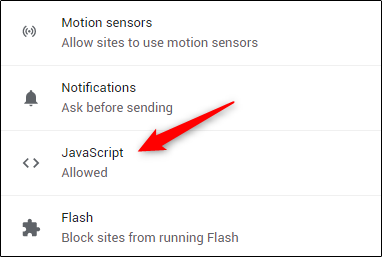
👁 Site SettingsStep 4: Finally, click JavaScript in the Permissions group.
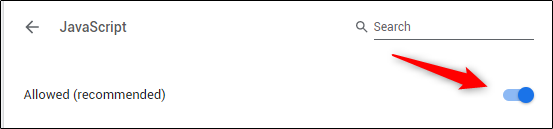
👁 Permissions GroupStep 5: By default, JavaScript is enabled. To disable JavaScript, move the slider to the left (by clicking it) next to the Allowed option. Enable JavaScript again by moving the slider back to the right.
👁 Enable or Disable JavascriptAs previously mentioned, you can also enable or disable JavaScript for specific sites. To do this, follow the following steps.
Step 1: Navigate back to the JavaScript settings menu in Chrome by going to this URL
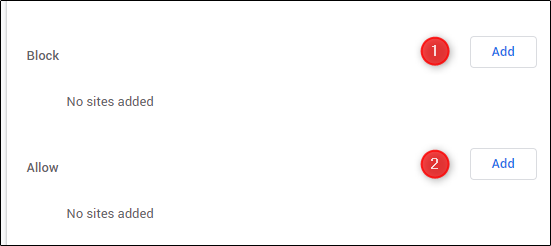
Step 2: You’ll see a Block and Allow section. Select Add next to Block (1) or Allow (2), depending on if you want to disable or enable JavaScript on a site, respectively.
Step 3:The Add A Site window will now appear. Enter the site URL, then select the Add button.
Step 4: The site will now appear in your Block or Allow list, meaning that next time you visit that site, JavaScript will be disabled or enabled, respectively.
If JavaScript is enabled on Chrome and you’re wanting to see what a specific site looks like without going through the settings menu, you can disable JavaScript from Chrome’s DevTools while you’re on that site. This should only be used for testing purposes, though, as JavaScript will be re-enabled on the site once you close DevTools.
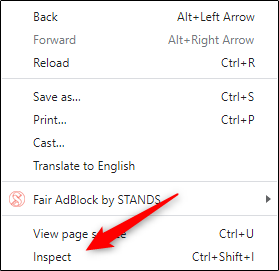
Step 1: While you’re on the site, Open DevTools. You can do this by right-clicking anywhere on the site and selecting Inspect.
Step 2: Alternatively, you can use the Control+Shift+3 (Windows) or Command+Option+3 (Mac) keyboard shortcut.
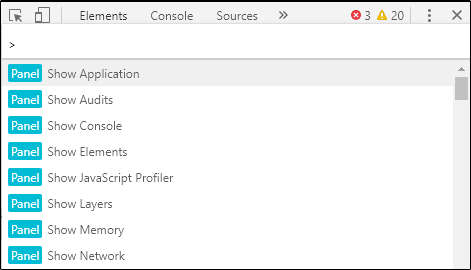
Step 3: Once you’re in DevTools, open the Command menu by pressing Control+Shift+P (Windows) or Command+Shift+P (Mac).
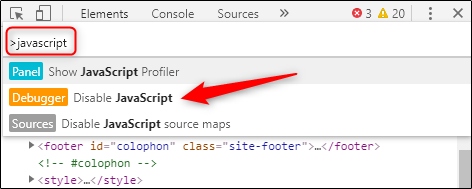
Step 4: In the search bar of the Command menu, type JavaScript, select Disable JavaScript, and then press the Enter key to run the disable JavaScript command.
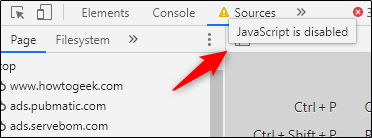
👁 Disable JavascriptStep 5: JavaScript is now disabled for this site. You can hover over the yellow warning icon next to the Sources tab to verify JavaScript is disabled.
👁 Javascript disabledBy adjusting these settings, you can easily enable or disable JavaScript to suit your browsing needs. Whether you're blocking ads, debugging a site, or ensuring full functionality, Chrome makes it simple to manage JavaScript preferences.