|
VOOZH | about |
|
VOOZH | about |
To get the height of an element, there are five common methods in JavaScript. Lets see the differences between each and when they should be used. Only the last method gives the correct rendered height instead of the layout height.
Rendered height is the height that the element gets finally after all the styles and transformations are applied on that element. For example, An element has height of 100px and then gets a transform:scale(0.5). Its rendered height is 50px (after the transformation) and layout height is 100px.
style.height We can use style.height on any selected element and it will return its height. Does not include the padding, border or margin. Italways return the height along with the specific unit.Note: Only works if we explicitly set the height as inline using the style attribute in HTML.
Syntax:let height = document.getElementById("someId").style.height;
Example:
Output: It returns empty string for "div1" and it returns "100px" for "div2"
Conclusion: It returns whatever height is specified in inline style attribute only. It does not factor in any transformations, like scale. It is not reliable and as inline styles are not ideal.
jQuery(height, innerHeight, outerHeight) height() It returns the current height of the element. It does not include the padding, border or margin. It always returns a unit-less pixel value.Note: The height() will always return the content height, regardless of the value of CSS box-sizing property.
Syntax:let height = $("#div1").height();
👁 ImageExample 2:
Output: It returns unit-less pixel value as 100.
Output: 👁 Image let height = $("#div1").innerHeight();
👁 ImageExample 3:
Output: It returns 120 which is (10(top padding) + 100(content height) + 10(bottom-padding))
👁 Imagelet height = $("#div1").outerHeight();
let height = $("#div1").outerHeight();
👁 ImageExample 4:
Output:
(1(top border)+ 10(top padding)+ 100(content height)+1 0(bottom-padding)+ 1(bottom border)
👁 ImageNote: The value reported by height(), innerHeight() and outerHeight() is not guaranteed to be accurate when the element or its parent is hidden. To get accurate results, ensure the element is visible before using these methods. jQuery will attempt to temporarily show and then re-hide an element in order to measure its dimensions, but this is unreliable and (even when accurate) can significantly impact page performance. This show-and-rehide measurement feature may be removed in a future version of jQuery.
Conclusion:// If you need height of div excluding margin/padding/border
$('#div1').height();
// If you need height of div with padding but without border + margin
$('#div1').innerHeight();
// If you need height of div including padding and border
$('#div1').outerHeight();
// For including border + margin + padding, can use
$('#div1').outerHeight(true);
All these return only the layout height, .
clientHeight, offsetHeight, scrollHeight clientHeight() It returns the height of the displayed content from the element (including vertical padding but not border or margin or scrollbar). It always returns an integer value in pixels. If element is hidden, then 0 is returned. If its a scrollable element, then it will only give the height of the visible part. Syntax:let height = document.getElementById("div1").clientHeight;
👁 ImageExample 5:
Output:
It returns 120 which is (10(top padding) + 100(content height) + 10(bottom-padding)) 👁 ImageConclusion: If we want to find the height of the actual displayed content use clientHeight. It returns the layout height of the currently visible part of the element which is rounded to an integer value even if the result is a fraction.
offsetHeight() It returns the height that the element occupies including the vertical padding, border and scrollbars (if any). It does not include the margin. It always returns an integer value in pixels. If element is hidden, then 0 is returned.Note: It does not include the height of pseudo elements such as ::after or ::before
Syntax: let height = document.getElementById("div1").offsetHeight;
👁 ImageExample 6:
Output:
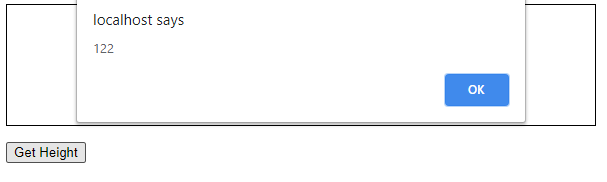
It returns 122 which is (1(border-top) + 10(padding-top )+ 100(contentHeight) + 10(padding-bottom) + 1(border-bottom))
👁 ImageConclusion: If you need to know the total height of an element occupies including the width of the visible content, scrollbars (if any), padding, and border, we can use offsetWidth. It returns the layout height of the currently visible part of the element which is rounded to an integer value.
scrollHeight() It returns the height of the entire content of an element, even if only part of it is visible due to scrollbars. It always returns an integer value in pixels. If the element is hidden, then 0 is returned.Its similar to clientHeight as it includes the element and its padding, but not its border, margin or horizontal scrollbar (if present). It can also include the height of pseudo-elements such as ::before or ::after. If the element's content can fit without a need for vertical scrollbar, its scrollHeight is equal to clientHeight.
Syntax:let height = document.getElementById("div1").scrollHeight
👁 ImageExample 7:
Output:
(1(border-top) + 10(padding-top) + entireContent(visible and not visible) + 10(padding-bottom)+ 1(border-bottom))
👁 ImageConclusion: If you need to know the actual size of the content, regardless of how much of it is currently visible, use scrollHeight. It includes the elements padding but not margin, border or scrollbar (if present). It returns rounded integer if the height is in fraction.
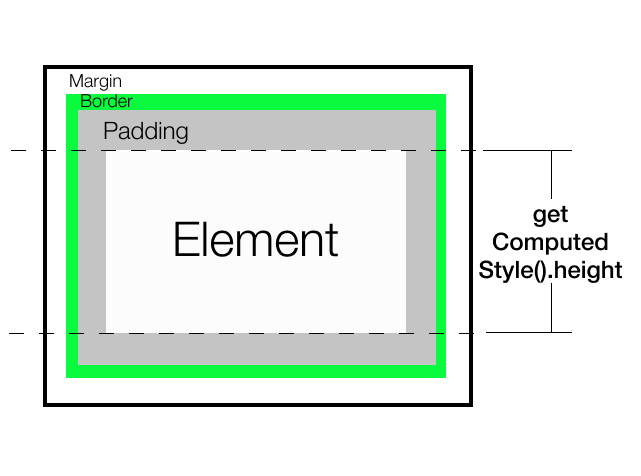
getComputedStyle() Method: The getComputedStyle() method basically allows us to retrieve the resolved CSS values of different properties. It returns a CSSStyleDeclaration object. The computed style is used in displaying the element, after "stylings" from multiple sources have been applied.getComputedStyle().height It will return the layout height specified not the rendered height. It returns fractional pixel value. It is a resolved value, so if we use 100%, it will return the equivalent resolved value in pixel. It only gives the content height. If we want, we can access each CSS property like margin-top, margin-bottom, padding-top, padding-bottom, border-top, border-bottom individually and add them as required.
Syntax:let height = getComputedStyle(document.getElementById("div1")).height;
or
let height = getComputedStyle(document.getElementById("div1"))
.getPropertyValue("height");
let marginTop = getComputedStyle(document.getElementById("div1"))
.getPropertyValue("margin-top");
let borderBottom = getComputedStyle(document.getElementById("div1"))
.getPropertyValue("border-bottom");
👁 ImageExample 8:
Output:
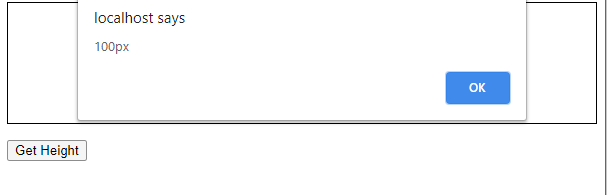
100px
👁 ImageConclusion: It allows for full control on what is selected but returns only the layout dimensions. It does not cause in any transforms. We can also target pseudo-elements if needed, by passing a second argument inside getComputedStyle() and get its specific styles as well.
Note: Different properties of the getComputedStyle() function have different support in different browsers.
getBoundingClientRect() Method: The getBoundingClientRect().height returns the height that the element occupies including the vertical padding, border and scrollbars (if any). It do not include the margin. Its similar to offsetHeight but it returns a fractional value instead and also displays the rendered height and not the layout height. Syntax:let height = document.getElementById("div1")
.getBoundingClientRect().height;👁 ImageExample 9:
Output:
It returns 122 which is (1(border-top) + 10(padding-top) + 100(contentHeight) + 10(padding-bottom) + 1(border-bottom))
👁 ImageConclusion: It is similar to offsetHeight but returns fractional value. It also gives rendered height instead of layout height. If we apply transform scale, the returned value will be different now.
Use getBoundingCLientRect().height If you need the final rendered height. Else you can use all other methods except style.height according to the requirement.