|
VOOZH | about |
|
VOOZH | about |
File Managers are something that is required to manage your daily activities quickly. Using file managers, you can copy, move, rename, and delete files, manage space, manage disks, etc. As a user, we all look for an easy and simple file manager to handle these tasks without having any trouble. Mostly default file managers come with simple UI but standard features.
However, you can also install different file managers that are full of rich features to meet your requirements. So if you are a Linux user and want to use different file managers, don't worry, as many such tools are available online. In this blog, we will explain everything about the top Linux file managers you can try today to manage your tasks.
👁 10 Best File Managers For LinuxHere, we will explore the top Linux file managers that stand out due to their popularity, features, and updates. Each entry includes a brief overview, key features, pros and cons, installation instructions, and suitable use cases.
Table of Content
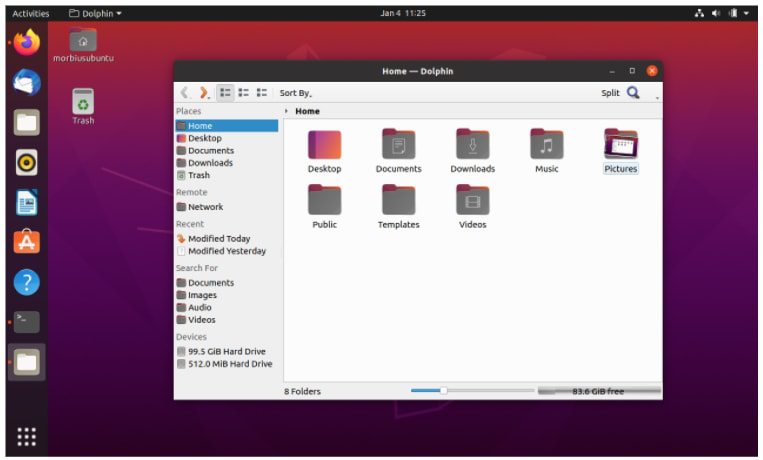
Dolphin is a file manager of KDE that you can install for free. It allows you to view the contents of your SD cards, USB drives, and hard drives with a simple UI. You can create, copy, move, rename, and delete files with high flexibility. Dolphin is a convenient file management tool that makes managing files much more accessible.
If you want to extend its abilities using different plugins, you can download them from its official website. Mainly, tree view, grid view, and detail view are three view modes of Dolphin. You can use Dolphin as a single file manager for both network and local files stored in your Linux machine.
You can use the following commands or visit the official website to download and install Dolphin Linux:
For Ubuntu:
apt install dolphinFor Fedora:
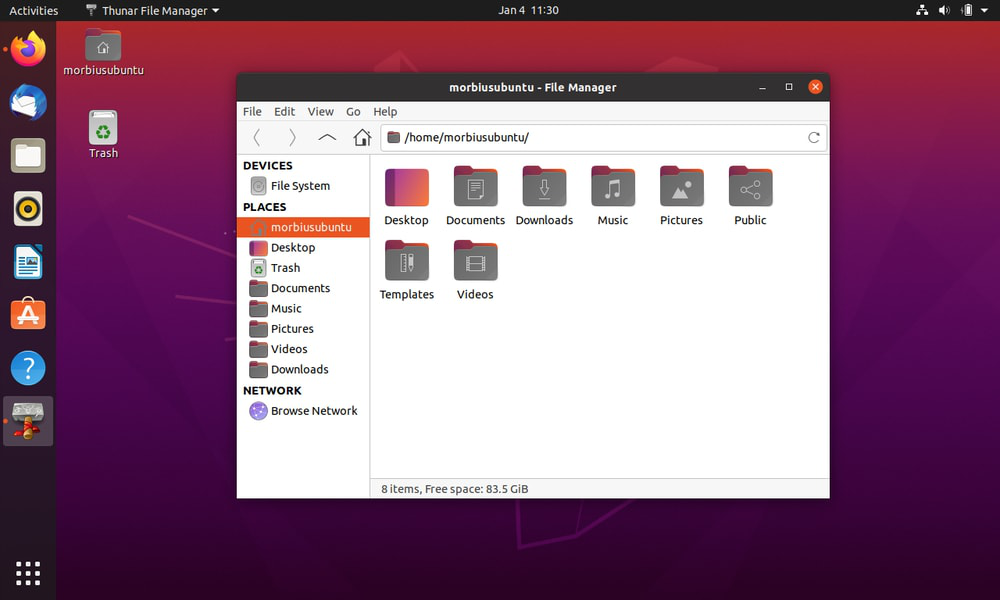
dnf install dolphinThunar is a fantastic file manager that is designed to be faster and more responsive than other file managers. It is developed for the XFCE Desktop Environment and loaded with the GNOME accessibility toolkit to offer higher accessibility. The name "Thunar" is adopted from the Norse Mythology, where Thunar is the god of thunder that uses a hammer called Mjölnir.
You can either download Thunar from its official website or execute the below commands in the terminal:
For Ubuntu:
apt install thunarFor Fedora:
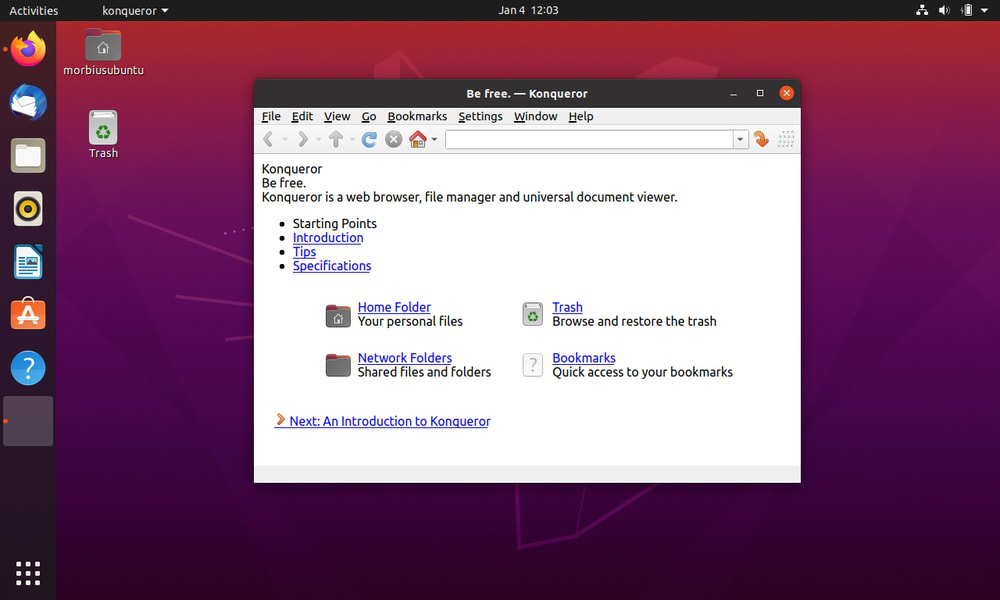
dnf install thunarKonqueror is a unique, free, and open-source file manager that offers web access through its web browser system. So you access local files and network files from the single file manager. The word "Konqueror" refers to a conqueror that can fulfill the requirement of both web browsers (Explorer) and file managers (Navigator).
Both Dolphin and Konqueror have developed under KDE, but Dolphin replaced Konqueror as a default KDE file manager after KDE 4.
Konqueror has a simple UI by which you can copy, move, search and delete the files quickly. Additionally, it has some advanced functions like SMB shares, archive access, SFTP and FTP access, and many more.
You can download Konqueror from its official website or execute the following commands for it:
For Ubuntu:
apt install konquerorFor Fedora:
dnf install konquerorNemo is an open-source, fully-featured, and free file manager that offers a clean, fast, and simple GUI interface. It was developed by Linux Mint and first released in September 2012. For the Cinnamon desktop environment, Nemo is the default file manager.
Nemo uses both GVf ( GNOME Virtual file system) and GIO (Gnome Input/Output) for the best performance. It has a dual-pane mode by which you can easily move, copy, and paste files or folders. With this file manager, you can access both network and local files from the same window. It supports various bookmark management capabilities and powerful navigation options.
You can run the below command in terminal or visit the Github page of Nemo to download and install it:
For Ubuntu:
apt install nemoFor Fedora:
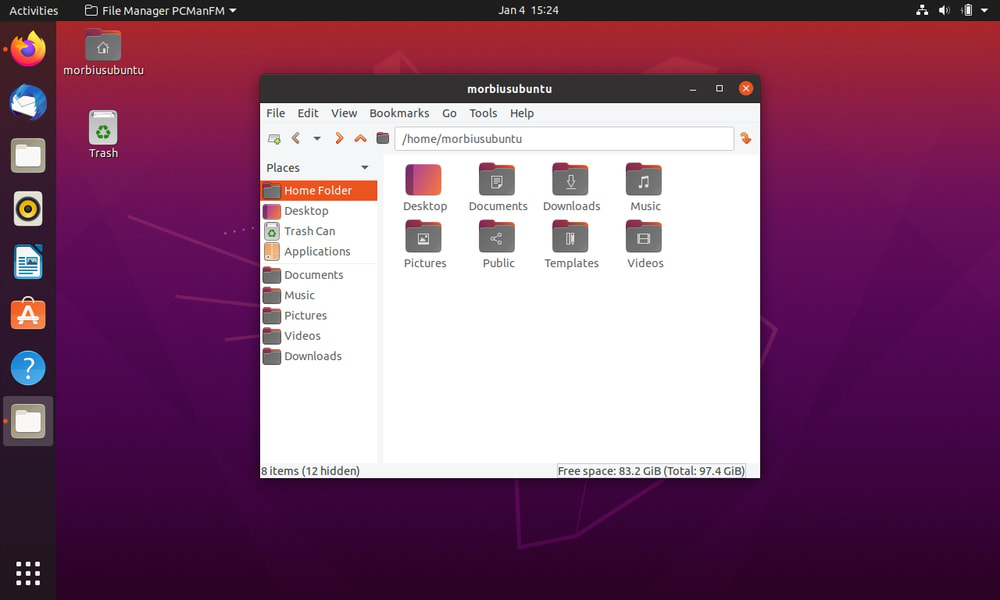
dnf install nemoPCManFM or PCMan File Manager was developed to replace Thunar, Konqueror, and Nautilus. It is a lightweight file manager, but it is loaded with tons of features like other file managers in Linux.
In 2010, developers redesigned Nemo by rewriting it from scratch and configuring it differently. That's why the latest PCManFM is entirely different from its older versions. It is a free-to-use tool that was released under the GNU General Public License. The latest PCManFM-Qt works as a core component of LXQt, but the ArchLinux community moved PCManFM to GTK 3 in 2020.
You can install it by executing the following commands in the terminal:
For Ubuntu:
apt install pcmanfmFor Fedora:
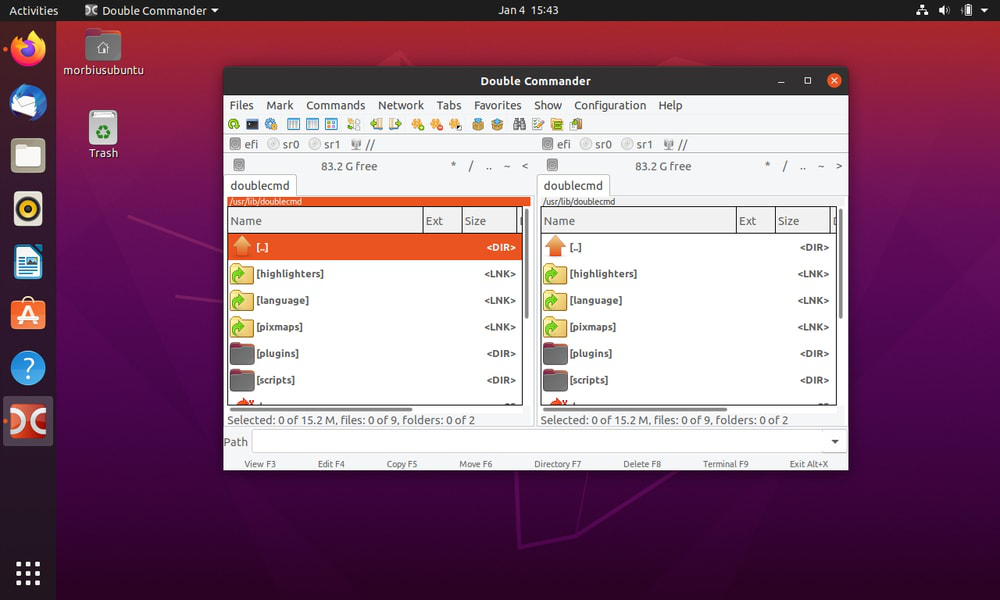
dnf install pcmanfmDouble Commander is a free-to-use file manager that you can use on both Windows and Linux. It is based on the Total Commander file manager, which is only operable on Windows. Double Commander is an in-built text editor that comes with the syntax highlighting option.
You can easily create, maintain and display the file components due to its simple interface. It can automatically queue the operations in the background so that a user can work without facing any pop-ups. Although it was released on December 26, 2007, updates are made regularly so that glitches and bugs do not occur.
You can directly download Double Commander from here or execute the following command in the terminal for it:
For Ubuntu:
apt install doublecmd-gtkFor Fedora:
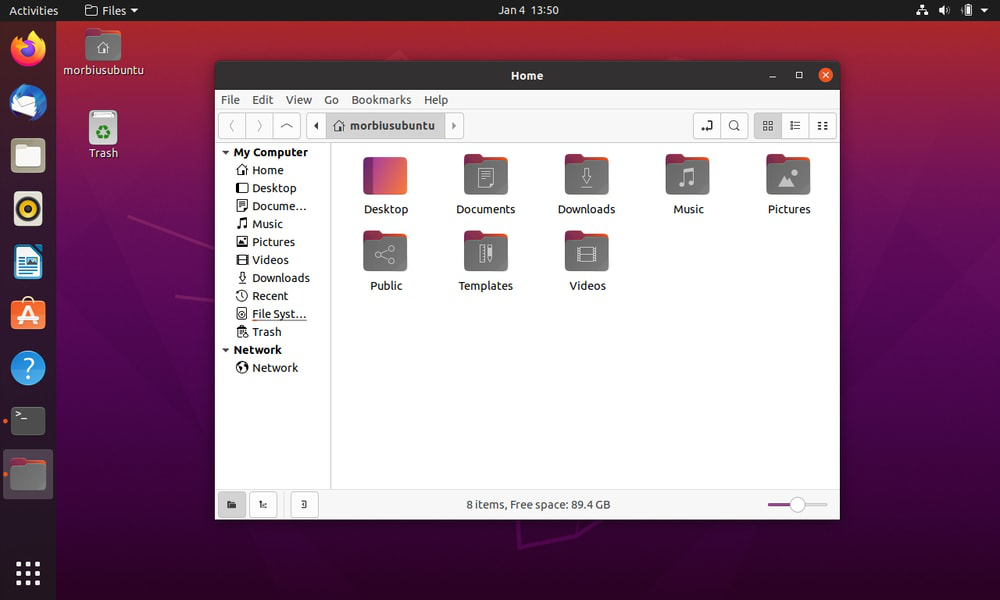
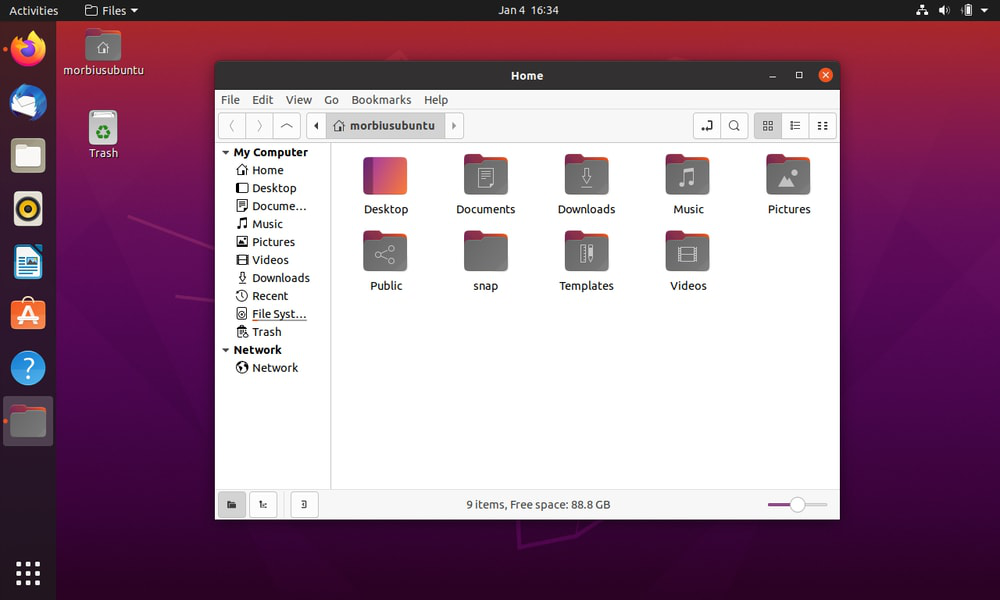
dnf install doublecmd-gtkGNOME Files is the official file manager of the GNOME desktop, which was initially recognized as "Nautilus." It has a simple interface but is loaded with tons of features. You can access both local and network files from this single file manager.
In GNOME Files, you can restore the deleted files easily. It is also very easy to search for files through its search features. Besides that, you can add various plugins to enhance its capabilities and features accordingly. GNOME Files uses an abstraction layer to browse local and remote file systems.
You can execute the following commands or visit its official download page to download it:
For Ubuntu:
apt install nautilusFor Fedora:
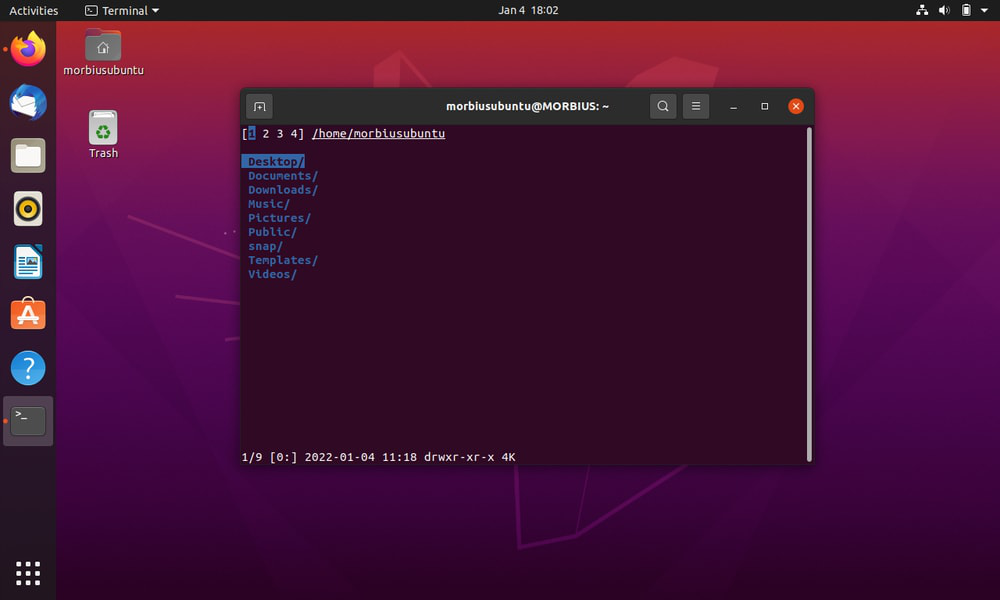
dnf install nautilusNnn or many people call it n³ is a free and CLI (Command-line Interface) file manager for Linux. It is loaded with multiple functions to make file management effortless for the user.
The primary goal of Nnn is to offer a platform that uses minimal space or memory for file management. Another benefit of this file manager is its low resource consumption. Additionally, you can add plugins to add extra features such as mounting disks, viewing files, etc. Nnn also comes with various additional features to provide an excellent file managing experience at low resources.
You can run the below command or visit the official Github page to download and install Nnn:
For Ubuntu:
apt install nnnFor Fedora:
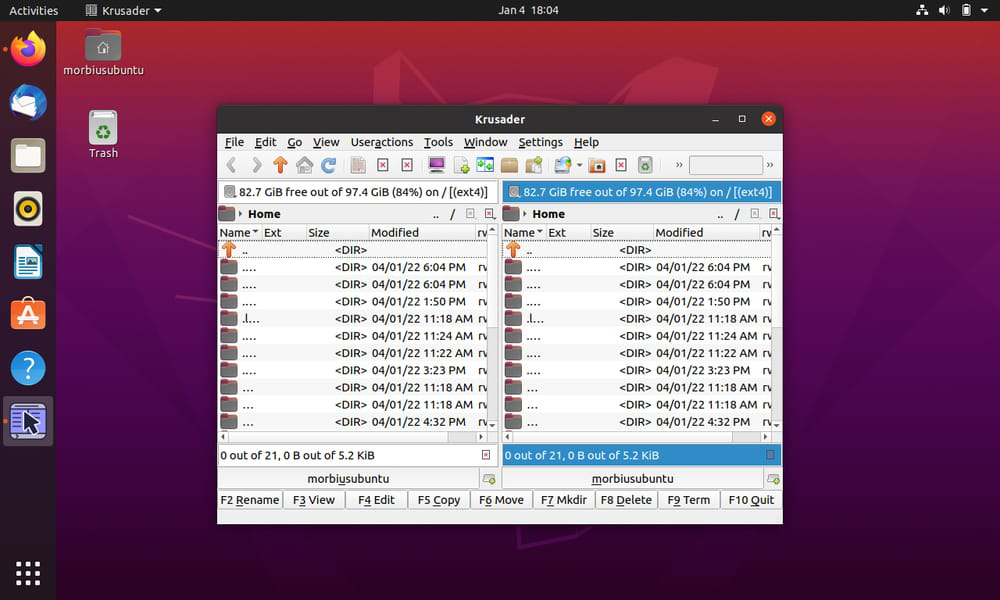
dnf install nnnKrusader is a highly advanced two-pane file manager that comes with multiple features and a simple UI. It is highly customizable, fast, user-friendly, and a simple file manager. Although it was last updated on August 25, 2019, it is still a popular Linux file manager.
It supports multiple archive formats including, bzip2, ZIP, ARJ, TAR, GZIP, LHA, 7Z, ACE, RPM, etc. Krusader can also handle KIO slaves like fish and SMB. Krusader has mounted filesystem support, advanced view/search/edit, batch remaining, directory synchronization, file content comparison options. You can also get multiple plugins from KDE Store to get additional capabilities in Krusader.
You can visit Krusader's official page or run the following commands to download and install it:
For Ubuntu:
apt install krusaderFor Fedora:
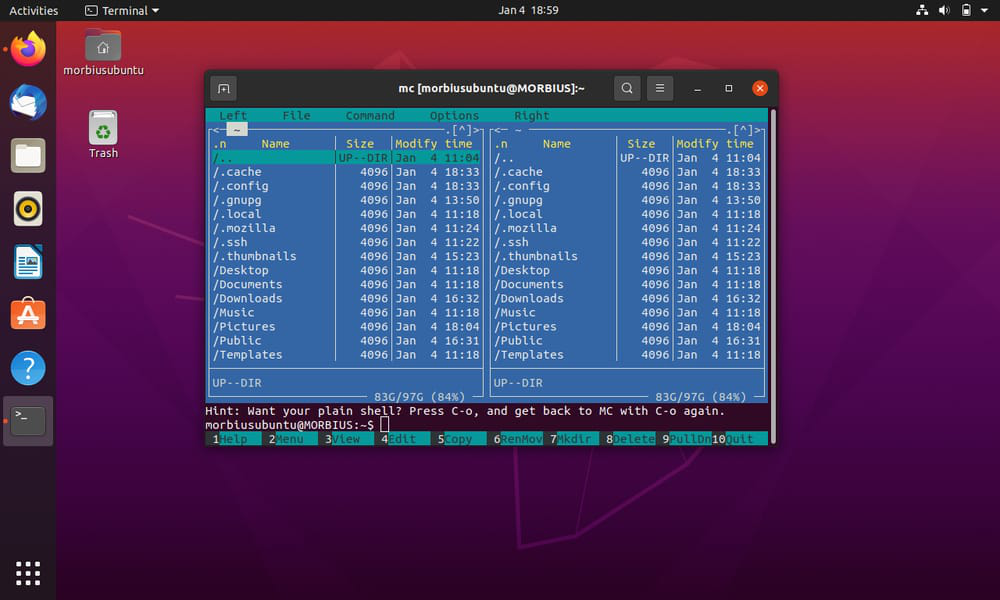
dnf install krusaderMidnight Commander is a CLI file manager that comes with cross-platform support. It is also known as GNU Midnight Commander as it is licensed under GNU General Public License.
Midnight Commander is a fully-featured file manager that allows you to easily move, copy, paste, delete, and rename files or folders. You can also run commands through the subshell and include file viewer and editor options. It has two different text-mode panes, so each displays the contents of the selected directories.
For Installing Midnight Commander, either execute the following command or download it from its official website:
For Ubuntu:
apt install mcFor Fedora:
dnf install mcChoosing the right file manager can significantly impact your productivity and workflow on Linux. If you prefer a lightweight tool like Thunar or a feature-packed manager like Dolphin or Double Commander, there is a solution for every use case. Undoubtedly, the above information will help you get a suitable Linux file manager that can fulfill your requirements. We have included the best file managers in Linux, which we used over the years...!!