|
VOOZH | about |
|
VOOZH | about |
The basename command in Linux is used to extract the file name from a full path by removing the directory path and optional suffix. It is commonly used in shell scripting and file handling to work only with the filename instead of the complete path.
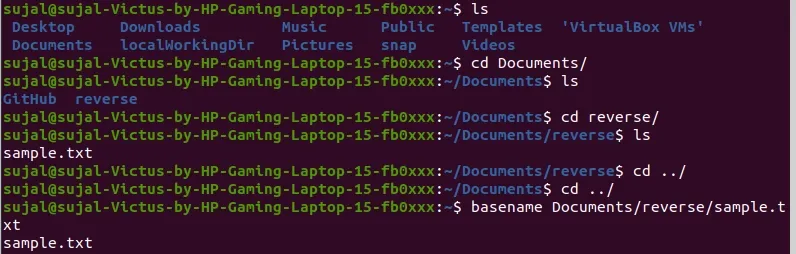
The basename command extracts only the filename from a full file path.
basename /home/user/filename.txtIn case you want to strip off the suffix of a file, this command removes the specified suffix (such as a file extension) from the filename.
basename /home/user/filename.txt .txtbasename [path] [suffix]The basename command in Linux provides a few useful options, mainly available in the GNU coreutils version. These options make it easier to handle multiple paths, remove suffixes, and control output formatting.
basename [options] file_path [suffix_to_remove]The -a option allows basename to process multiple files or paths at once. Each given path is treated separately, and only filenames are printed.
Syntax:
basename -a /path/filename1.txt /anotherpath/filename2.logThe -s option removes a specified suffix (like file extension) from the filename output.
Syntax:
basename -s .log /path/filename.logThe -z option prints the output separated by a NULL character instead of a newline. It is mainly used in scripting.
Syntax:
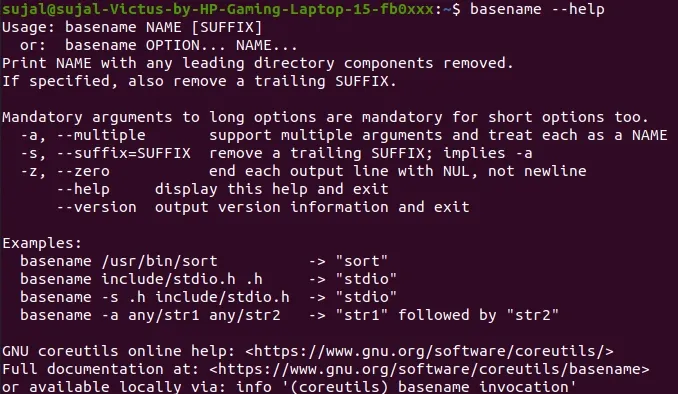
basename -z /path/filename.txtDisplays help information about the basename command and available options.
Syntax:
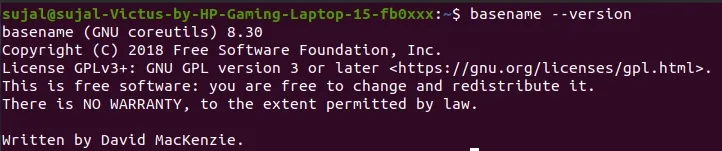
basename --helpIt shows the version information of the basename command.
Syntax:
basename --versionThe basename command is widely used in shell scripting, automation tasks, and file handling. Below are some common practical scenarios.
Many shell scripts use basename to extract only the filename from a full path.
file="/home/user/script.sh"
basename "$file"
Output :
script.shUseful when only the file name is required without its extension.
basename report.pdf .pdfOutput :
reportWhen working with many files, basename helps extract names quickly, especially with the -a option.
basename -a /home/user/a.txt /home/user/b.logOutput :
a.txt
b.log