|
VOOZH | about |
|
VOOZH | about |
The dir command in Linux is used to list the contents of a directory, providing an overview of the files and folders within it.
dir command differs from the ls command in the format of listing contents that is in default listing options. By default, dir command lists the files and folders in columns, sorted vertically and special characters are represented by backslash escape sequences. But unlike ls, when the output is on the terminal, it does not produce colored output as ls does.
dir [OPTION] [FILE] where,
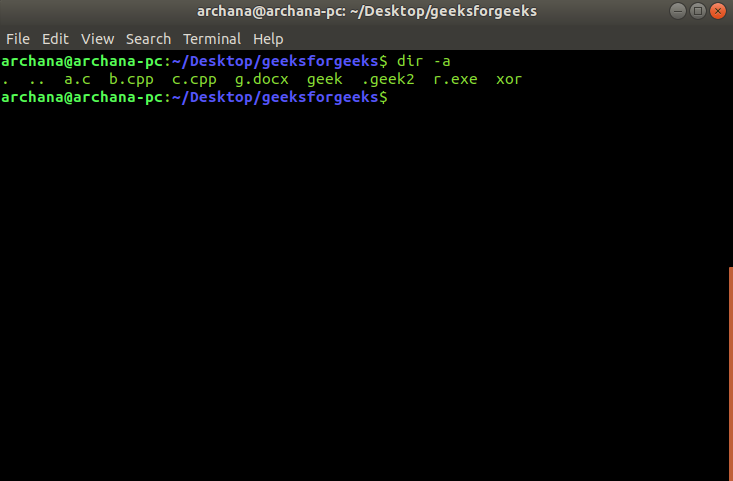
It displays all the hidden files(starting with `.`) along with two files denoted by `.` and `..` which signals for current and previous directory respectively.
dir -a Example:
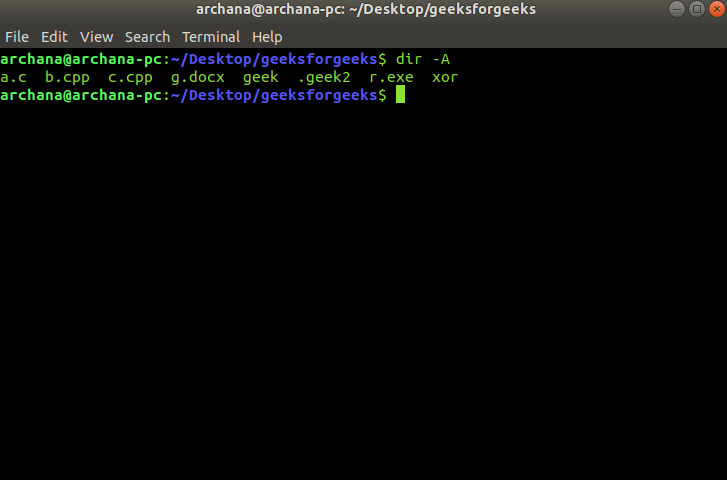
👁 Display All Files Including Hidden FilesIt is similar to -a option except that it does not display files that signals the current directory and previous directory.
dir -A Example:
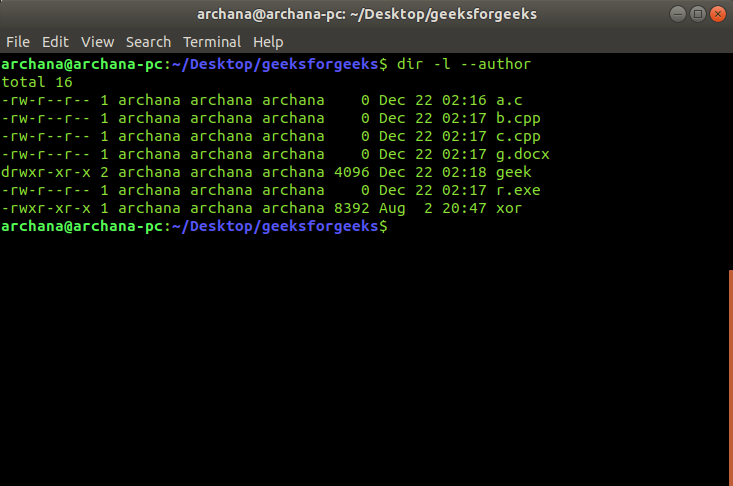
👁 Show Almost All FilesDisplays author of all the files. -l is required to display the contents in the form of a list.
dir -l --author Example:
👁 Display Author InformationIgnores listing of backed up files. These files end with a `~`.
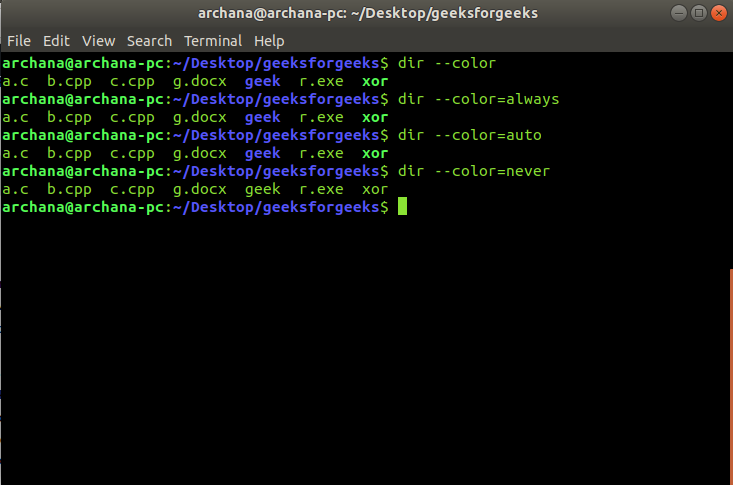
dir -B It is used to colorize the output (can be followed by =[TIME]). In the absence of time specification which can be auto, never or always, it colorizes the output always (default behavior).
dir --color Example:
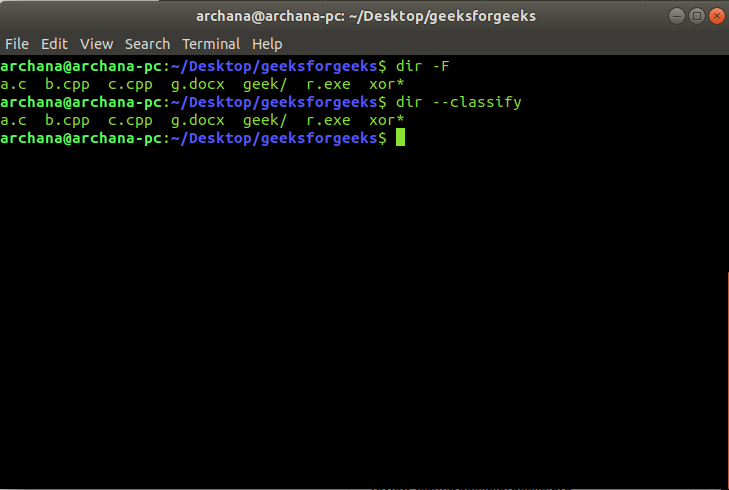
👁 Enable Colored OutputAppend indicator (one of */=>@|) to the file names which classifies them into their type. The meanings of symbols are as follows:
dir -F Example:
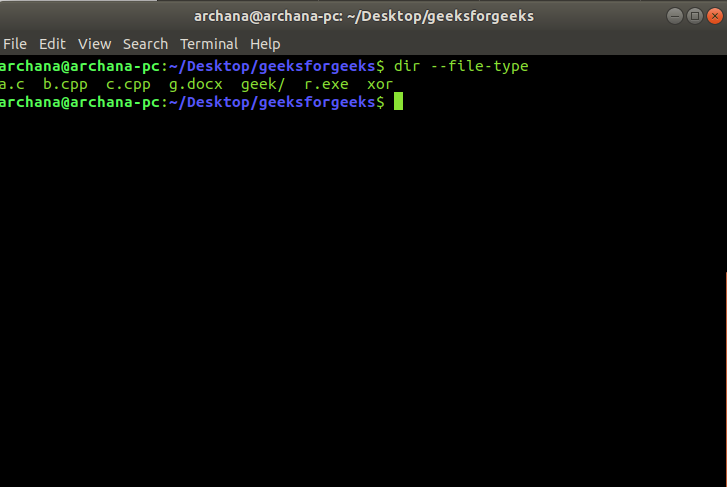
👁 ImageIt is same as -F option, except that it does not append `*` to the executables.
dir --file-type Example:
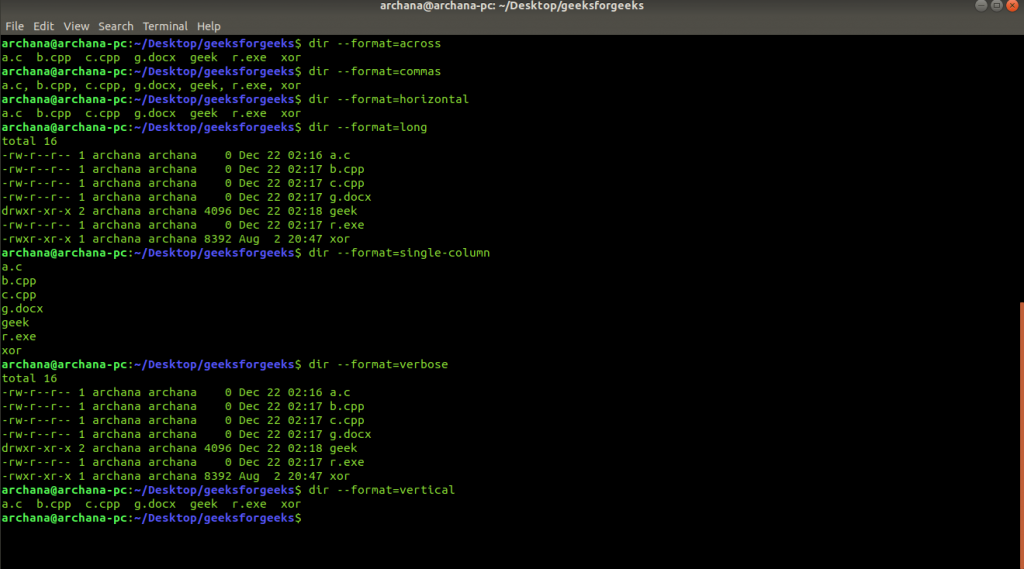
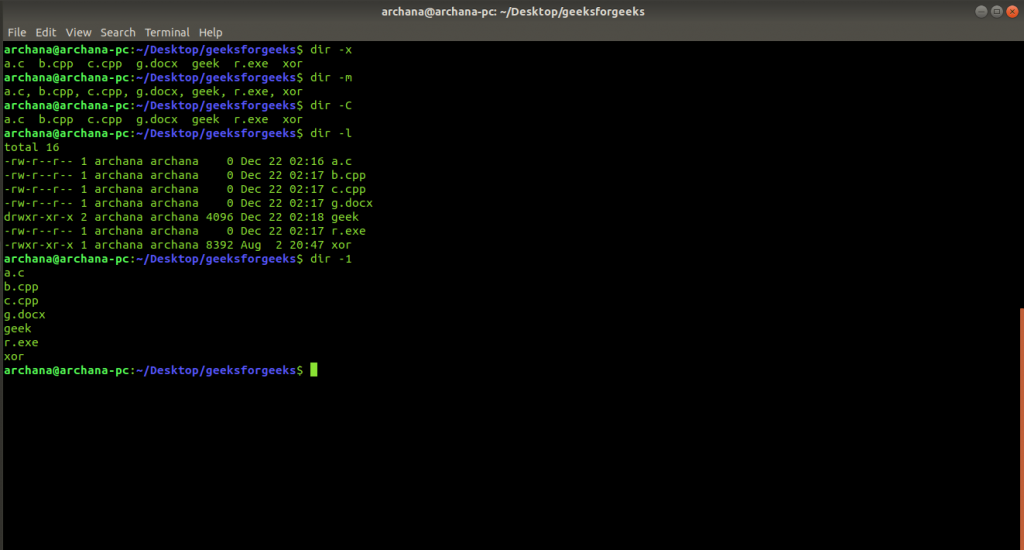
👁 Show File Types Without Executable IndicatorIt formats the listing of entries. The WORD can take the following values: across, commas, horizontal, long, single-column, verbose, vertical. The same can be achieved by passing -x, -m, -x, -l, -1, -l, -C options to dir command for each of the respective values.
dir --format=WORD Example 1:
👁 ImageExample 2:
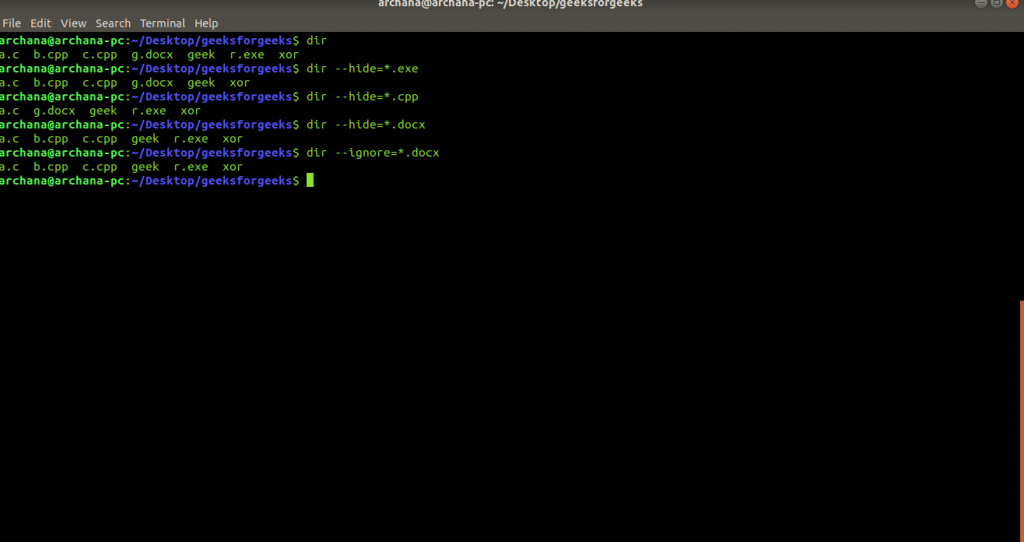
👁 ImageIt ignores files described by shell PATTERN while listing the contents of a directory.
dir --hide=PATTERN Example:
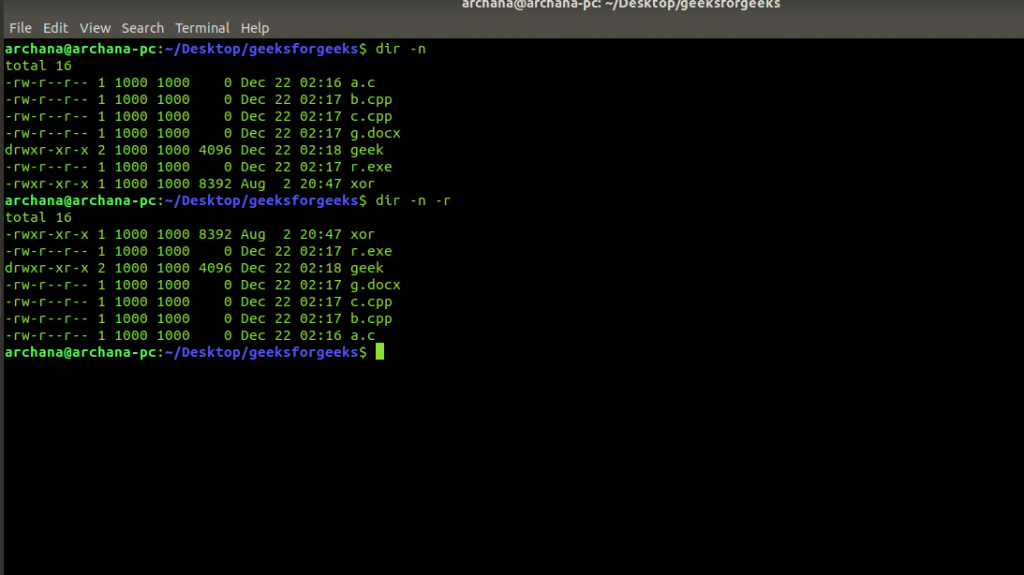
👁 ImageThis option is similar to the long listing that is -l option except that it lists numeric user and group IDs.
dir -n Use this option to list the files in reverse order based on the sorting criteria.
dir -r Example:
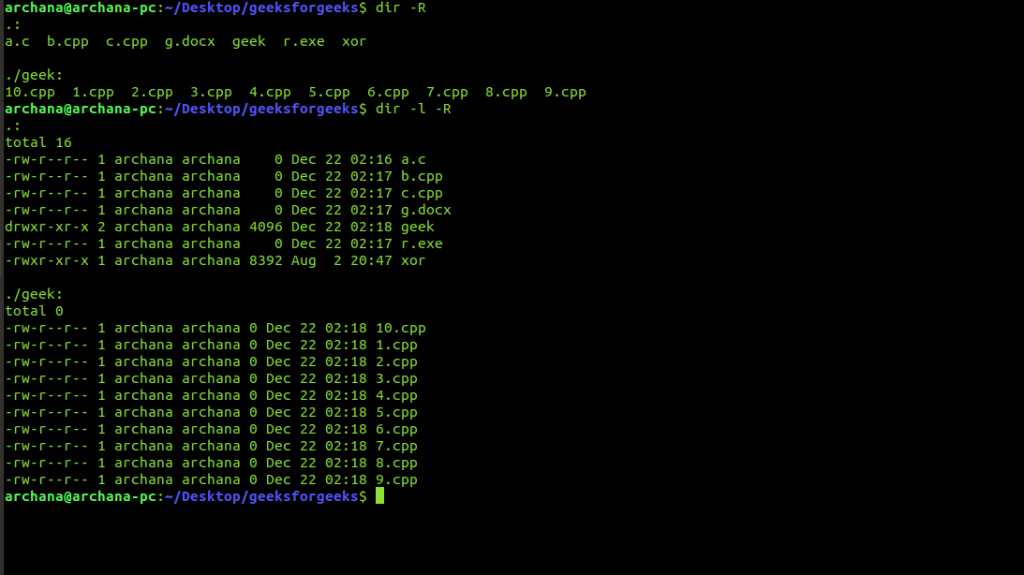
👁 List Subdirectories RecursivelyThe -R option lists all subdirectories recursively, making it useful for exploring directory structures.
dir -R Example:
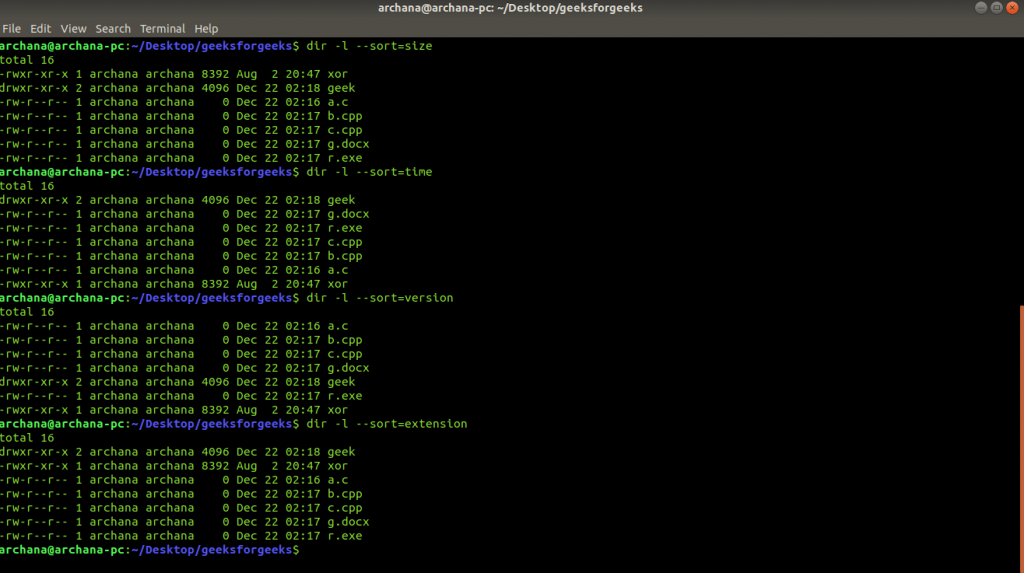
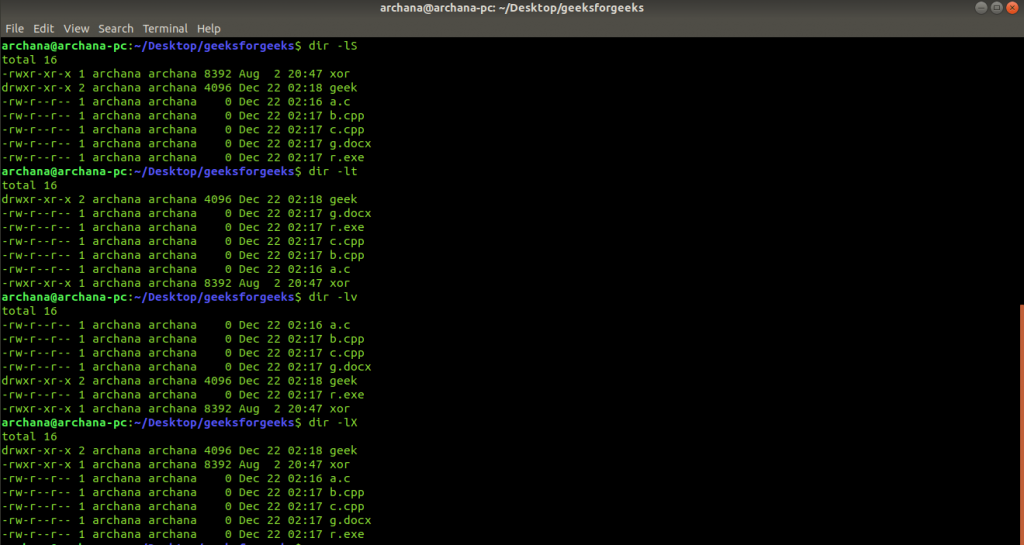
👁 List Subdirectories RecursivelyTo list files in a sorted manner described by the PARAMETER. The PARAMETER can take the following values: none (-U), size (-S), time (-t), version (-v), extension (-X). Instead of passing --sort option, the flags indicated in the brackets can directly be passed as options to sort the listing.
dir --sort=PARAMETER Example 1:
👁 ImageExample 2:
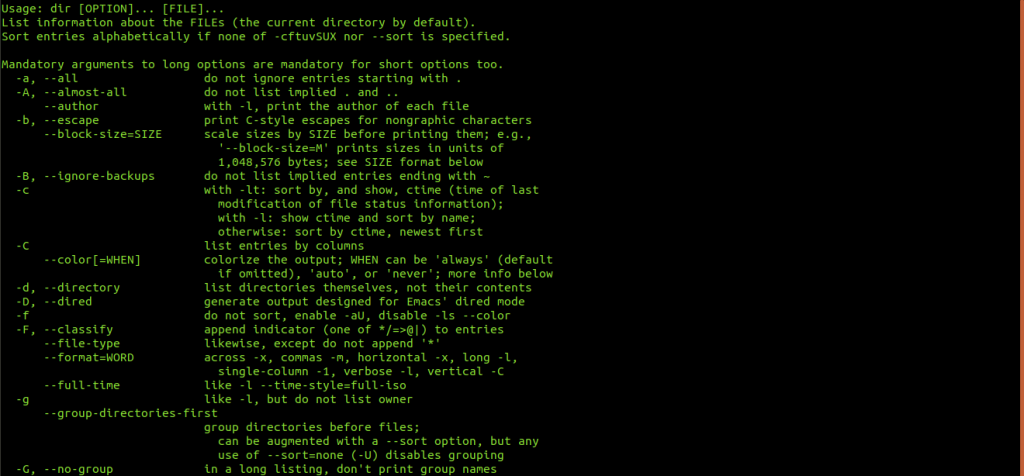
👁 ImageUse the --help option to display a list of all available options and exit.
dir --help Example:
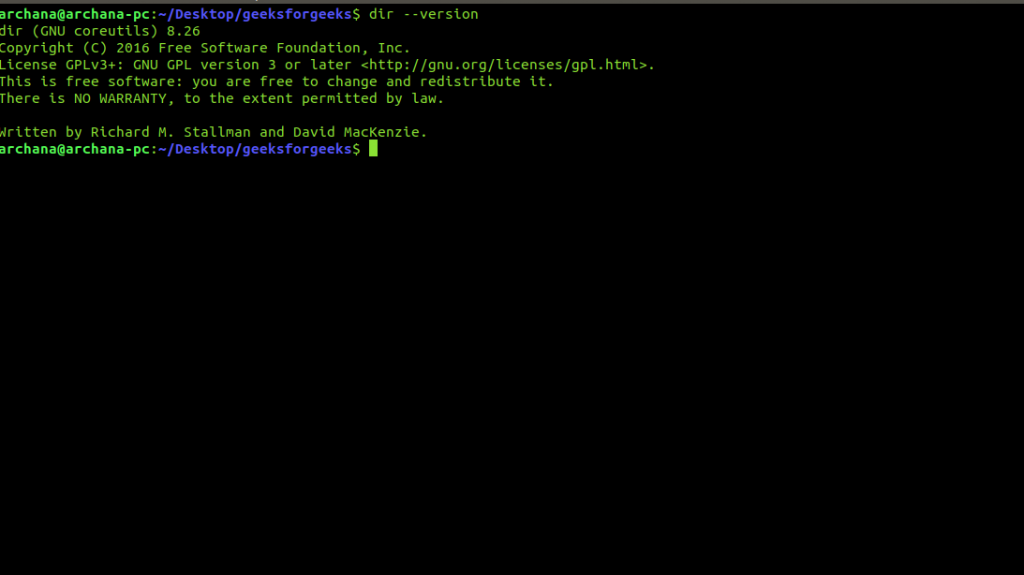
👁 Display Help InformationThe --version option displays the version of the dir command.
dir --version 👁 Show Version InformationThe dir command in Linux is a versatile and valuable tool for listing directory contents. It offers various options for displaying file information, sorting, and filtering results, making it a useful alternative to the ls command. By mastering the dir command, you can effectively navigate and manage your Linux filesystem.