|
VOOZH | about |
|
VOOZH | about |
Environment Variables (ENVs) are named key–value pairs used by the Linux/Unix operating system to control how the shell and applications behave. They store technical configuration data such as executable paths, user information, locale settings, and default tools. These variables are inherited by child processes, ensuring programs run with the correct environment settings.
Below are simple and commonly used examples to understand how environment variables are accessed and viewed in Linux. These examples start from the basics and build familiarity with real commands.
To display the current shell type by retrieving the value stored in the SHELL environment variable.
Command:
echo $SHELLOutput:
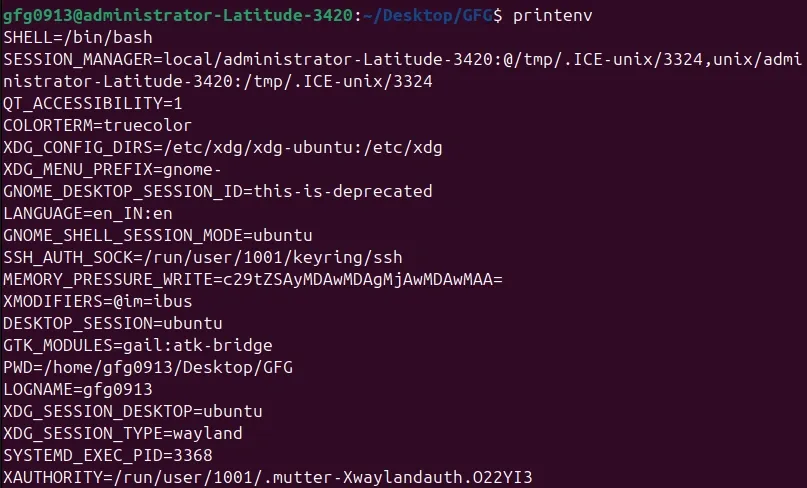
To list all exported environment variables currently available to the shell and child processes.
Command:
printenvOutput:
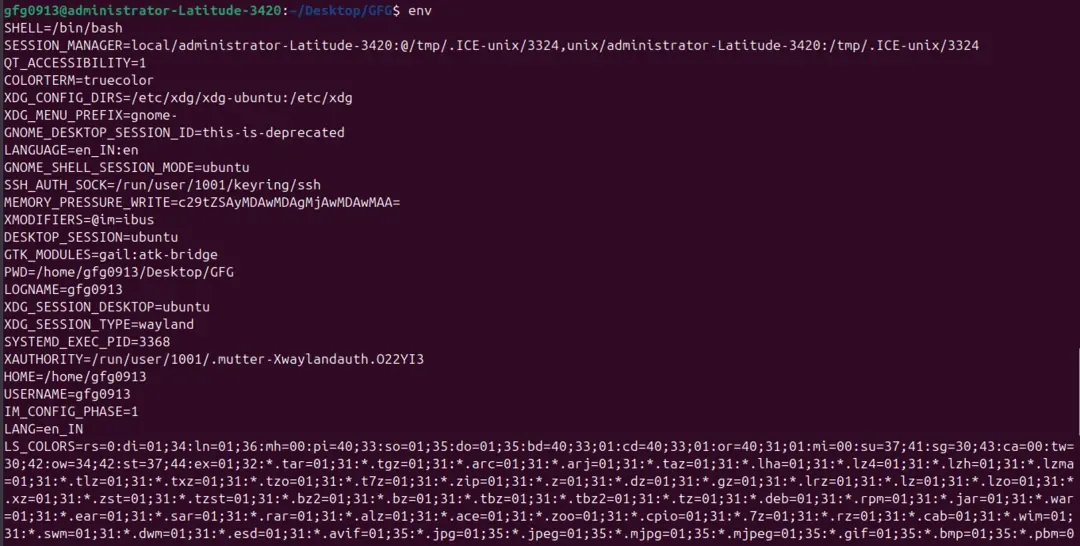
To display all global environment variables or prepare a temporary environment for running a command.
Command:
envOutput:
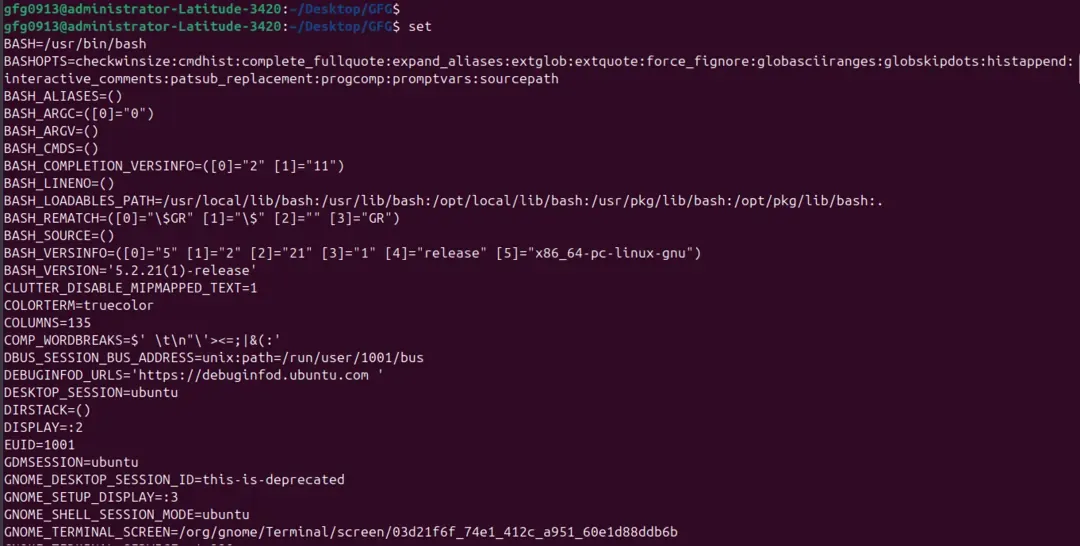
To display all shell variables, functions, and environment variables for debugging or inspection purposes.
Command:
setExpected Output (partial):
Environment variables are accessed using a simple and consistent syntax in the Linux shell. This syntax applies to both local shell variables and global environment variables.
$VARIABLE_NAMEIn Linux/Unix, variables store data for the shell and programs. There are two main types: shell (local) variables and environment (global) variables. Shell variables exist only in the current session, while environment variables are exported to child processes and can be used by programs and scripts.
Understanding the difference helps manage configurations and control program behaviour effectively.
Shell variables are created for temporary use within the current shell session. They help store values that are needed only while the shell is running.
Environment variables are shared with all programs and child processes started from the shell. They provide system-wide or session-wide configuration that persists across processes.
Example of Local vs Global:
# Local variable
NAME="Rahul"

# Global variable
export CITY="Delhi"

# Check variables
echo $NAME # Output: Rahul
echo $CITY # Output: Delhi
Environment variables in Linux can be set at different levels depending on their scope: local (shell session only), user-wide, or system-wide. The method used determines how long the variable persists and which programs can access it.
Local variables exist only in the current shell session and are not inherited by child processes. They are useful for temporary configurations.
Syntax:
NAME=valueExample:
# Set a local variable
GREETING="Hello World"

# Display its value
echo $GREETING
Output:
Global variables are exported to child processes and can be accessed by programs and scripts. They persist for the current shell session.
Syntax:
export NAME=valueExample:
# Set a global variable
export CITY="Delhi"

# Display its value
echo $CITY
Output:
User-wide environment variables are stored in user-specific configuration files such as ~/.bashrc, ~/.bash_profile, or ~/.profile. They persist across shell sessions and system restarts.
Follow these steps to set user-wide environment variables:
Step 1: Open the terminal
Step 2: Edit the file, for example:
nano ~/.bashrcStep 3: Add the variable using export:
export EDITOR=nanoStep 4: Save the file and apply changes:
source ~/.bashrcExample:
echo $EDITOROutput:
System-wide variables are available to all users and persist across reboots. They are defined in files like /etc/environment, /etc/profile, or /etc/profile.d/*.sh.
Follow these steps to set system-wide environment variables:
Step 1: Open the file with root privileges:
sudo nano /etc/environmentStep 2: Add the variable:
LANGUAGE=en_USStep 3: Save the file and log out and log back in to apply changes
Example:
echo $LANGUAGEOutput:
The $PATH environment variable is one of the most important variables in Linux/Unix. It stores a colon-separated list of directories where the system looks for executable programs when you type a command.
If a program is not in one of these directories, the shell will return “command not found.” Modifying $PATH allows you to run custom scripts or tools without typing the full path.
Never overwrite the existing $PATH, as it can break system commands. Instead, append your directory:
export PATH=$PATH:/opt/my_custom_tool/binExample:
echo $PATHExpected Output (after appending):
Sometimes you may need to remove an environment variable, either temporarily or permanently. Linux provides simple ways to unset or clear variables.
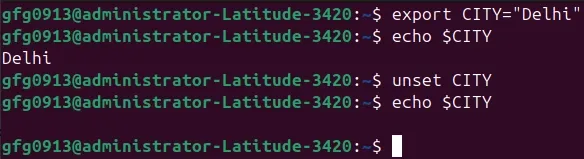
Sometimes you only need to remove a variable for the current shell session without affecting other sessions or system-wide settings. The unset command achieves this.
Syntax:
unset VARIABLE_NAMEExample:
# Set a variable
export CITY="Delhi"

# Remove the variable
unset CITY

# Check if it exists
echo $CITY
Output:
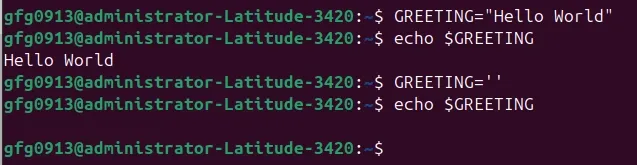
👁 unset-env(empty line)Sometimes you want to keep the variable name but remove its value for the current session. Assigning an empty string effectively clears it.
Syntax:
VARIABLE_NAME=''Example:
# Set a variable
GREETING="Hello World"

# Clear its value
GREETING=''

# Display value
echo $GREETING
Output:
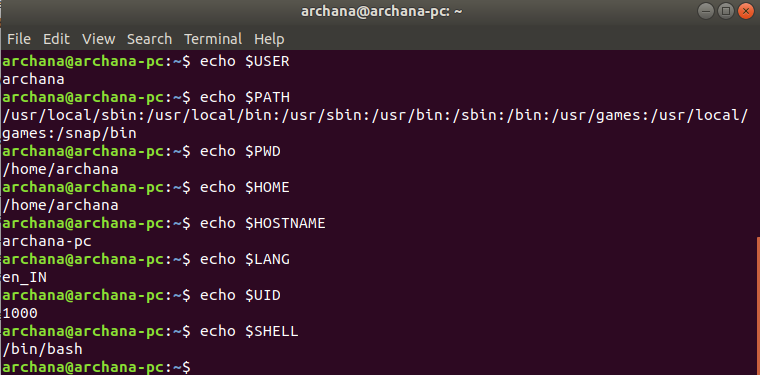
👁 empty-envLinux provides several built-in environment variables that store important information about the system, user, and shell. Knowing these variables helps you navigate, configure, and troubleshoot your system efficiently.
Example:
👁 Image| Variable | Description | Example Output |
| $USER | The username of the current user. | rahul |
| $HOME | The path to the user's home directory. | /home/rahul |
| $PWD | Present Working Directory.(Current working directory changes depending on where the user is in terminal.) | /var/www/html |
| $SHELL | The path to the current shell interpreter. | /bin/bash |
| $PATH | Directories searched for executable commands. | /usr/bin:/bin |
| $EDITOR | The default text editor used by tools like nano. | nano |
| $HOSTNAME | The network name of the machine. | web-server-01 |