|
VOOZH | about |
|
VOOZH | about |
The 'fdisk' command in Linux, short for "format disk," is a powerful, dialog-driven utility used for creating and manipulating the disk partition table. Essential for system administrators and users looking to manage their hard drive’s structure, 'fdisk' supports a range of operations such as creating, deleting, and resizing partitions.
Here, we will learn how to use fdisk effectively across various scenarios.
fdisk allows you to create a maximum of four primary partitions and the number of logical partitions depends on the size of the hard disk you are using. It allows the user:
fdisk [options] device
or
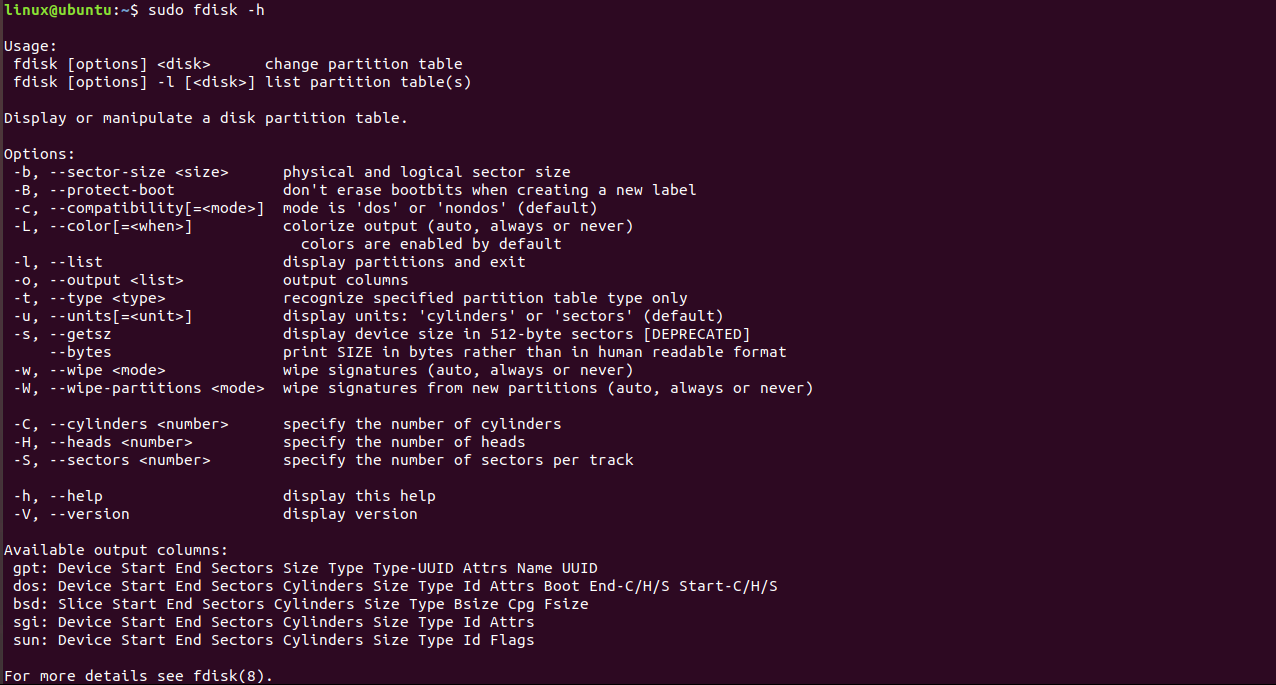
fdisk -l [device...]Here’s a breakdown of some commonly used options in 'fdisk':
Let us look at some of the ways in which 'fdisk' command can be used in Linux.
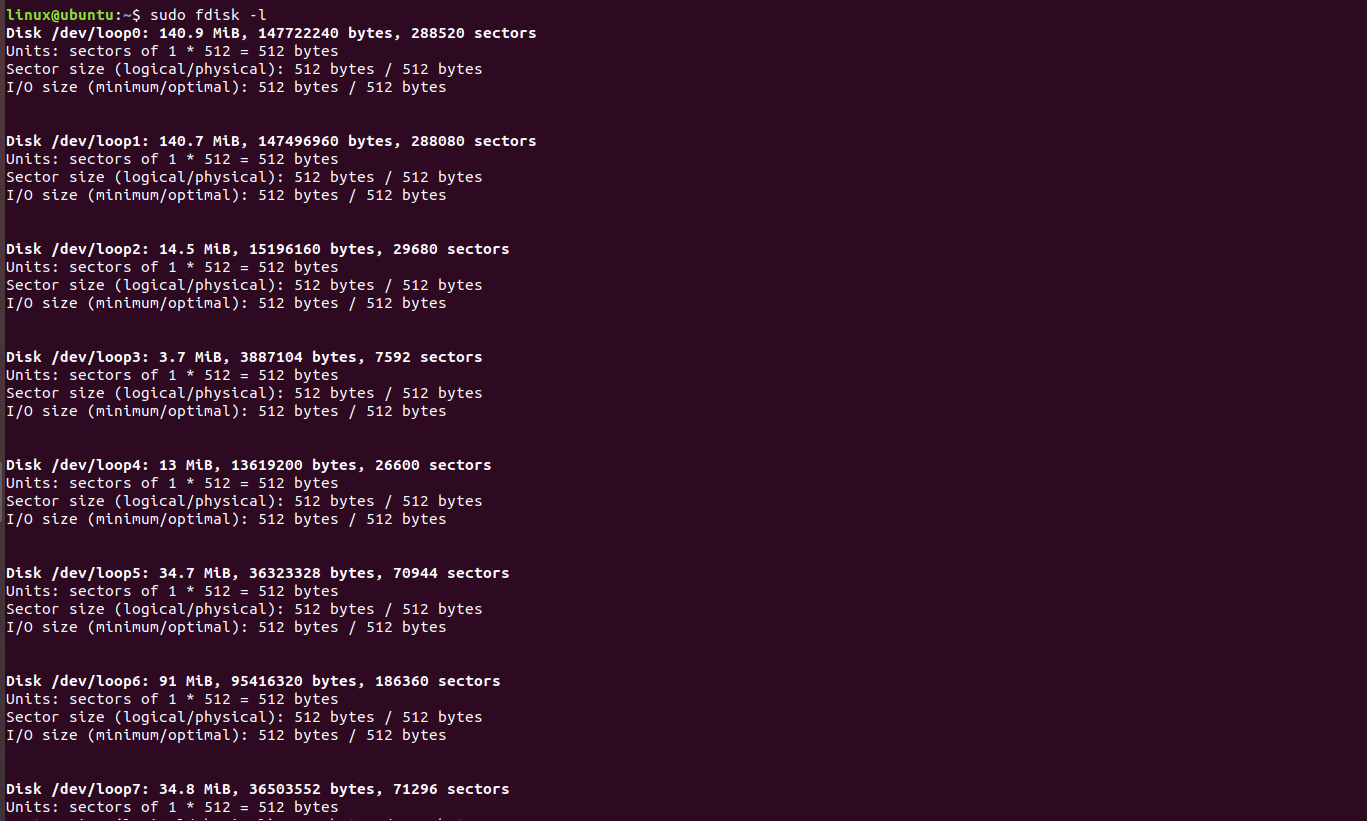
The first thing to do before doing any thing with the disks and partition is to view basic details about all available partition in the system. The below command is used to list the partitions on your system and see their /dev names. For example '/dev/sda', '/dev/sdb' or '/dev/sdc'.
$ sudo fdisk -l👁 Image
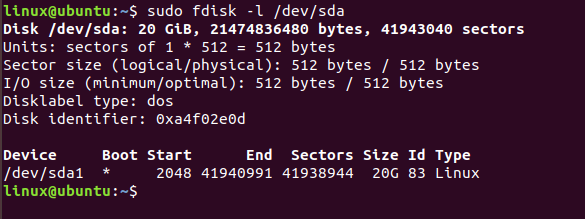
Below command is used to view all disk partitions on device '/dev/sda'.
$ sudo fdisk -l /dev/sda👁 Image
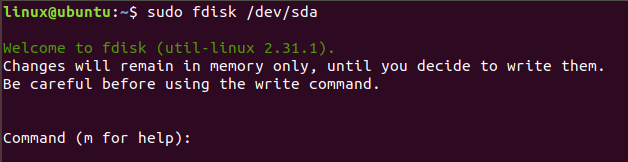
To see all the command which are available under fdisk command you can use '/dev/sda' partition with 'fdisk' command.
$ sudo fdisk /dev/sda👁 Image
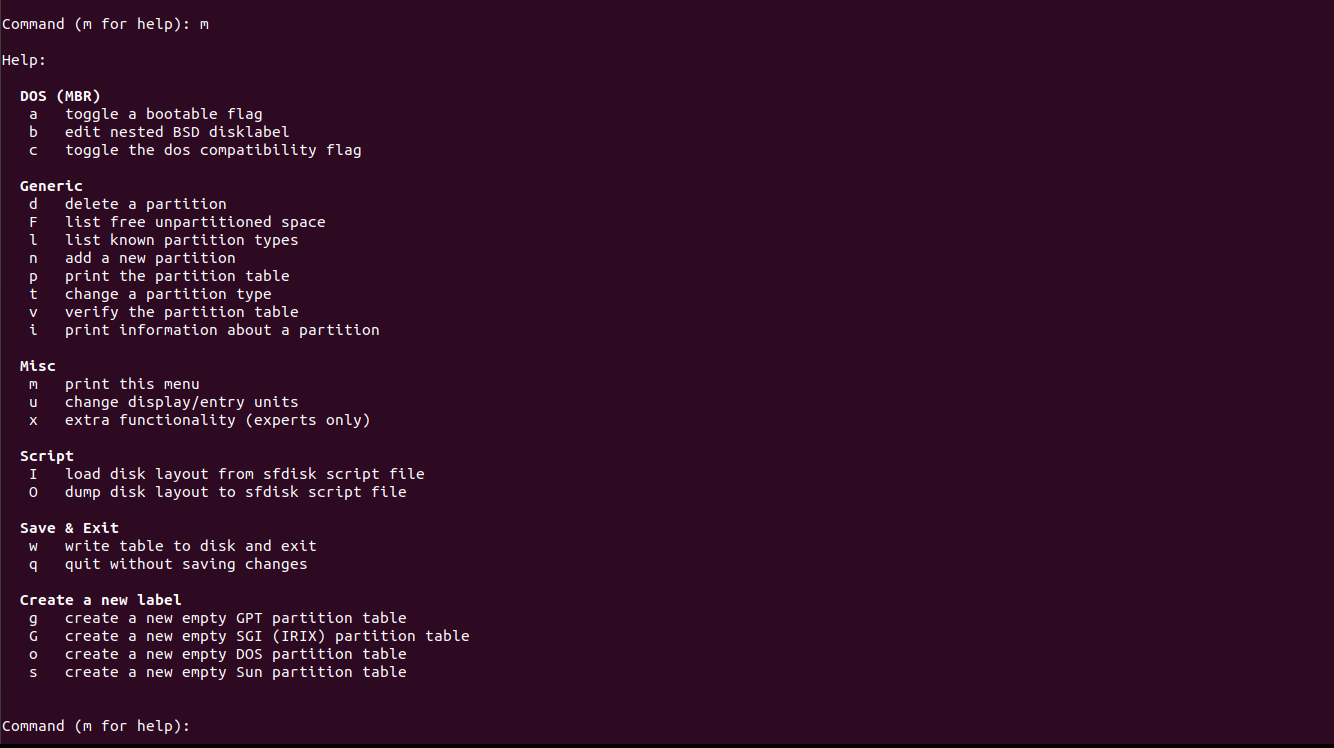
Note: This will prompt for a command. Type 'm' for seeing all the operations which can perform on '/dev/sda'. After pressing m you will get:
👁 ImageFor this go inside the hard drive partition that is the '/dev/sda' partition, and use the following command:
$ sudo fdisk /dev/sda
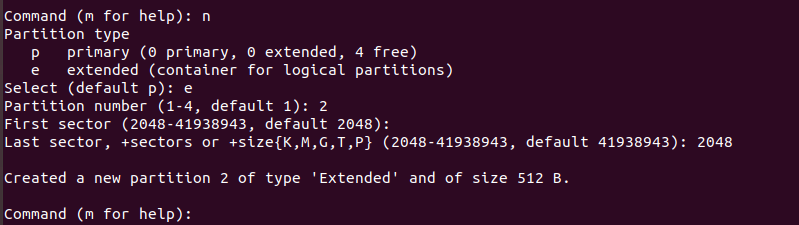
Now you have to type n to create new partition and then type 'p' for making a primary partition and 'e' for making an extended or logical partition depending on the type of partition to make.
👁 ImageRun 'w' command to write the changes and reboot your system.
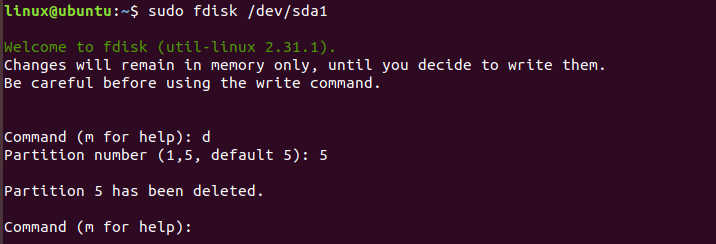
To delete a partition for the hard disk and free up space occupied by that partition for example '/dev/sdb'. Go to the command menu using following:
$ sudo fdisk /dev/sda
and then type 'd' to go to the delete partition menu. It will prompt the partition number you want to delete(type the number).
👁 ImageRun 'w' command to write the changes and reboot the system.
$ sudo fdisk -s /dev/sda👁 Image
Note:
$ man fdisk
$ sudo fdisk -h👁 Image