|
VOOZH | about |
|
VOOZH | about |
The find command in Linux is used to search for files and directories based on name, type, size, date, or other conditions. It scans the specified directory and its sub directories to locate files matching the given criteria.
Example : To find a file named "example.txt" in the home directory, you would use:
find ./gfg -name "sample.txt"This command will locate and display the path to the file if it exists in the specified directory or its subdirectories.
Syntax:
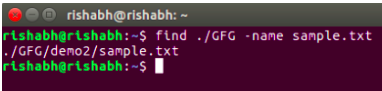
find [path] [options] [expression]~/Documents).-type for files/directories).This query is designed to identify a file within a designated directory. In the provided example, it seeks a file named "sample.txt" within the "GFG" directory.
find ./GFG -name sample.txt The find command traverses the specified directory (./GFG) and looks for a file named "sample.txt." If found, it displays the path to the file.
Output:
This command is use for discovering files within a directory that attach to a specific naming pattern. In this case, it identifies files ending with '.txt' within the "GFG" directory.
find ./GFG -name *.txt The command looks for files with names ending in '.txt' within the "GFG" directory, presenting a list of matching files.
Output:
This command not only locates a specified file but also prompts the user for confirmation before initiating its removal. The example seeks to delete a file named "sample.txt" within the "GFG" directory.
find ./GFG -name sample.txt -exec rm -i {} \; The -exec option executes the rm command on the located file, and the -i flag prompts the user for confirmation before deletion. When this command is entered, a prompt will come for confirmation, if you want to delete sample.txt or not. if you enter 'Y/y' it will delete the file.
Output :
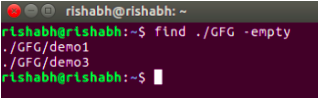
This query is tailored for discovering and listing empty files and directories within a specified directory.
find ./GFG -empty The `find` command identifies and lists all empty folders and files within the "GFG" directory or its subdirectories.
Output:
This command is used to locate files within a directory that have specific permissions. In the provided example, it identifies files with permissions set to 664 within the "GFG" directory.
find ./GFG -perm 664The command searches for files within the "GFG" directory with the specified permissions (664) and displays the results.
Output:
This command is utilized to display the hierarchical structure of repositories and sub-repositories within a given directory.
find . -type dThis command displays all the repositories and sub-repositories present in the current repository. In the below example, we are currently in a repository namely "GeeksforGeeks" which contains a repo "Linux", which contains sub-repo "LinuxCmds" which further contains a repo "FindCmd". The ouput of below cmd is simply displaying this info. Please note that in this case if you will use "ls" cmd then it will only show "/Linux".
Output:
This command is tailored for finding lines containing specific text within multiple files. The example looks for lines containing the word 'Geek' within all '.txt' files in the current directory and its subdirectories.
find ./ -type f -name "*.txt" -exec grep 'Geek' {} \;The command searches for '.txt' files (-type f and -name "*.txt") and uses grep to print lines containing the specified text ('Geek').
Output:
The -mtime option is handy for finding files based on their modification time. To find files modified within the last 7 days, you can use:
find /path/to/search -mtime -7This command will list files modified in the last week.
In this example we are searching changes in directory "/home/administrator/Downloads" which are done is past 7 days.
Find the files which is >100MB across the entire system. You can also change the file like 200M, 400M etc
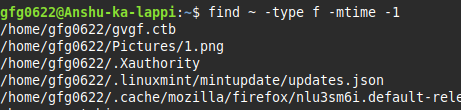
find / -type f -size +100M In this it shows the files edited in the last day. You can also change 2 days (-2).
find ~ -type f -mtime -1 ~: This represents your home directory.-type f: This option tells find to only look for files-mtime refers to the modification time of a file.-1 means "less than 1 day ago."This command is used to find and delete temporary files in the /tmp directory.
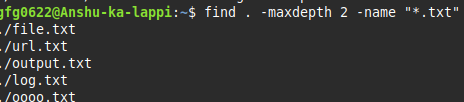
sudo find /tmp -type f -name "*.tmp" -exec rm {} \; In this we looks for config.yml only in the current directory and one subfolder deep or we can search any file with search depth.
find . -maxdepth 2 -name "*.txt" Combining the find command in linux with grep allows you to search for files based on their content. For example, to find files containing the word "pattern" in the current directory and its subdirectories, you can use:
find . -type f -exec grep -l "pattern" {} \;This command will display the names of files containing the specified content.
find .: Initiates the search from the current directory (.).-type f: Specifies that the search is for files only, excluding directories.-exec grep -l "pattern" {} \;: Executes the grep command on each found file ({}) to search for the specified content ("pattern"). The -l option in grep ensures that only the names of files containing the pattern are displayed.-type f) found in the search, the -exec option executes the grep command.grep command searches for the specified content ("pattern") in each file.-l option in grep.Here are the `find` command options along with brief descriptions of their purposes.
| Option | What It Does | Example |
|---|---|---|
-name "pattern" | Searches files by name (case-sensitive). | find ~ -name "notes.txt" |
-iname "pattern" | Case-insensitive name search. | find ~ -iname "notes.*" |
-type f/d | Finds only files (f) or directories (d). | find /var/log -type f |
-size +10M | Finds files larger than 10MB. | find / -size +100M |
-mtime -7 | Finds files modified in the last 7 days. | find ~ -mtime -7 |
-perm 644 | Finds files with specific permissions. | find ~ -perm 644 |
-exec | Runs commands on found files (e.g., delete). | find . -name "*.tmp" -exec rm {} \; |
-empty | Finds empty files/directories. | find ~ -empty |
The find command performs real-time searches like they directly traversing the specified directory structure in the filesystem. Unlike tools such as locate, which is depend on a prebuilt database that may not reflect recent changes, find command in linux examines the files and directories as they exist at the moment of search. This ensures that it can accurately locate even newly created or modified files. Here is the working of search process:
find command begins its search from the directory specified in the path argument. It recursively explores all files and subdirectories.find prints the paths of matching files. However, it can also execute commands on the results using the -exec option.The find command is included in the GNU findutils package, typically pre-installed on most Linux distributions.





.png)