|
VOOZH | about |
|
VOOZH | about |
In the world of Linux, efficient text editing is paramount for developers, system administrators, and everyday users alike. One of the most versatile and user-friendly text editors available is Gedit. Gedit, short for GNOME Editor, is a powerful text editor that comes pre-installed on many Linux distributions, offering a wide range of features and customization options. In this comprehensive guide, we will explore the ins and outs of the Gedit command, covering everything from basic usage to advanced functionalities.
Before diving into the intricacies of the Gedit command, let's start with the basics. Gedit can be launched from the command line by simply typing 'gedit' followed by any optional parameters. If 'Gedit' is not installed on your system, you can typically install it using your distribution's package manager.
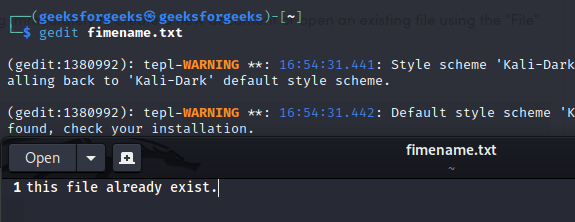
sudo apt-get install geditsudo dnf install geditOnce Gedit is launched, you'll be greeted with a clean and intuitive interface. You can start typing immediately to create a new document or open an existing file using the "File" menu or by specifying the file path as a command-line argument.
gedit fimename.txtgedit newfile.txtGedit supports various file formats, including plain text, code files (such as HTML, CSS, JavaScript, Python, etc.), configuration files, and more. It automatically detects the file type based on the file extension and applies syntax highlighting accordingly.
Gedit also supports a wide range of encoding that extend its functionality even further. From version control integration to code snippets and spell checking, there's a encoding for almost every need. You can manage encoding through the "Preferences" menu under the "encoding" tab or by typing:
gedit --list-encodingsSelecting the correct encoding ensures that your files display correctly and avoids issues with special characters or languages that use non-standard scripts.
Beyond basic text editing, Gedit offers several advanced features that enhance productivity and workflow efficiency. Some notable features include:
To further streamline your editing experience, Gedit provides a plethora of keyboard shortcuts for common tasks. These shortcuts can significantly speed up your workflow once you've mastered them. You can view and customize keyboard shortcuts through the "Preferences" menu under the "Keyboard Shortcuts" tab.
To view keyboard shortcuts in Gedit, you can usually do so from within the application itself. Here's how:
Gedit offers a wide range of keyboard shortcuts for common tasks. Some of these are:
In conclusion, mastering the Gedit command in Linux opens up a world of possibilities for text editing and manipulation. Whether you're writing code, editing configuration files, or drafting documents, Gedit provides the tools and flexibility to get the job done efficiently. By familiarizing yourself with its basic usage, customization options, plugins, advanced features, and keyboard shortcuts, you can leverage Gedit to enhance your productivity and elevate your editing experience on Linux.