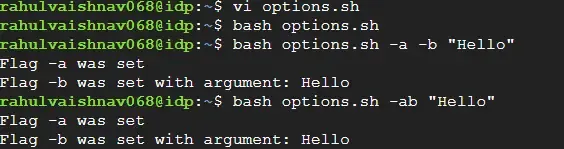
The getopts command is the standard, built-in tool in bash for parsing options like -f for a filename or -v for "verbose" in a clean, professional, and reliable way.
You will use getopts to:
Standardize your script's behavior (e.g., myscript -a -b should work the same as myscript -ab).
Easily handle options that require an argument (e.g., myscript -f file.txt).
Provide proper error messages for unknown options or missing arguments.
Make your scripts feel like real, native Linux commands.
There are two parts to understand: the optstring and the while loop with its special variables.
1. The optstring
The optstring is the string right after getopts (e.g., "ab:"). It defines the rules:
"ab": This means you accept two flags, -a and -b. They do not take arguments.
"a:b:": The colon (:) means the preceding letter requires an argument.
-a must have an argument (e.g., myscript -a value).
-b must have an argument (e.g., myscript -b value).
":a:b": A leading colon (:) is the most important part. It enables "silent mode". This lets you control the error messages, which is essential for a professional script. Without it, getopts prints its own, often messy, errors.
2. The while Loop
The while getopts ":a:b" flag loop is the standard "engine." It works like this:
It loops as long as getopts can find a valid option in the arguments.
$flag: This variable (you can name it anything) gets the option letter (e.g., a or b).
$OPTARG: If an option has an argument (like -b "Hello"), that value is automatically stored in the $OPTARG variable.
$OPTIND: This variable holds the index of the next argument to be processed. getopts uses this to keep track of where it is.
Examples and Usage of getopts command
The following are the examples and usage of getopts command:
1. Printing the help section: Enter the following command to print the help section of the getopts command.
getopts --help
The above command will print the details of the command along with some parameters and options that could be used to run the command.
This script runs a while loop, which iterates through the arguments that match with given optstring, in this case, "a:bc:", and stores the value of the flag in the variable flag. If the flag had any associated argument, it is stored in a variable OPTARG.
The optstring works in the following way:
For every option letter, getopts stores the option in the variable flag(declared just after the optstring), and iterates the loop.
Every option letter followed by a colon expects an argument, which is stored in the variable OPTARG.
If getopts was expecting an argument, but could not parse one, it prints an error. If it was not expecting one, OPTARG will be initialized to ""(an empty string).
If the very first character of the optstring was ":"(a colon), the error message is not printed
3. Running the script by passing the arguments as expected.
Note: OPTARG for -b is blank, and not its previous value since it is initialized for every iteration. Also, -c is not passed, which is not an issue, as each flag in optstring is optional.
4. Running the script by skipping the parameter for a flag where it is required: This prints an error message. The flag is initialized to "?", and OPTARG is ".
5. Running the script by adding a flag not present in the optstring: This prints an error message. Again, the flag is initialized to "?", and OPTARG is "".
If the first character was ":", getopts goes into silent mode, the error messages are not printed, and the behavior changes in some cases. Consider the optstring ":a" for the following example:-
6. Skipping the parameter for a flag where it is required: The flag is initialized to ":", and OPTARG is set to the option character.
The following are the difference beteween getopts and getopt:
Feature
getopts (Built-in)
getopt (External)
Type
Shell built-in (bash, zsh, ksh)
External command (a C utility)
Long Options
No (e.g., --verbose)
Yes (e.g., --verbose)
Safety
Safer. Handles spaces and weird characters in arguments reliably.
Less safe. Can break on complex arguments.
Portability
Excellent. Available in any shell.
Must be installed. Behavior can differ slightly.
Recommendation
Use this for all simple-to-medium scripts.
Use this only if you absolutely need long options.
Importance of getopts
The following are the importance of getopts command:
Efficient Option Parsing: It helps in simplifying the handling of command line options and arguments, allowing the scripts to praise the user input reliably and efficiently.
Standarized Input handling: It supports to POSIX standards with ensuring the compatibility across different unix and linux systems.
Error Handling: The getopts provides the built in mechanism for error reporting and validation. It helps in scripting to gracefully handle the incorrect or unexpected user input.
Enhanced Script Usability: It provides the structured handling of option and arguments improving the usability and clarity of shell scripts.
Best practices of using getopts
The following are the best practices of using getopts:
Define Options Clearly: On defining the list of options clearly ( -o ), your scripts will accept. Try to use single character options for simplicity and consistency with UNIX environments.
Handle Arguements Properly: Try to use -s to set the OPTARG which captures the arugemnet that are associated with an option. It helps in validating and processing the arguments accordingly to ensure correct functionality.
Error Handling: On utilizing the -q, we can suppress the default error messages and can implement the custom error handling.
Optimization: By structuring your script we can minimize the number of getopts calls and can efficiently process the options and arguements.
Usecases of getopts command
The following are the some of the key usecases of getopts command in linux:
Option Parsing: with this command we can enable the scripts to parse and react to command-line options (flags) like -h for help or -v for verbose output.
Argument Handling: It comes with facilitating the validation and processing of arguments that are passed to a script, ensuring correct execution based on user input.
Interactive Scripting: It supports interactive shell scripts by validating user input for options and arguments, enhancing script functionality and usability.
Standardization: It enhances the script usability by supporting to standard command-line interface conventions, making scripts more intuitive and easier to integrate into automation workflows.