|
VOOZH | about |
|
VOOZH | about |
GPM ("General Purpose Mouse") software provides support for mouse devices in Linux virtual consoles. This package provides a daemon that captures mouse events when the system console is active and delivers events to applications through a library. By default, the daemon provides a 'selection' mode, in order that cut-and-paste with the mouse works on the console even as it does under X. It is used to select the text, drag the mouse while holding the left button, or to paste text within the same or another console, press the center button. The right button is employed to increase the choice. Two-button mice use the right button to paste the text.
The gpm package is included in most Linux distributions, but if it is not installed on your system, you can install it using the following command:
sudo apt-get install gpmFor other distributions, you can install it using the respective package manager:
sudo yum install gpmsudo dnf install gpmsudo pacman -S gpmsudo gpm [options]
Running the command with various options allows you to configure the behavior of the mouse daemon to suit your needs.
Here are some of the commonly used options with gpm, along with their explanations and examples:
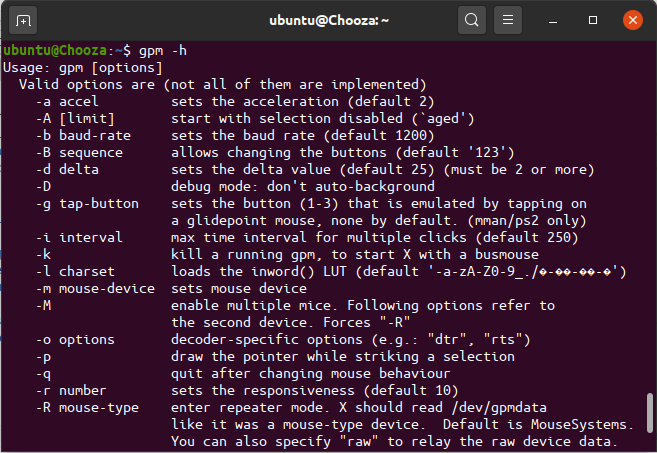
This option will display the list of all options along with their usage and function.
gpm -h👁 Display Help Information
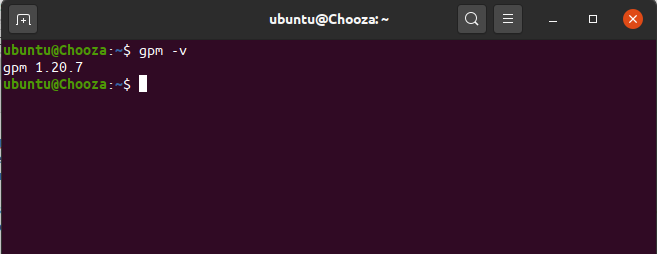
The -v option displays the current version of gpm installed on your system:
gpm -v👁 Display the Installed Version
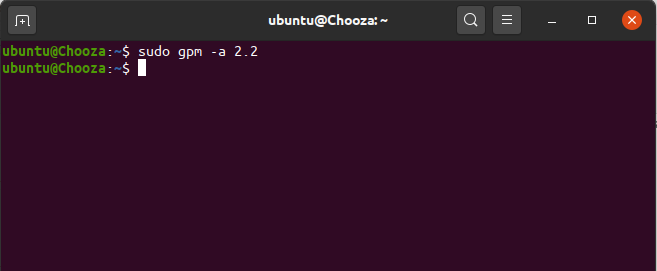
These options set the acceleration value. The default value is 2.
sudo gpm -a accel_value👁 Set Mouse Acceleration
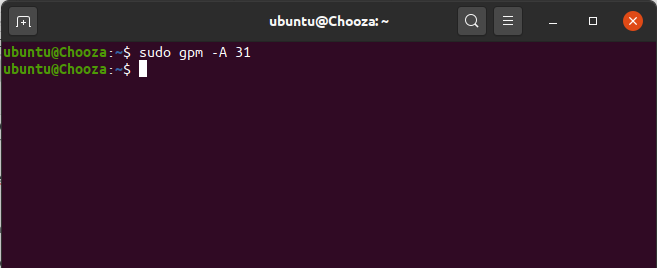
Use the -A option to start gpm with selection pasting disabled, useful in situations where you don't want the mouse to interfere with the console:
sudo gpm -A limit_value👁 Startup with Selection Pasting Disabled
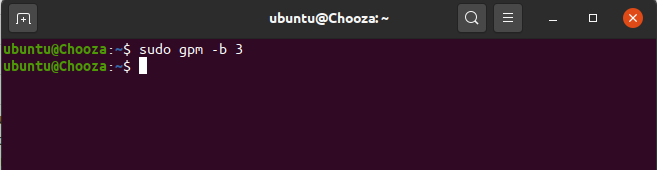
The -b option sets the baud rate for the mouse connection. The default baud rate is 1200.
sudo gpm -b baud_rate_value👁 Image
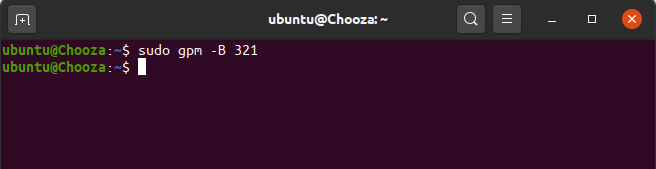
Use the -B option to configure the button sequence. 123 is the normal sequence, 321 are often employed by left-handed people, and 132 are often useful with two-button mice. All the button permutations are allowable.
sudo gpm -B button_sequence👁 Set the Button Sequence
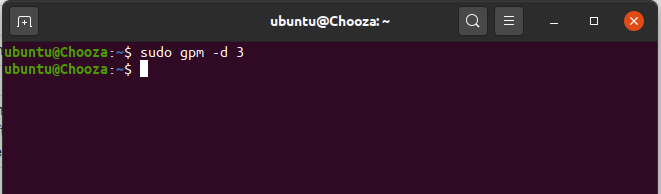
Set the delta value. When one motion event is longer than delta, accel is employed as a multiplying factor. (Must be 2 or above).
sudo gpm -d delta_value👁 Configure Delta Value for Motion Events
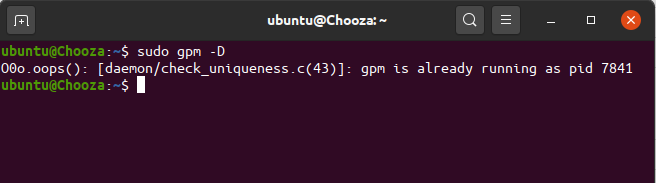
Do not automatically enter background operation when started, and log messages to the standard error stream, not the syslog mechanism. This is useful for debugging.
sudo gpm -D👁 Disable Background Operation
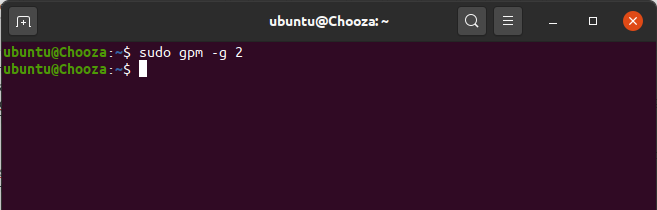
The -g option sets which button (1-3) is emulated when tapping on a glide point mouse. By default, no button is emulated.
sudo gpm -g 2👁 Disable Background Operation
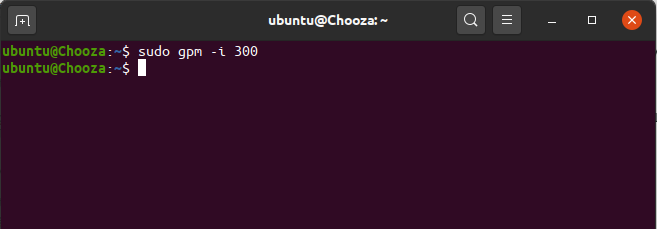
The maximum time interval for multiple clicks. The default value is 250.
sudo gpm -i 300👁 Set Maximum Time Interval for Multiple Clicks
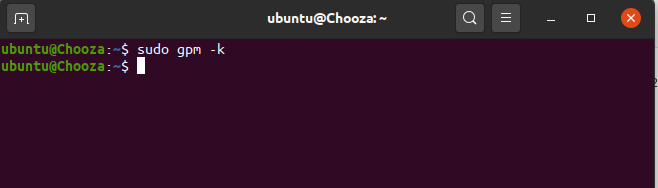
Use the -k option to terminate an already running gpm daemon:
sudo gpm -k👁 Kill a Running gpm Daemon
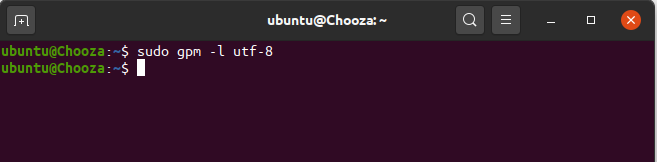
The -l option loads the inword() LUT (lookup table) for character encoding. For example:
sudo gpm -l utf-8👁 Image
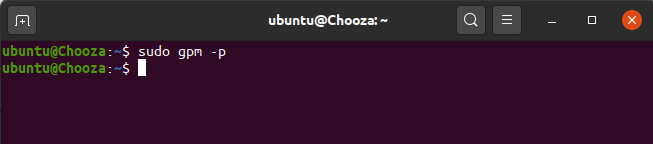
Use the -p option to make the pointer visible while selecting text. The default behavior is not to show the pointer.
sudo gpm -p👁 Show Pointer While Selecting
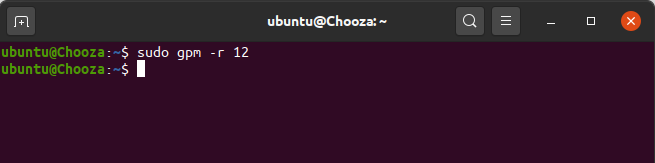
The -r option allows you to adjust the responsiveness of the mouse. The default value is 10.
sudo gpm -r 1👁 Set Mouse Responsiveness
The gpm command is an invaluable tool for Linux users who work in text-based environments or need mouse support on the console. It allows for text selection, copying, and pasting across virtual consoles, with various configuration options to suit different needs. Whether you're a system administrator managing headless servers or a user customizing a Linux console, mastering the gpm command can significantly improve your productivity.