|
VOOZH | about |
|
VOOZH | about |
Tcpdump is the command line tool that allows the user to capture and analyze network traffic by intercepting and displaying packets that are being created and received by the user's system. It allows users to capture and inspect network traffic in real-time as it passes through a network interface.
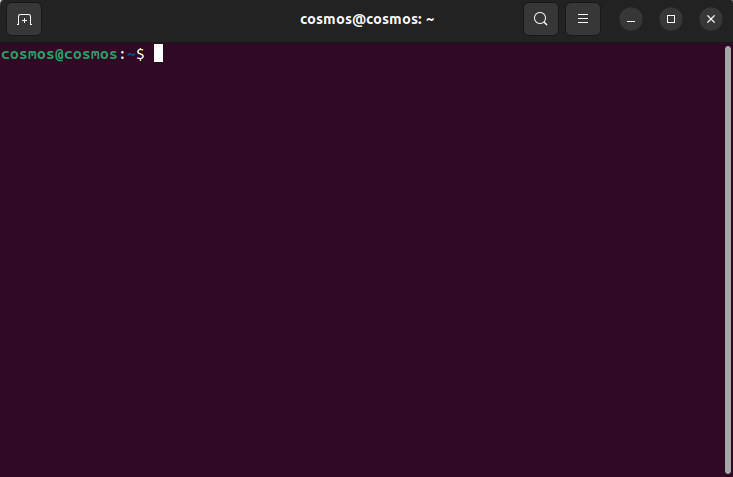
Step 1: Open your terminal using All Application or by using the shortcut CTRL + ALT + T.
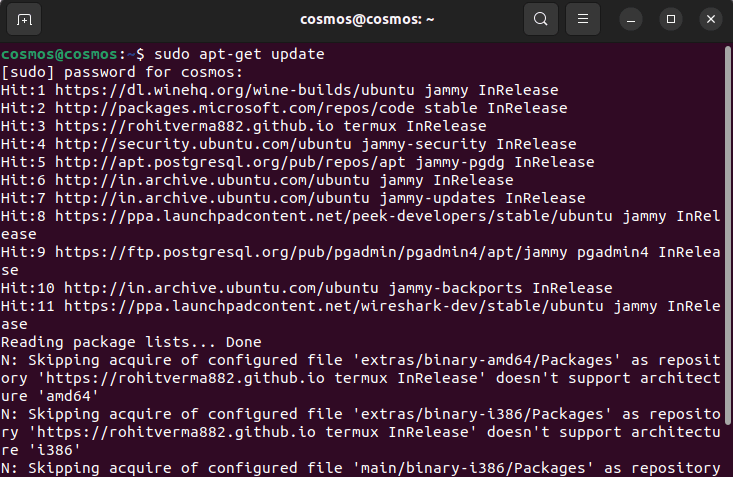
Step 2: Once the terminal is been opened, update the system by executing the below apt command.
sudo apt-get update
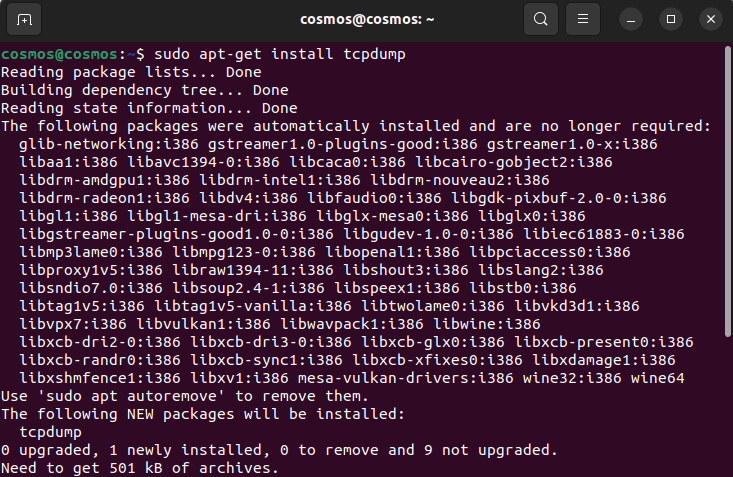
Step 3: Now, by using the below command Install tcpdump on the Ubuntu system.
sudo apt-get install tcpdump
yum install tcpdumpFor Latest version of Redhat we can also use.
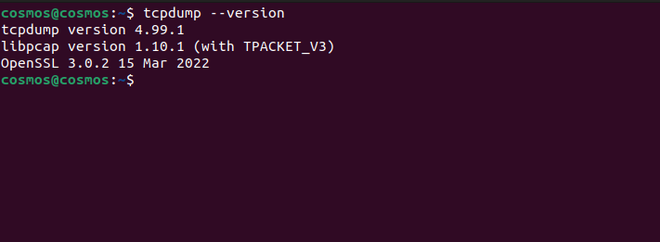
dnf install tcpdumpStep 4: After installing tcpdump run the below command to check and to know if the tcpdump has been installed on your system.
tcpdump --version
Below are the examples through which we can capture all the HTTP packets using tcpdump.
Tcpdump has a useful feature which is to write packets to a file. This is very handy when you are capturing a large number of packets and want to analyze them.
Step 1: Open your terminal and paste the below command:
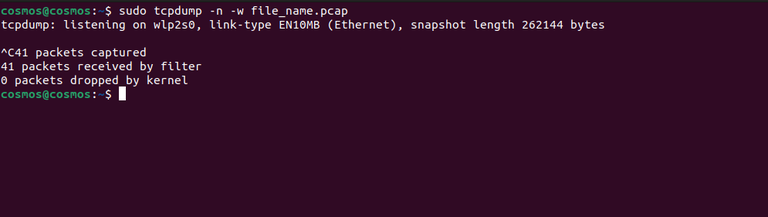
sudo tcpdump -n -w file_name.pcapHere "-w" option is used which will not display packets on the terminal screen. Tcpdump writes raw packets and creates a binary file but that file cannot be opened with a text editor. Press "ctrl+c" to close the process and the packets before you close the tcpdump will be saved to that file.
Output:
Step 2: Open the folder where you saved the file, open your terminal, and in that directory write the below command-
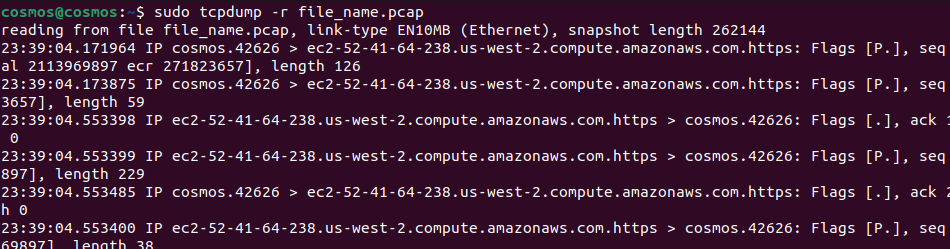
sudo tcpdump -r file_name.pcap
After this, you will see all the packets you had saved before closing the connection.
Output:
Step 1: To save a limited number of packets to the file, we use the "-c" option followed by the number of packets you want to save. Here '20' defines the number of packets we want to capture. You can set the number of the packets you want to capture, this is useful when an individual wants to inspect a limited number of packets.
sudo tcpdump -n -c 20 -w file_name.pcap
Output:
Step 2: Again, use the same command to inspect the packets you have captured:
sudo tcpdump -r file_name.pcap
Step 1: To perform any operation using tcpdump it is important to know your system interface and server IP. To know the system interface and server IP run the below command:
ifconfig -a
Step 2: Use the below command to capture All HTTP GET traffic or Requests. Note, change the interfaces that is my case "enxae1573c204dd" with your interface. The interface is important so that it will only capture the interface that is receiving on that particular interface. Here "0x47455420" means GET if we convert the following hexadecimal in ASCII value.
tcpdump -i <system_interface> -s 0 -A 'tcp[((tcp[12:1] & 0xf0) >> 2):4] = 0x47455420'
Note: Here 0x47455420 depicts the ASCII value of characters 'G' 'E' 'T' ' '
Output:
Use the command the capture All incoming HTTP POST requests. This commands all the POST requests which are been received on your interface.
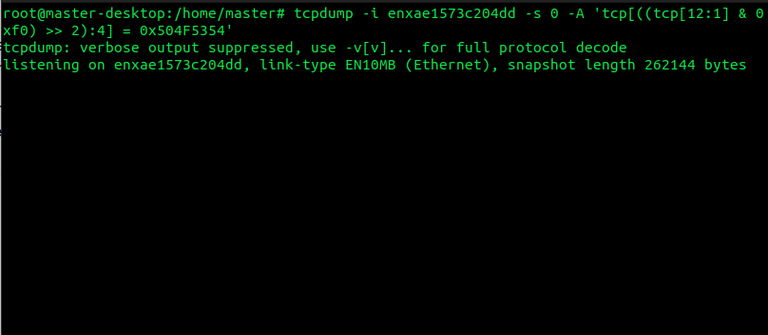
tcpdump -i <system_interface> -s 0 -A 'tcp[((tcp[12:1] & 0xf0) >> 2):4] = 0x504F5354'
Output:
Note: Here 0x504F5354 represents the ASCII value of 'P' 'O' 'S' 'T'
Capturing HTTP GET requests incoming to port 80 which is the default port for localhost from Apache/NGINX. When we locally host a website and want to inspect the GET requests coming from Apache, this command is useful for accomplishing that work.
Use the below command to capture GET requests from the Apache/NGINX:
tcpdump -i enxae1573c204dd -s 0 -A 'tcp dst port 80 and tcp[((tcp[12:1] & 0xf0) >> 2):4] = 0x47455420'
Note: Change the "enxae1573c204dd" to your system interface.
Output:
When creating websites that take input from the user and then store the information in the database the following is done using a POST request. To check the POST requests that you are incoming to port 80 on the Apache/NGINX localhost server the below command is used.
tcpdump -i <system_interface> -s 0 -A 'tcp dst port 80 and tcp[((tcp[12:1] & 0xf0) >> 2):4] = 0x504F5354'
Note: Change the system interface to get results, it will return an error.
Output:
Locally hosting a website and inspecting both GET and POST incoming calls is quite complex without the help of tcpdump. Tcpdump allows you to capture both HTTP GET or POST incoming calls to your local port on Apache/NGINX.
tcpdump -i <interface> -s 0 -A 'tcp dst port 80 or tcp dst port 443 and tcp[((tcp[12:1] & 0xf0) >> 2):4] = 0x47455420 or tcp[((tcp[12:1] & 0xf0) >> 2):4] = 0x504F5354' and host <ip_address>Output:
This command is useful usually when a person hosts a page on its local server and that person wants to track the HTTP request and response between the server and client. This command of Tcpdump allows to capture of the HTTP request and response between the server and the client.
tcpdump -i <system_interface> -s 0 -A 'tcp dst port 80 and tcp[((tcp[12:1] & 0xf0) >> 2):4] = 0x47455420 or tcp[((tcp[12:1] & 0xf0) >> 2):4] = 0x504F5354 or tcp[((tcp[12:1] & 0xf0) >> 2):4] = 0x48545450 or tcp[((tcp[12:1] & 0xf0) >> 2):4] = 0x3C21444F and host <ip_address>Output:
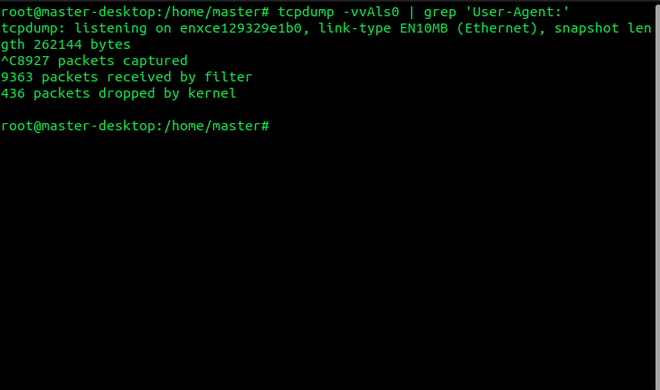
The filter allows to capture of only the packets that a user wants to capture. It is just like filtering unwanted packets and capturing the packets or the information a user wants from incoming calls. These filter properties of Tcpdump make this tool efficient and useful for sniffing the website.
tcpdump -vvAls0 | grep 'User-Agent:'
Output:
Tcpdump allows to capture of 'Cookies' from the server and from the client side. It is also a filter property that filters the unnecessary information in the packets and only shows 'Cookie'.
Using this filter property is quite simple and after executing the command only the necessary packets will be filtered by the Tcpdump.
sudo tcpdump -nn -A -s0 -l | egrep -i 'Set-Cookie|Host:|Cookie:'
Output:
Tcpdump allows capturing passwords in POST requests. The below command is useful for capturing the password in the HTTP POST requests for inspection.
sudo tcpdump -i any -s 0 -A -n -l | egrep -i "POST /|pwd=|passwd=|password=|Host:"
Output:
This command shows all the traffic which coming through your port.
sudo tcpdump -nn
Output:
In conclusion, capturing all HTTP packets using tcpdump can be achieved by specifying the desired port, typically port 80, which is the default for HTTP traffic. By using the appropriate command with the -i flag to specify the network interface and the -w flag to save the captured packets to a file, you can effectively monitor and analyze HTTP traffic for diagnostic, security, or auditing purposes. This method allows network administrators and analysts to gain insights into the communication occurring over the HTTP protocol within their network environment.