|
VOOZH | about |
|
VOOZH | about |
Tar archives are special files that combine multiple files and directories into a single package, simplifying storage, transfer, and backup. Although tar itself doesn’t compress data, it can be paired with tools like gzip or bzip2 to create compressed and space-efficient archives.
.tar Files are not compressed by default.Syntax:
tar -cvf backup.tar home/user/file nameCommand:
tar -cvf backup.tar /home/vboxuser/gfg/myfileOutput:
tar -cvf backup.tar /home/vboxuser/gfg/myfile/ is used to create a tar archive named backup.tar containing all the contents of the myfile directory. ls command confirms successful creation by listing backup.tar among other files and folders in the current directtar options [archive_name.tar] files_to_archivetar command is used with specific options and file names.Here’s the complete list of all common types of TAR archives with clear descriptions
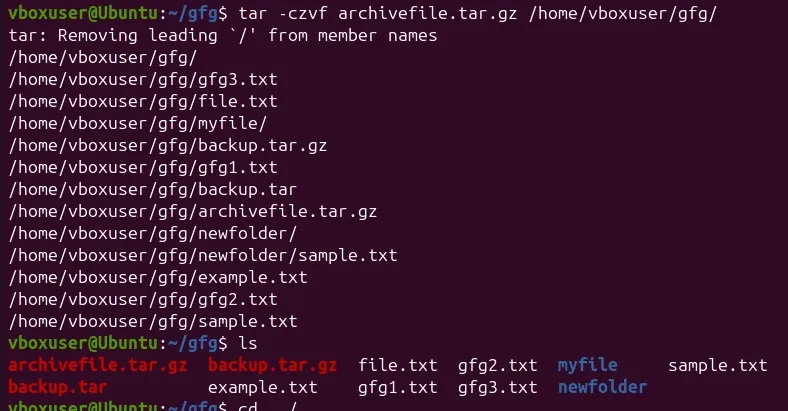
tar -czvf archive.tar.gz /home/vboxuser/gfg/Output:
Note:
tar: Removing leading '/' from member namesis not an error, it's a normal informational message from tar when you create an archive from absolute paths (like /home/vboxuser/gfg/...).
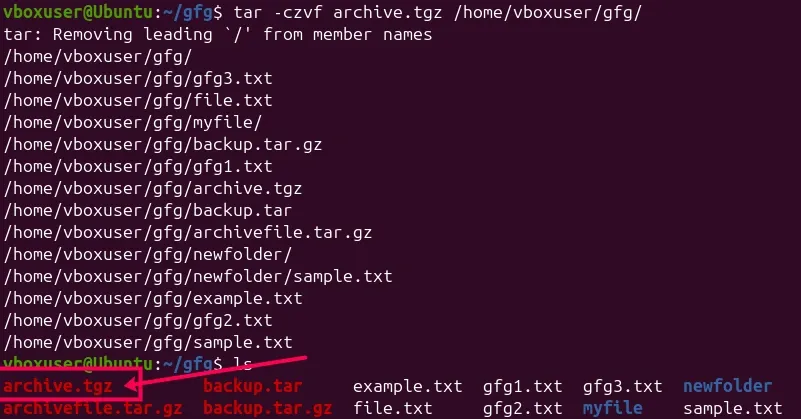
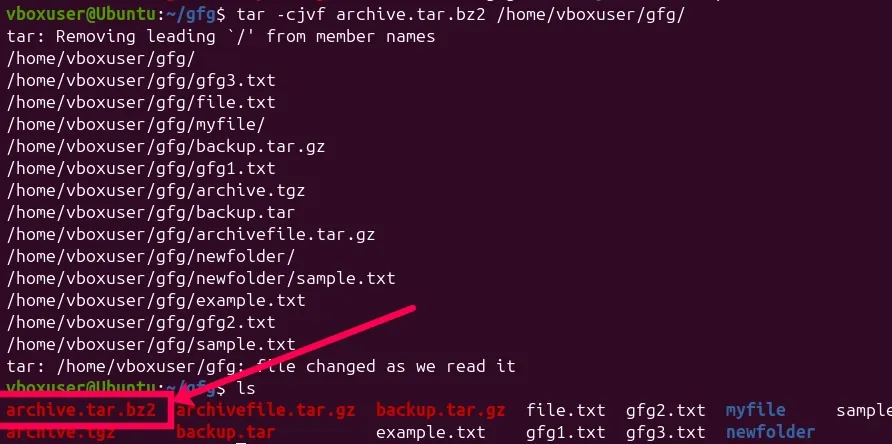
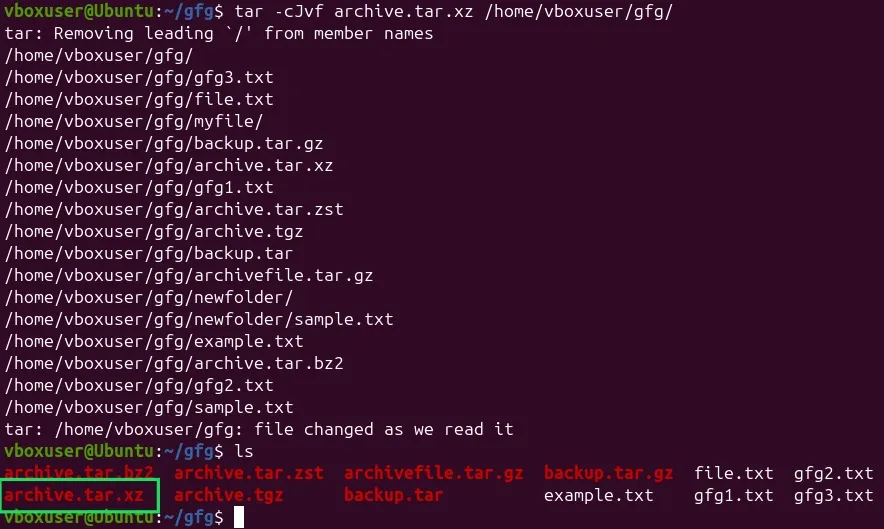
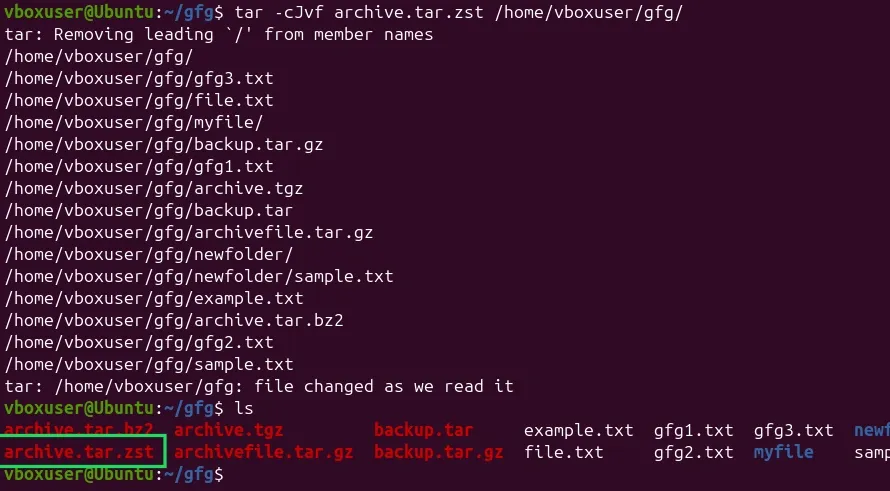
tar -czvf archive.tgz /home/vboxuser/gfg/.tar.gz, just a shorter file extension often used in software packaging.tar -cjvf archive.tar.bz2 /home/vboxuser/gfg/tar -cJvf archive.tar.xz /home/vboxuser/gfg/tar --zstd -cvf archive.tar.zst /path/to/files/Below are some of the most commonly used tar command options and their corresponding full formats and descriptions:
| Option | Full format | Description |
|---|---|---|
| -a | --concatenate | Concentrate two archives |
| -c | --create | Creating a new archive |
| -d | --diff --delete | Showing the difference between archives Delete file from the archive |
| -r | --append | add files at the end of the existing archive |
| -t | --list | Show archive content |
| -u | --update | Update an archive |
| -x | --extract | Extract files from the archive |
Here are some useful parameters that enhance the functionality of the tar command:
| Parameter | Full format | Description |
|---|---|---|
| -C dir | --directory=DIR | change directory before executing |
| -f | --file=ARCHIVE | Use specified archive file |
| -j | --bzip2 | compress using bzip2 |
| -p | --same-permissions | Save file permissions to file |
| -v | --verbose --total | Show process information Show final result |
| -z | --gzip | compress using gzip |
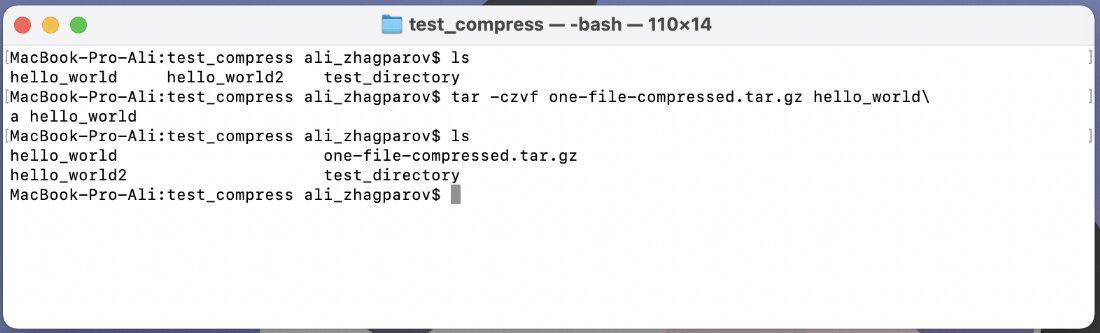
To compress a single file into a .tar.gz archive, use:
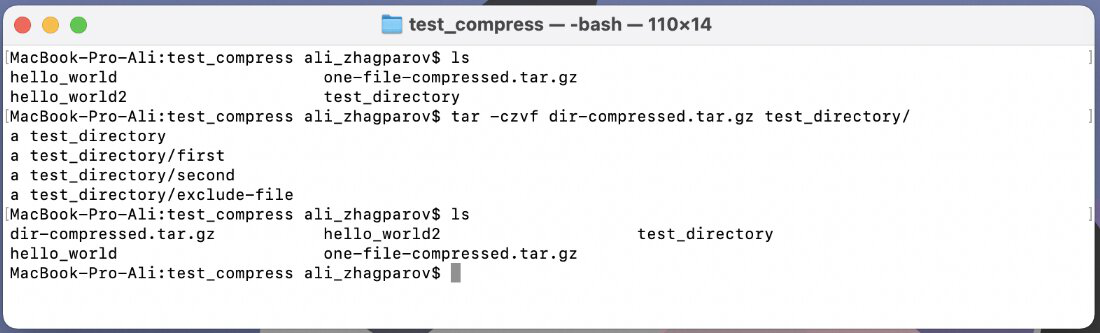
tar -czvf one-file-compressed.tar.gz hello_world👁 ImageTo compress an entire directory, the following command is used:
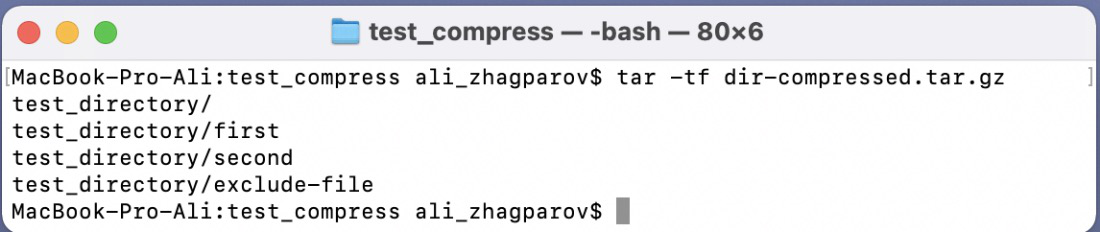
tar -czvf dir-compressed.tar.gz test_directory/👁 ImageTo see what's inside an archive without extracting it:
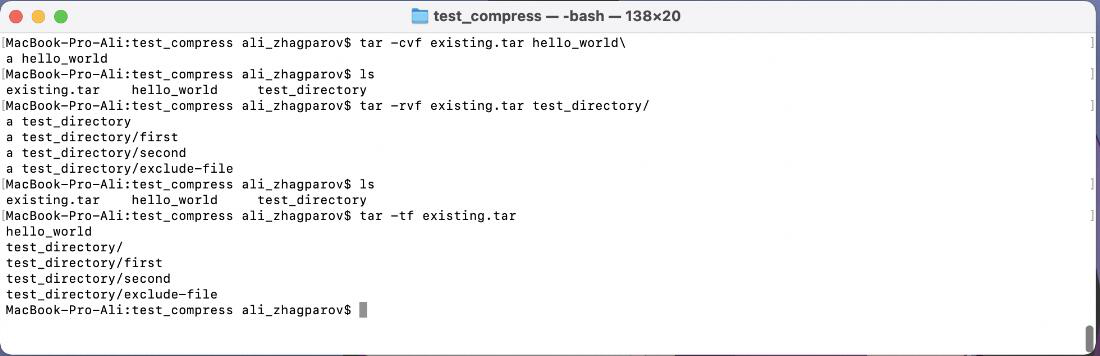
tar -tf archive.tar.gz👁 ImageIf you want to append more files or directories to an existing archive:
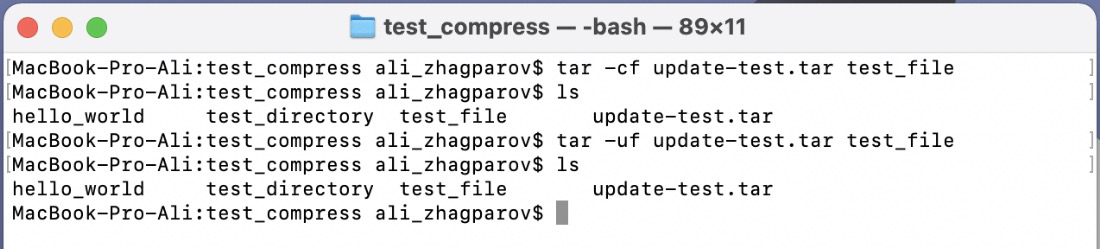
tar -rvf existing-archive-name.tar file-directory-to-compress/👁 ImageTo update files in an archive, use the update option '(-u)', which only adds files that are newer than the corresponding ones in the archive.
👁 ImageTo compress a file with bzip2, resulting in a .tar.bz2 file:
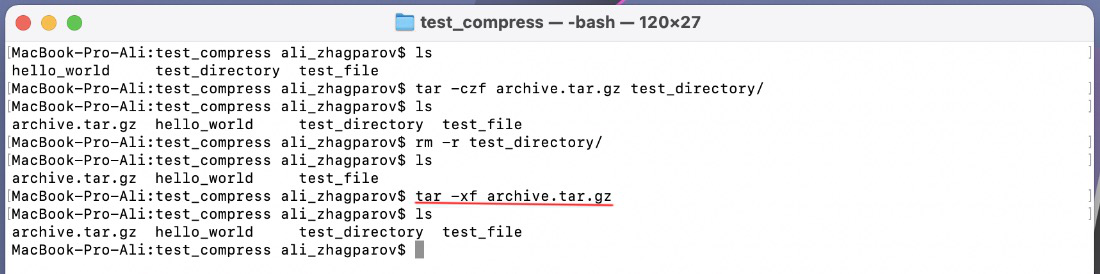
tar -cjvf one-file-compressed.tar.bz2 hello_world👁 ImageExtracting files from a tar archive, regardless of the compression type (.tar, .tar.gz, .tar.bz2), can be done with:
tar -xf archive.tar.gz👁 ImageThe same with '.tar.gz' and '.tar.bz2'.
The 'tar' command is a powerful tool for managing files and directories in Linux and Unix environments. Its flexibility, combined with external compression utilities, makes it ideal for a wide range of archiving tasks. Understanding the various options and parameters can significantly simplify your data management workflows.