|
VOOZH | about |
|
VOOZH | about |
'Libreoffice' is an open-source office suite, which is free to download and use. Also, it is accessible on multiple platforms so it is used by millions of people and organizations worldwide. LibreOffice enhances productivity, catering to both professional and personal requirements. The suite is bundled with various valuable applications such as word processors, spreadsheet software, presentation creators, and other useful tools. This article will guide you through the installation process of the 'LibreOffice' suite on an Ubuntu operating system. The installation steps are pretty easy to follow, and we will discuss three approaches to installing LibreOffice on Ubuntu.
LibreOffice stands out due to its robust features, frequent updates, and the support of a strong community of developers. Here are some reasons why you might choose LibreOffice:
Now, let’s look into the installation process on Ubuntu. Below are three methods to install LibreOffice on Ubuntu: using the Ubuntu Software Center, the apt package manager, and the Snap package manager.
Table of Content
The Ubuntu Software Center is a graphical user interface that makes installing software straightforward and user-friendly. Here’s how you can install LibreOffice using this method:
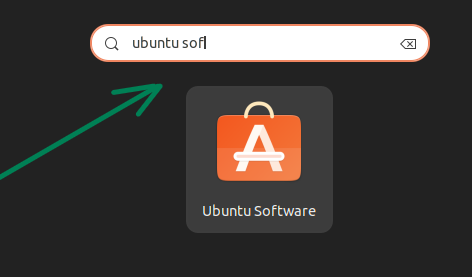
Step 1: Open Ubuntu Software Center from the application menu.
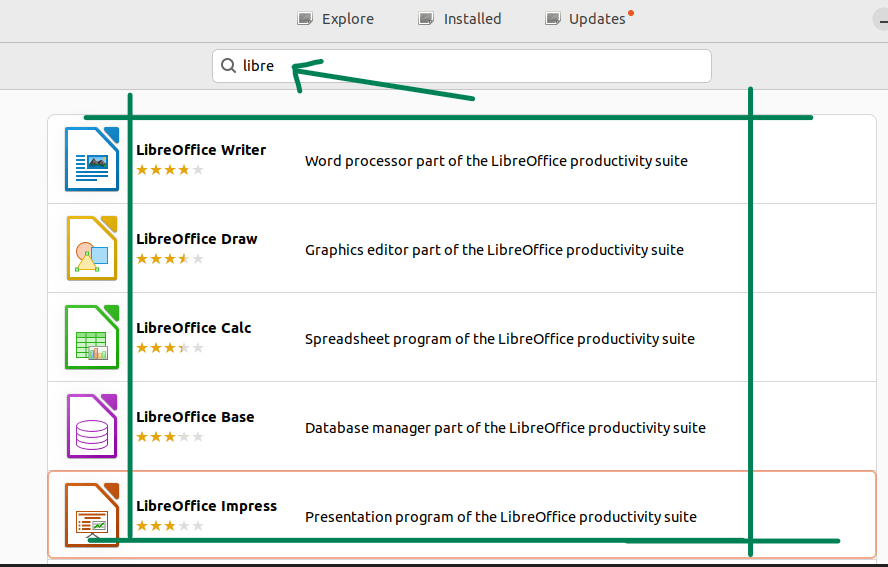
Step 2: Search for Libreoffice in the search bar.
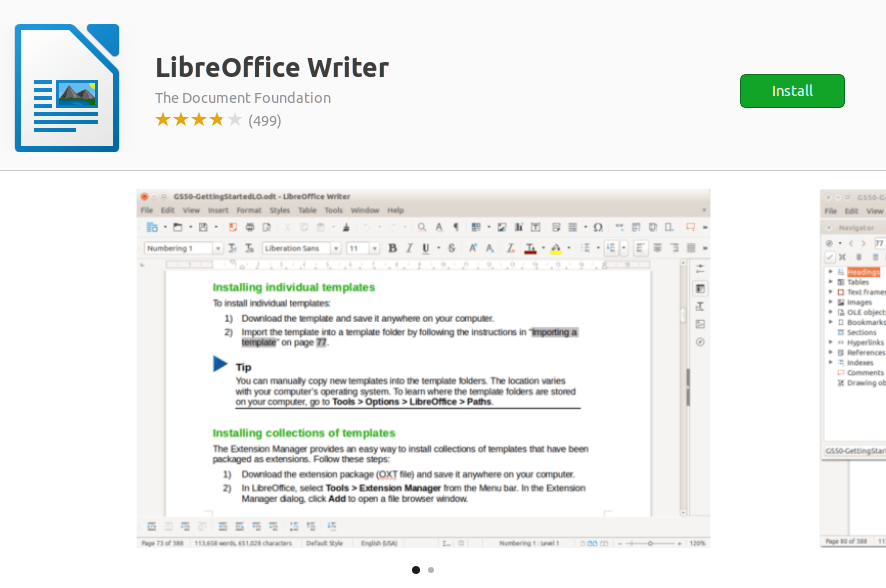
Step 3: Choose the program of your choice and install it.
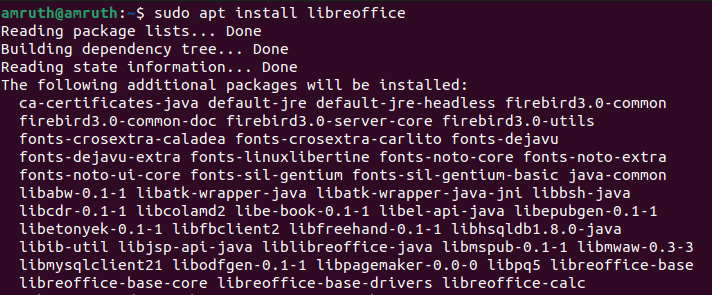
The apt package manager is a powerful command-line tool for managing software packages on Ubuntu. This approach provides more control and is favored by users who are comfortable with terminal commands.
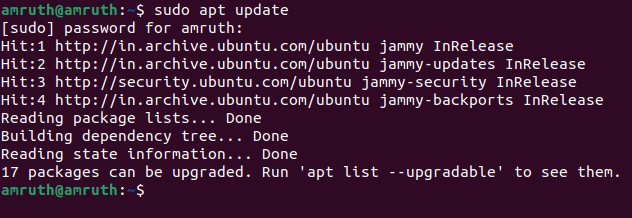
Step 1: Update the package lists available for the software packages using the following command.
sudo apt updateStep 2: Install Libreoffice using the following command.
Step 3: A prompt will appear, asking whether to proceed with the operation or not. Press 'Y' to continue.
Step 4: Upon the completion of the installation process, the software will be at your disposal for use.
Step 5: To check version use the following command.
libreoffice --versionSnap is a package management system that allows you to install software in a containerized environment. It ensures that applications are always updated and secure.
Step 1 : Open Ubuntu's terminal using the following key combination
Ctrl + Alt + T
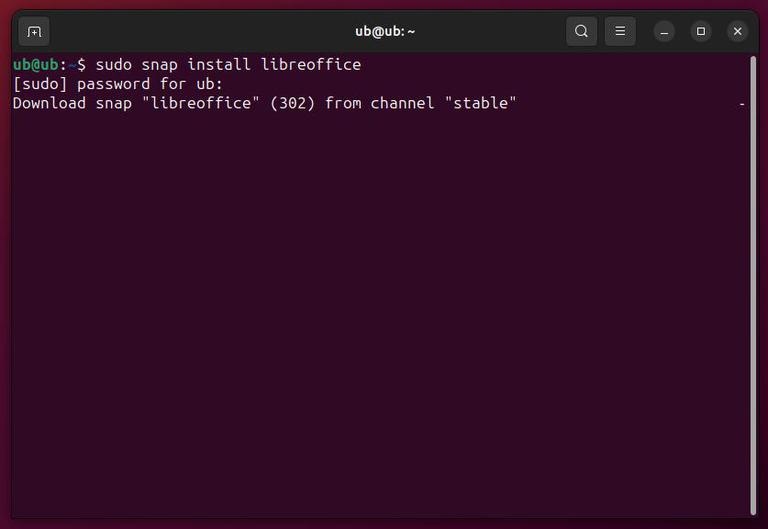
Step 2 : Run the following snap command to install LibreOffice, and make sure to enter your password when prompted
sudo snap install libreoffice
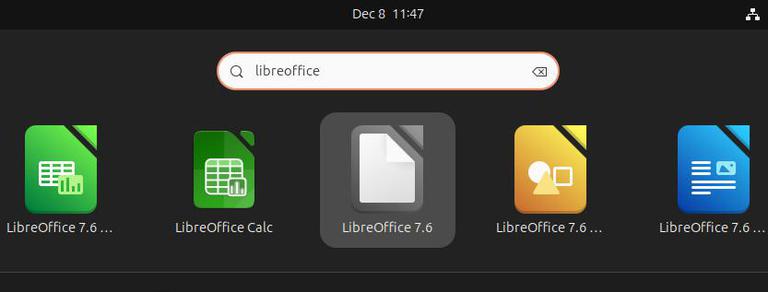
Step 3 : Search for LibreOffice in the application manager and start using the application
In summary, LibreOffice is a fantastic, free office suite that's available on various devices. It's used by millions of people and organizations worldwide because it helps both professionals and everyday users get more done. It's a great tool for boosting productivity. In this article we have discussed how install the LibreOffice suite using these three approaches.