There are several ways to Install a Linux subsystem on your Windows PC Powershell Environment. It is good for learners, but it is recommended using original Linux OS if you are a developer as the Subsystem lacks the pre-installed Linux tools.
Before we begin installing a Linux subsystem, we need to first enable a Windows feature for Subsystems.
Enabling Windows Subsystem Feature for Linux:
To install Linux Subsystem, there is a need to Turn Windows features ON. Steps to do the same are as follows:
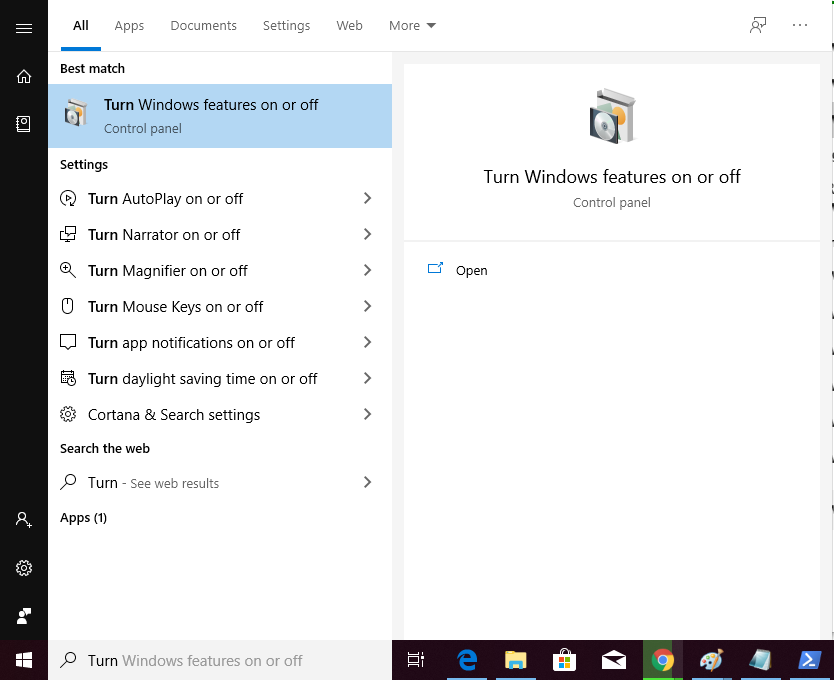
Step 1: Search and open
Turn Windows features on or off in Start Menu.
👁 Linux-on-PowerShell-00
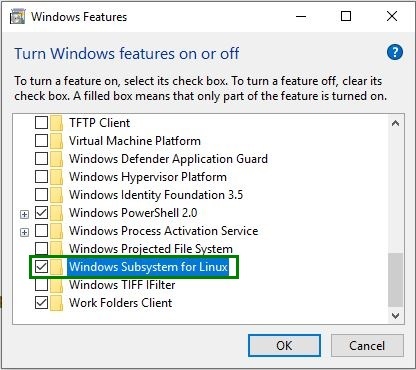
Step 2: Look for
Windows Subsystem for Linux and enable it.
👁 Linux-on-PowerShell-02
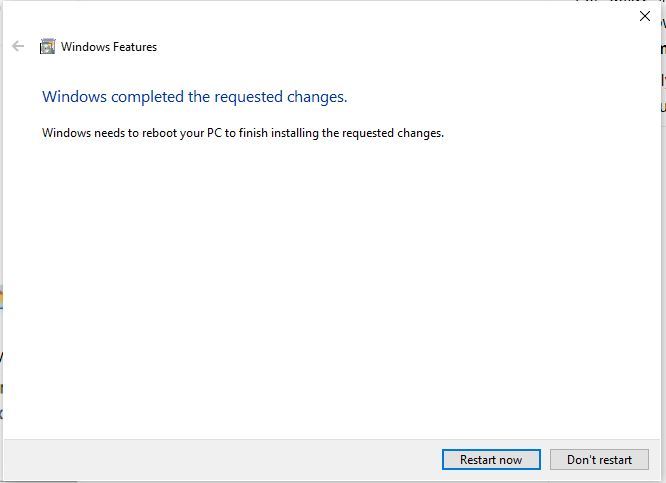
Step 3: Once the installation is over, reboot your system to finish adding the changes.
👁 Linux-on-PowerShell-03
There are two ways to download and install any Linux OS in the Windows Subsystem:
- Downloading from the Microsoft Store
- Downloading using Windows PowerShell
Downloading and Installing using Microsoft Store:
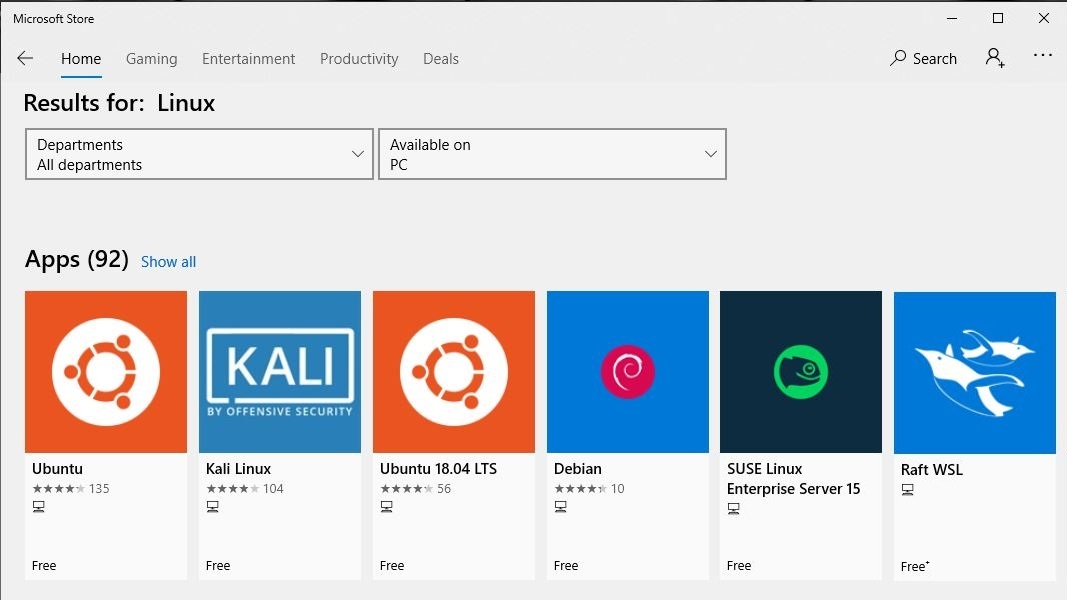
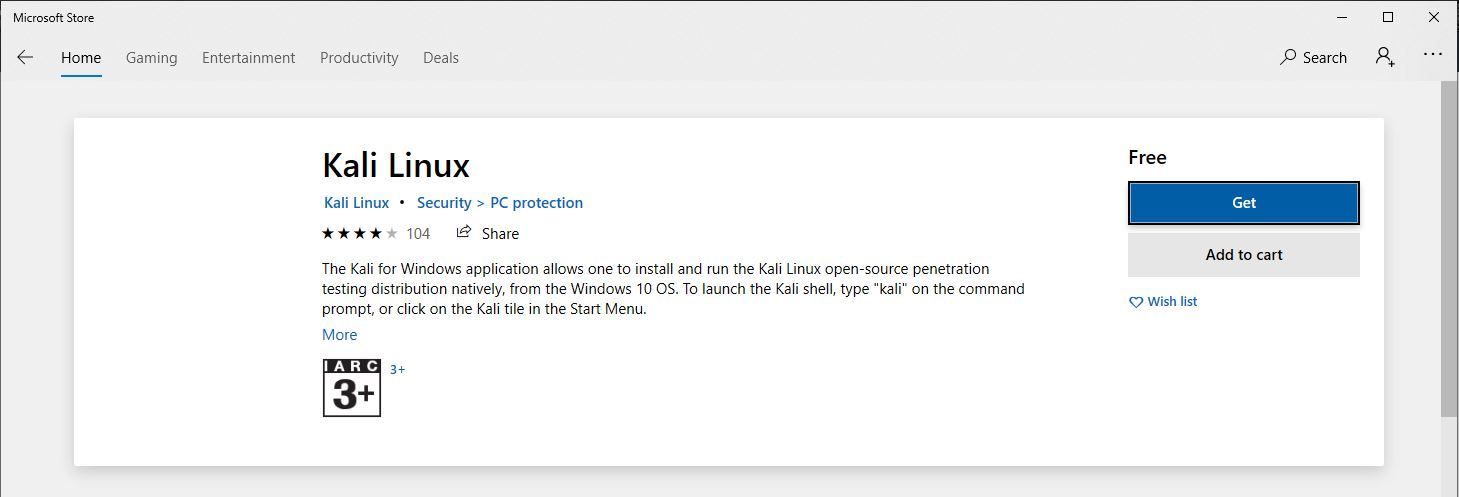
Step 1: Open MS Store and search for Linux. Now, download any of the listed Linux OSs.
👁 Linux-on-PowerShell-04
Step 2: Click on the
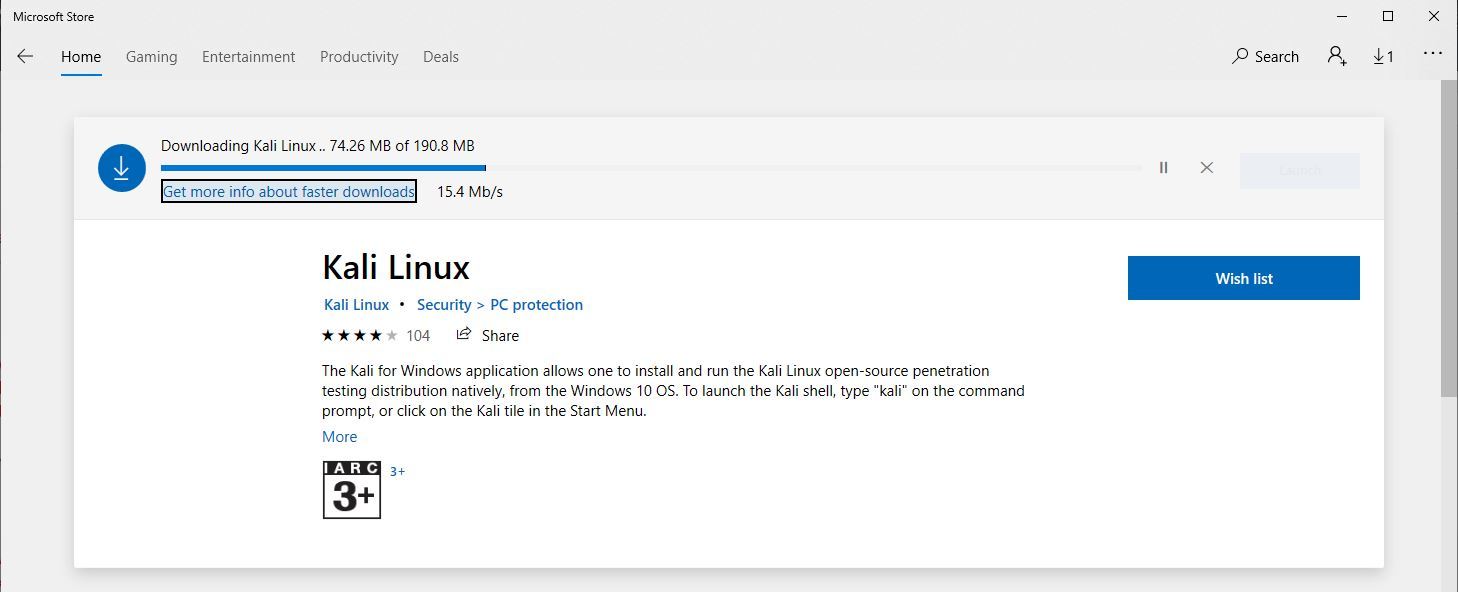
Get button and begin with the downloading of Kali Linux OS.
👁 Linux-on-PowerShell-05
👁 Linux-on-PowerShell-06
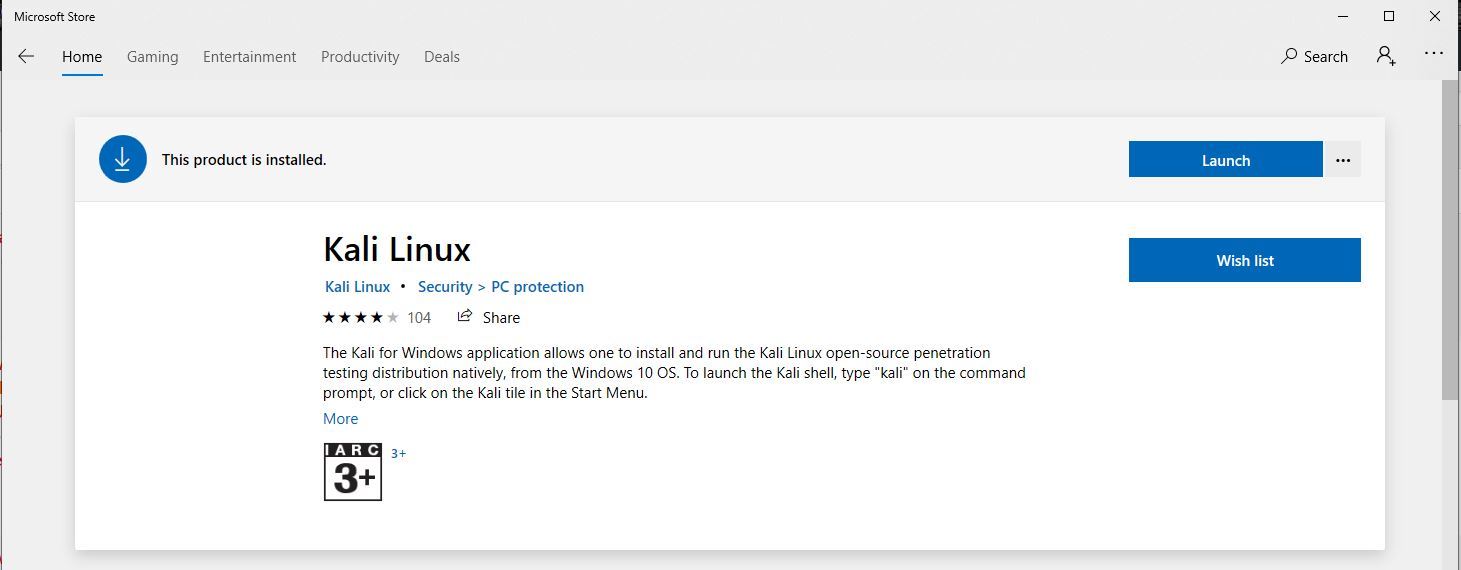
Step 3: Once the Installation is over click on the Launch button.
👁 Linux-on-PowerShell-07
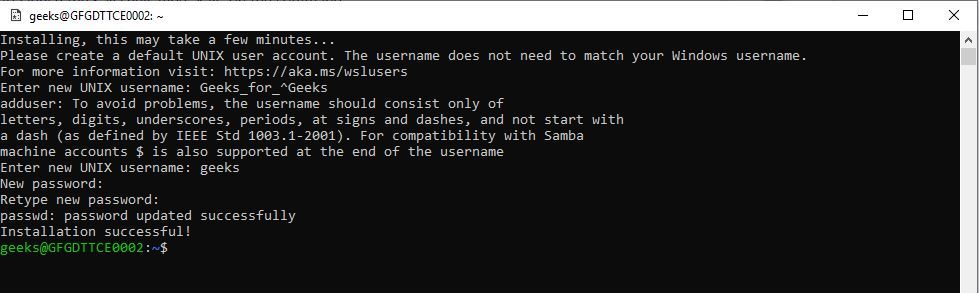
Step 4: Begin with the final installation process on the command-line.
👁 Linux-on-PowerShell-08
Step 5: Provide a Username and password for your Linux OS and finish the installation process.
👁 Linux-on-PowerShell-09
Downloading using command-line:
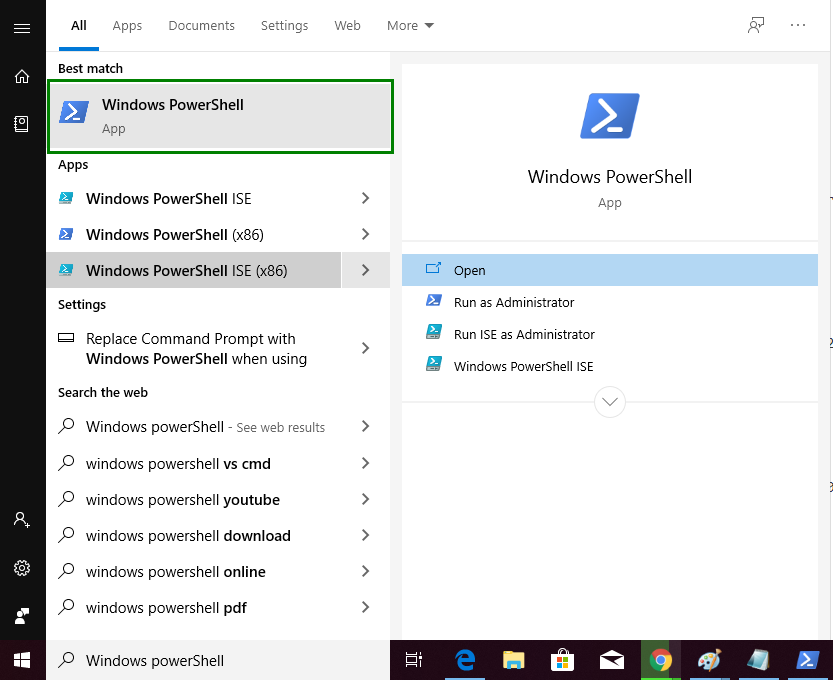
Step 1: Search for Windows Powershell in the Start Menu and open it.
👁 Linux-on-PowerShell-01
Step 2: Type the following command to install Linux OS and press Enter:
Invoke-WebRequest -Uri https://wsldownload.azureedge.net/Ubuntu_1604.2019.523.0_x64.appx -OutFile Ubuntu.appx -UseBasicParsing
Add-AppxPackage .\Ubuntu.appx
👁 Linux-on-PowerShell-11-01
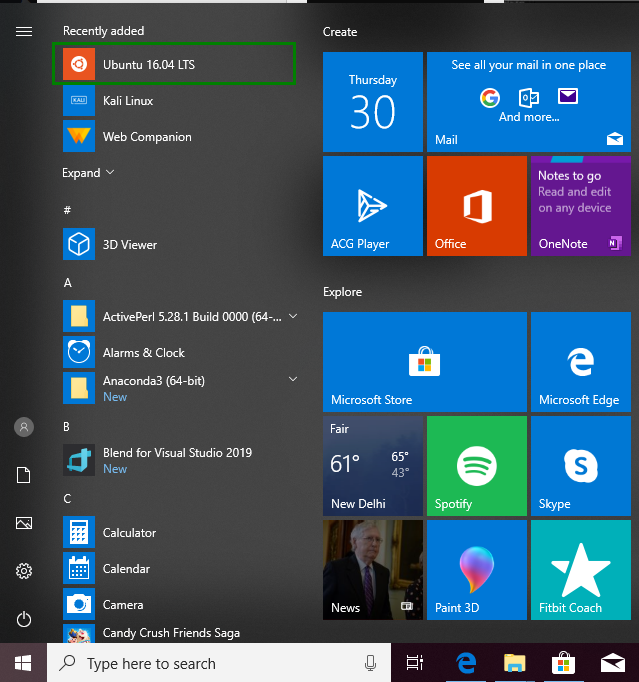
Step 3: Launch Ubuntu from the Start Menu and begin with the rest of the Installation process:
👁 Linux-on-PowerShell-151
👁 Linux-on-PowerShell-13
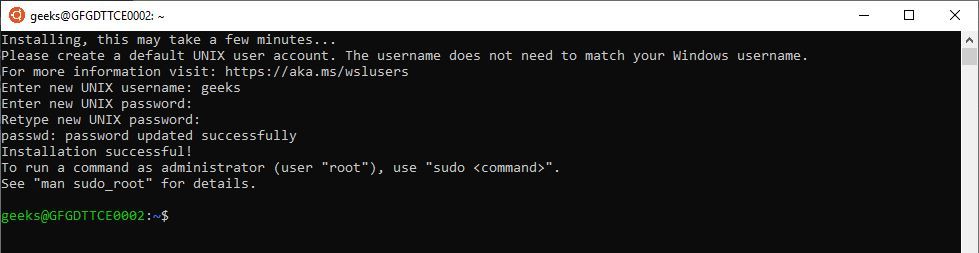
Step 4: Provide Username and password to setup your Linux OS and finish the installation process.
👁 Linux-on-PowerShell-14
Once the installation of the Linux Subsystem is over, it can be launched anytime with Windows PowerShell. Just type the name of the OS in the PowerShell and press Enter.
👁 Linux-on-PowerShell-12