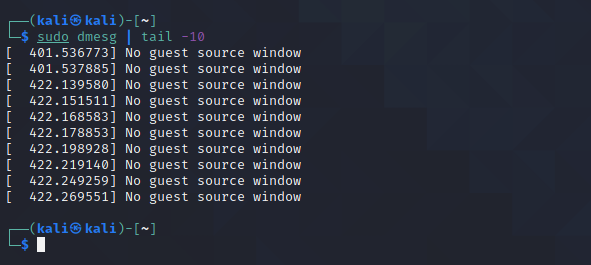
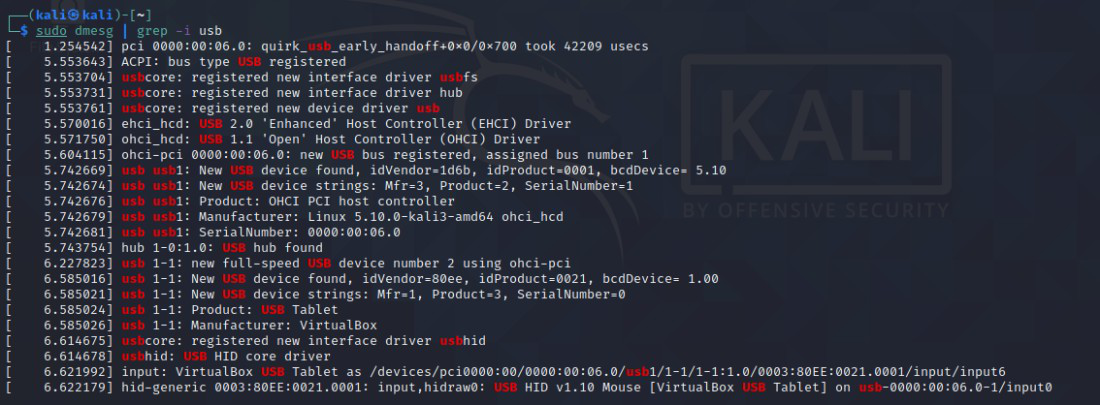
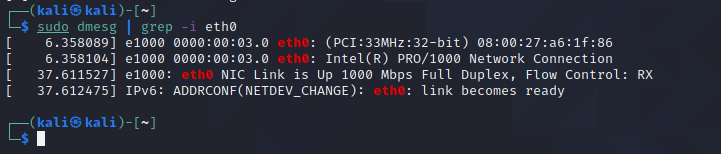
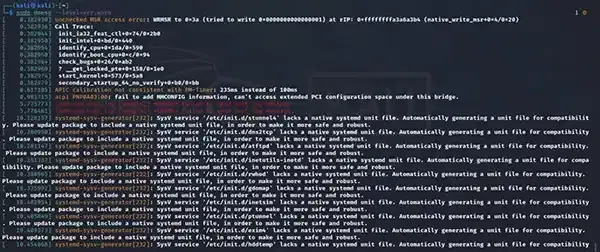
The dmesg (display message) command is used to view kernel messages from the ring buffer, providing insights into hardware detection, driver initialization, and system errors during boot and runtime.
Displays low-level kernel and hardware messages not visible in standard logs.
Useful for diagnosing hardware failures, driver issues, and boot problems.
The kernel messages are stored temporarily in the ring buffer and permanently in /var/log/dmesg.
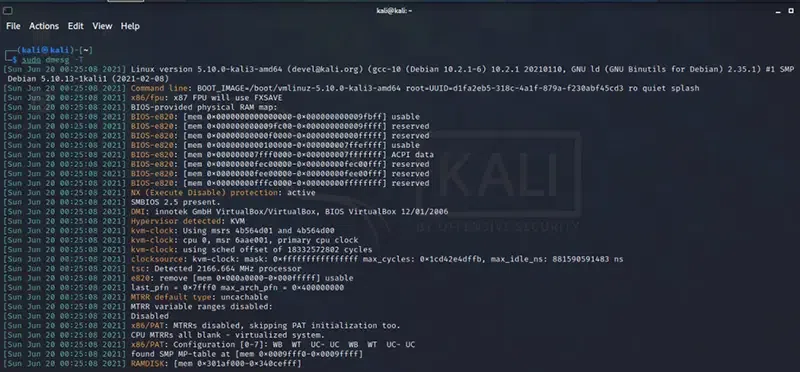
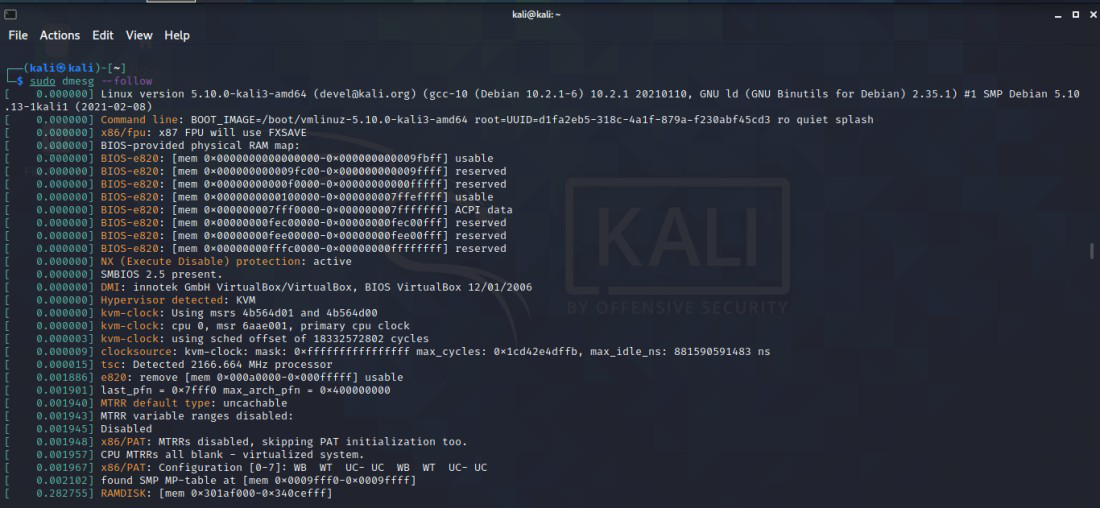
Supports options like -T for readable timestamps and --follow to monitor live kernel events in real time.
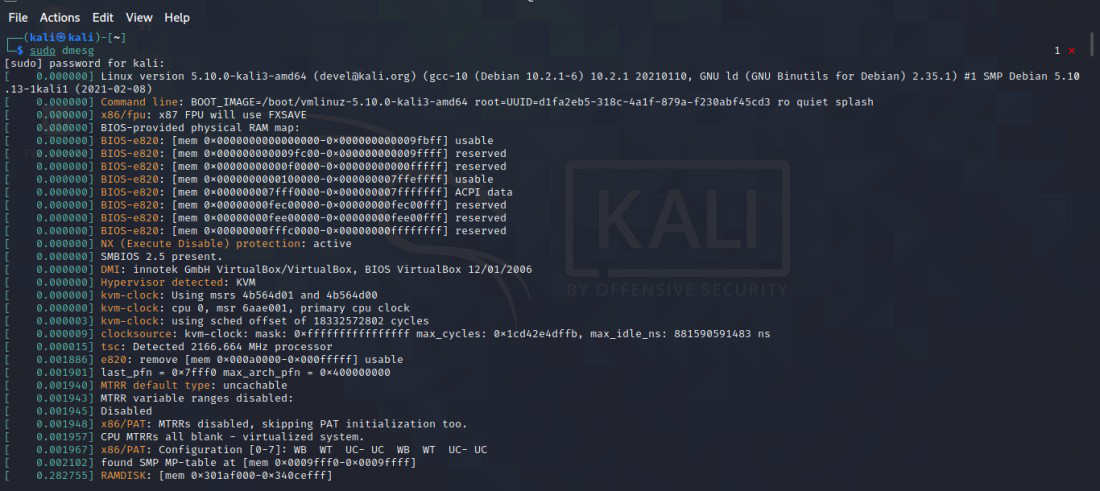
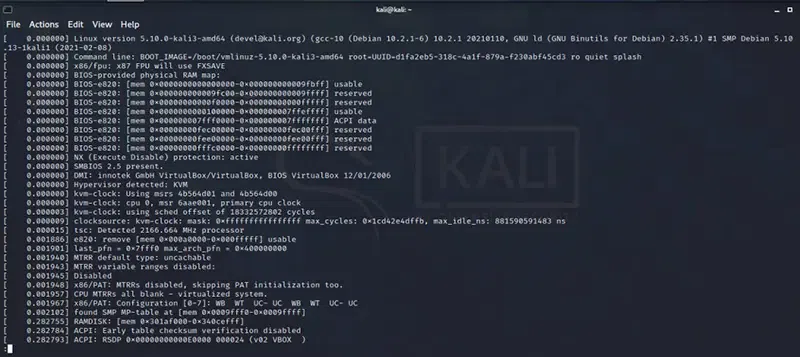
Basic Example: View All Kernel Messages
This displays all messages from the kernel ring buffer.
The following are the options of dmesg command with describing its functionality:
Option
Description
Example Usage
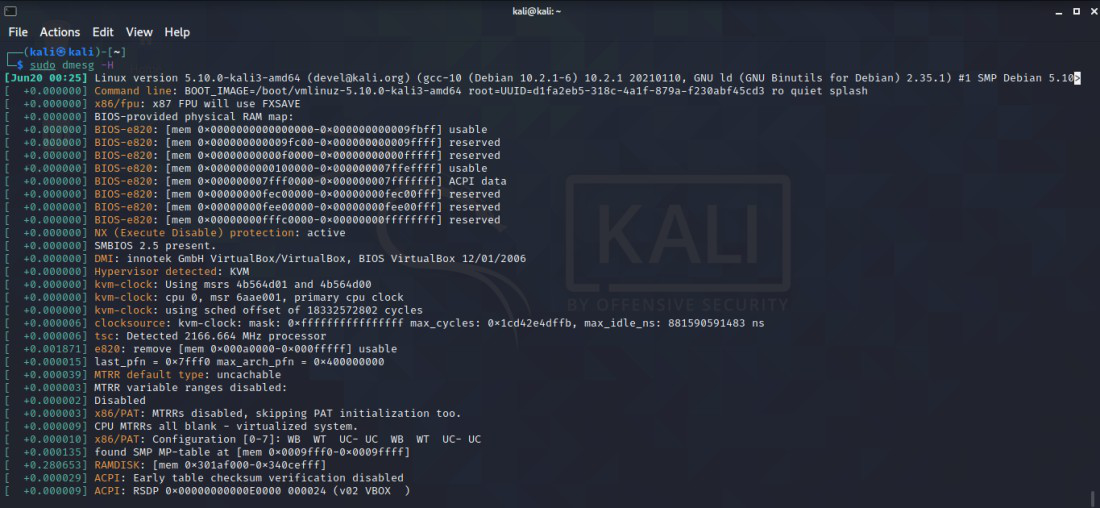
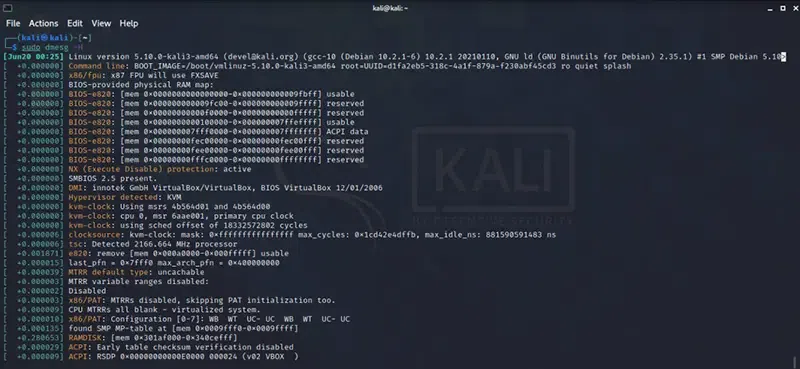
-H
It provides the human-readable output, making timestamps and information more understandable
dmesg -H
-T
It shows only human-readable timestamps for each message
dmesg -T
-l
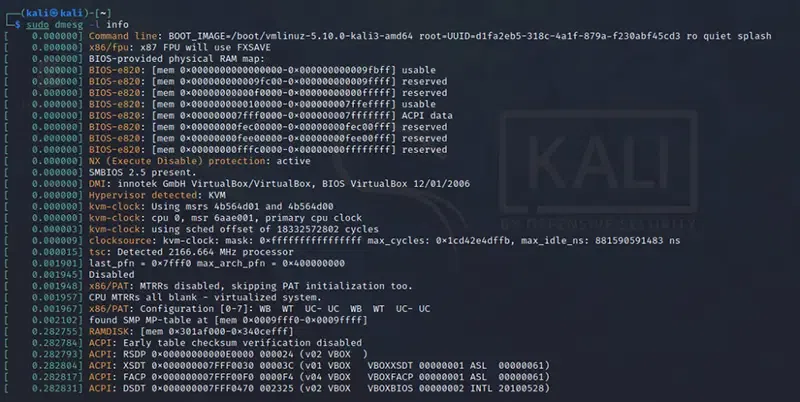
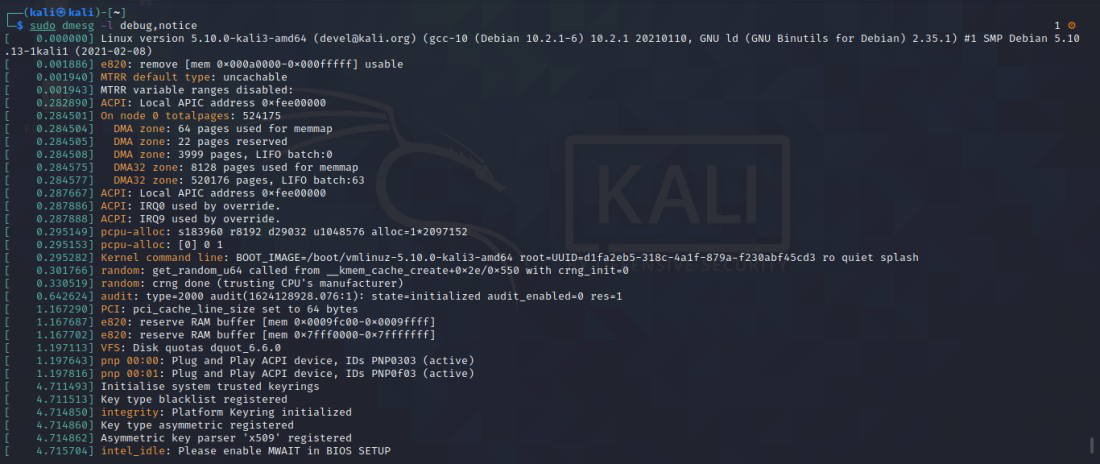
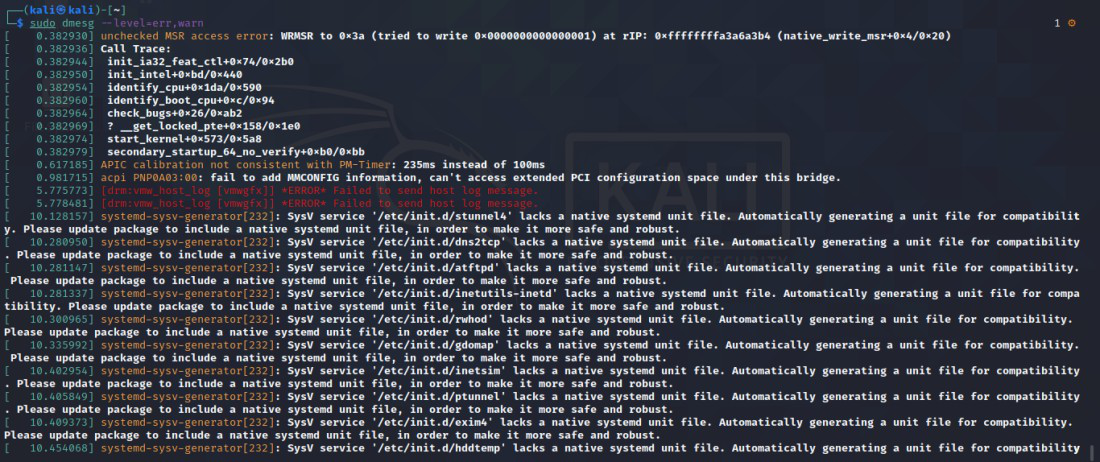
It filter the messages by log level (e.g., err, warn, info)
dmesg -l err
-k
It only prints the kernel messages (filter out userspace messages)
dmesg -k
-s
It specifes the buffer size to read messages
dmesg -s 1024
-f
It filters the messages by facility (e.g., kern, user, daemon)
dmesg -f kern
-r
It takes the Raw output and do not decode syslog(2) priority to facility and level
dmesg -r
-x
It helps with providing the decode facility and level to human-readable prefixes (e.g., kern.info)
dmesg -x
Syntax of the dmesg Command
dmesg [options]
Installation and setup dmesg command
The following are the steps that guides in install and setup the dmesg command:
Step 1: Check if dmesg is Installed
Firstly, whether the dmesg software is already available or not using the following command:
which dmesg
Step 2: Install dmesg
For Debian-based systems (Ubuntu, Mint, etc.):
sudo apt udpate
sudo apt install util-linux
For RedHat-based systems (Fedora, CentOS, etc.):
sudo yum install util-linux
Step 3: Verify dmesg Installation
After installation of dmesg command, verify its successful installation using the following command:
dmesg --version
Basic Usage and Examples of dmesg Command
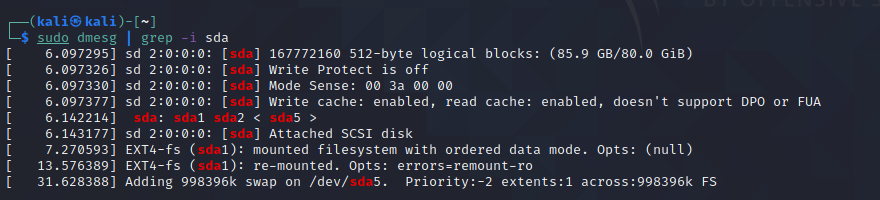
The dmesg command provides detailed kernel-level information useful for diagnosing hardware, driver, and boot-related issues. Below are common examples demonstrating its basic usage and key functionalities.
1. Viewing Logs Page-Wise with Less
Used to scroll through kernel messages conveniently, one page at a time.