|
VOOZH | about |
|
VOOZH | about |
RPM is a software package management system used for installing, updating, querying, verifying, and removing software packages on Linux-based systems. It was originally developed by Red Hat and later adopted by many other Linux distributions.
RPM packages, usually identified by the .rpm file extension, contain all necessary files, metadata, and scripts required to install and manage software on a Linux system.
The basic syntax of the rpm command is as follows:
rpm [options] [package_name]Here,
These options provide a wide range of functionalities and control when working with RPM packages on Linux systems. You can use them to install, upgrade, query, and manage packages effectively.
Options | Description |
|---|---|
-i, --install | Install an RPM package. |
-U, --upgrade | Upgrade an RPM package. |
-q, --query | Query RPM package(s) or display information about installed packages. |
-a, --all | Used with -q, lists all installed packages. |
-V, --verify | Verify the integrity of installed packages. |
-e, --erase | Uninstall or erase an RPM package |
-F, --freshen | Upgrade packages but only if a package with the same name is already installed. |
--nodes | Ignore package dependencies during installation or removal. |
--test | Test mode; shows what the rpm command would do without making any changes. |
-h, --hash | Display hash marks (#) to indicate progress during installation or removal. |
--force | Force installation, even if it overwrites files from other packages or has other issues. |
--reinstall | Reinstall an RPM package. |
--import | Import a GPG key for package signature verification. |
--resign | Resign an RPM package with a new GPG key. |
-F, --file | Used with -q, queries which package owns a particular file. |
--package | Used with -q, queries information about an RPM file or package. |
--setperms | Set permissions of package files to their default values. |
--setugids | Set user and group ownership of package files to their defaults. |
--nodigest | Skip digest checks when installing or upgrading packages. |
--rebuilddb | Rebuild the RPM database. |
--testsig | Test the digital signature of an RPM package. |
--showrc | Show RPM configuration settings. |
-h, --help | Display help information. |
--version | Display the RPM version. |
To install an RPM package, you can use the `rpm` a command followed by the `-i` (or `--install`) option and the name of the RPM package file. For example:
rpm -i package.rpmThis command installs the specified package on your system.
Here we are installing Jenkins.
rpm -i /root/jenkins-2.282-1.1.noarch.rpmTo upgrade an installed package with a newer version, use the `-U` (or `--upgrade`) option:
rpm -U package.rpmThis command will replace the older version of the package with the new one if it's already installed
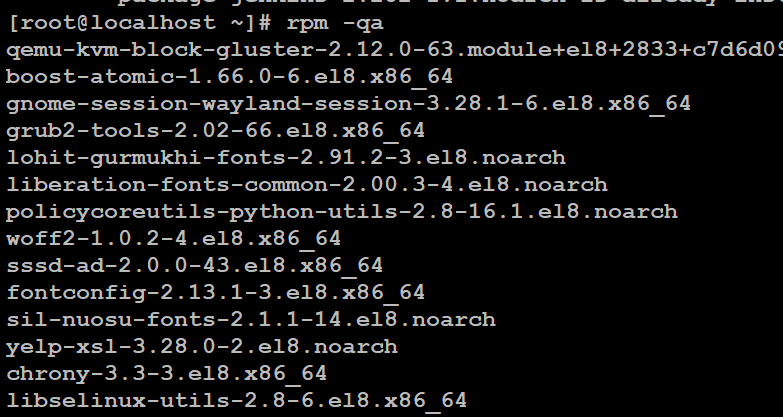
To list all installed packages on your system, use the -q (or --query) option with the -a (or --all) flag:
rpm -qaThis will display a list of installed packages along with their names and versions.
To retrieve detailed information about a specific package, use the `-q` (or `--query`) option followed by the package name:
rpm -q package_nameThis command will display information like the package name, version, architecture, and more.
You can verify the integrity and authenticity of an RPM package without installing it using the `-V` (or `--verify`) option. This checks if the package's files have been modified or deleted:
rpm -V package_nameThis command checks whether the package's files on disk match the information in the RPM database.
To remove an installed package, use the `-e` (or `--erase`) option followed by the package name:
rpm -e package_nameThis command will uninstall the specified package from your system.
Let's explore some practical examples of using the rpm command:
Suppose you want to install a package named example.rpm:
rpm -i example.rpmThis command will install the `example. , rpm` package on your system.
If you have a newer version of the example.rpm package and want to upgrade it, you can use the following command:
rpm -U example.rpmThis will replace the older version with the newer one.
To retrieve information about the installed example package:
rpm -q exampleThis will display details like the package name, version, and architecture.
Check the integrity of the example package:
rpm -V exampleThis command will report any file discrepancies in the package.
To remove the example package from your system:
rpm -e exampleThis will uninstall the package and its associated files.