|
VOOZH | about |
|
VOOZH | about |
The ls command is used to list all files and directories in the Linux terminal.
Here is example of how to list files and directories
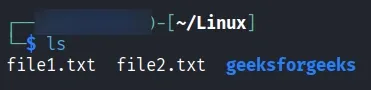
Type the basic ls command in the terminal to display all files and directories in the current working directory.
Command:
lsOutput:
Given below are some commonly used options with the ls command to display different types of files and directories.
ls [option] [file/directory]This options lists all the files in the folder which is sorted by time which means that newest file comes first. When we use the head option in it they simply picks the first file from the list (which is your most recently changed file).
ls -t | head -1If you want to list all files and folders in your current directory with each name on a new line, you can use the ls -1 command
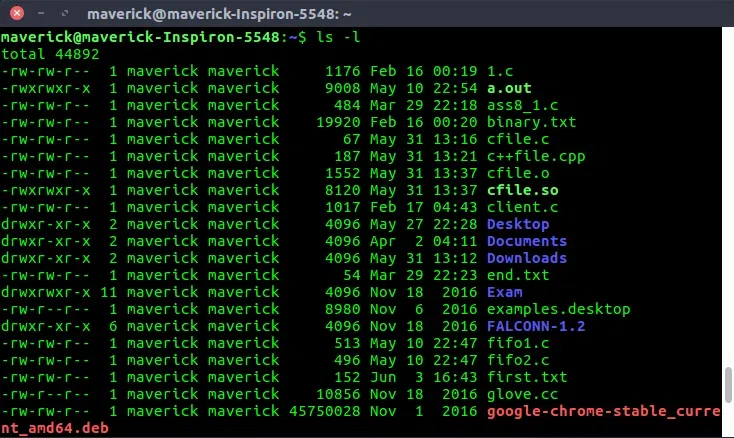
ls -1The ls -l command in Linux is used to list the detailed information about the files and directories in the current folder.
ls -l -rw-rw-r-- 1 maverick maverick 1176 Feb 16 00:19 1.c 1st Character – File Type: First character specifies the type of the file. In the example above the hyphen (-) in the 1st character indicates that this is a normal file. Following are the possible file type options in the 1st character of the ls -l output.
[Field 1]: File Permissions
[Field 2]: Number of Links
[Field 3]: Owner
[Field 4]: Group
[Field 5]: File Size
[Field 6]: Last Modified Date and Time
[Field 7]: File Name
If you want see the file size, permissions, owner and date than use the below command:
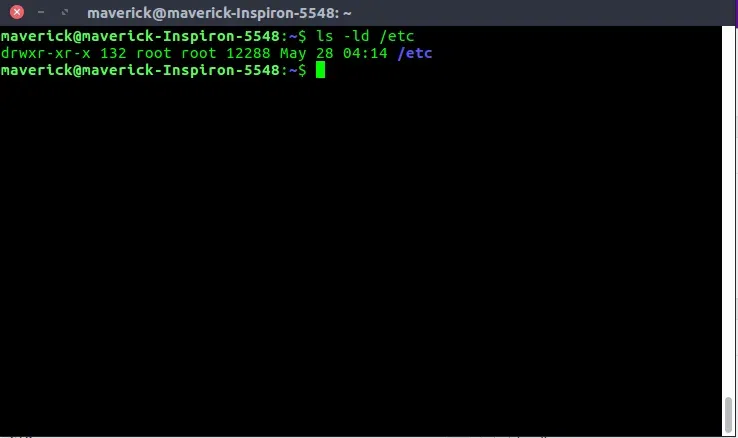
ls -lhWhen you use “ls -l” you will get the details of directories content. But if you want the details of the directory then you can use -d option as., For example, if you use ls -l /etc will display all the files under the etc directory. But, if you want to display the information about the /etc/ directory, use -ld option as shown below.
ls -l /etcIf you want to see the details about a directory itself (and not the files inside it), you can use:
ls -ld /etcIf you want to see which files were recently changed or updated than sue the below command:
ls -ltIt lists all files and folders sorted by the last modified time
If you want to see which files were changed or updated last then use the below command:
ls -ltr To sort the file names in the last modification time in reverse order. This will show the last edited file in the last line which will be handy when the listing goes beyond a page.
In Linux some file or folder starts with a dot (.) which means that it is hidden. These hidden files are usually used to store settings or configuration details for apps and the system.
ls -aThe above command shows all files, including the hidden ones like .bashrc, .git, or .config, along with the current . and parent .. directories.
To show the hidden files, but not the ‘.’ (current directory) and ‘..’ (parent directory).
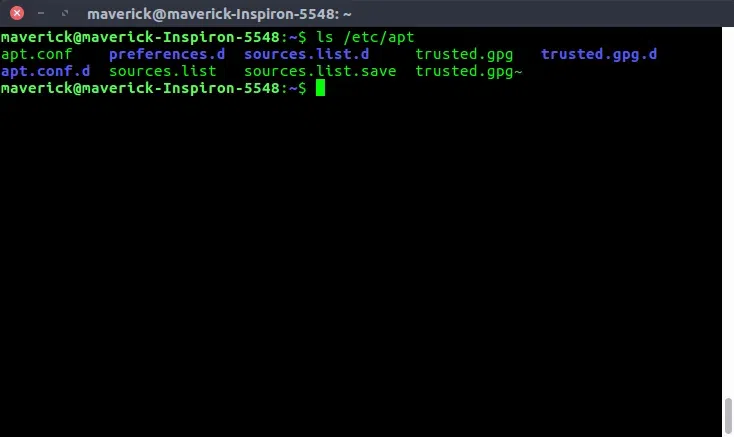
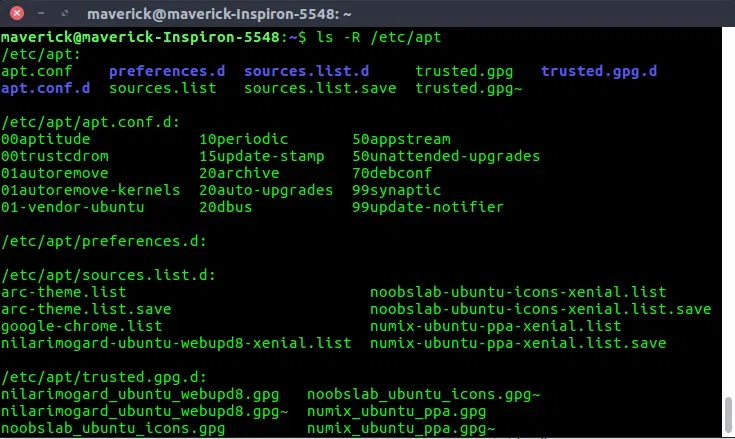
ls -AThis command lists all files and folders inside /etc/apt which includes the subfolders and their contents.
ls /etc/aptls -R /etc/apt To show all the files recursively. When you do this from /, it shows all the unhidden files in the whole file system recursively.
Every file in Linux has a unique ID number called an inode number. This number keeps track of important details about the file like its location on disk, size, permissions, and timestamps but not its name.
To see the inode number of a file or folder use the below command:
ls -iIf you list the content of the /etc/apt directory along with their inode numbers.
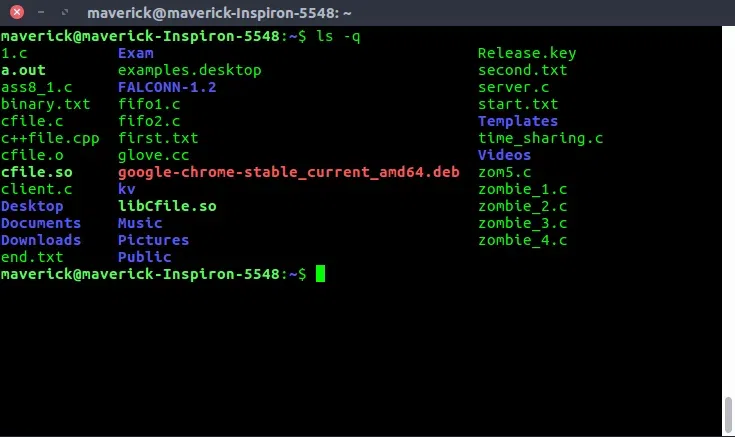
ls -i /etc/aptSometimes, files or folders may have irregular or non-printable characters which is called control characters in their names basically they can mess up your terminal display or be confusing to read.
Use ls -q command is a safe way to list files while hiding those confusing characters.
ls -q To print question marks instead of the non-graphics control characters.
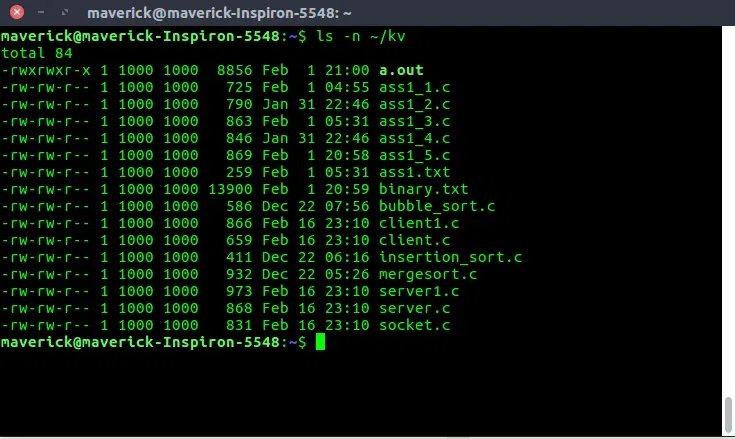
It shows the UID (User ID) and GID (Group ID) of the files and folders instead of just showing usernames and group names.
ls -n ~/kvThe ls -F command in Linux helps you quickly identify file types by adding special symbols at the end of each file name.
ls -FRecognizing the file type by the color in which it gets displayed is another kind in classification of file. In the below output directories get displayed in blue, soft links get displayed in green, and ordinary files get displayed in default color.
ls --color=autoWhen you list files using the ls -l command in Linux, it shows the last modified time of each file. This flag lets you customize the format of the time/date shown next to each file or folder.
ls -l --time-style=long-isoThis command will display the time in YYYY-MM-DD HH:MM format. There are other options like