|
VOOZH | about |
|
VOOZH | about |
Understanding the storage devices connected to your Linux system is crucial for efficient system management. The lsblk command, short for "list block devices," is a powerful tool that provides detailed information about block devices such as hard drives, solid-state drives, and other storage-related devices.
The basic syntax of the lsblk command is simple:
lsblk [OPTIONS] [DEVICE...]Here,
[OPTIONS] represents the various flags and parameters that can be used with the command.[DEVICE...] refers to the specific block devices you want to list. If no device is specified, lsblk will display information for all available block devices.Many Linux distributions do not have lsblk command pre-installed. To install it use the following commands as per your Linux distribution.
sudo apt-get install util-linuxsudo yum install util-linux-ngsudo yum install util-linux-ngOptions | Description |
|---|---|
| Display all devices, including empty ones. |
| Print sizes in bytes instead of the more human-readable formats. |
| Invert the output, showing only non-empty devices. |
| Print output in a list format. |
| Define the output columns to display. |
| Display key-value pairs for each device. |
| Print devices in a tree-like format. |
| Exclude devices that match the specified criteria. |
To display block devices.
Command:
lsblk This command will display a hierarchical view of all block devices connected to your system, including information about partitions and mount points.
Output:
👁 to-display-block-devicesTo display empty block devices as well.
Command:
lsblk -a This command includes all devices, even empty ones, in the output. It can be useful when you want to see all available devices, including those without any partitions or mount points.
Output:
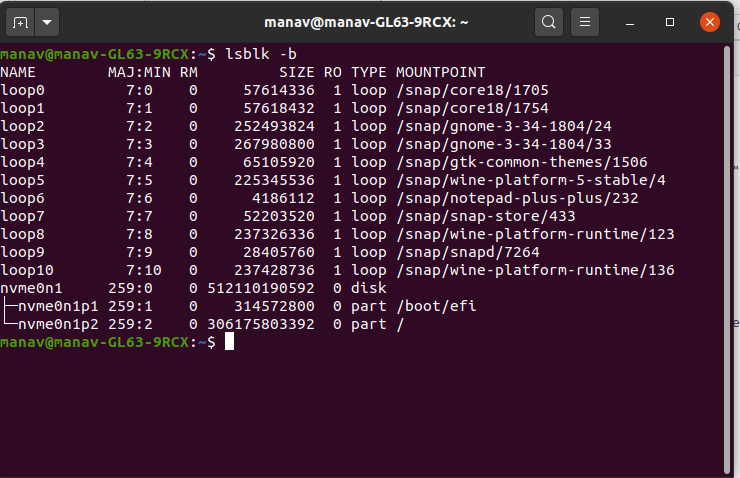
👁 to-display-empty-block-devicesTo print size information in bytes.
Command:
lsblk -bThe '-b' option displays sizes in bytes. This can be handy when you need precise size information for block devices.
Output:
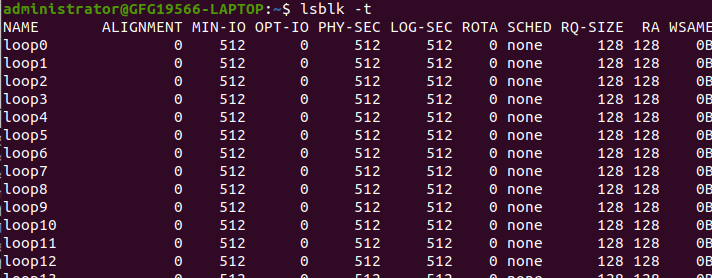
👁 display-block-devices-in-bytesThe '-t' option organizes devices in a tree-like format, making it easier to visualize the relationships between devices and partitions.
Command:
lsblk -tOutput:
Command:
lsblk -z Output:
👁 print-zone-model-block-devicesCommand:
lsblk -d This will skip all the slave entries.
Output:
👁 to-avoid-slavesTo use ASCII characters for tree formatting.
Command:
lsblk -i Inverting the output with '-i' will show only non-empty devices. This is useful when you want to focus on devices with existing partitions or mount points.
Output:
👁 block-devices-ASCII-tree-formattingThis will display all details of device owner, group and mode of block devices.
Command:
lsblk -mOutput:
👁 to-display-mode-owner-group-block-deviceUsed to print selected columns of block-devices.
Command:
lsblk -o SIZE, NAME, MOUNTPOINT Use '-o' to customize the output columns. In this example, we specify that we only want to see the device name, size, and mount point for each device.
Output:
👁 to-display-specific-columnsThis will print only the specified columns.
This will hide column headings.
Output:
lsblk -dnOutput:
👁 hide-column-heading-block-deviceslsblk --help This will display the help section of the command.
In this article we discussed the 'lsblk' command which is a vital tool for managing storage devices in Linux, offering detailed insights into hard drives and SSDs. This article covers its syntax, options, and practical applications. 'lsblk', part of the util-Linux package, efficiently queries system files to present a tree-like view of block devices. Examples demonstrate how to list devices, customize output, and visualize storage efficiently.