|
VOOZH | about |
|
VOOZH | about |
The mount command connects storage devices or file systems (like EXT4, NTFS, or FAT32) to directories known as mount points. Once mounted, everything inside that mount point reflects the contents of the attached storage.
Below is the syntax for the mount command:
sudo mount [options] <device> <mount_point>here,
Linux uses a common file tree to manage files from multiple sources. You can attach devices (USBs, hard disks, network shares) to mount points. Here are some frequently used options with the mount command:
| Option | Description |
|---|---|
-t <type> | Specifies the file system type (e.g., ext4, ntfs, vfat, nfs). |
-o <options> | Mount options (e.g., ro for read-only, rw for read-write). |
-a | Mounts all file systems listed in /etc/fstab. |
-l | Lists all currently mounted file systems. |
--bind | Binds a directory to another location (useful for creating mirrors). |
Before we dive into the practical aspects of mounting file systems, let's take a moment to understand what file systems are available on our Linux system. Open a terminal and use the following command to list the supported file systems:
cat /proc/filesystemsThis command provides a list of file system types that Linux supports. Additionally, you can explore more detailed information using the manual:
man filesystemsThis manual provides documentation on various file systems that Linux can work with.
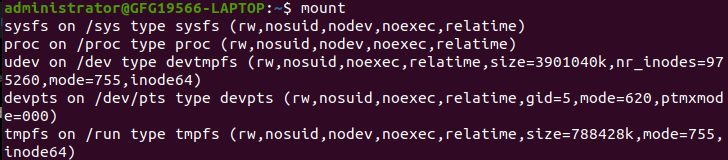
Now, let's see what file systems are currently mounted on our Linux system. The mount command allows us to view this information easily:
mountThis command displays a list of currently mounted file systems. If you are curious about the static file systems, you can view them in the `/etc/fstab` file:
cat /etc/fstabTo explore mounted file systems in a tree structure, you can use the `findmnt` command:
findmntIf you want to narrow down the output to a specific type of file system, you can do so with filters:
findmnt -t ext4And if you're interested in block devices, the lsblk command is handy:
lsblkNow that we've covered the basics let's move on to the practical aspects of mounting file systems on Linux. Mounting can be a temporary or permanent operation, and it's typically performed by an administrator, either by logging in as the root user or by using the sudo command.
mount -t type device dirOther forms:
mount [-l|-h|-V]
mount -a [-fFnrsvw] [-t fstype] [-O optlist]
mount [-fnrsvw] [-o options] device|dir
mount [-fnrsvw] [-t fstype] [-o options] device dir
These commands tell the Kernel to attach the filesystem found at device to the dir.
Note:
mount --target /mountpointman mountNote: It is important to note that we are only discussing the standard form of mount command given as syntax. Different forms are somewhat discussed because it has certain limitations on different kernels.
It is also important for a user to understand how to unmount file system on Linux to avoid any data corruption. Below is the supporting example to unmount file system:
umount /mntThis will unmount the file system from the /mnt directory. Make sure no files are being used from the mounted device before you unmount it.
The mount command has several options that can be used to modify how a file system is mounted. Below are some of the most commonly used mount options:
Options | Description |
|---|---|
l | Lists all the file systems mounted yet. |
h | Displays options for command. |
V | Displays the version information. |
a | Mounts all devices described at /etc/fstab. |
t | Type of filesystem device uses. |
T | Describes an alternative fstab file. |
r | Read-only mode mounted. |
Below are the examples to help you understand how to view, attach, and check file system mounts in a Linux system.
Use this to see details of all currently mounted file systems and their mount points.
This allows you to attach a device or partition to a specific directory on your Linux system.
Use this to check the installed version of the mount utility and supported options.
👁 ImageDetaches a mounted file system safely so it can be removed or modified.
👁 ImageThe mount command in Linux is one of the best tool for managing file systems. Whether you're mounting local devices, network file systems, or managing storage, the mount command allows you to access and manipulate file systems effectively. The mount command is like plugging in a USB drive or connecting to a network location. It can be temporary, for one session, or permanent, set up to connect every time you start your computer.