|
VOOZH | about |
|
VOOZH | about |
Nano is a command-line text editor that comes pre-installed with most Linux distributions. It's designed to be user-friendly, with a simple interface that resembles popular graphical text editors. Nano provides essential editing features, making it ideal for quick edits, creating configuration files, or writing scripts directly in the terminal.
Nano is generally available by default in many Linux distributions, but if it is not installed, you may install it using the following commands:
sudo apt updateIn case of Debian/Ubuntu
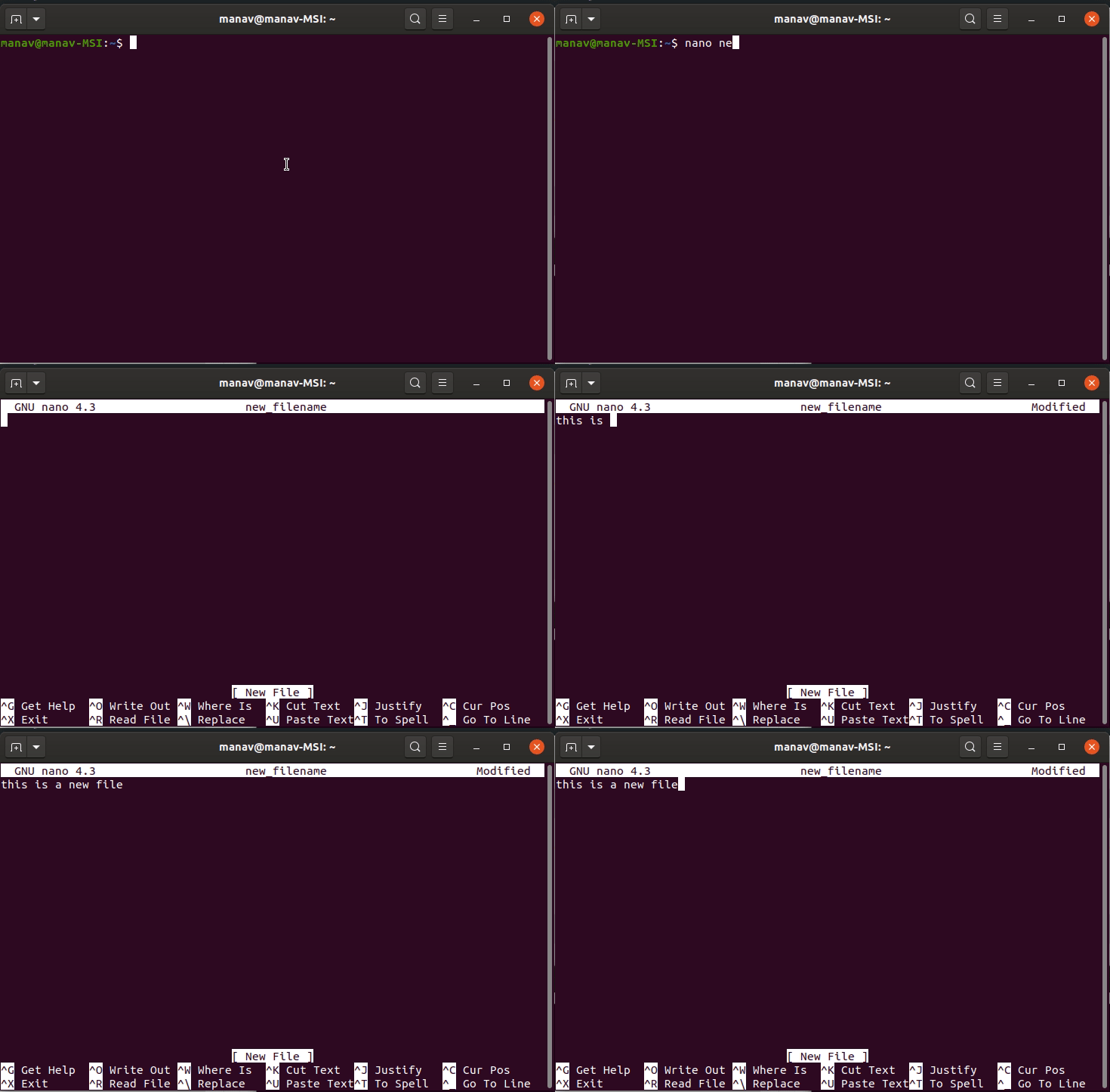
sudo apt install nanosudo yum install nanoThis command will open a new file with new_filename as shown in the output. In case the file already exists it will open the same and in case the file is not there in the current directory it will create a new one. At the bottom of the window, there is a list of shortcut keys for nano.
nano new_filename👁 creating and opening a new file in nano text editorIt will ask you for the filename. In case, you want to save the changes to a new file or want to create a new file then change the name else keep the name same.
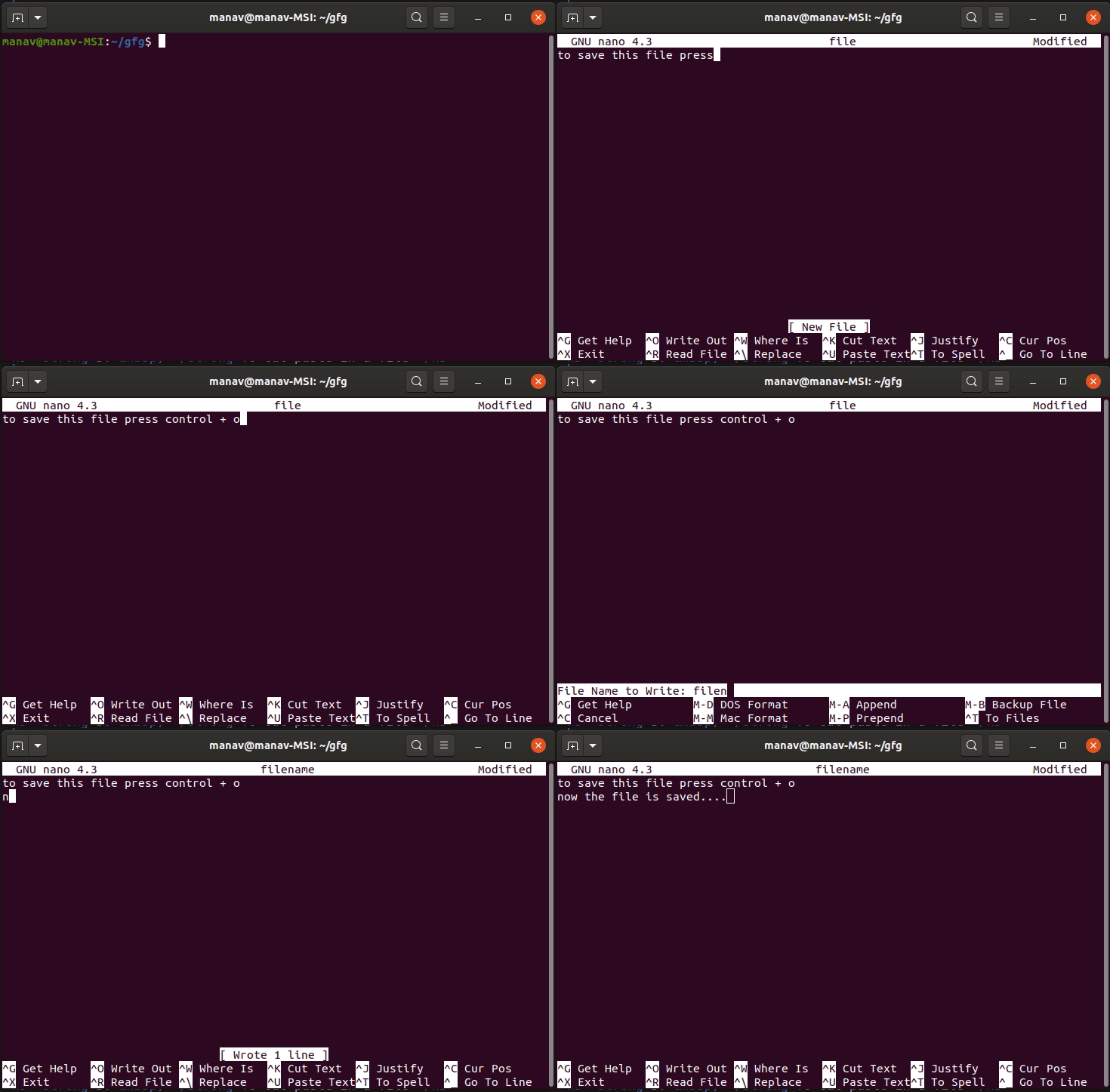
press Ctrl+oAs soon as you will press enter key, then In case, you have changed the name of the file then it will save the file with a new name and if not then it will save the changes to the current file.
👁 saving a text file in nano text editorTo cut paste in a file. Ctrl+o is used to cut and Ctrl+u is used to paste the text.
To cut and paste a whole line. Move to the line which you want to cut then press Ctrl+k. Now the line is moved to clipboard, To paste it, go to the position where you want to paste and then press Ctrl+u👁 To cut and paste a whole line in nano text editor
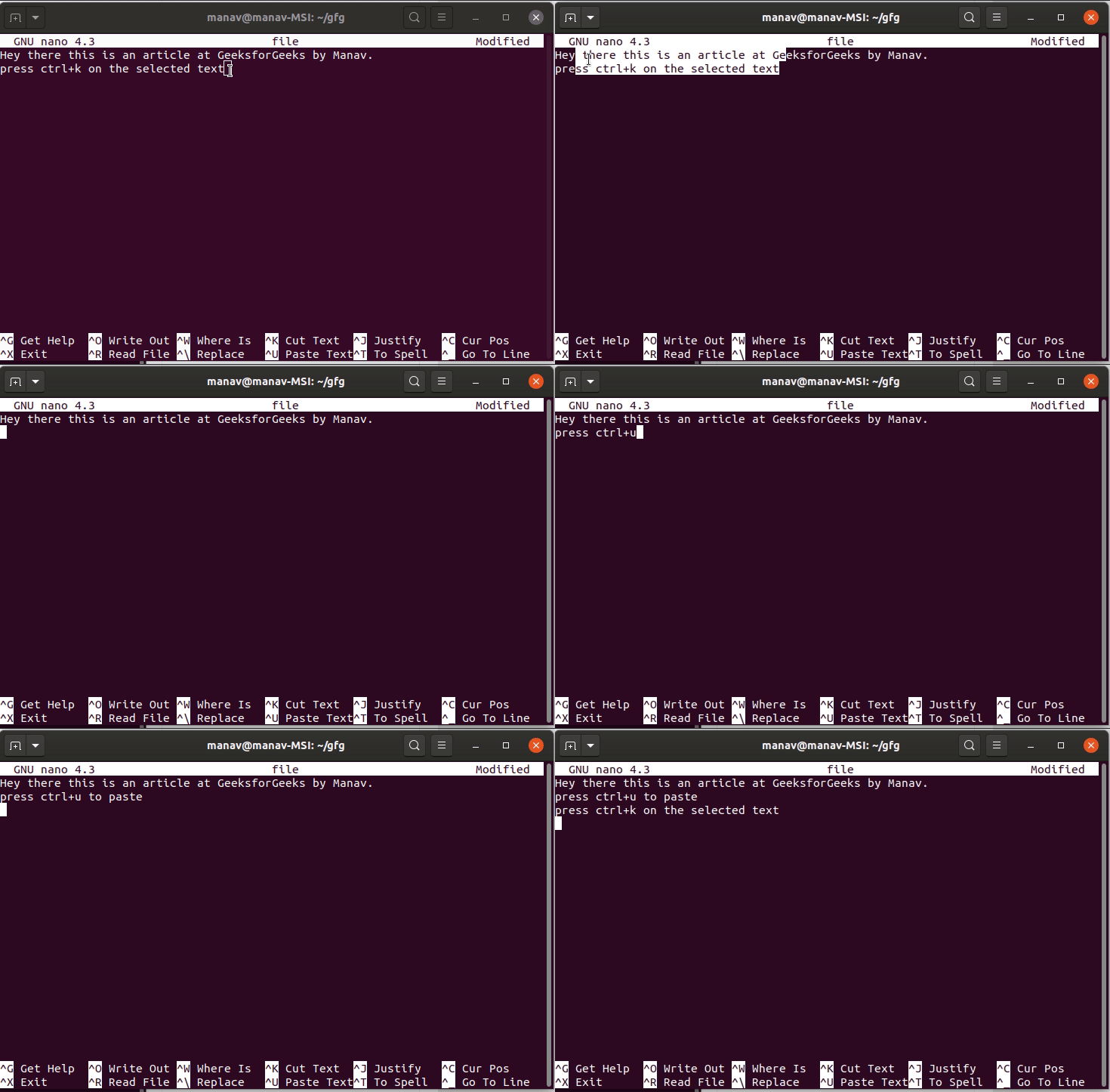
To cut and paste the selected text. Select the text which you want to cut then press Ctrl+k. Now the text is moved to clipboard. To paste it, go to the position where you want to paste and then press Ctrl+u. 👁 To cut and paste the selected text in nano text editor
To search a word in a file Ctrl+w is used. Press Ctrl+w It will ask for a word to search for. Enter the word It will search for the word and will place the cursor in the first letter of the first occurrence of the word.
👁 To search a word in a file in nano text editor
To enable spell check in nano. First, install the spell check package.
sudo apt install spell
It will then ask for the password then enter the password. Then press y and then press enter.
👁 Spelling Check in Nano Editor
Nano's interface is intuitive and easy to navigate. Here are some essential commands to get started:
Ctrl + V to move to the next page or Ctrl + Y to move to the previous page.Backspace to delete characters, and Delete to delete the character under the cursor.Saving and exiting files in Nano is straightforward:
Ctrl + O to write the current buffer to a file. Nano prompts you to enter the filename if you haven't specified one.Ctrl + X to exit Nano. If there are unsaved changes, Nano will ask if you want to save before exiting.Nano provides powerful search and replace functionalities:
Ctrl + W to search for a specific term in the file. Nano highlights the first occurrence, and you can navigate through subsequent matches using Alt + W.Ctrl + \\ to activate the replace mode. Enter the search term, followed by the replacement, and press Enter to replace the first occurrence. Press A to replace all occurrences.While Nano's default configuration works well for most users, you can customize its behavior to suit your preferences:
nanorc file located in /etc/nanorc or ~/.nanorc. You can modify this file to customize Nano's behavior, such as enabling syntax highlighting, defining keyboard shortcuts, or changing default options.nanorc file.Beyond its basic functionalities, Nano offers some advanced features for power users:
Ctrl + R to open a new file in a separate buffer.Ctrl + T to toggle spell checking on or off, and Alt + T to jump to the next misspelled word.Here's how to set nano as the default editor in the command line:
.bashrc for bash). You can use nano itself to edit this file:nano ~/.bashrcexport EDITOR="nano"
export VISUAL="nano"
Save the changes and exit the editor (usually Ctrl+O to save, Ctrl+X to exit).
Refresh your shell configuration to apply the changes. You can do this by either restarting your terminal window or running:
source ~/.bashrc