|
VOOZH | about |
|
VOOZH | about |
A process means a program in execution. It generally takes an input, processes it, and gives us the appropriate output. Every time you launch an application or execute a command, the system creates a process for it. It involves controlling and monitoring all the running programs on the system. The Linux kernel is in charge of managing these processes, making sure they get the right resources and run smoothly on the CPU.
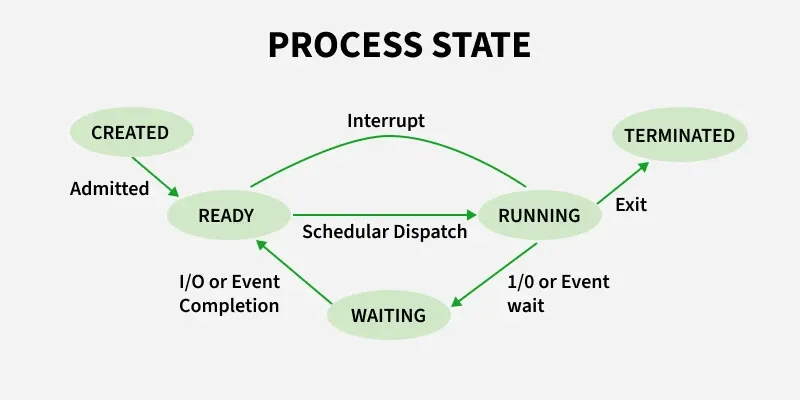
A process goes through several states during its lifetime. These states help the system track what each process is doing:
init process (PID 1).These commands help you monitor, control, and manage processes effectively, ensuring your Linux system runs smoothly and stays secure.
1. Example of foreground process.
sleep 5👁 Foreground-process-example-sleepThis command will be executed in the terminal and we would be able to execute another command after the execution of the above command.
Note: In this case, the name of the process is sleep 5 but you may change the same as per your need.
2. Stopping a process in between of its execution. To stop a foreground process in between of its execution we may press CTRL+Z to force stop it.
sleep 100👁 Stopping-a-process-in-between-of-its-executionPressing CTRL+Z in between the execution of the command will stop it.
Note: In this case the name of the process is sleep 100 but you may change the same as per your need.
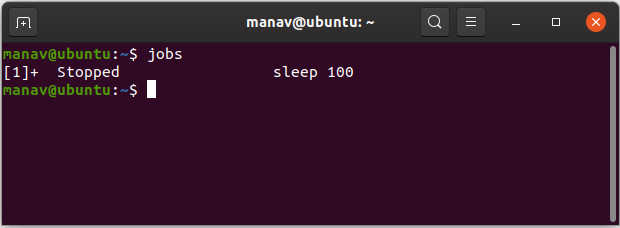
3. To get the list of jobs that are either running or stopped.
jobs👁 To-get-the-list-of-jobs-which-are-either-running-or-stopped2It will display the stopped processes in this terminal and even the pending ones.
4. To run all the pending and force stopped jobs in the background.
bg👁 To-execute-pending-and-force-stopped-jobs-in-the-background1This will start the stopped and pending processes in the background.
5. To get details of a process running in background.
ps -ef | grep sleep👁 To-get-details-of-a-process-running-in-background2Note: In this case the name of the process is sleep 100 but you may change the same as per your need.
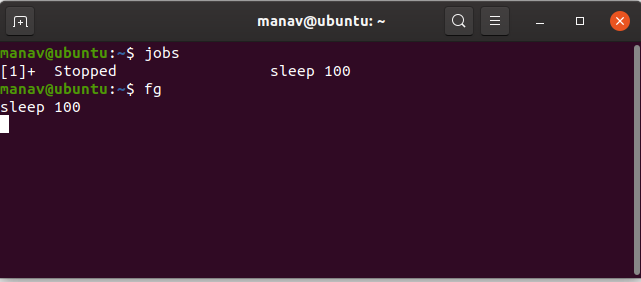
6. To run all the pending and force stopped jobs in the foreground.
fg👁 To-run-all-the-pending-and-force-stopped-jobs-in-the-foregroundThis will start the stopped and pending processes in the foreground.
7. To run a process in the background without getting impacted by the closing of the terminal.
nohup sleep 100 &👁 To-run-a-process-in-background.-without-getting-impacted-by-the-closing-of-terminalWhile executing, it will even store all the output after execution in nohup.out file.
Note: In this case, the process is sleep 100, you may modify it as per your need.
8. To run some processes in the background directly.
sleep 100&👁 To-run-some-processes-in-the-background-directly2This will run the process in the background and will display the process id of the process.
Note: In this case, the process is sleep 100, you may modify it as per your need.
9. To run processes with priority.
nice -n 5 sleep 100 👁 To-run-processes-with-priority1The top priority is -20 but as it may affect the system processes so we have used the priority 5.
Note: In this case, the process is sleep 100, you may modify it as per your need.
10. To get the list of all the running processes on your Linux machine.
top👁 To-get-the-list-of-all-the-running-processes-on-your-Linux-machineThis will display all the processes that are currently running in your system.