|
VOOZH | about |
|
VOOZH | about |
A process is simply a program that is currently running on your system. Whenever you execute a command in Linux, the operating system creates a process to run that command.
Example:
pwdOutput:
👁 fileWhen you run this command, Linux starts a process to execute pwd, displays the output, and then ends the process.
Every process in Linux is assigned a unique number called a Process ID (PID).
A process can be run in two ways:
Every process when started runs in foreground by default, receives input from the keyboard, and sends output to the screen.
Example:
sleep 10You cannot run another command until this finishes.
It run independently of the terminal, allowing you to perform other tasks simultaneously.
& at the end of the command.Example:
sleep 60 &Output:
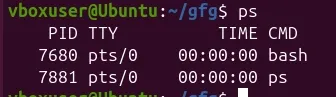
[1] 2456ps (Process status) can be used to see/list all the running processes.
ps
$ ps –f
Output:
Command:
$ ps 19
Output:
PID TTY TIME CMD
19 pts/1 00:00:00 sh
For a running program (named process) Pidof finds the process id’s (pids)
Fields described by ps are described as:
There are other options which can be used along with ps command :
When running in foreground, hitting Ctrl + c (interrupt character) will exit the command. For processes running in background kill command can be used if it’s pid is known.
Command:
$ ps –f
Output:
UID PID PPID C STIME TTY TIME CMD
52471 19 1 0 07:20 pts/1 00:00:00 sh
52471 25 19 0 08:04 pts/1 00:00:00 ps –f
Command:
$ kill 19Output:
TerminatedIf a process ignores a regular kill command, you can use kill -9 followed by the process ID.
Command:
$ kill -9 19Output:
TerminatedJob control commands allow you to manage running processes in the shell by starting them in the background, bringing them to the foreground, or suspending and resuming jobs interactively.
A job control command that resumes suspended jobs while keeping them running in the background
Syntax:
bg [ job ]
For example:
bg %19It continues a stopped job by running it in the foreground.
Syntax:
fg [ %job_id ]For example:
fg 19Monitoring processes in real time allows you to observe CPU, memory, and process activity live, helping you quickly identify resource-heavy or problematic processes.
Using top Command
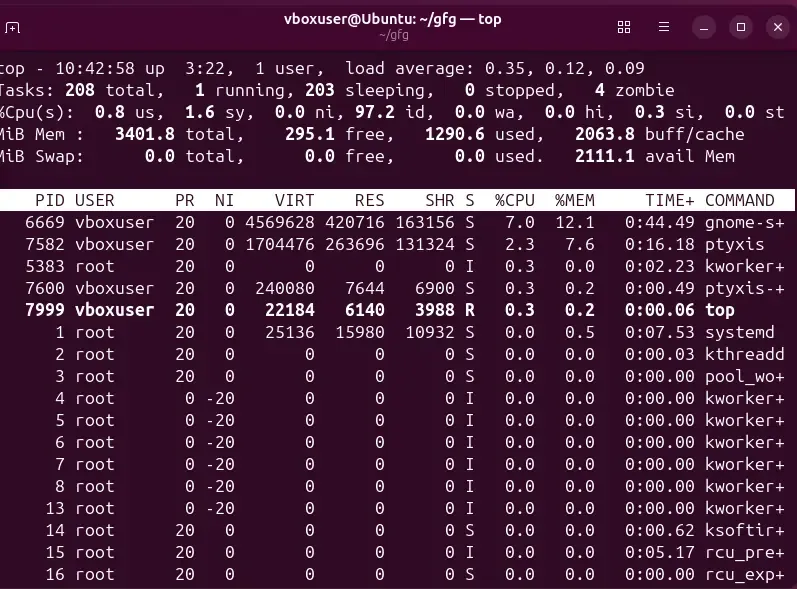
This command is used to show all the running processes within the working environment of Linux.
Syntax:
topOutput:
It Shows:
Press q to exit.
Process priority determines how much CPU time a process receives, allowing the system to manage and balance resource usage efficiently among running processes.
It starts a new process (job) and assigns it a priority (nice) value at the same time.
Syntax:
nice [-nice value]Example:
nice -n 10 sleep 60nice value ranges from -20 to 19, where -20 is of the highest priority.
To change the priority of an already running process renice is used.
Syntax:
renice [-nice value] [process id]Example:
renice 5 -p 2456There are three types of Processes
ps -f command displays the Process ID (PID) and the Parent Process ID (PPID) in its 2nd and 3rd columns.ps -ef, processes with a ‘?’ in the TTY field are daemon processes.These commands help monitor system storage usage and memory consumption, which is essential for understanding resource availability and system performance.
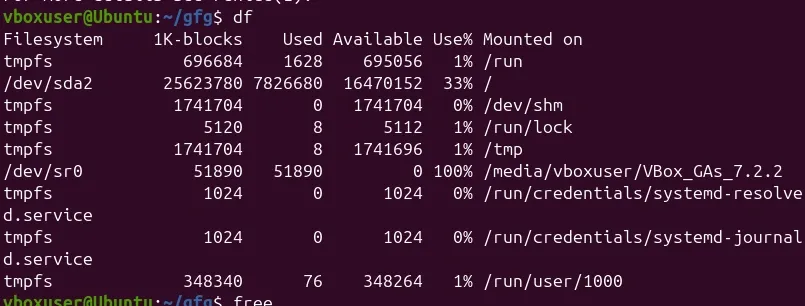
It shows the amount of available disk space being used by file systems
Example:
dfOutput:
It shows the total amount of free and used physical and swap memory in the system, as well as the buffers used by the kernel.
Example:
freeOutput: