|
VOOZH | about |
|
VOOZH | about |
The unzip command in Linux is used to extract files and directories from ZIP archive files. It allows users to view, test, and decompress ZIP files directly from the terminal.
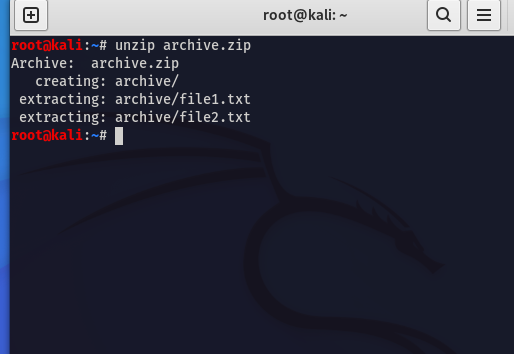
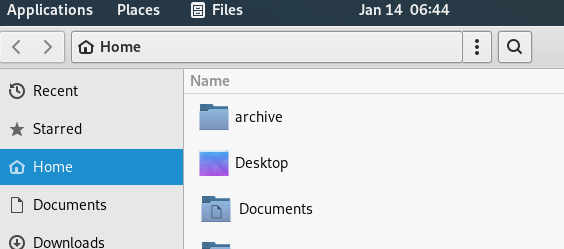
Suppose you have a file named 'archive.zip' that you want to extract which contains two files inside i as "file1.txt and file2.txt". We need to unzip it in the current directory.
Command:
unzip archive.zipOutput:
👁 unzip archived filesunzip [options] filename.zipProvides a password for extracting encrypted ZIP files.
Options | Description |
|---|---|
-l | Lists the contents of a ZIP file without extracting them. |
-d dir | Specifies the destination directory for extracted files. |
-q | Runs the extraction in quiet mode without displaying output. |
-o | Overwrites existing files without asking for confirmation |
-p | |
-e | Extracts files while preserving the original directory structure. |
-t | Tests the ZIP archive for errors or corruption before extraction. |
-u | Updates existing files and adds new ones from the ZIP archive without duplication. |
sudo apt update
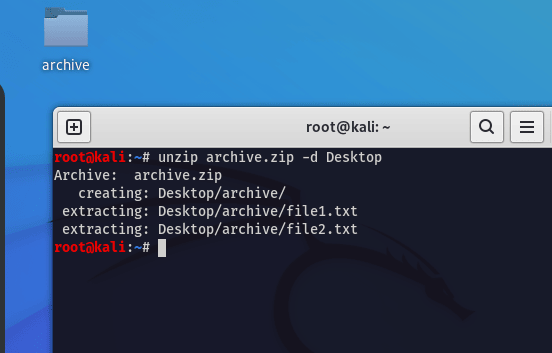
sudo apt install unzipsudo yum install unzipsudo dnf install unzipunzip -vunzip archive.zipTo extract files to a specific directory, utilize the '-d' option followed by the desired destination path:
Syntax:
unzip filename.zip -d /path/to/destinationExample:
Suppose you possess a file named 'archive.zip,' and you intend to extract its contents into the directory '/path/to/destination.'
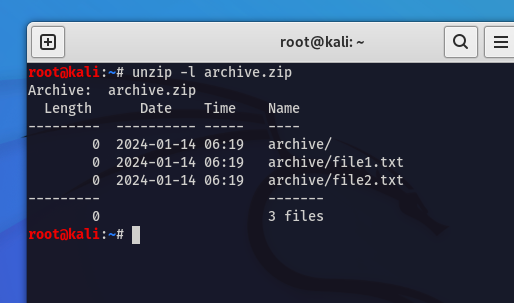
To view the contents of a ZIP file without extracting, apply the '-l' option:
Syntax:
unzip -l filename.zipExample:
Suppose Imagine you want to inspect the contents of 'archive.zip' without executing the extraction process.
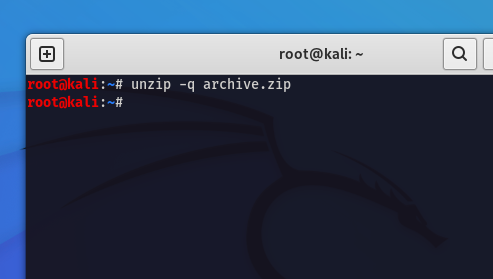
unzip -l archive.zipExecute file extraction quietly by using the '-q' option:
Syntax:
unzip -q filename.zipExample:
If you want to extract files from 'archive.zip' without displaying any messages.
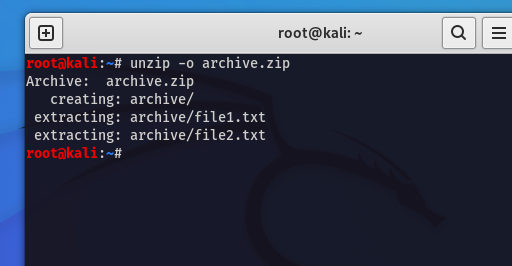
unzip -q archive.zipOverwrite current files without the affirmation of the usage of the '-o' option:
Syntax:
unzip -o filename.zipExample:
Extract files from 'archive.zip' and overwrite existing files without prompting for confirmation.
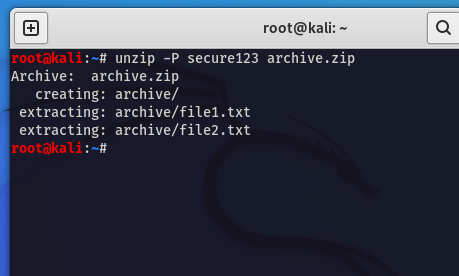
unzip -o archive.zipIf the ZIP file is password-protected, utilize the '-P' option to specify the password:
Syntax:
unzip -P password filename.zipExample:
Suppose 'archive.zip' is protected with the password 'secure123.'
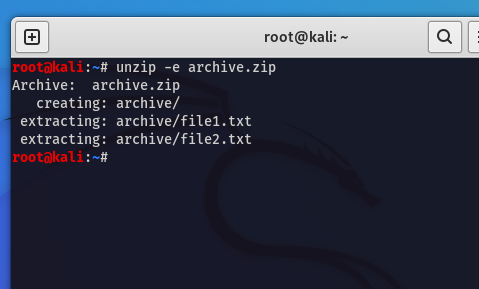
unzip -P secure123 archive.zipTo extract encrypted files and maintain security, appoint the '-e' alternative:
Syntax:
unzip -e filename.zipExample
If 'archive.zip' incorporates encrypted files, use the '-e' alternative for stable extraction.
unzip -e archive.zipThis ensures the secure extraction of encrypted files from 'archive.zip,' maintaining the confidentiality and safety of the contents.
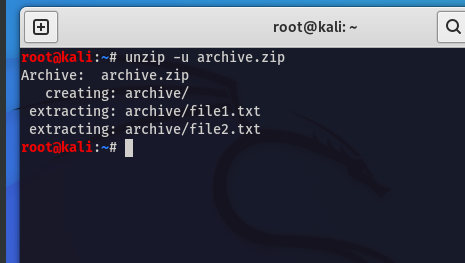
Update existing files during extraction using the '-u' option,
Syntax
unzip -u filename.zipExample
If you want to update existing files from 'archive.zip' without overwriting newer variations, appoint the '-u' option.
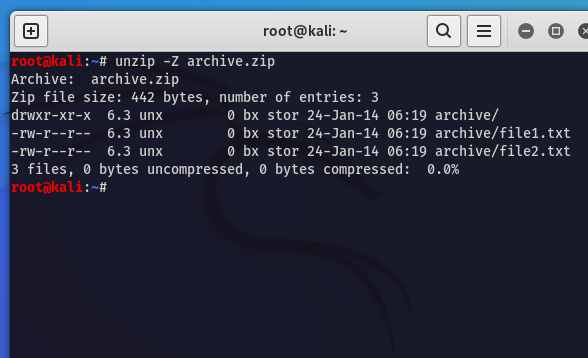
unzip -u archive.zipRetrieve compression-associated details during extraction using the '-Z' option:
Syntax:
unzip -Z filename.zipExample:
If you wish to look/inspect compression-related information while extracting files from 'archive.zip.'
unzip -Z archive.zipunzip command facilitates with allowing us to extract the files and directories from zip archives. It helps in preserving their original structure and permissions.unzip -l, which provides detailed information about files within the archive.unzip can recursively extract nested zip files within an archive, extracting all contained files and directories.