|
VOOZH | about |
|
VOOZH | about |
Linux provides several command-line tools to manage and monitor user activity. One common administrative task is identifying and listing the currently logged-in users on a Linux system. In this article, we will delve into multiple ways to achieve this, exploring commands such as who, user, w, last, finger, and top.
Table of Content
The who command is a simple and effective way to display information about currently logged-in users. By typing who in the terminal, you will receive a list of usernames, terminal IDs, login times, and originating IP addresses if applicable.
who command is used to find out the following information :
Description: The who command is used to get information about currently logged-in users on the system.
who [options] [filename]1. The who command displays the following information for each user currently logged in to the system if no option is provided :
hduser@mahesh-Inspiron-3543:~$ who
hduser tty7 2018-03-18 19:08 (:0)
2. To display host name and user associated with standard input such as keyboard
hduser@mahesh-Inspiron-3543:~$ who -m -H
NAME LINE TIME COMMENT
3. To show all active processes which are spawned by INIT process
hduser@mahesh-Inspiron-3543:~$ who -p -H
NAME LINE TIME PID COMMENT
4. To show status of the users message as +, - or ?
hduser@mahesh-Inspiron-3543:~$ who -T -H
NAME LINE TIME COMMENT
hduser + tty7 2018-03-18 19:08 (:0)
5. To show list of users logged in to system
hduser@mahesh-Inspiron-3543:~$ who -u
hduser tty7 2018-03-18 19:08 01:16 3357 (:0)
6. To show time of the system when it booted last time
hduser@mahesh-Inspiron-3543:~$ who -b -H
NAME LINE TIME PID COMMENT
 system boot 2018-03-18 19:07
7. To show details of all dead processes
hduser@mahesh-Inspiron-3543:~$ who -d -H (NO dead process in this case)
NAME LINE TIME IDLE PID COMMENT EXIT
NAME LINE TIME IDLE PID COMMENT EXIT
8. To show system login process details
hduser@mahesh-Inspiron-3543:~$ who -l -H
NAME LINE TIME IDLE PID COMMENT
LOGIN tty1 2018-03-18 19:07 3073 id=tty1
9. To count number of users logged on to system
hduser@mahesh-Inspiron-3543:~$ who -q -H
hduser
# users=1
10. To display current run level of the system
hduser@mahesh-Inspiron-3543:~$ who -r
 run-level 5 2018-03-18 19:07
11. To display all details of current logged in user
hduser@mahesh-Inspiron-3543:~$ who -a
 system boot 2018-03-18 19:07
LOGIN tty1 2018-03-18 19:07 3073 id=tty1
 run-level 5 2018-03-18 19:07
hduser + tty7 2018-03-18 19:08 01:13 3357 (:0)
12. To display system's username
hduser@mahesh-Inspiron-3543:~$ whoami
hduser
13. To display list of users and their activities
hduser@mahesh-Inspiron-3543:~$ w
 20:39:20 up 1:32, 1 user, load average: 0.09, 0.06, 0.07
USER TTY FROM LOGIN@ IDLE JCPU PCPU WHAT
hduser tty7 :0 19:08 1:32m 38.95s 0.19s /sbin/upstart -
14. To display user identification information
hduser@mahesh-Inspiron-3543:~$ id
uid=1001(hduser) gid=1001(hadoop) groups=1001(hadoop), 27(sudo)
The user command is a versatile tool for managing user accounts, and it also provides information about logged-in users. You can list the currently logged-in users .
usersAs we can see in this example we have user logged-in named "administrator"
The `w` command provides a wealth of information about currently logged-in users, including their usernames, terminal IDs, remote IP addresses, login times, CPU usage, and more. Running `w` without any options will display a comprehensive list of users and their activities.
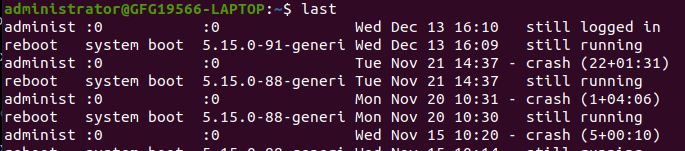
wThe `last` command shows a list of recently logged-in users, along with the times they logged in and out. By running `last` without any options, you can see a historical log of user logins.
lastThe `finger` command provides detailed information about a particular user or all users currently logged in. To list all logged-in users, simply type `finger` without any arguments. For information on a specific user, use `finger <username>`
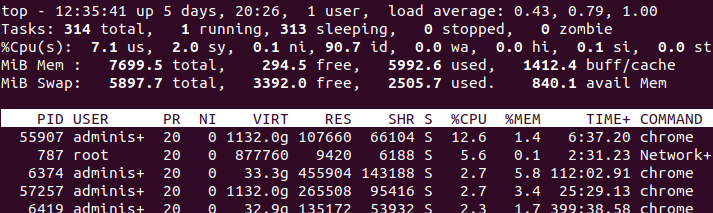
fingerWhile primarily known for displaying real-time system statistics, the `top` command also lists the currently logged-in users. To view the user list, run `top` and then press `u`. This will show a list of logged-in users and their associated processes.
topIn this article we discussed how to list current logged-in users in Linux which have a variety of tools at their disposal for listing currently logged-in users, each providing different levels of detail and functionality. If you need a quick overview or detailed information about user activities, commands like who, user, w, last, finger, and top offer versatile solutions to monitor and manage user sessions on a Linux system. Familiarizing yourself with these commands is essential for effective system administration and troubleshooting.