|
VOOZH | about |
|
VOOZH | about |
Imagine you're working on your computer and forget who you're logged in as. In Linux, there's a special trick called "whoami" that's like asking "Hey computer, who am I right now?" This article explains how this simple command works and helps you remember who's in charge! Don't worry, it won't be full of confusing tech words. We'll keep it fun and easy to understand, just like talking to a friend.
The 'whoami' command is a simple yet powerful utility designed to reveal the current username associated with the active user session. When executed, it provides a swift response by outputting the username associated with the user who issued the command.
whoami command is used both in Unix Operating System and as well as in the Windows Operating System.
The earliest versions were created in 2.9 BSD as a convenience form for who am i, the Berkeley Unix who command's way of printing just the logged in user's identity. Richard Mlynarik wrote the GNU version and is part of the GNU Core Utilities (coreutils).
su or sudo)The basic syntax of whoami command
whoami [OPTION]
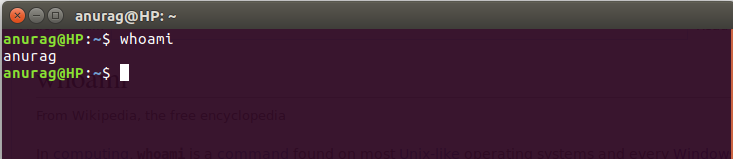
Using the 'whoami' command is straightforward. Open a terminal and type the following:
whoami
Press 'Enter,' and the terminal will display the current username associated with the user account.
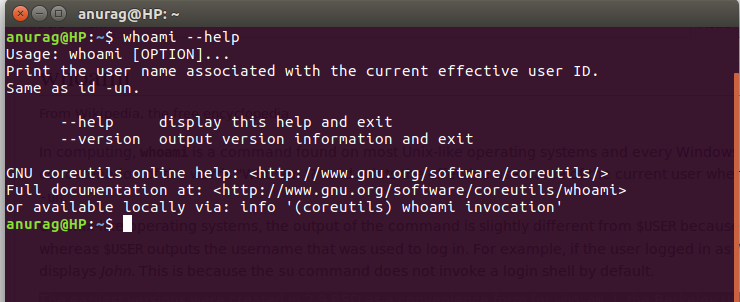
👁 Display hte current usernameIt gives the help message and exit.
Syntax :
geekforgeeks@HP~: whoami --help
Example :
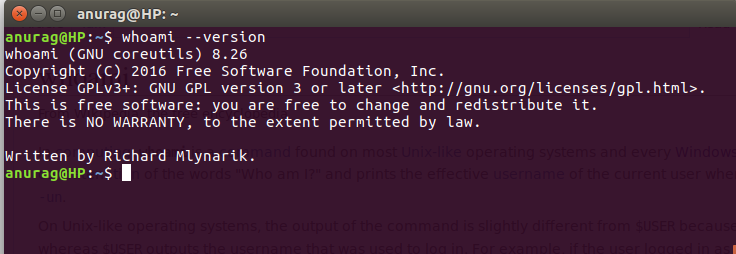
👁 file2It gives the version information and exit.
Syntax:
geekforgeeks@HP~: whoami --version
Example :
👁 file3The whoami command does not show the numeric user ID (UID) so we use the id command which displays the UID (User ID) instead of the username.
id -uid -u: Shows the current user's UID (e.g., 1000) The 'whoami' command finds its utility in various scenarios. It is particularly useful in scripting, where obtaining the current username dynamically can aid in automating tasks or customizing user-specific configurations.
For instance, consider a script that needs to perform different actions based on the user executing it. By incorporating the 'whoami' command, the script can adapt its behavior to the specific user, ensuring a personalized and secure execution.
In this article we discussed the 'whoami' command in Linux which acts like a digital name tag, telling you who you are on your computer. It's super easy to use—just type 'whoami' in the terminal, and voila, your username pops up. The article breaks down its simplicity, explores extra features like '-u' and '-e,' and shows how it's handy for scripting and personalized tasks. The FAQs at the end answer common questions, making 'whoami' your quick and friendly tool for figuring out your digital identity in the Linux world.