|
VOOZH | about |
|
VOOZH | about |
Creating a child theme in WordPress is an essential skill for anyone looking to customize their website without losing changes during theme updates. A child theme allows you to modify the appearance and functionality of a parent theme while keeping your customizations separate and safe. This method is highly recommended for anyone who wants to make tweaks to their site without touching the original theme files. That's why we create the child theme as it is the best and the safest way to make changes to the existing theme. In this article, we will guide you through the simple steps to create a child theme in WordPress, ensuring your website remains up-to-date and uniquely yours.
Table of Content
A parent theme in WordPress is a complete theme that includes all the necessary template files and assets required for the theme to function. It serves as the foundation for a child theme, which inherits and can modify the styles, templates, and functionality of the parent theme without altering the original files. This approach allows for easy updates and customization while maintaining the core features of the parent theme.
Child theme in WordPress is a theme that inherits the properties, functions, and everything which is included in the parent theme, or we can say that the child theme is a duplicate or extension of the parent theme. child theme makes it easier for making the changes in the theme as when we make the changes in the child theme the parent theme doesn't get affected and yet it is the safest method for making the changes in the theme.
For applying the changes thechild theme must be activated and the parent theme doesn't get affected as the changes don't get overwritten by the child theme in the main theme.
Creating a child theme in WordPress offers several benefits:
Let's see how we can create the child theme WordPress for any theme by using the plugin step by step -
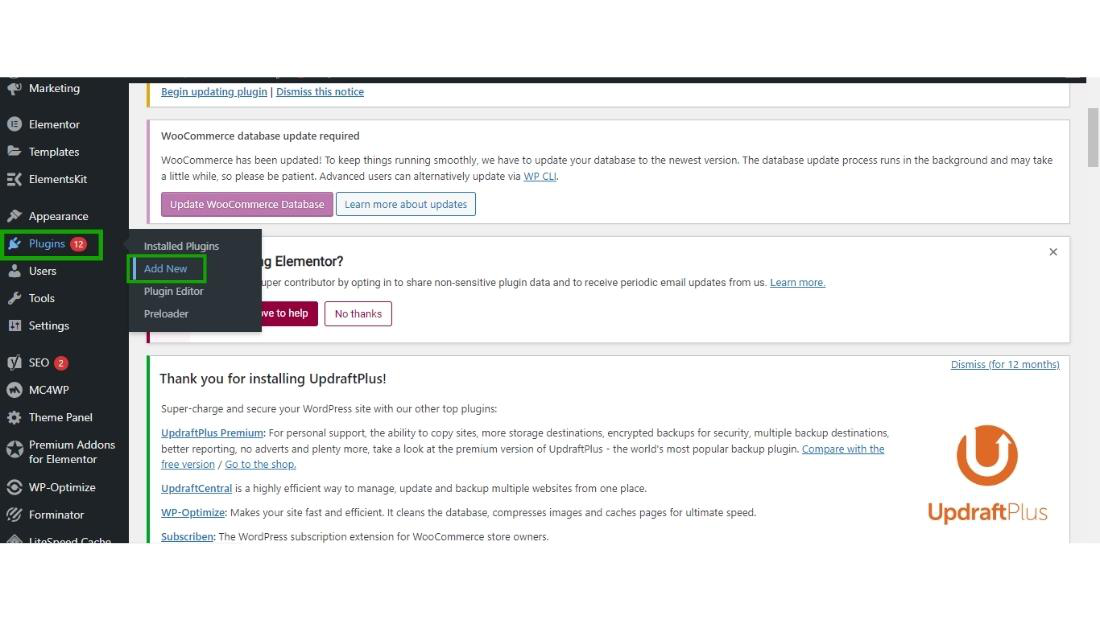
👁 Create a Child ThemeStep 1: Hover over the plugin in the Dashboard of your website and then click on Add New.
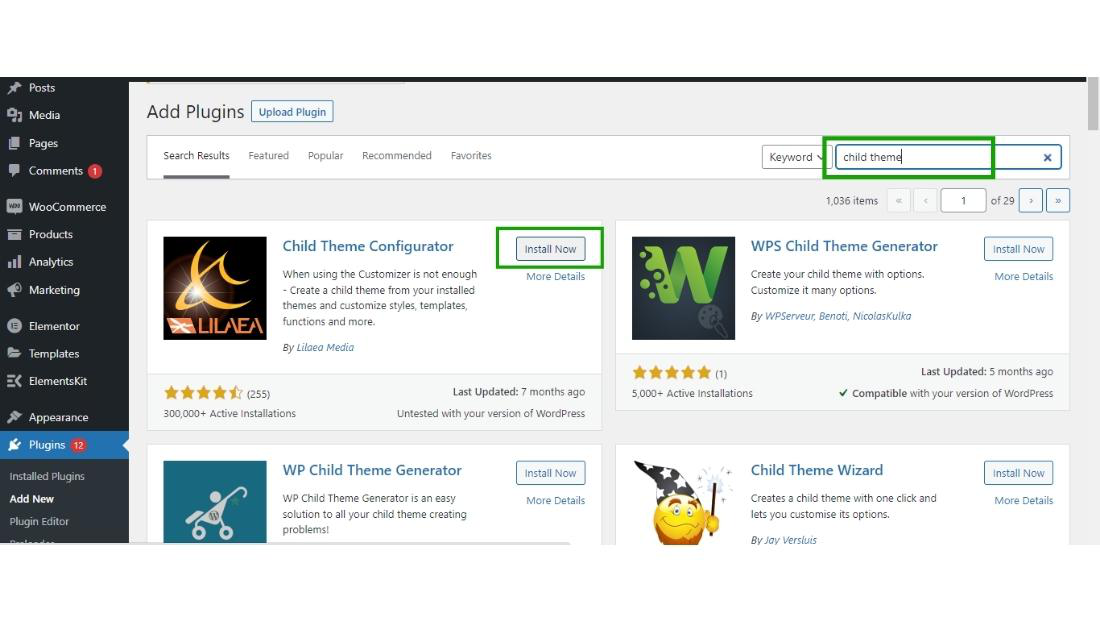
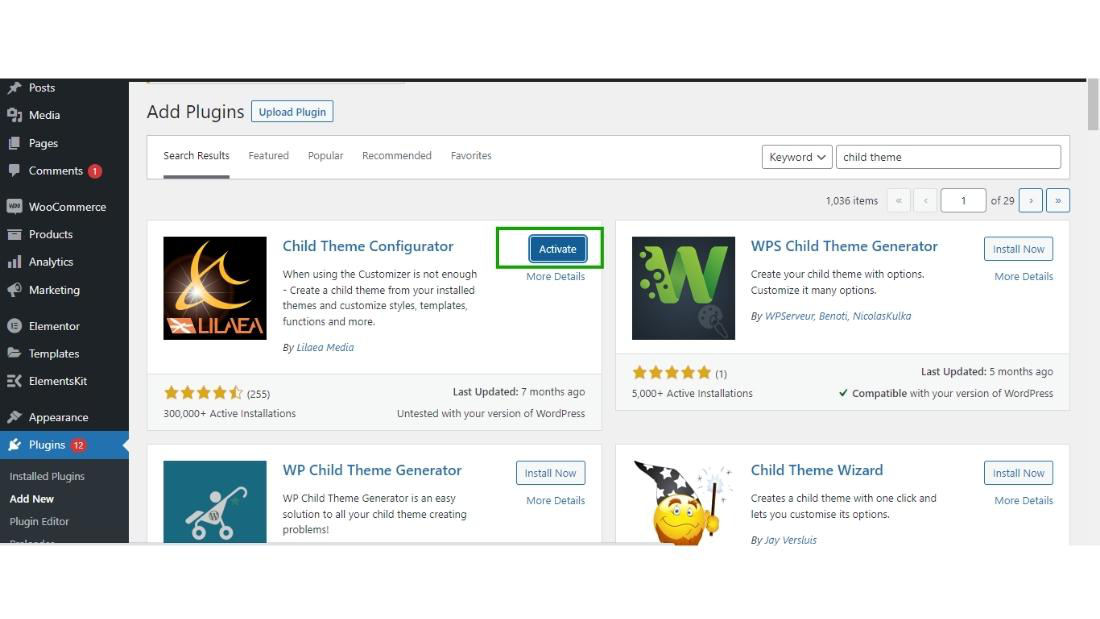
👁 Create a Child ThemeStep 2: Search the "child theme" in the search box and the plugin named "Child Theme Configurator" will appear then click on Install Now.
And then click activate.
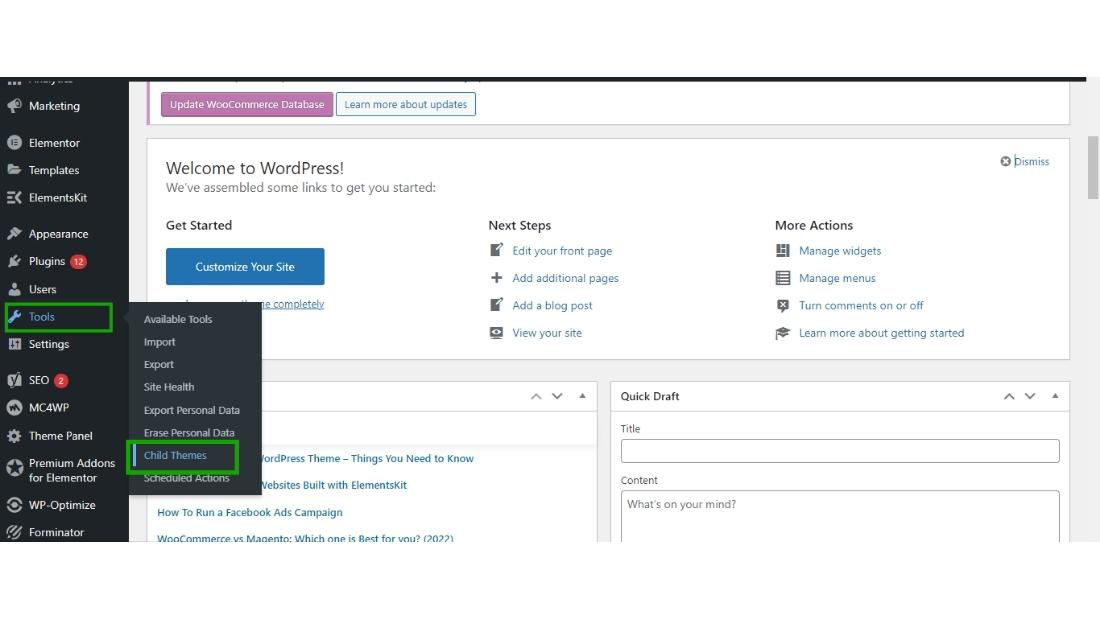
👁 Create a Child Theme👁 Create a Child ThemeStep 3: Hover over the Tool section and then click on Child Themes.
and the Child Themes dashboard will appear on the screen.
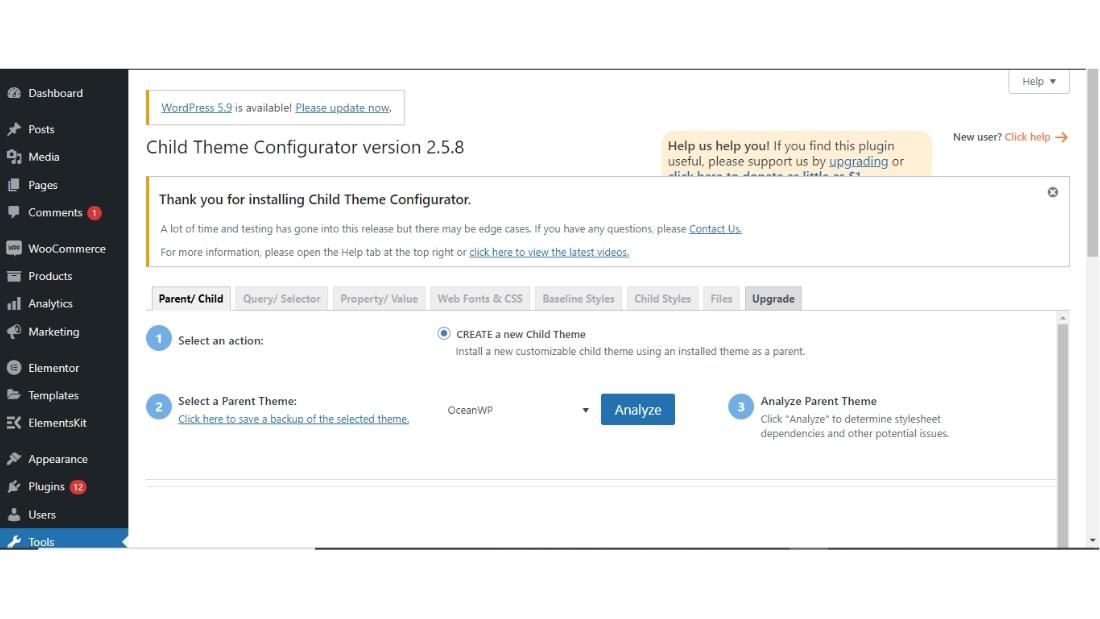
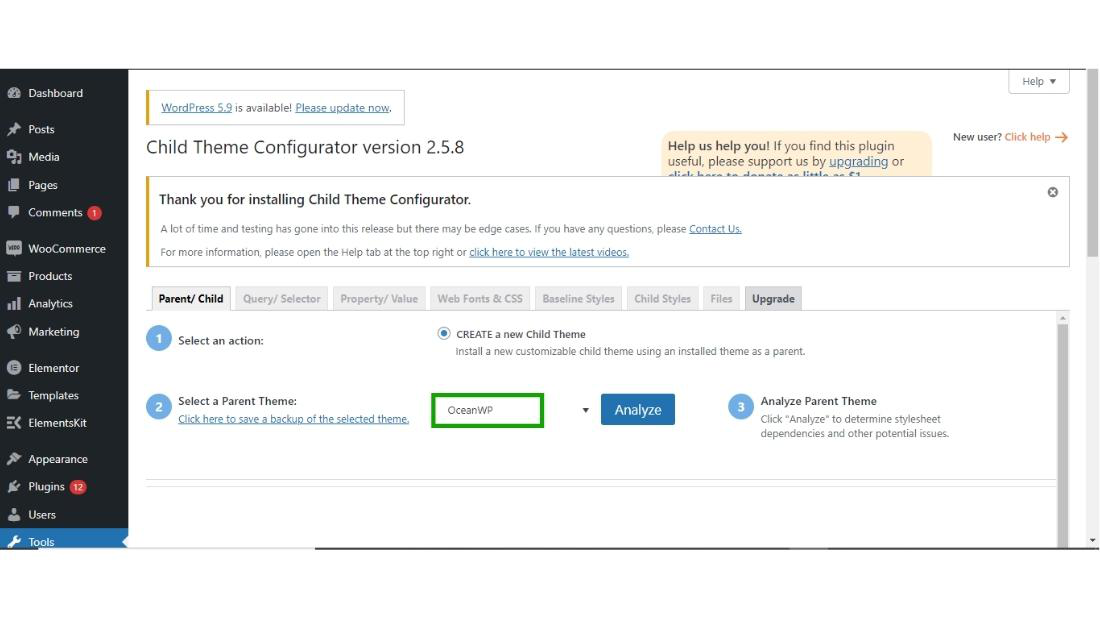
👁 Create a Child Theme👁 Create a Child ThemeStep 4: Child Theme Configurator plugin will automatically detect which plugin is currently active on your WordPress website.
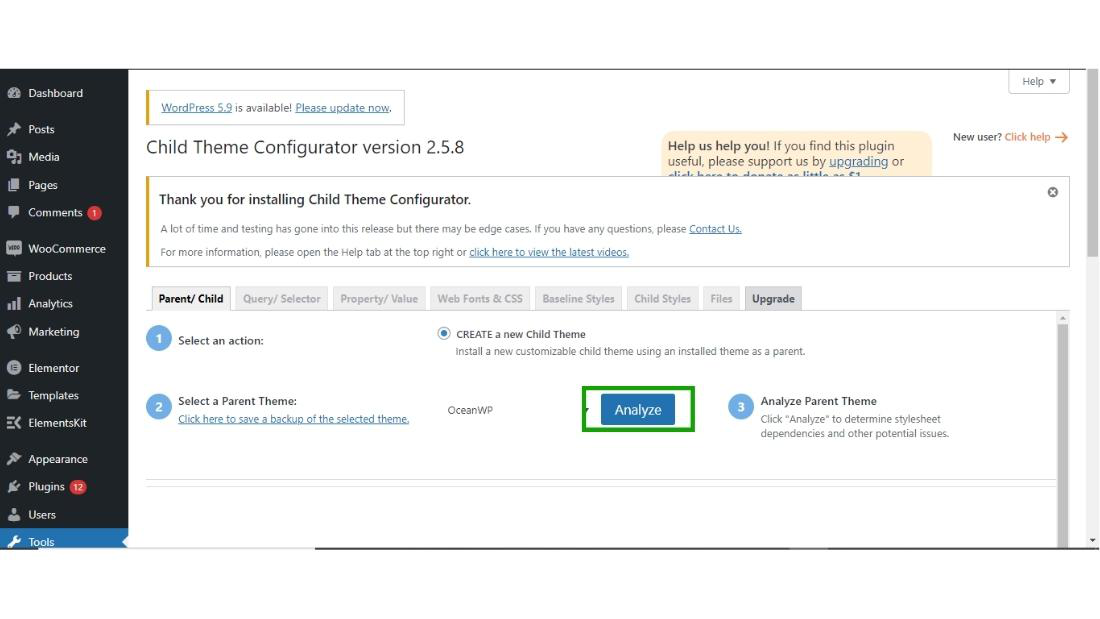
and then click on the Analyse button, Child Theme Configurator starts analyzing your theme.
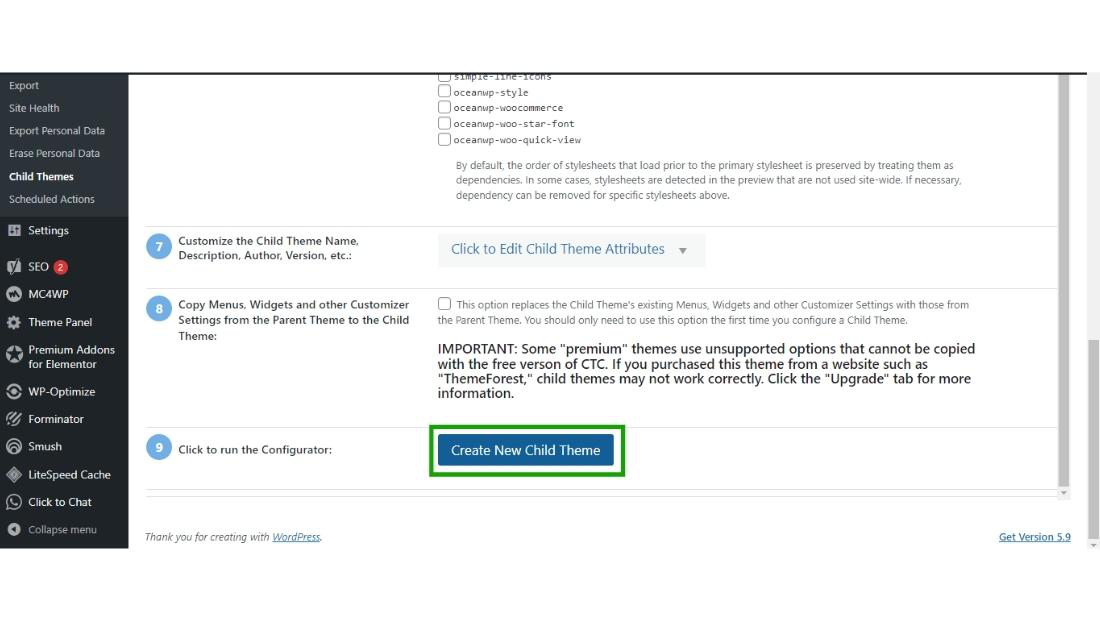
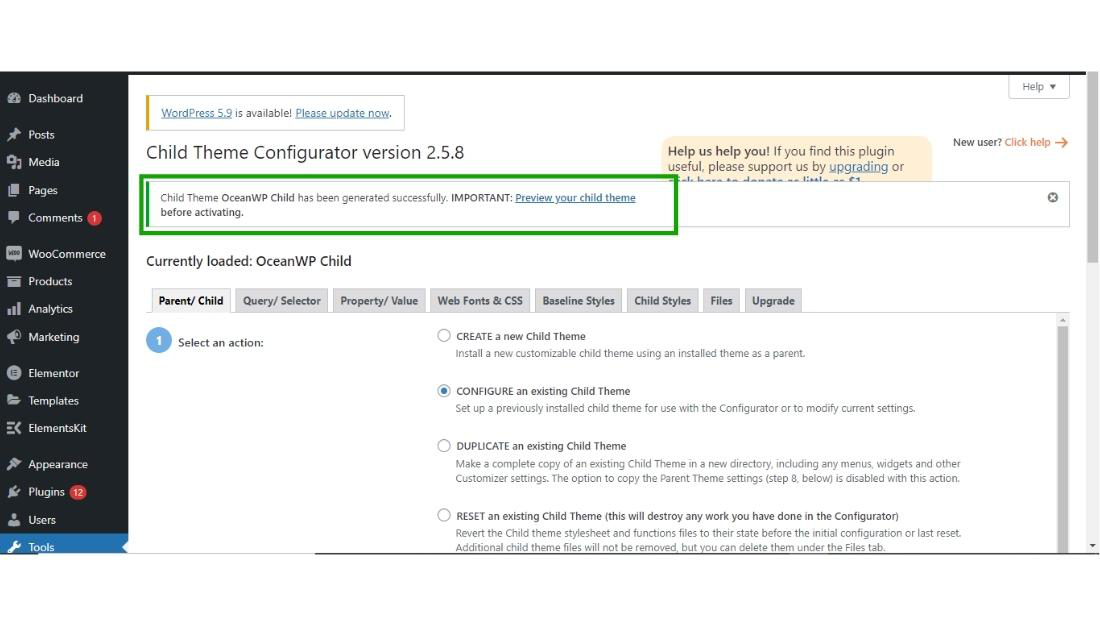
👁 Create a Child Theme👁 Create a Child ThemeStep 5: After clicking on Analyze button, the setting wizard will appear on your screen, don't change any settings make them remain as a default, and scroll down to step 9 and then click on "Create New Child Theme".
Now, the child theme of our main theme will be created successfully.
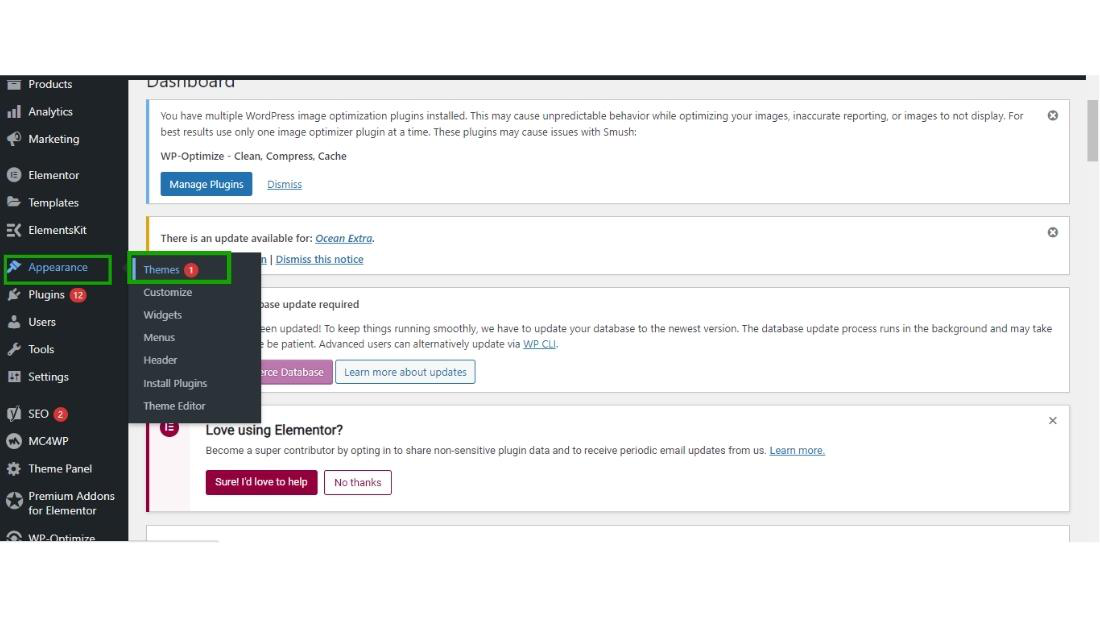
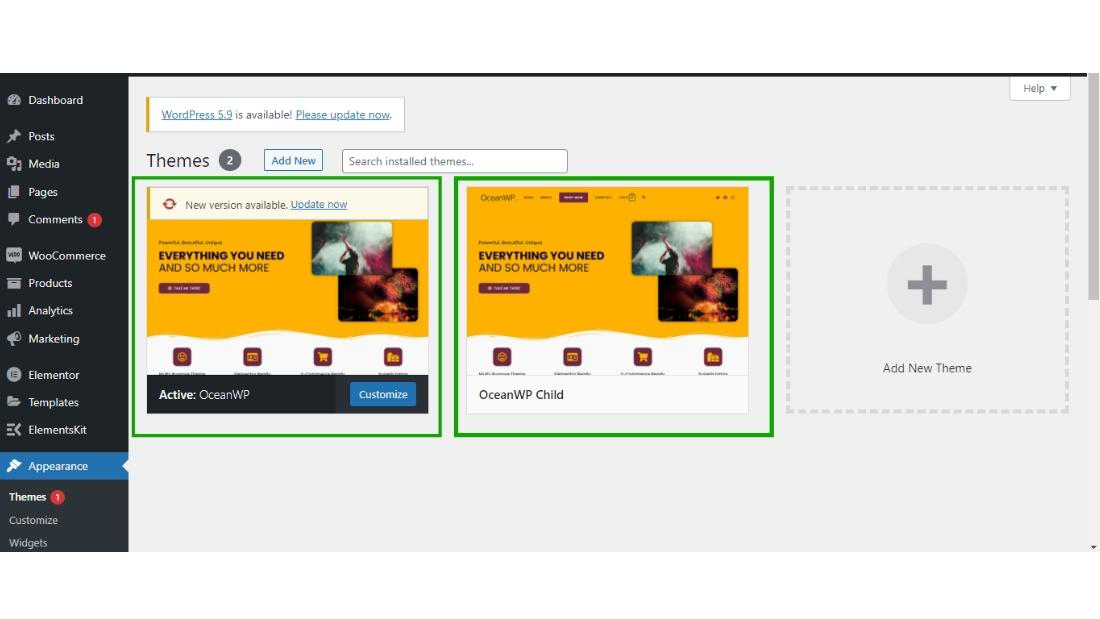
👁 Create a Child Theme👁 Create a Child ThemeStep 6: Now, hover over the appearance section and then click on Theme to see your parent and child theme.
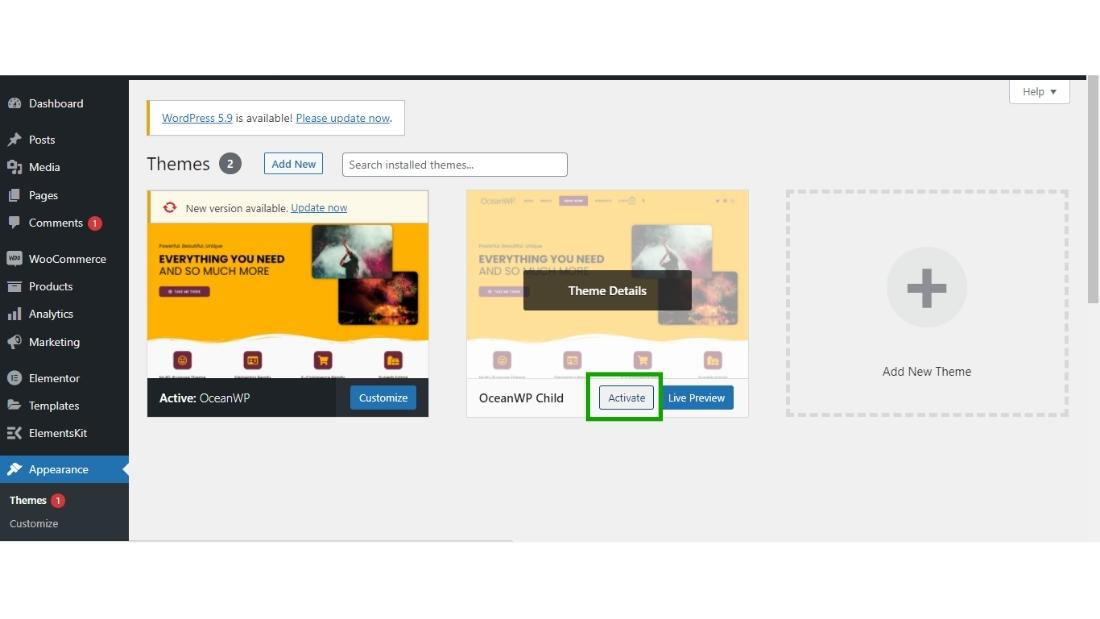
👁 Create a Child ThemeStep 7: Now both the themes are ready to go.
and now you can activate your child theme by just clicking on the Activate button.
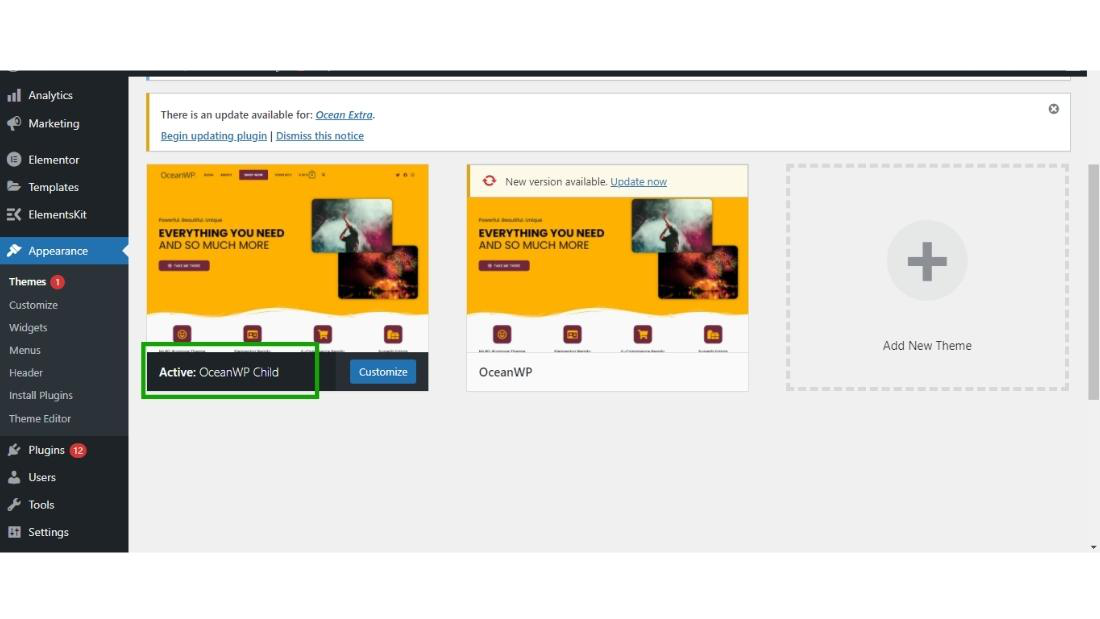
👁 Create a Child ThemeYour child theme is activated now.
👁 Create a Child ThemeThis is how you can create the child theme of any theme that you are using in your WordPress website.
Creating a child theme in WordPress is a straightforward process that offers significant benefits for anyone looking to customize their website. By following the steps outlined in this article, you can easily set up a child theme that preserves your modifications and ensures they are not lost during updates. This approach provides a flexible and secure way to enhance your WordPress site, allowing you to make it truly your own. With a child theme, you can confidently update your parent theme while maintaining your unique design and functionality, making your site both up-to-date and personalized.