|
VOOZH | about |
|
VOOZH | about |
PHP is a general-purpose scripting language geared towards web development. It is an open-source software (OSS), which is free to download and use. PHP stands for "Hypertext Preprocessor". PHP files are saved with an extension called .php. It supports many databases MySQL, Oracle, etc.
Follow the below steps to install PHP on Windows:
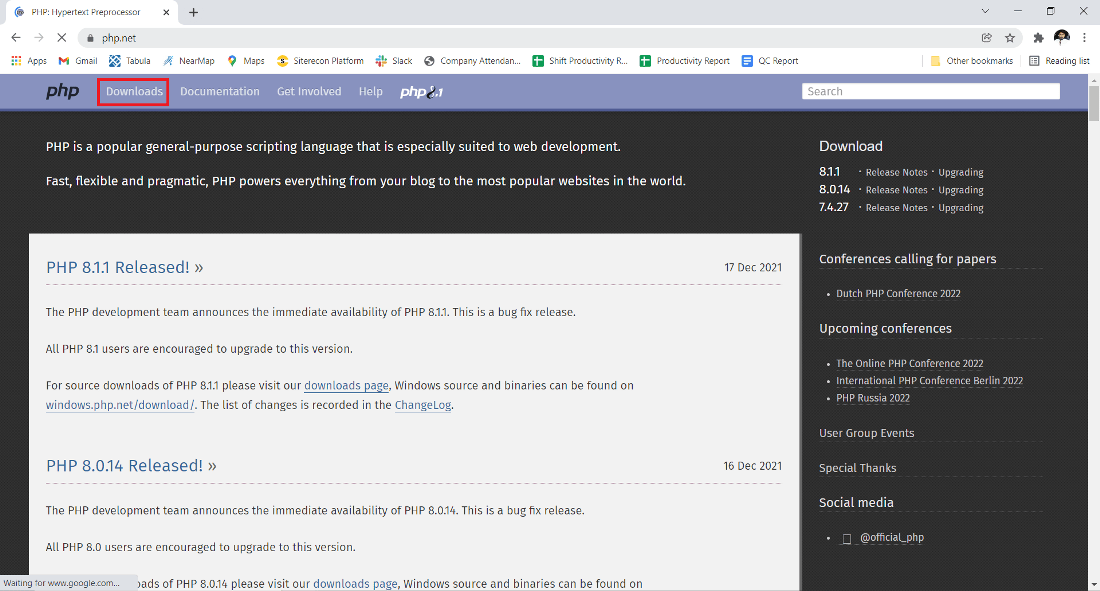
Step 1: Visit website using any web browser and click on Downloads.
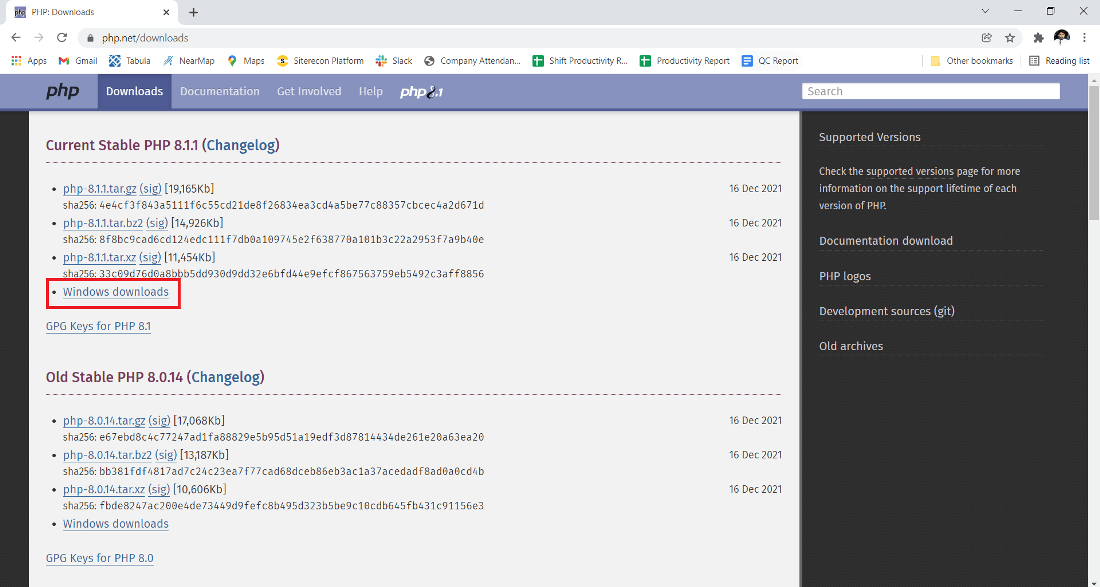
Step 2: Click on the Windows "Downloads" button.
👁 ImageStep 3: The new webpage has different options, choose the Thread safe version, and click on the zip button and Download it.
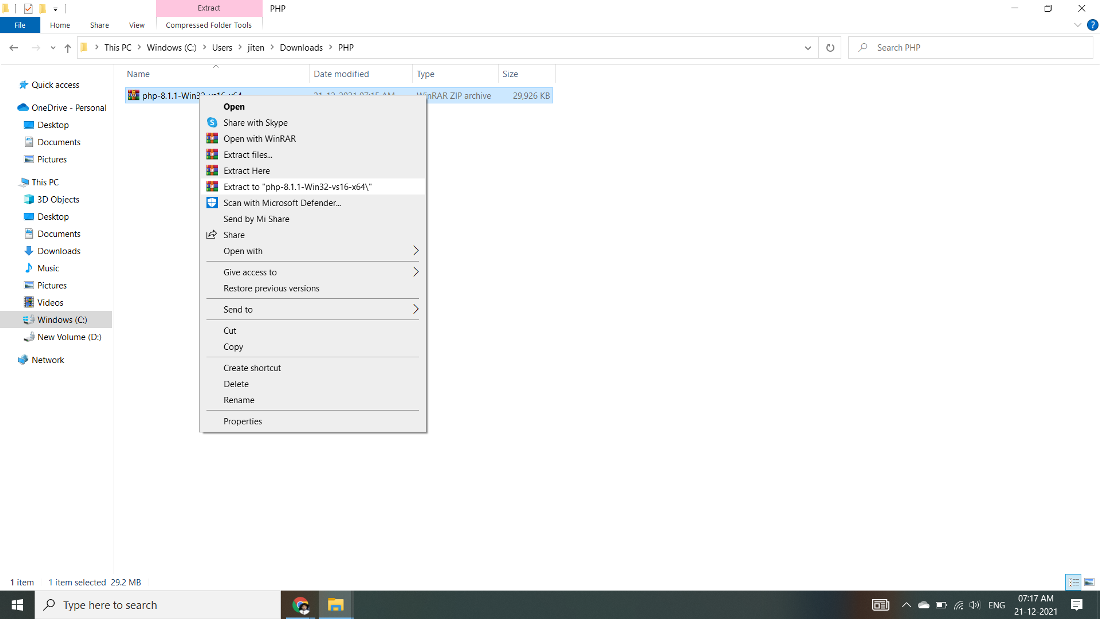
Step 4: Now check for the zip file in downloads in your system and extract it.
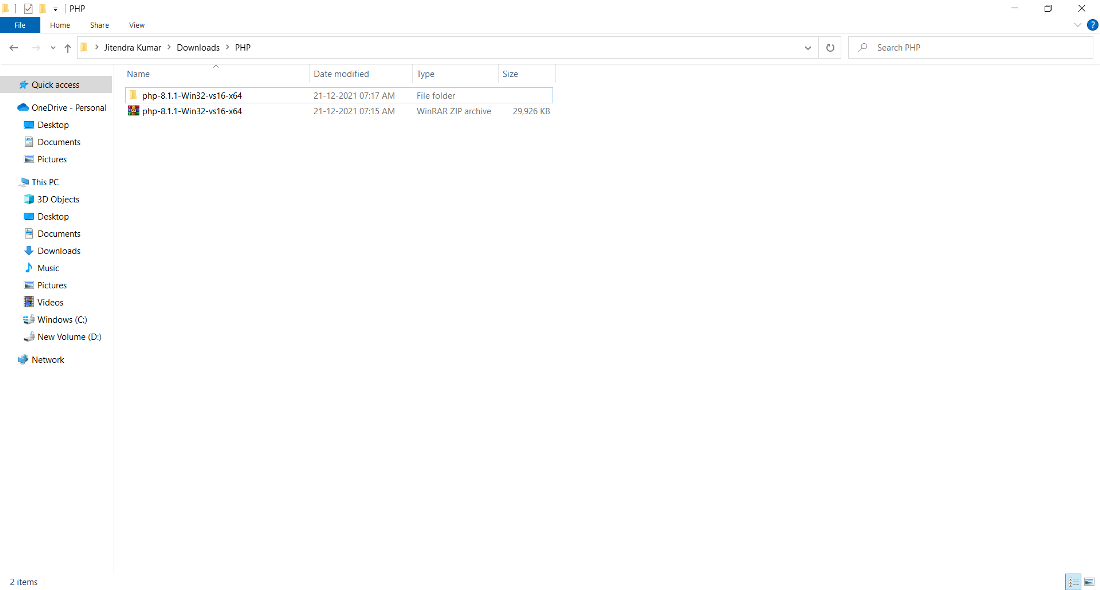
Step 5: After extracting, you get the extracted folder.
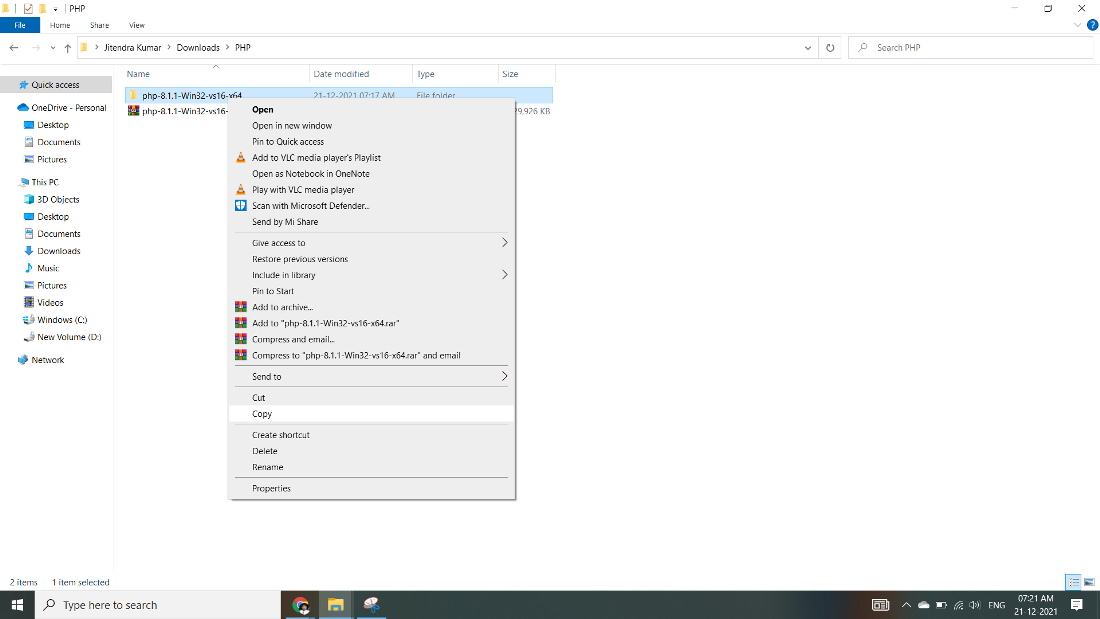
Step 6: Now copy the extracted folder.
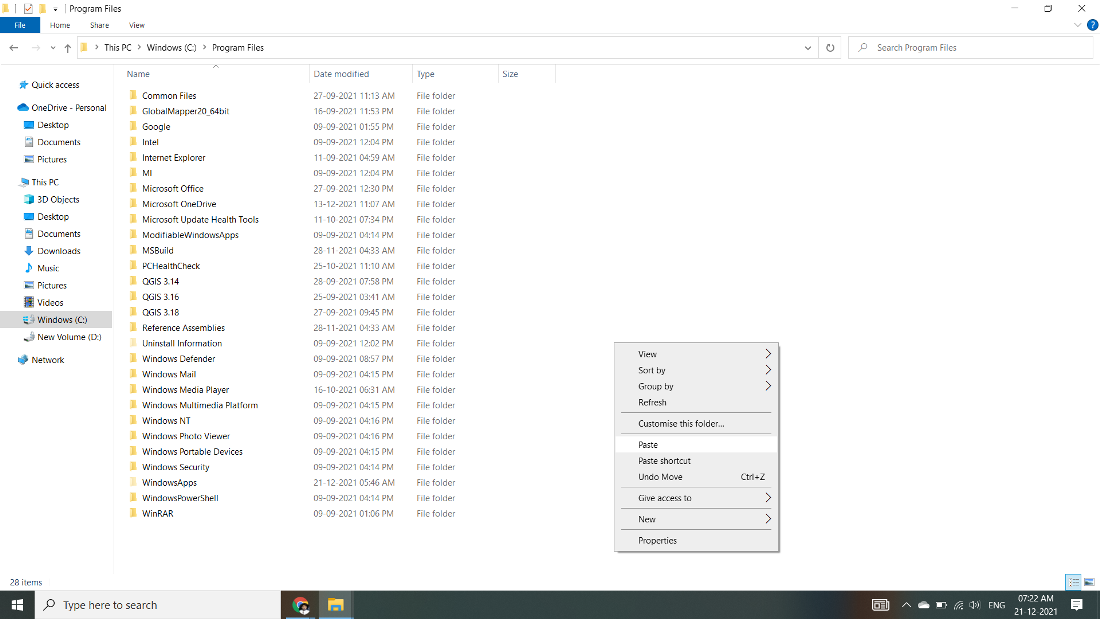
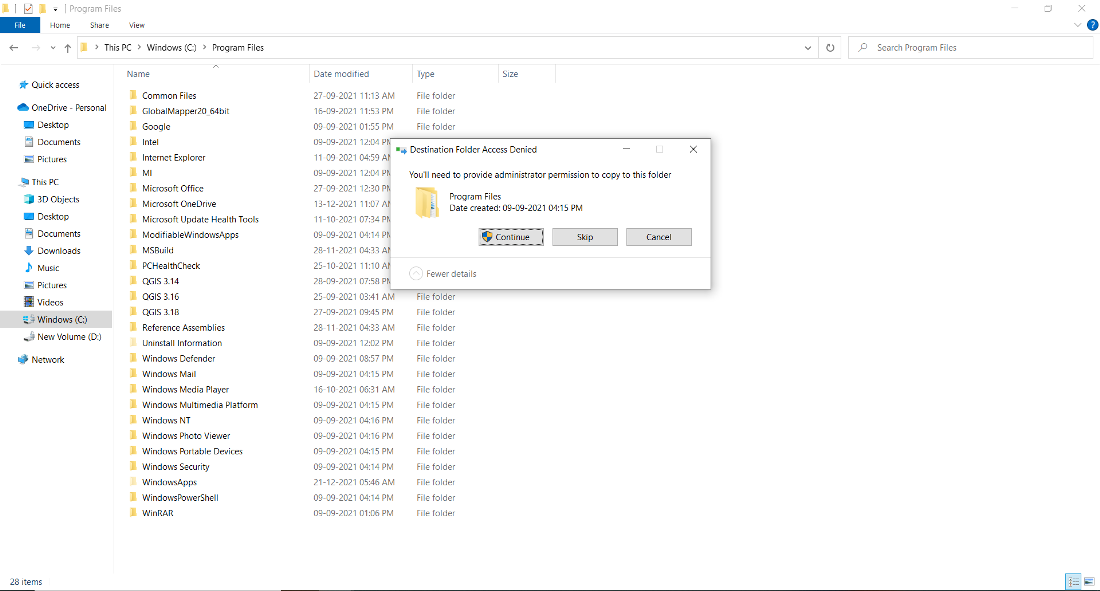
Step 7: Now paste the copy folder in your windows drive in the Program files folder.
Step 8: Now the Permission Windows appears to paste the folder in program files then click on "Continue".
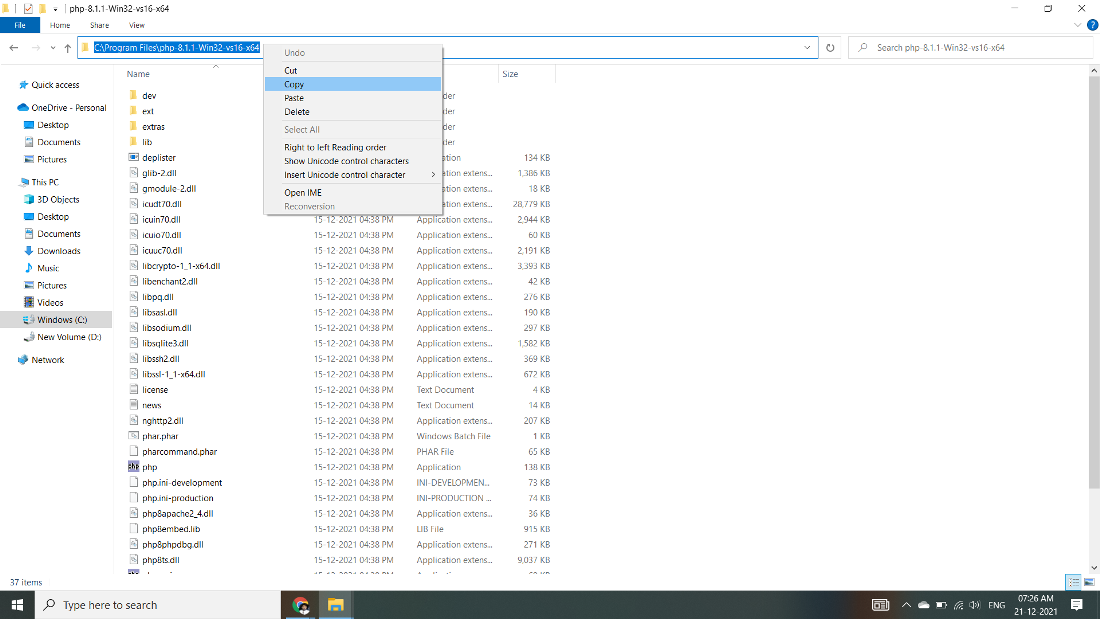
Step 9: Now after pasting the folder then copy the address of the folder in program files.
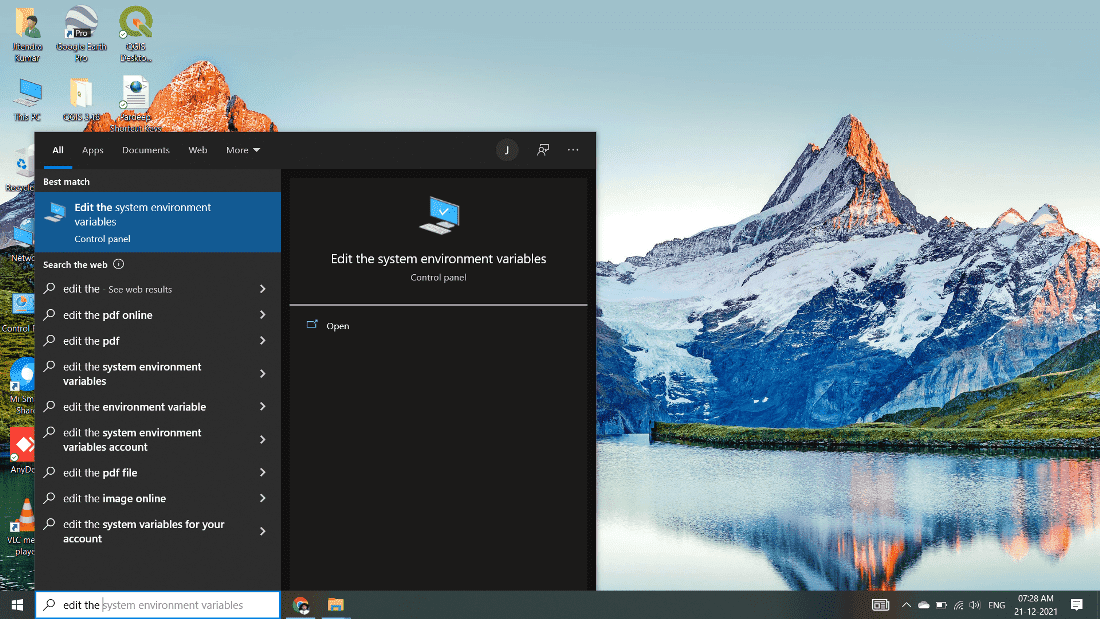
Step 10: Now click on Start Menu and search "Edit the system environment variables" and open it.
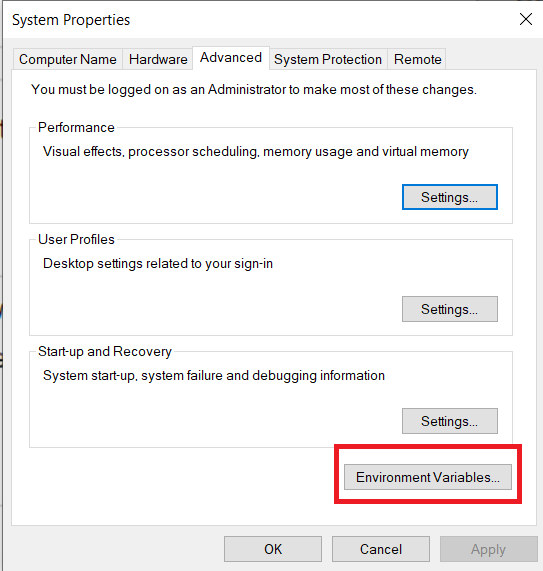
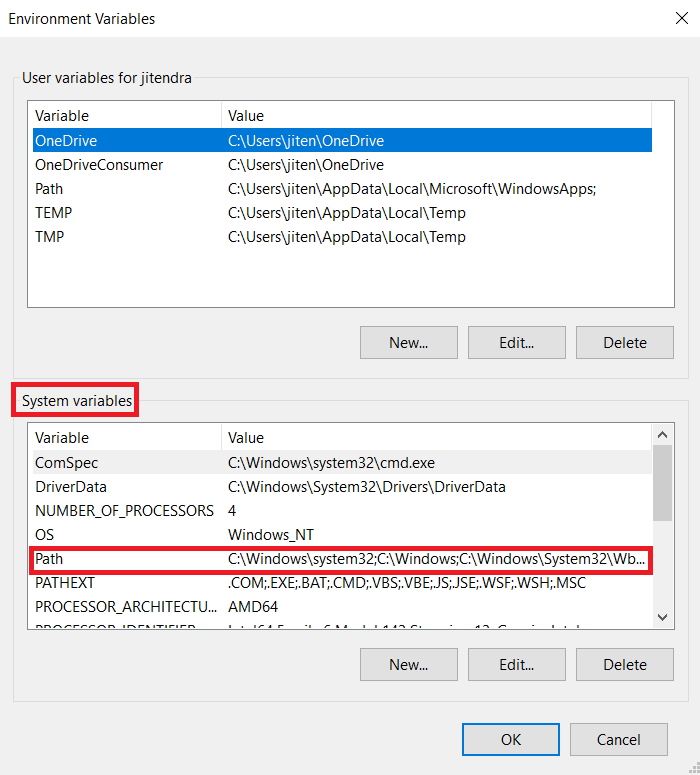
Step 11: After opening System, Variable New window appears, and click on "Environment Variables..."
Step 12: Now go to the "System variables" Path option and double click on Path.
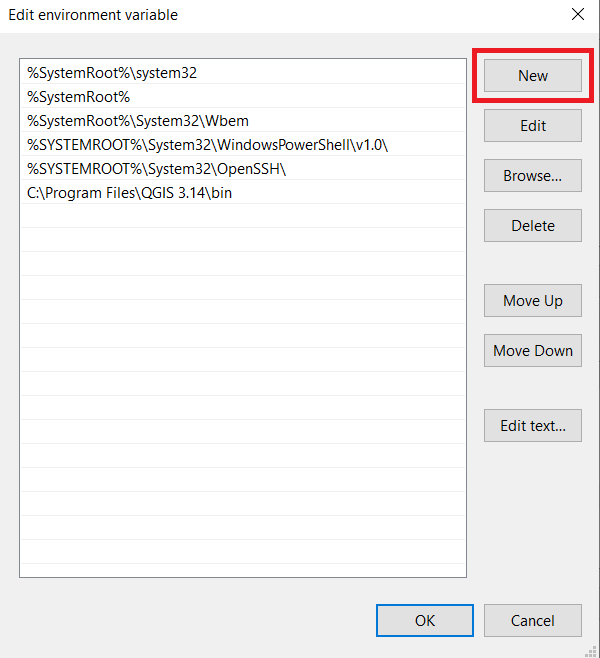
Step 13: Next screen will open and click on the "New" button.
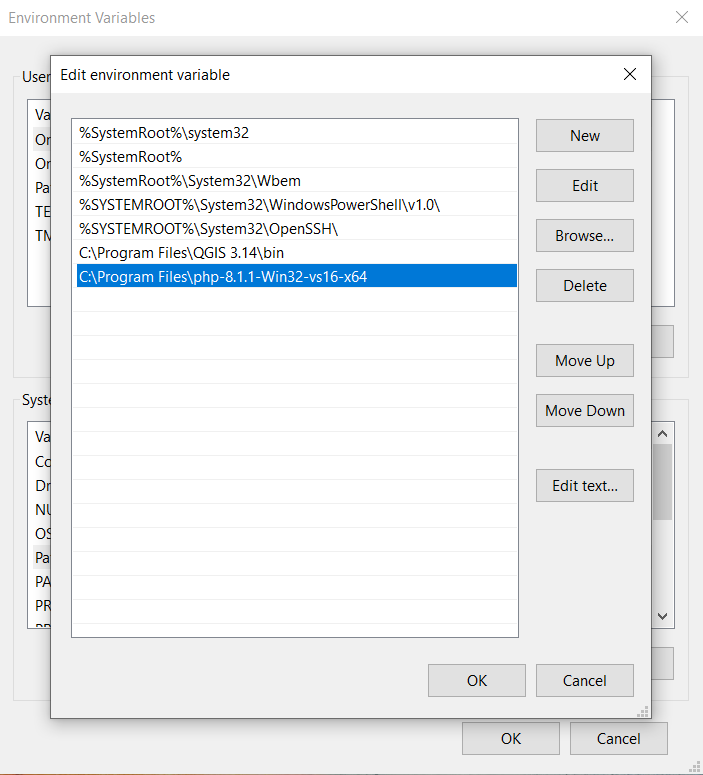
Step 14: After New Paste the address we copy from program files to new and click on Enter button.
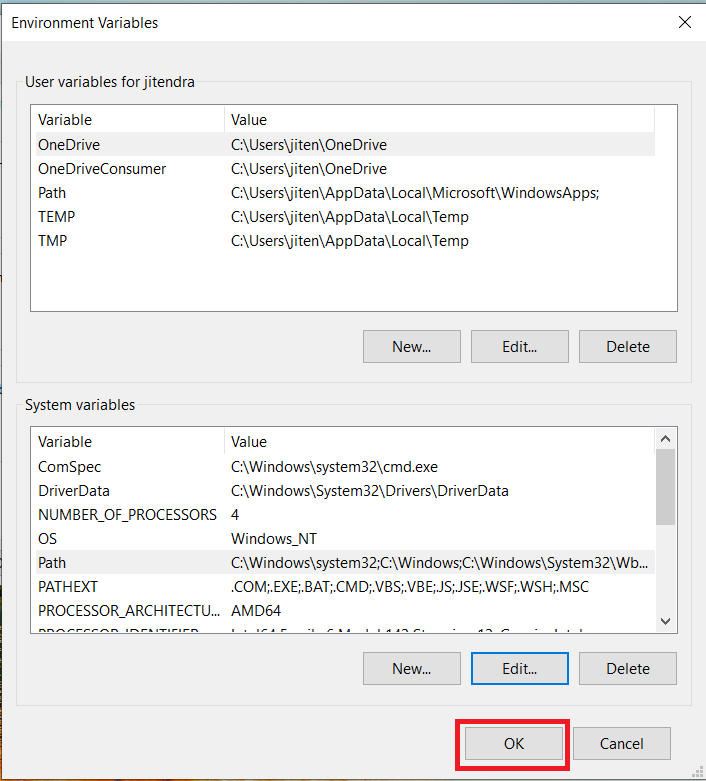
Step 15: Now Click on the OK button.
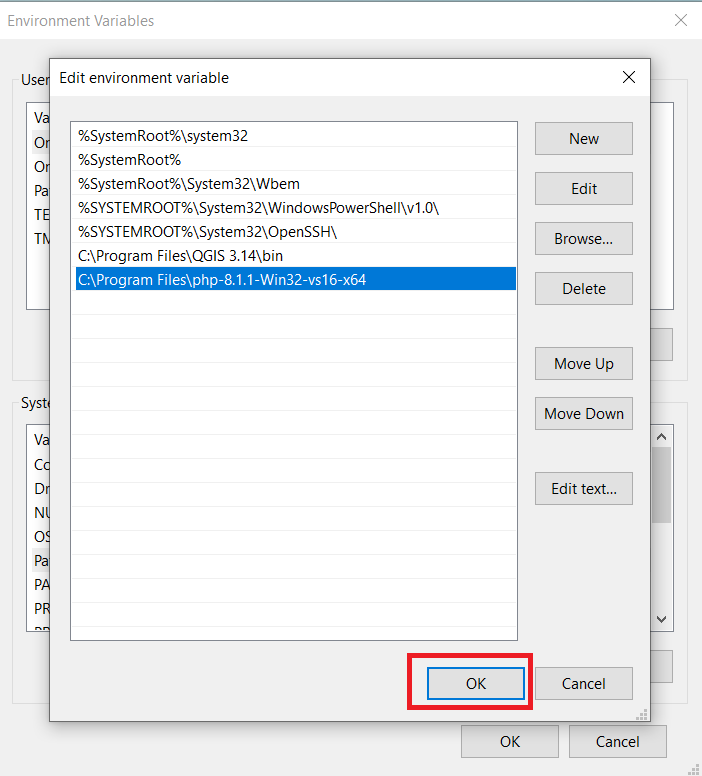
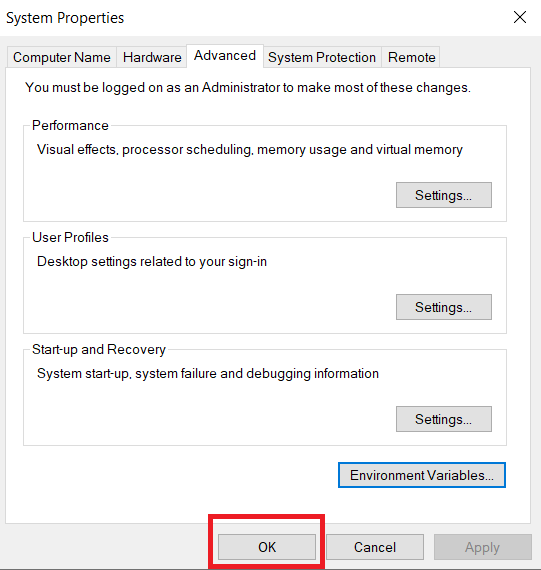
Step 16: Click on the OK button.
Step 17: Click on OK for saving changes.
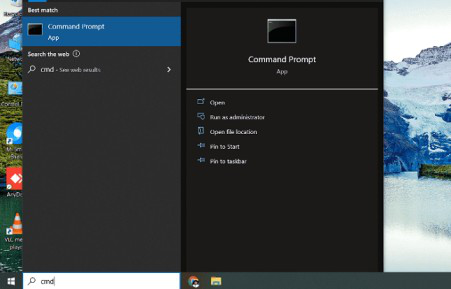
Step 18: Now your PHP is installed on your computer. You may check by going to the "Start" menu typing Command Prompt. Open it.
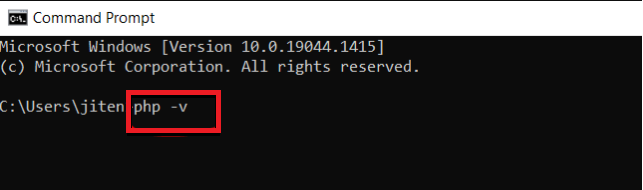
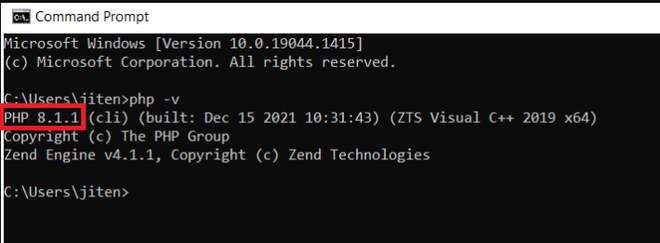
Step 19: When the Command Prompt opens, type php -v
Step 20: Now enter the command prompt to show the version of PHP installed on your computer.
Finally, You have successfully installed PHP on your Windows 10 system.

.jpg)