|
VOOZH | about |
|
VOOZH | about |
Setting user rights and roles in WordPress is essential for maintaining a secure and efficient website. By assigning appropriate permissions, you control who can access and modify different parts of your site. This is especially important for larger websites with multiple contributors or members. In this article, we will explain how to set rights and roles for your WordPress website in a few easy steps. You’ll learn how to ensure that administrators, editors, authors, and other users have the correct access levels. Properly managing these settings helps protect your site and streamline its operations, making sure everyone can perform their tasks without unnecessary risks.
WordPress user roles are predefined sets of permissions that control what each user can and cannot do on your website. Here are the main roles:
Full control over the site. Add, edit, or delete any content. Manage users and roles. Change site settings. Install/activate plugins and themes. Edit the site’s code
| Role | Capabilities | Ideal For |
| Administrator | Trusted individuals with Complete Oversight | |
| Editor | Add, edit, publish, and delete any posts/pages. Manage comments. No user management. No site settings or plugin/theme management | Users who manage content but don't need admin access |
| Author | Write, edit, and publish your posts. No access to others’ posts. No page management. Moderate own comments | Regular content contributors |
| Contributor | Write and edit your posts. Submit posts for review. No publishing rights. No media uploads. No page or comment management | Guest writers or new content creators |
| Subscriber | Read-only access. Manage own profile. No content or site management | Registered users on membership sites |
These roles help you control access and maintain security on your WordPress site.
In WordPress, user roles and user permissions help manage who can do what on your website. Here's an easy explanation:
User roles are predefined categories that group users based on the tasks they need to perform on the website. Each role has a set of permissions assigned to it. For example:
User permissions are specific actions that a user can perform, such as editing a post, publishing a page, or managing comments. Permissions are what give roles their power. For example:
Each user role has a set of user permissions that define what actions users in that role can perform. For example, the Administrator role includes permissions like managing options, editing any post, and installing plugins, while the Author role includes permissions to write and publish their own posts but not to edit others' posts or change site settings.
Setting rights and roles for your WordPress website is crucial for managing user access and maintaining security. This guide will walk you through the steps to assign and manage user roles and permissions, ensuring that each user has the appropriate level of access. Follow these simple steps to effectively control who can do what on your site.
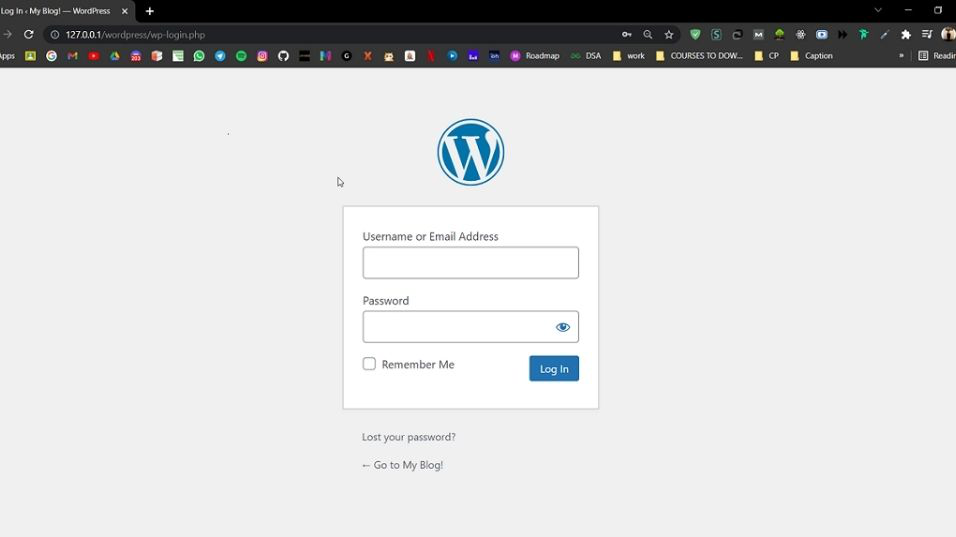
Step 1: Go to the WordPress login page and enter the username and password to log in to the WordPress Dashboard.
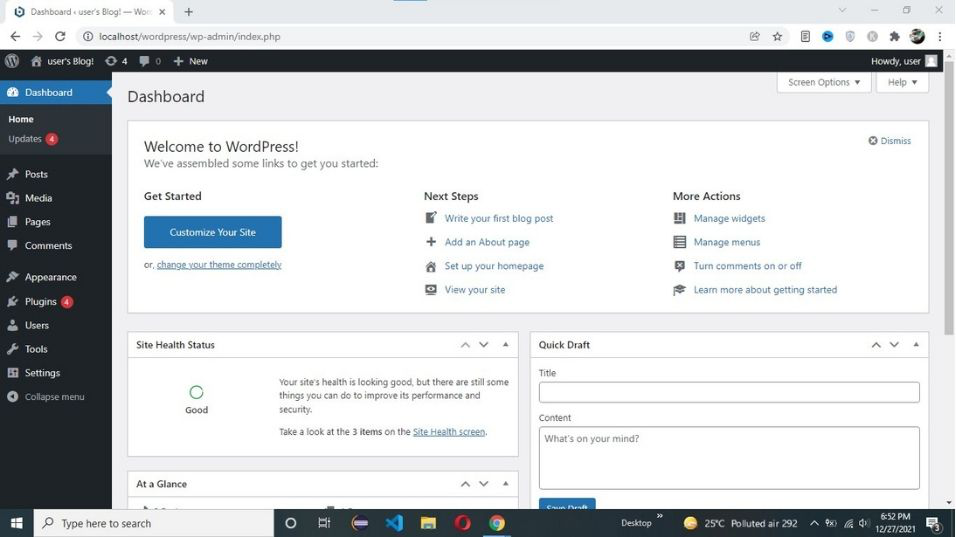
👁 set rights and roles for the website in WordPressAfter successful login, your screen looks like this.
👁 set rights and roles for the website in WordPress
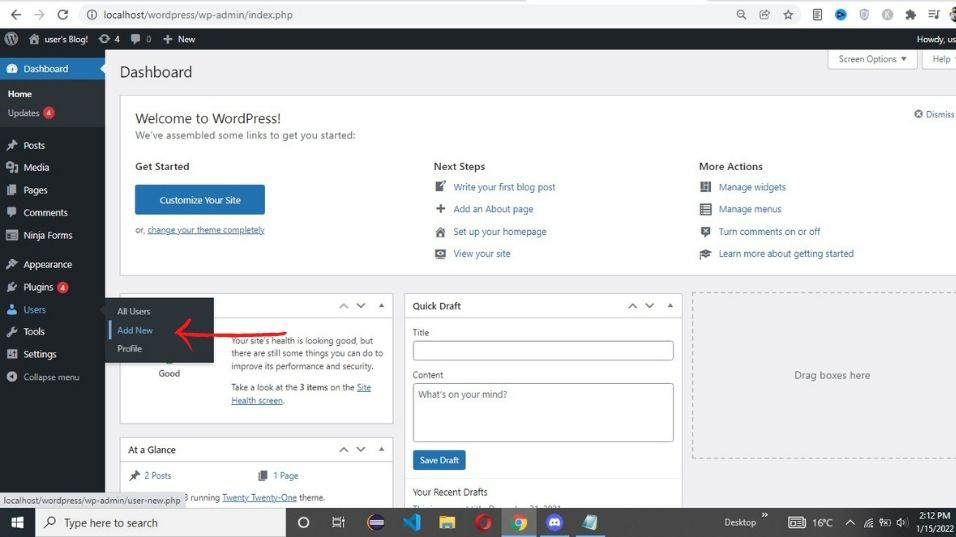
Step 2: go to Users -> Add New.
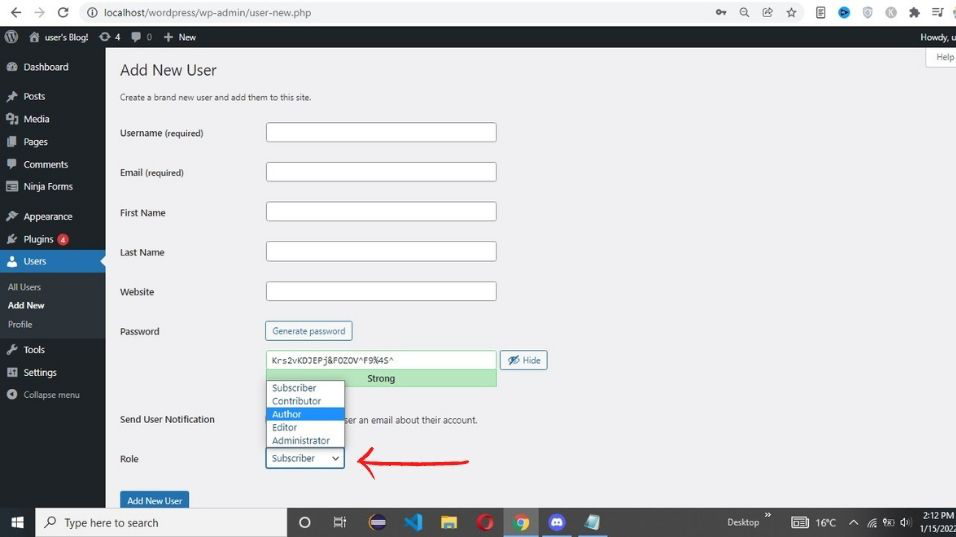
Step 3: Enter user information and then from the below drop-down menu select the user role.
👁 set rights and roles for the website in WordPressStep 4: After selecting user role and responsibility click on Add new user button.
In conclusion, knowing how to set rights and roles for your website in WordPress is essential for maintaining a secure and well-organized site. By properly assigning user roles and permissions, you ensure that each user can only access and modify the parts of your website that they need to, which helps prevent unauthorized changes and enhances overall security. This process is straightforward and can be managed directly from the WordPress dashboard. Understanding these roles, from Administrators to Subscribers, allows you to tailor the experience and access levels for everyone involved in your site, making your website more efficient and user-friendly.