Previewing your WordPress website before it goes live is good for ensuring it looks perfect and functions correctly. By previewing, you can catch errors, check design elements, test functionality, and optimize your content for SEO. Follow this article to preview your WordPress website easily and quickly using the latest WordPress version.
Why Preview Your WordPress Website?
Previewing your website allows you to:
Catch Errors: Identify and fix any issues before your visitors see them.
Check Design: Ensure that the design elements look as intended on different devices and browsers.
Test Functionality: Verify that all plugins, forms, and interactive elements work correctly.
Optimize SEO: Make sure your content is SEO-friendly and ready for search engines.
Step-by-Step Guide to Preview Pages on WordPress
Let’s see the steps to Preview Pages On WordPress Easily and Quickly:
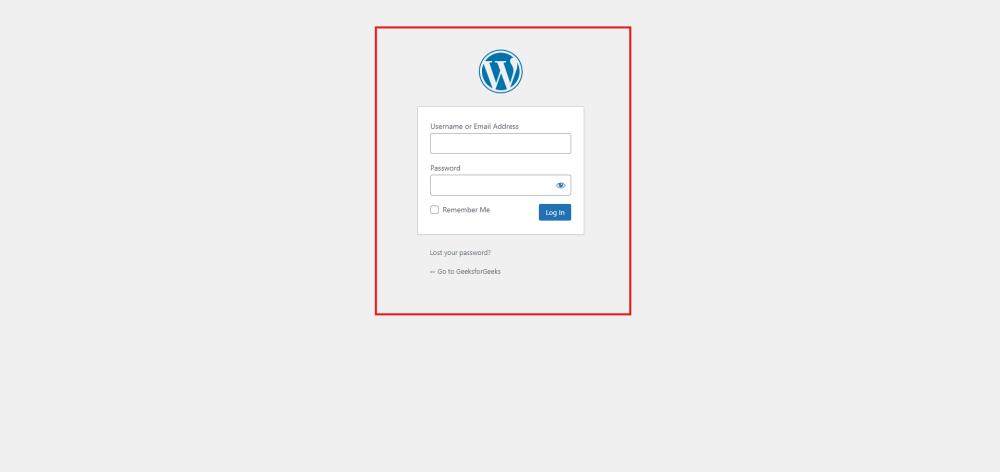
Step 1: Log In to Your WordPress Dashboard
Open your website's login panel by adding /wp-login.php at the end of your website URL (e.g., www.yoursite.com/wp-login.php).
Enter your username and password to access the WordPress Dashboard.