|
VOOZH | about |
|
VOOZH | about |
The screen command is an advanced terminal multiplexer that allows you to have multiple sessions within one terminal window. It's like having "tabs" in your Linux terminal — you can open, detach, switch, or resume sessions at any time without losing what you're working on. It's particularly convenient for system administrators, developers, or anyone working remotely.
From executing lengthy installations to multi-tasking across multiple terminal windows, the screen command is easy to use, lightweight, and already present in most Linux installations such as Ubuntu, CentOS, or Debian.
The screen command for Linux is the remote control of your terminal. It lets you create, deal with, and reattach many terminal sessions in one window. If you ever lost work when your SSH connection dropped or internet went down, screen is your lifesaver tool.
Imagine this — instead of having tens of open terminals and risking losing them on disconnect or power outage, you can begin a screen session and continue working at your leisure without having to begin from scratch. It is particularly valuable for system administrators, programmers, or anyone else dealing with Linux remotely.
The screen command in Linux can be used for:
Syntax:
screen [-opts] [cmd [args]]Most Linux distros (Ubuntu, Debian, CentOS) include screen
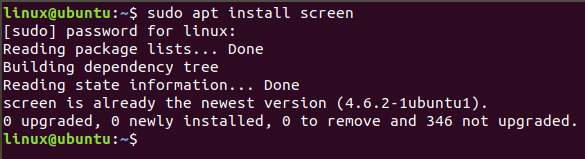
sudo apt install screen # For Debian/Ubuntu👁 Image
sudo yum install screen # For CentOS/RHEL
To start a new terminal screen session:
screen👁 ImageNaming a session helps you keep track of multiple sessions.
screen -S fileTo see which screen sessions are active or have been detached:
screen -lsYou can safely leave a screen session running in the background by detaching it.
screen -d 1643To resume work on a previously detached session:
screen -r 1643man screenscreen --helpscreen Command Options in LinuxTo use screen effectively, it's important to understand its command-line options.
| Option | Description |
|---|---|
-a | Forces all capabilities into each window's terminal capability (termcap). |
| `-A -[r | R]` |
-c file | Uses a custom configuration file instead of the default .screenrc. |
-d (-r) | Detaches a running screen session from elsewhere and reattaches it here. |
-dmS name | Starts screen in detached mode with a session name (like a background task). |
-D (-r) | Detaches and logs out a remote session and reattaches it here. |
-D -RR | Does whatever is needed to connect to a screen session. |
-e xy | Changes the default control command characters. |
-f | Enables flow control. Use -fn to disable, or -fa for auto mode. |
-h lines | Sets the scrollback buffer size (number of history lines). |
-i | Interrupts output sooner when flow control is on. |
-l | Turns on login mode (updates /var/run/utmp). Use -ln to disable. |
-ls [match] | Lists all current screen sessions, with optional name match. |
-L | Enables output logging to a file. |
-m | Ignores the $STY variable; forces a new session to start. |
-O | Chooses optimized output over exact VT100 emulation. |
-p window | Pre-selects the named window when screen starts. |
-q | Starts screen quietly. Returns error code if it fails. |
-Q | Sends command output to the stdout of the calling process. |
-r [session] | Reattaches to a detached session (if it exists). |
-R | Reattaches to an existing session or starts a new one. |
-S sockname | Sets a custom session socket name (helpful for managing multiple sessions). |
-t title | Sets a window title (name of the terminal window). |
-T term | Uses a specific terminal type instead of the default screen. |
-U | Enables UTF-8 encoding support inside the session. |
-v | Prints screen version and build date. |
-x | Attaches to a session even if it's already attached (multi-display mode). |
-X | Executes a screen command in a specific session from outside. |
When working inside a screen session in Linux, you can navigate between windows, rename them, detach sessions, and more — all using quick keyboard shortcuts
| Shortcut | Action (What It Does) |
|---|---|
Ctrl-a + c | Create a new window inside the screen session. |
Ctrl-a + w | List all open windows within the current screen session. |
Ctrl-a + A | Rename the current window. Helpful when using multiple windows (visible in Ctrl-a + w). |
Ctrl-a + n | Go to the next window. |
Ctrl-a + p | Go to the previous window. |
Ctrl-a + Ctrl-a | Switch back to the last used window. |
Ctrl-a + k | Close (kill) the current window. |
Ctrl-a + S | Split the window horizontally. Switch with Ctrl-a + Tab. |
| `Ctrl-a + | ` |
Ctrl-a + X | Close the active split window. |
Ctrl-a + Q | Close all split windows. |
Ctrl-a + d | Detach the session (keeps it running in background). |
Ctrl-a + r | Reattach a previously detached session. |
Ctrl-a + [ | Enter copy mode (use arrow keys to scroll and select). |
Ctrl-a + ] | Paste copied text inside the screen session. |
Linux's screen command is not just a tool — it's a multitasking lifesaver and remote session manager. If you're writing files, running background jobs, or watching system logs, screen keeps your work from being disrupted, even if your SSH connection is interrupted.
By mastering screen, you take command of the way you work with the command line. You can detach sessions, pick up where you left off from another computer, or even split the terminal screen and work smarter. With its built-in shortcuts, session persistence, and lightweight footprint, it's no wonder screen remains a favorite among Linux power users.
To resume a detached screen session, use the
screen -rcommand followed by the session ID if there are multiple sessions:screen -rIf there are multiple sessions, list them first:
screen -lsThen resume the desired session:
screen -r session_id