|
VOOZH | about |
|
VOOZH | about |
Collaborating with others in Google Sheets can be incredibly useful, but keeping track of changes made to a shared document can sometimes be a challenge. Whether you’re working on a project, tracking data, or managing a team, staying informed about updates is crucial. Thankfully, Google Sheets offers an easy way to set up email notifications for changes made to your sheet. This feature helps you stay on top of important modifications, ensuring you never miss any updates.
This guide provides a clear walkthrough on enabling and customizing email alerts in Google Sheets to enhance your collaboration and data management efforts.
Follow these steps to set up notifications in Google Sheets for changes:
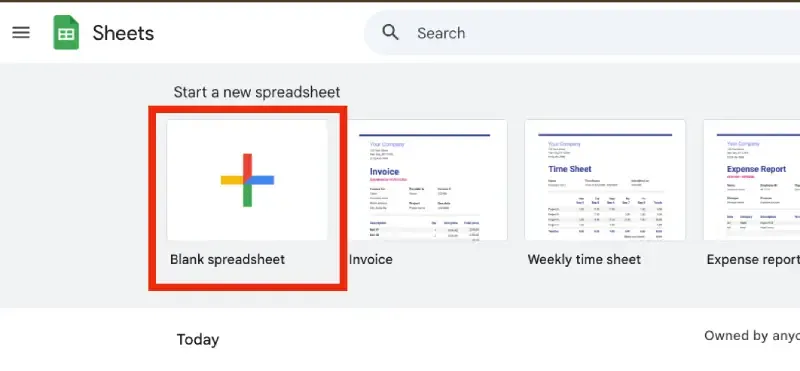
Launch Google Sheets and open the spreadsheet where you want to enable notifications.
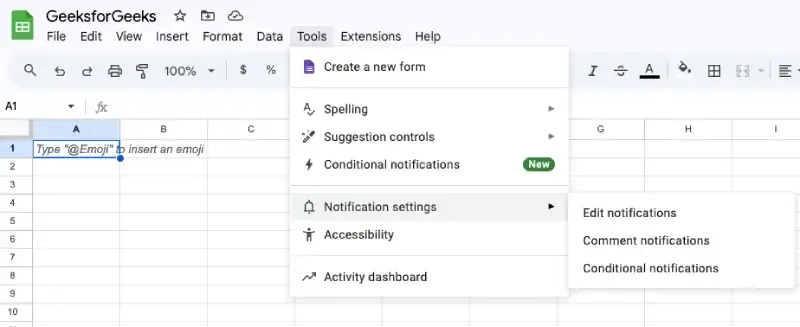
Click on Tools in the top menu bar. From the dropdown menu, select Notification rules.
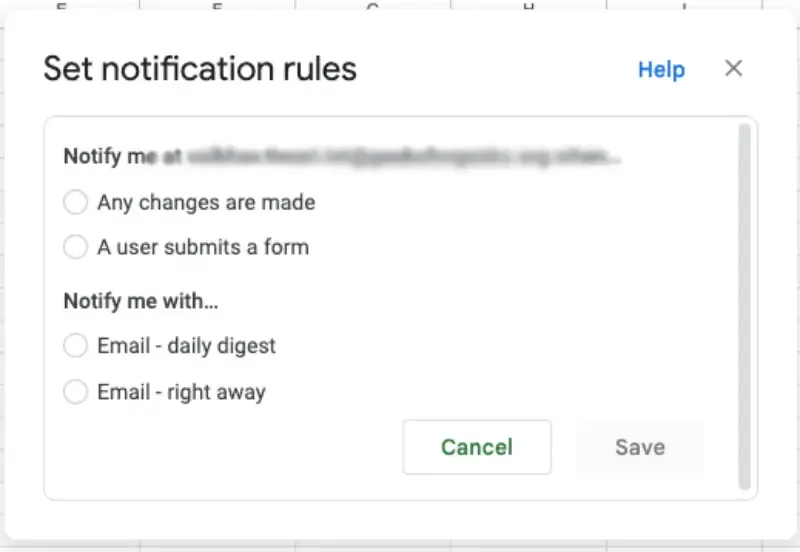
A window will appear with two sections to configure:
Change type: Choose the type of changes to monitor:
Notification frequency:
Tip: You can create multiple notification rules to track different changes or set different frequencies.
Notifications will be sent to your registered Google account email. The email will include details such as:
Click the link in the email to access the updated spreadsheet directly.
Managing notification rules in Google Sheets ensures you stay informed about updates without being overwhelmed. Here’s how you can set up and adjust email notifications for spreadsheet updates:
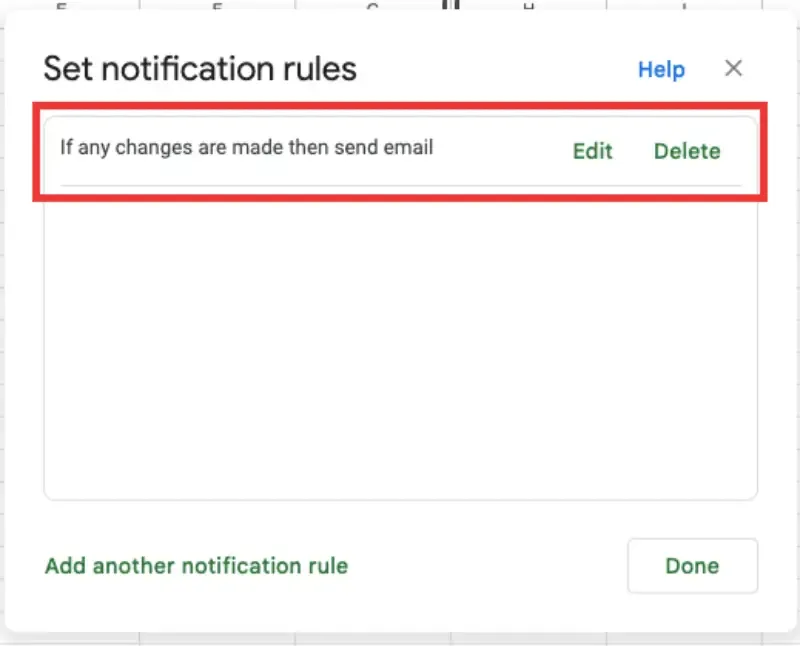
Go to Tools > Notification rules. A list of existing rules will appear.
Next to each rule, you’ll find options to Edit or Delete.
If the default notification settings don’t meet your specific needs, advanced options like Google Apps Script or third-party add-ons, such as Sheetgo, can provide more tailored solutions.
With Google Apps Script, you can customize email notifications to trigger based on specific changes or conditions in your Google Sheet. Follow these steps to set up a custom script for advanced notifications:
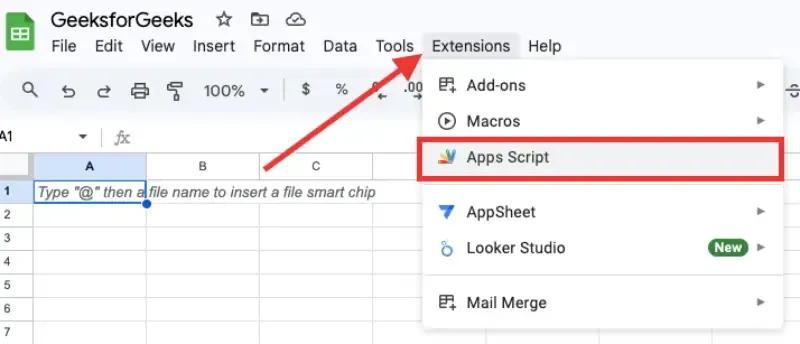
Open the Google Sheet where you want to add notifications. From the menu bar, click Extensions, then select Apps Script. This will open the Apps Script editor in a new tab.
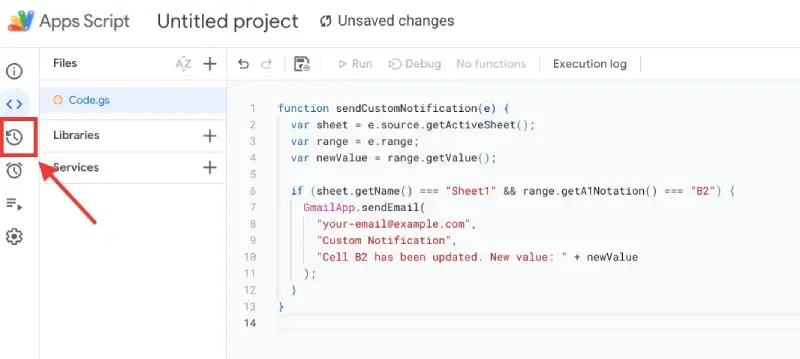
In the script editor, paste or write a script to define your custom notification settings.
Example script:
function sendCustomNotification(e) {
 var sheet = e.source.getActiveSheet();
 var range = e.range;
 var newValue = range.getValue();

 if (sheet.getName() === "Sheet1" && range.getA1Notation() === "B2") {
 GmailApp.sendEmail(
 "your-email@example.com",
 "Custom Notification",
 "Cell B2 has been updated. New value: " + newValue
 );
 }
}
Note: Modify the script to fit your requirements, such as specific cells, sheets, or recipients.
In the Apps Script editor, click the clock icon in the toolbar (Triggers). Select Add Trigger and configure it:
sendCustomNotificationSave the trigger.
Save your script by clicking the disk icon or pressing Ctrl + S(For Windows) / Cmd + S(For Mac).Return to your Google Sheet and test the script by editing the specified cell or range.
If the script doesn’t work as expected, use the debug option in the Apps Script editor. Adjust the script to refine the notifications or add more advanced conditions.
Open your Google Sheet, go to Tools > Notification Rules, and select when and how to notify recipients (e.g., for edits or comments).
In the notification setup, enter all the recipient email addresses separated by commas (e.g., email1@gmail.com, email2@gmail.com).
For more customization, use Google Apps Script. Go to Extensions > Apps Script and create a script to send emails to a group based on your criteria.
Test the notifications by making a change to ensure all recipients receive the email.
Tip: To ensure smooth functionality, regularly review your script and permissions to maintain compatibility with your Sheets setup.
Before diving into the setup process, it’s essential to understand why you might want to set up email alerts:
If you collaborate frequently in Google Sheets, having email notifications can save you time and ensure you never miss important updates.
By setting up email notifications in Google Sheets, you can stay informed about important changes, ensuring smooth collaboration and better management of your data.
Here are some common issues users might face when setting up email notifications for Google Sheets:
Setting up Google Sheets email notifications offers a reliable way to stay updated on changes and maintain efficient collaboration. By enabling notifications in Google Sheets, you can ensure timely updates for spreadsheet modifications, whether for individual edits or team projects. Leverage features like custom email alerts in Google Sheets or explore advanced Google Sheets collaboration tips to optimize your workflow. Take advantage of these steps to enhance productivity and never miss a critical update.