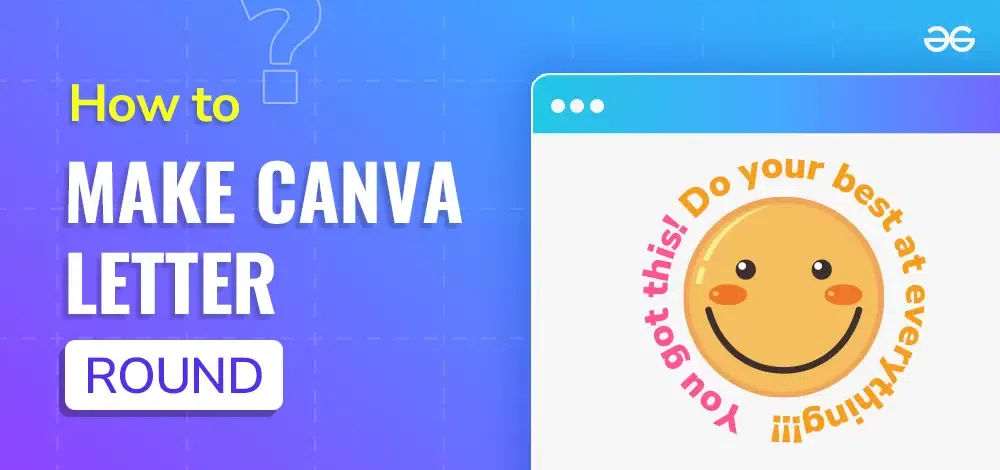
Canva is a free graphic design software that will enable the user to create the type of graphic designs or project they want such as posts on social media platforms, presentations, among others. That is why Canva has made it so simple to create a professional look with the design option and even a layman can perform them. Some of the interesting tools that it is endowed with are the ability to shape text which can add a very artistic flair to your designs. In this article, we will help you understand how to make a letter round, a typical Canva faculty where many people need to design circular logos, stamps, or art works.
Canva is a design tool that is available in a web browser and allows the creation of graphics anything from a document, headers to illustrations etc. This one provides its customers with a wide selection of templates, images, font selection, and many other components for a design that can be easily operated even for a person with no background in graphic design. The software has a number of special effects among which there is text bending, for instance, to make circles.
How to Letter Round in Canva?
Step 1. Click on the Canva Icon and begin a New Design
Launch the Canva site or the app on your computer or smart phone.
Then click on “Create a Design” and select the size of your project appropriately.
Step 2. Creating Text on Your Canva
On the left-hand side panel, there is a tab that has “Text” written on it and by clicking on it, you are able to insert a text box on the picture.
Enter the letter or word that you would like the curve to be in the text box.
Step 3. Modify Font and its Size
Adjust the text to your liking Choose your font and font size from Canva as it has numerous fonts to offer. There are always options of color changes too if one becomes bored of the current color.
Step 4. Curve the Text
Amend you select the text box. On the top of your document, you will find other options of modification in the toolbar.
Next to the words “Effects,” click on the and you will see the menu called “Curve. ”
You will note that there is a curve slider, drag the slider if you want your text to look round or circular. You also have to drag the slider to the right to add more of the curve for the circle to be fully made.
Step 5. Position Your Text
Once you have curved your text, you are able to then click and drag your text anywhere on the design. It is even possible to add more other design circular text like the border icons, or images to complete the whole picture.
Key Points to Consider when making a Letter Round
Font Style: Experience proves that not all font designs lend themselves to being curved. Try out different fonts which will enable you to see which types of fonts are easier to read even when rounded.
Spacing: Alphabets if placed side by side might look crowded and the amount of space that is left between letters may not be the same throughout the curve. It is also possible to change the spacing of the letters with the help of the “Spacing” command.
Size: Letters with a big size might need a smooth curve from one side of the letter to the other while a smaller size of letters does not distort if the curve is sharp.
Alignment: Make sure that the circles and the curved text itself is parallel to other objects or logos especially where precision is required such as in logos or stamps.
Mistakes to Avoid when making a Letter Round
Over-curving: If you make the curve slider go to the extreme then it becomes very difficult to read the text you have written. This piece of advice also states that it is better to employ only moderate curves so that the resulting map would be easier to read.
Ignoring Alignment: If it is curved text then make sure that it is aligned with other items. Misalignment can be a disaster to our design as it makes the design look ugly and unprofessional.
Not Testing Different Fonts: On the curves, some of the fonts may appear somewhat disjointed. One has to get used to using different variations of fonts as it is necessary to generate aesthetic value in the long run.
Too Much Text: When it comes to the long paragraph or sentences, curving of the text becomes a bit cumbersome. Include shorter phrases or even a single letters for best results with this test.
Conclusion
Rounding options and turning the text into a circular or rounded rectangular form is one of the most effective features in the Canva. No matter logo and emblem designs or artistic works, the ability to curve text in some way enhances the overall appearance of the work done. Following this guide with these following considerations in mind, one should be able to create modern and artistic round text designs easily.