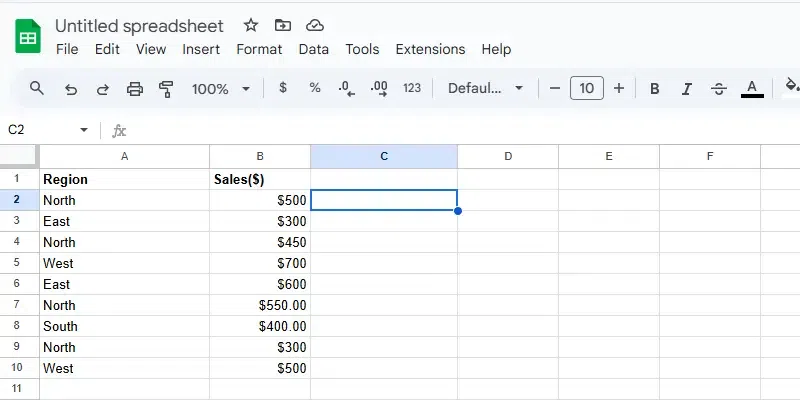
The AVERAGEIF function in Google Sheets calculates the average (mean) of a range of numbers that meet a specified condition. It’s particularly useful when analyzing data selectively based on specific criteria, like averaging sales over a certain threshold or scores for a specific category.
How It Works
You specify the range to evaluate against the condition.
Provide the criteria that the values must meet.
Optionally, define the range to average if it’s different from the criteria range.
The function scans the range for values matching the requirements and computes the average of the corresponding numbers.
Criteria Range: The range to evaluate against a condition (e.g., A2:A10 for regions).
Average Range (optional): The range containing the numbers to average (e.g., B2:B10 for sales). If omitted, the Criteria Range will also serve as the Average Range.
Step 3: Define the Criterion
Decide the condition you want to apply. Examples include:
Specific text value: "North".
Numerical condition: ">300".
Logical operators: Use conditions like <=500 or <> "South" (not equal to "South")
Step 4: Write the AVERAGEIF Formula
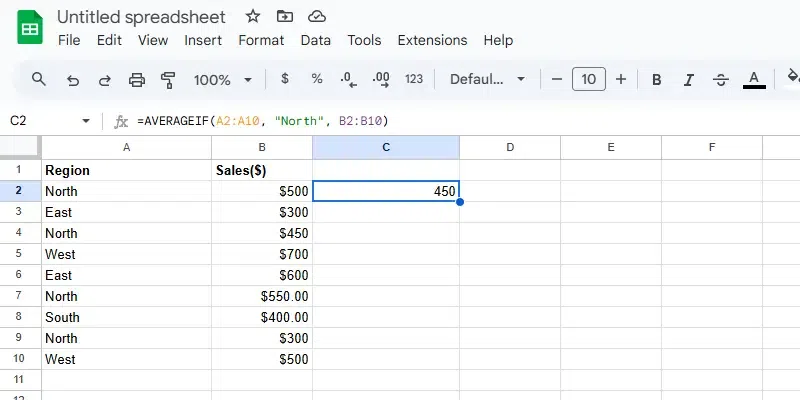
In the selected cell (e.g., C2), enter the formula:
=AVERAGEIF(A2:A10, "North", B2:B10)
Explanation:
A2:A10: The range to evaluate (e.g., Regions).
"North": The criterion to match.
B2:B10 (optional): The range to calculate the average (e.g., Sales).
Press Enter to apply the formula. The cell will display the average of the numbers in the Average Range (B2:B10) that correspond to entries in the Criteria Range (A2:A10) meeting the specified condition ("North").