|
VOOZH | about |
|
VOOZH | about |
The Google Sheets IF AND formula is a versatile tool that allows you to test multiple conditions at once and return specific results based on their outcomes. By combining logical functions, it helps streamline decision-making and automate tasks in data analysis. This feature is ideal for managing complex datasets, ensuring accuracy, and improving productivity in everyday spreadsheet work
The Google Sheets IF AND formula works by combining the logical AND function with the IF function to evaluate multiple conditions simultaneously. It checks if all specified conditions are true and then returns one value if they are true and another value if they are false.
The syntax for using the IF AND function in Google Sheets is:
=IF(AND(condition1, condition2,), value_if_true, value_if_false)
You can use the Google Sheets IF AND by the following steps:
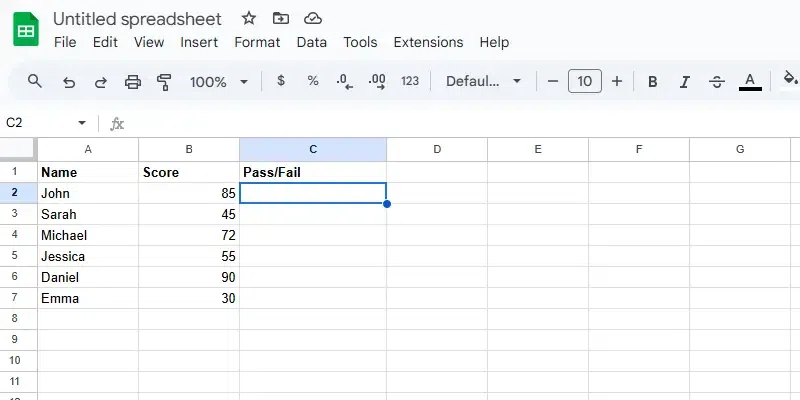
Click the cell where you want the result of the formula to appear. For example, select C2 to display the result for the first row of data.
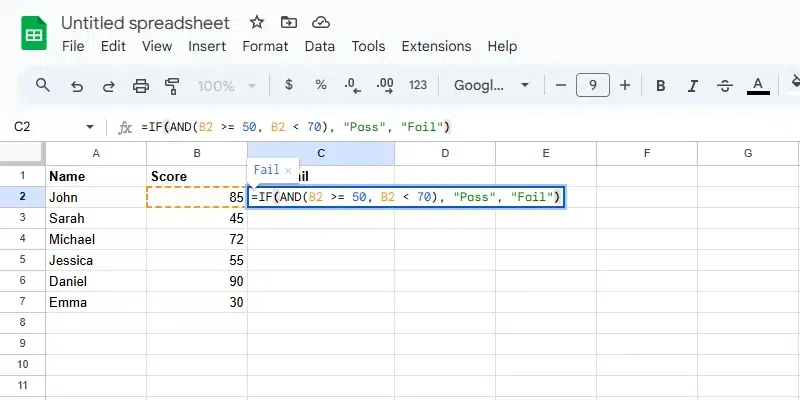
In the selected cell, type the following formula:
=IF(AND(B2 >= 50, B2 < 70), "Pass", "Fail")
This formula checks if the score in column B (Score) is greater than or equal to 50 but less than 70. If both conditions are true, the student will be marked as "Pass", otherwise "Fail".
B2 >= 50 checks if the score is 50 or more.B2 < 70 checks if the score is less than 70.AND(B2 >= 50, B2 < 70) checks if the score is between 50 and 69.For example, if:
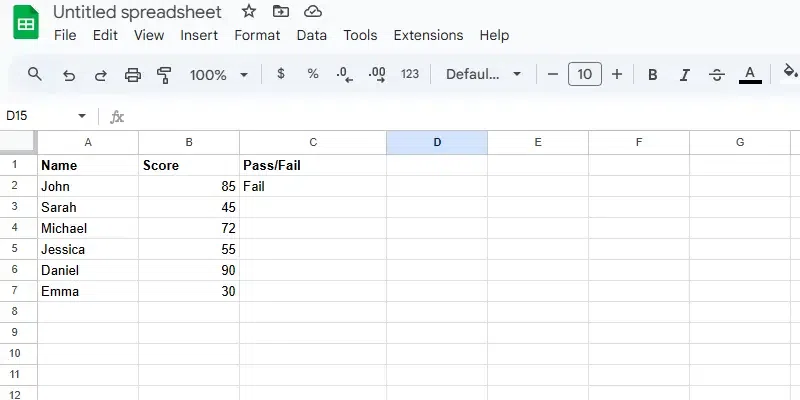
After typing the formula, press Enter to apply the formula. The cell will now display the result based on the conditions you set.
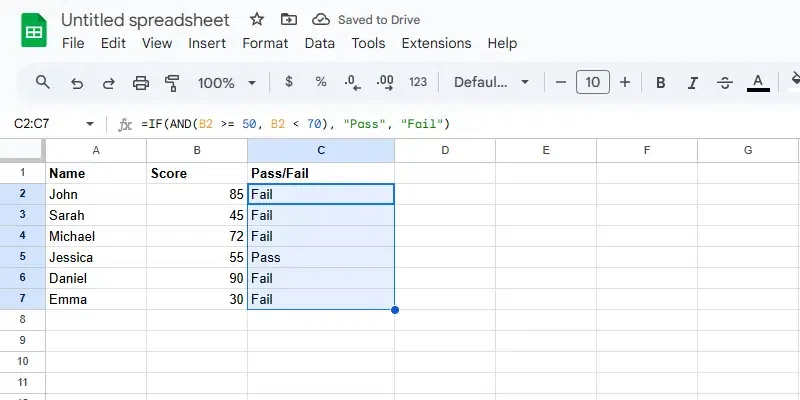
Once the formula is working for the first row, you can apply it to the rest of the rows:
Also Read: