|
VOOZH | about |
|
VOOZH | about |
The LEFT function in Google Sheets is a simple tool that allows you to extract a specific number of characters from the beginning of a text string. Whether you're working with addresses, names, or product codes, the LEFT function makes it easy to isolate the beginning portion of the text. This function is particularly useful when you're dealing with standardized data or need to break down a larger dataset into more manageable parts.
The LEFT function in Google Sheets extracts a specific number of characters from the beginning (left side) of a text string. It's a handy tool for separating or analyzing text data, such as pulling prefixes, codes, or initials from larger strings.
The LEFT function takes a text input and a number as arguments. It returns the first specified number of characters from the text, starting from the left. This function is commonly used for tasks like extracting abbreviations or trimming text for further analysis.
Here is the syntax of the LEFT function in Google Sheets:
=LEFT(text, [number_of_characters])
The LEFT function is simple to use and helps in managing text-based data efficiently.
Follow the steps given below to use LEFT Function in Google Sheets:
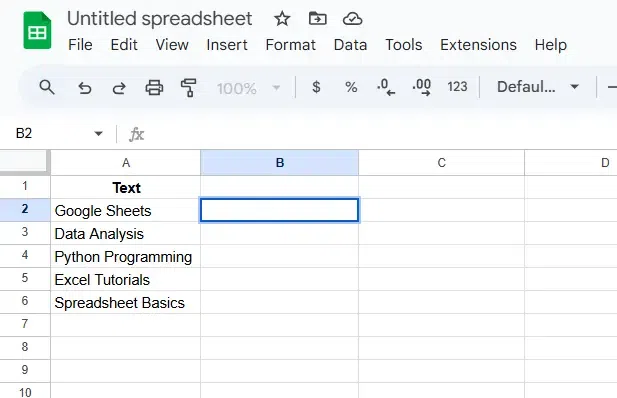
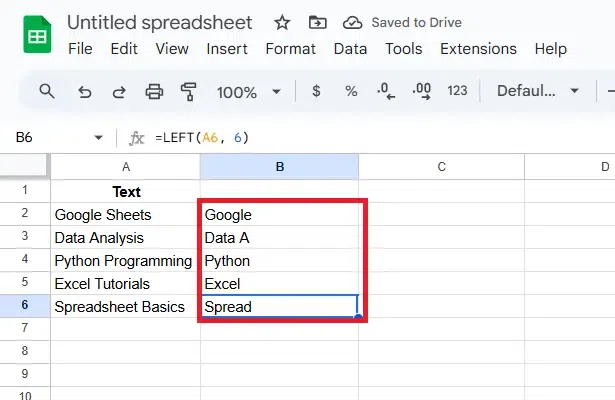
Choose the cell where you want the extracted text to appear. For example, select B2.
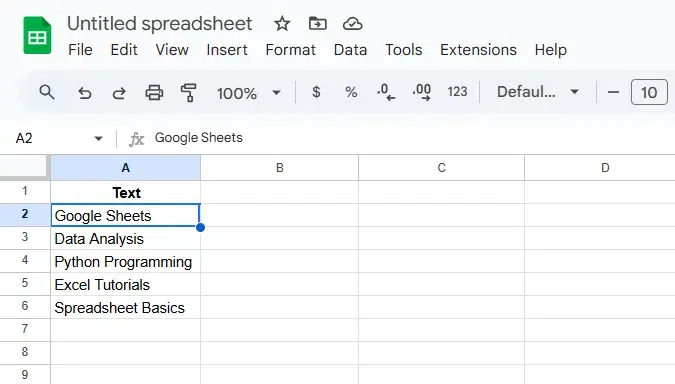
Locate the cell containing the text you want to extract from. For instance, A2 with the text "Google Sheets".
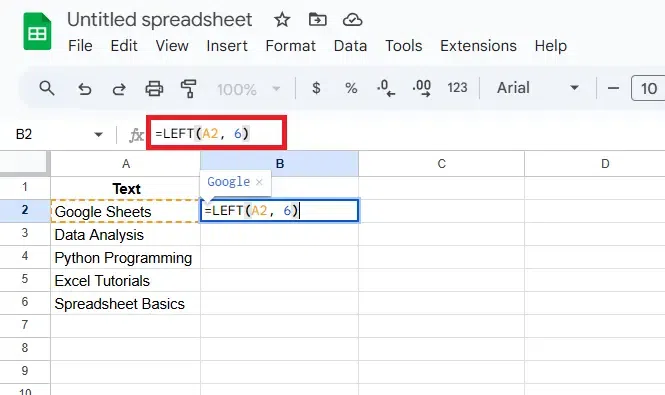
In the selected cell (B2), type the formula:
=LEFT(A2, 6)
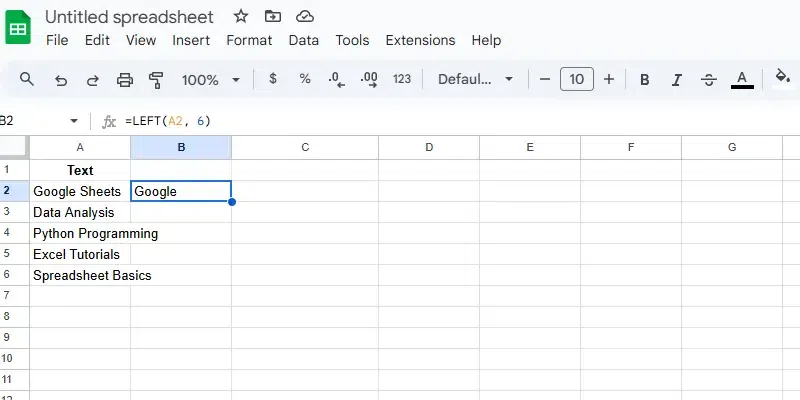
This extracts the first 6 characters from the text in A2, which would result in "Google".
Hit Enter to apply the formula. The result, "Google", will be displayed in B2.
If you want to apply the same formula to other cells in the column, simply drag the fill handle (the small square at the bottom right corner of B2) down to the desired cells.
Here we will combine the LEFT function with the FIND function to dynamically extract text up to a specific character or word.
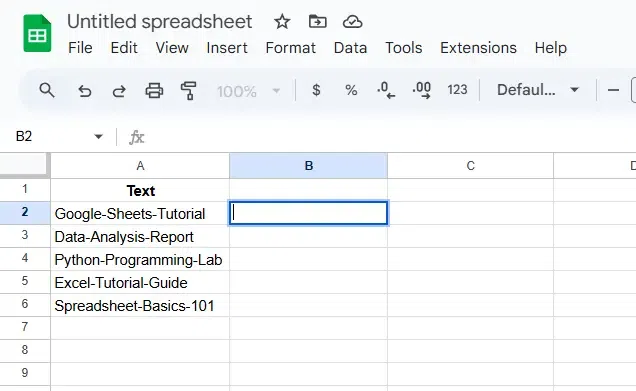
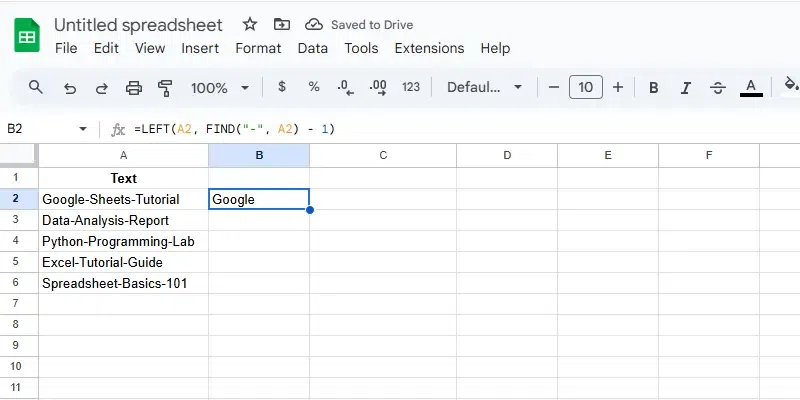
Choose the cell where you want the extracted text to appear. For example, select B2.
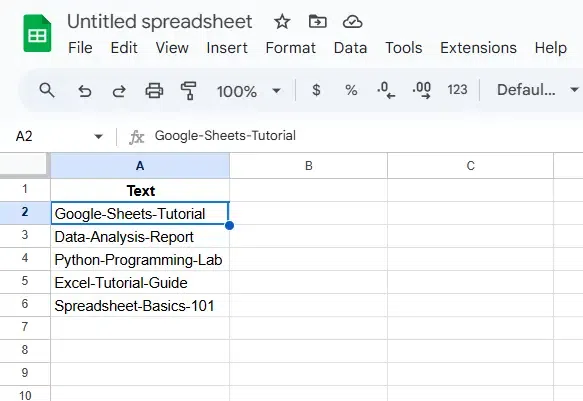
Locate the cell containing the text you want to extract from. For example, A2 contains the text "Google-Sheets-Tutorial".
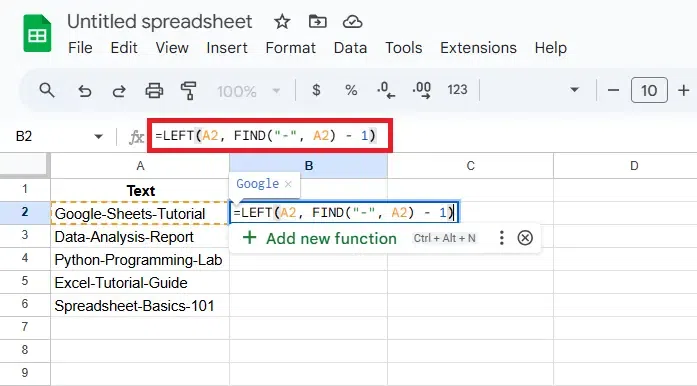
In the selected cell (B2), type the formula:
=LEFT(A2, FIND("-", A2) - 1)
This formula performs two actions:
Hit Enter to apply the formula. The result in B2 will be "Google".
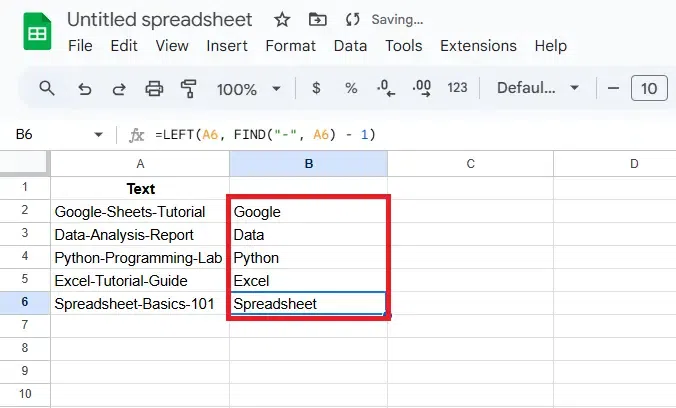
If you want to extract text for other rows, drag the fill handle (the small square at the bottom right corner of B2) down to the other cells (e.g., B3:B6). The formula will adjust automatically for each row, extracting text up to the first hyphen in the corresponding cell in column A.
Also Read: