|
VOOZH | about |
|
VOOZH | about |
Want to capitalize text in Google Sheets without manual editing? The UPPER function in Google Sheets is a simple yet powerful tool that transforms any text string into uppercase letters instantly. Whether you're managing mailing lists, form responses, or standardizing data formats, this formula simplifies it all.
In this article, we will dive into the UPPER function's syntax and show you how to apply it in Google Sheets to convert text to uppercase. By the end of this guide, you'll be able to use the UPPER function to clean up your data and create more uniform datasets.
Disclaimer: Always double-check your data before applying formulas to ensure no formatting conflicts or errors arise.
The UPPER function converts any lowercase text into all capital letters. It's especially useful when dealing with inconsistent text inputs in spreadsheets, helping to create cleaner and more professional-looking data.
=UPPER(text)Example Usage:
=UPPER("hello world") ➜ "HELLO WORLD"
=UPPER(A2) ➜ Converts the content in cell A2 to uppercase.
The UPPER function is used to convert text to uppercase in Google Sheets. Here’s how to use it:
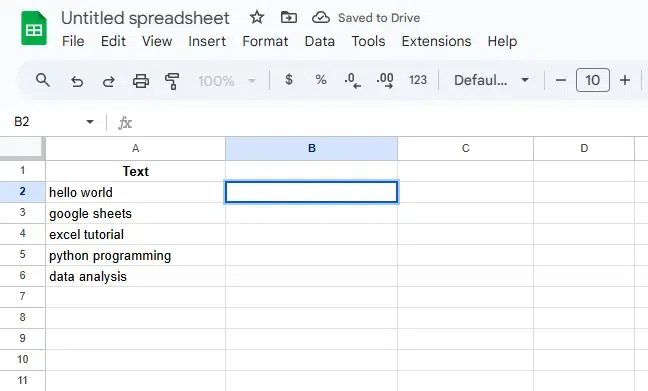
Choose the cell where you want to display the uppercase text. For example, select B2.
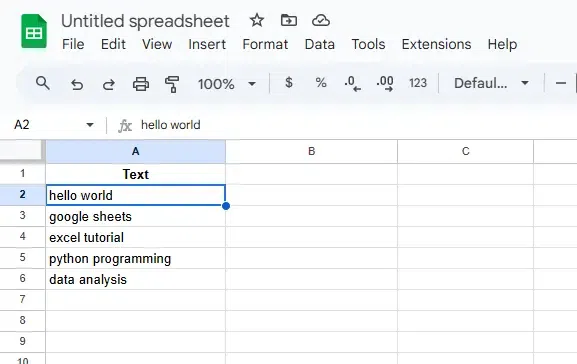
Locate the cell containing the text you want to convert to uppercase. For example, A2 contains the text "hello world".
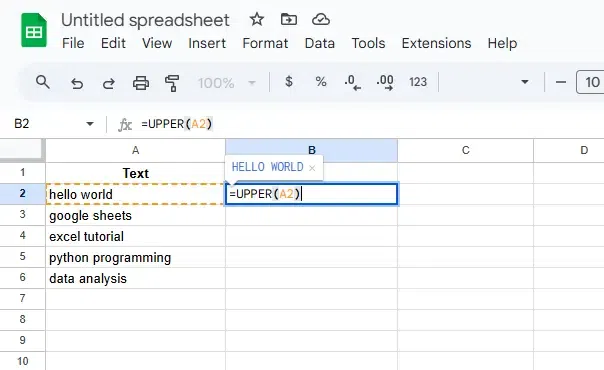
In the selected cell (B2), type the formula:
=UPPER(A2)This formula will convert the text in A2 ("hello world") to uppercase, resulting in "HELLO WORLD" in B2.
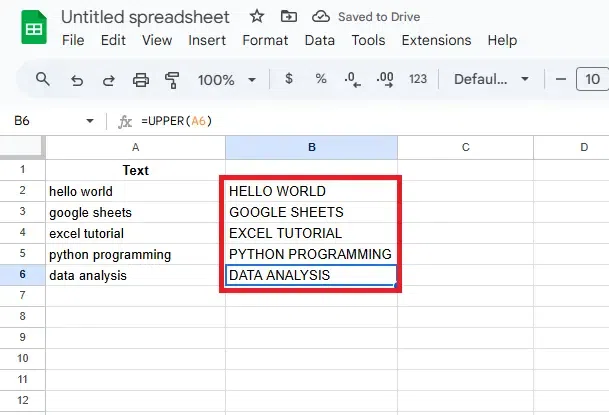
Hit Enter to apply the formula. The text in A2 will now be displayed in uppercase in B2. To apply the formula to other rows, drag the formula down from the corner of B2 to fill the cells below with uppercase text.
This step-by-step guide ensures that you can easily use the UPPER function to convert text to uppercase in Google Sheets.
When combining or merging datasets, inconsistent text formatting (like names or cities) can cause errors. UPPER ensures uniform text formatting.
If you’re preparing data for mass communication or mailing systems, uppercase names or subjects may be preferred for readability.
Forms often collect names or answers in lowercase. Use the UPPER function to auto-correct capitalization issues quickly.
You can combine UPPER with:
Example:
=ARRAYFORMULA(UPPER(A2:A100))Always apply UPPER in a new column to preserve your original data.
If a referenced cell contains a number or special character, the formula will return it unchanged.
The UPPER function in Google Sheets is a simple, powerful tool that can save you time when working with text data. Whether you're cleaning up inconsistent capitalization or ensuring uniformity across your spreadsheet, this function allows for quick and efficient formatting. Understanding how to use the UPPER function will help you streamline your data processing tasks, making your work in Google Sheets much easier and more organized.