|
VOOZH | about |
|
VOOZH | about |
The VLOOKUP formula stands for Vertical Lookup. It searches a specific value (known as the search key) in the first column of a defined range and returns a corresponding value from another column in the same row.
This function is essential for retrieving values across rows where data is structured in vertical columns.
=VLOOKUP(search_key, range, index, [is_sorted])Here are the steps to use VLOOKUP in Google Sheets, along with some helpful VLOOKUP formula examples in Google Sheets to guide you:
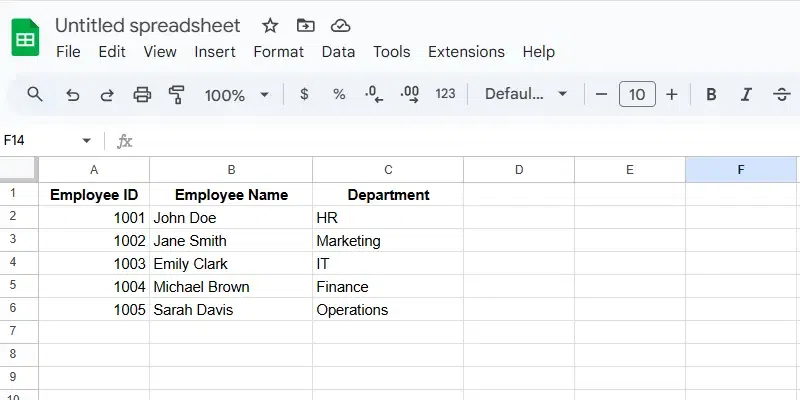
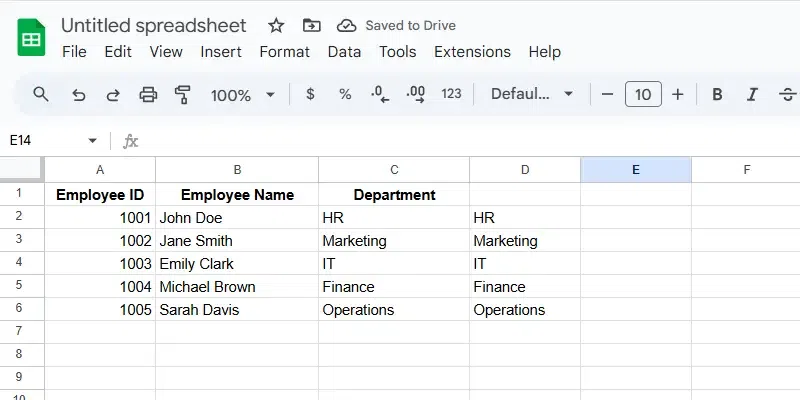
Ensure that your data is structured with the Employee ID in the first column (Column A), the Employee Name in the second column (Column B), and the Department in the third column (Column C).
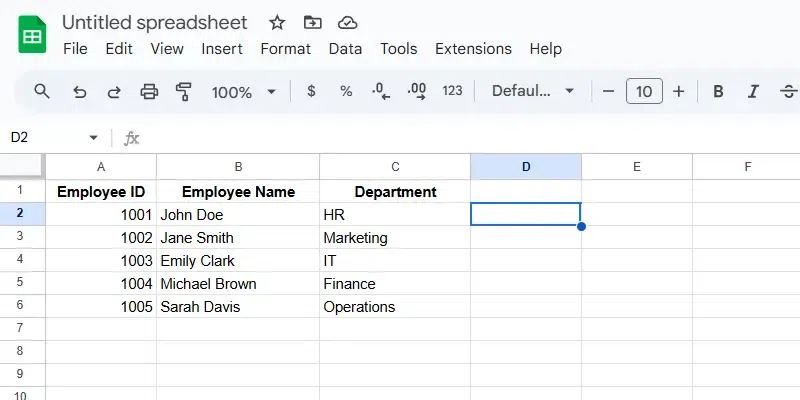
Decide where you want the result of the VLOOKUP formula to appear. Let's assume you want the Department to appear in Cell D2 when you enter an Employee ID in Cell A2.
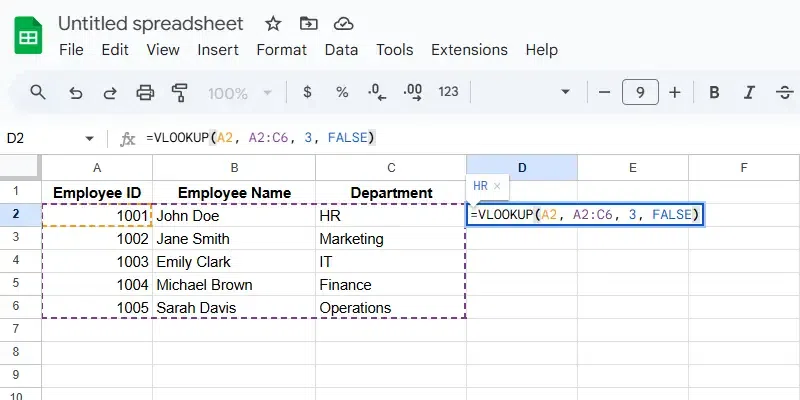
In Cell D2, use the following formula to search for the Employee ID in Column A and retrieve the corresponding Department from Column C.
Formula:
=VLOOKUP(A2, A2:C6, 3, FALSE)Here’s the breakdown:
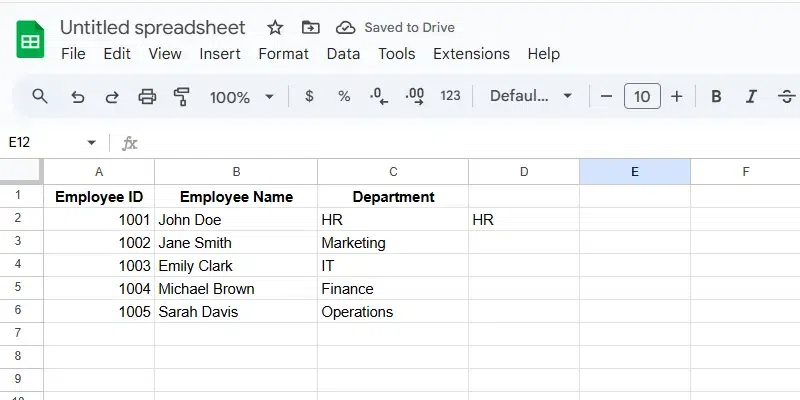
After entering the formula in Cell D2, press Enter. The Department corresponding to the Employee ID in A2 will appear in D2.
For example, if you type "1001" in A2, D2 will display "HR".
To apply the formula to other rows, click on the small square in the bottom-right corner of Cell D2 (the fill handle) and drag it down to the other cells in Column D.
For example, typing "1002" in A3 will return "Marketing" in D3, and so on.
This example shows how to use VLOOKUP to search for an Employee ID and retrieve the corresponding Department from a dataset.
To VLOOKUP data from a different sheet in Google Sheets, you'll need to reference the data from one sheet while using a formula in another. This can be useful when you're working with large datasets that are split across multiple sheets, and you want to retrieve information based on a lookup value.
Make sure the data is spread across two sheets. For example:
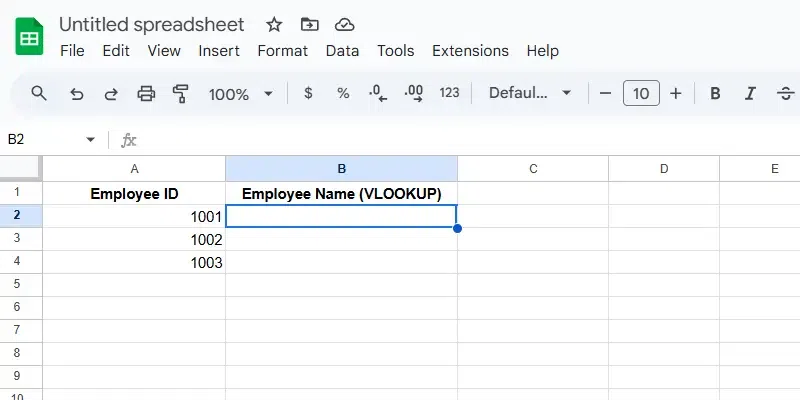
Sheet1: Contains the formula you will use to retrieve data.
| Employee ID | Employee Name (VLOOKUP) |
|---|---|
| 1001 | |
| 1002 | |
| 1003 |
Sheet2: Contains the data you want to search from.
| Employee ID | Employee Name |
|---|---|
| 1001 | John Doe |
| 1002 | Jane Smith |
| 1003 | Emily Clark |
Determine the lookup value and the range where the value is located.
For example:
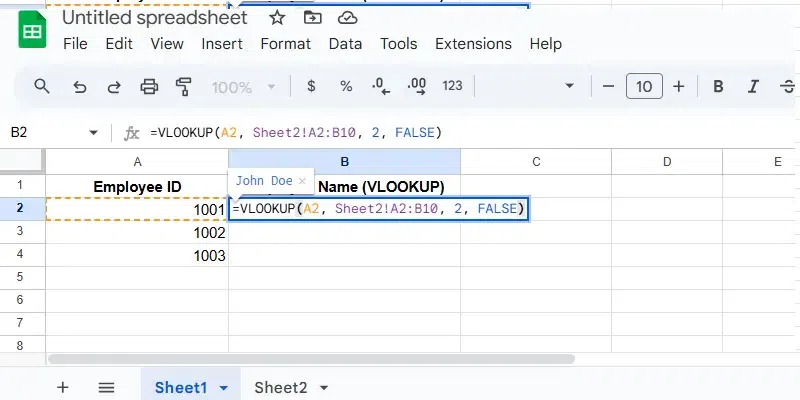
In the cell where you want the result (in Sheet1), use the following VLOOKUP formula:
=VLOOKUP(A2, Sheet2!A2:B10, 2, FALSE)Here’s what each part means:
A2: The lookup value (Employee ID in Sheet1).
2: The column index number. Since Employee Name is in the second column of the range (Column B), we use 2.
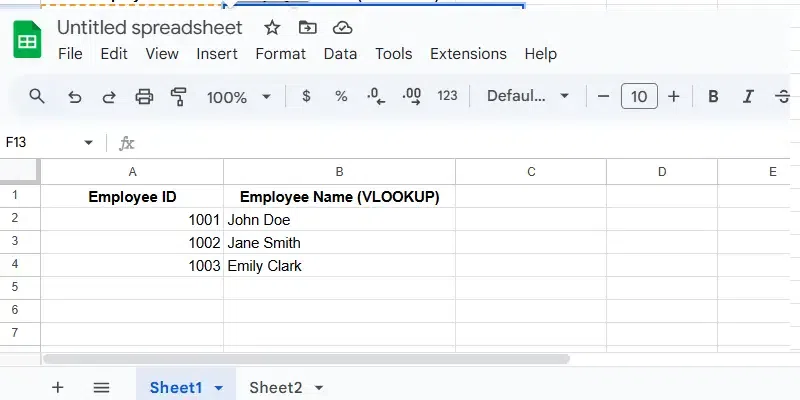
Press Enter to apply the formula. The cell in Sheet1 will now display the corresponding Employee Name from Sheet2 based on the Employee ID in A2 of Sheet1.
If you want to apply the formula to other rows, click on the small square in the bottom-right corner of the cell containing the formula (the fill handle) and drag it down to the other cells. This will automatically adjust the formula to lookup the values in the new rows.
SheetName!Range. For example: Sheet2!A2:B10.Using VLOOKUP with Wildcard Characters in Google Sheets allows you to search for partial matches or patterns within your data. Wildcards help when you don’t need to match an exact value but rather a part of the value, giving you flexibility in your search.
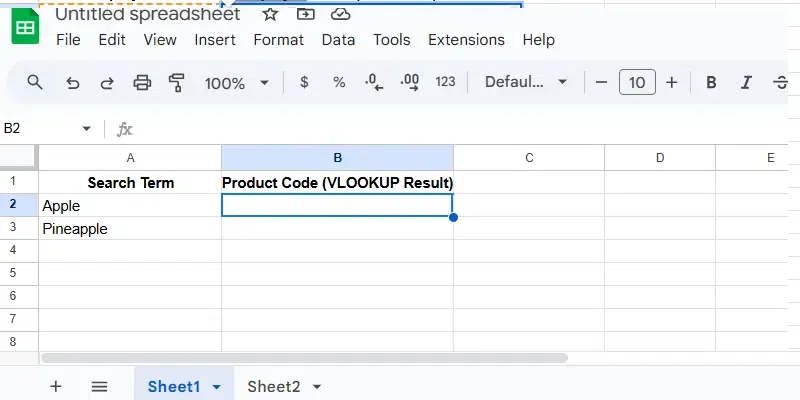
Suppose you have a list of product names and their corresponding product codes, and you want to search for products containing a certain keyword (e.g., "Apple") in their names. By using wildcards, you can search for product names that include the word "Apple" anywhere in the text.
| Search Term | Product Code (VLOOKUP Result) |
|---|---|
| Apple | |
| Pineapple |
| Product Name | Product Code |
|---|---|
| Apple Juice | 123A |
| Orange Juice | 124B |
| Pineapple Juice | 125C |
| Mixed Juice | 126D |
| Apple and Mango | 127E |
Ensure your data is organized properly across two columns—one containing the lookup values and another containing the results. Let’s use the following sample dataset:
You need to know what value you want to search for and where to search it.
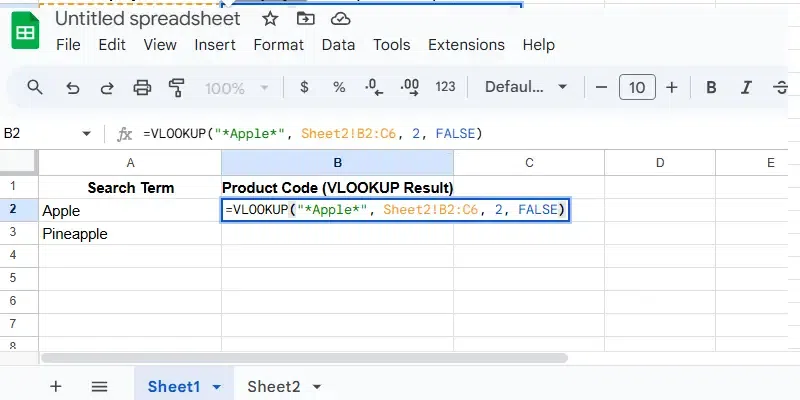
Sheet2!B2:C6, where B2:B6 contains the Product Names and C2:C6 contains the Product Codes.The VLOOKUP function can be combined with wildcards for partial matching.
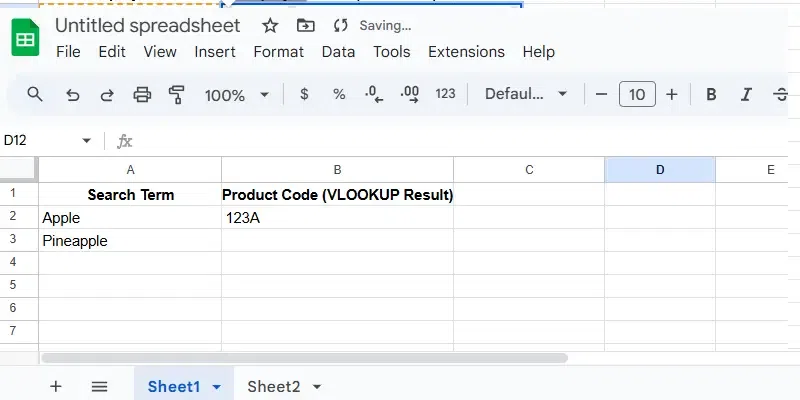
=VLOOKUP("*Apple*", Sheet2!B2:C6, 2, FALSE)"*Apple*": The * wildcard allows you to match any characters before or after "Apple". This means it will match "Apple Juice", "Apple and Mango", or any other product name containing the word "Apple".Sheet2!B2:C6: This is the data range where we are searching (Product Names in column B and Product Codes in column C).2: This is the column index from which the result will be returned. Here, column 2 is where the Product Code is located.FALSE: This ensures the match is exact, considering the wildcard.Once you enter the formula in the desired cell (for example, in Sheet1!B2), press Enter. The formula will return the Product Code of the first matching result. In this case, it will return the code for "Apple Juice" (i.e., 123A).
If you want to search for other keywords or apply the same formula to more rows, drag the formula down. This will adjust the cell references accordingly and perform the search for the new values.
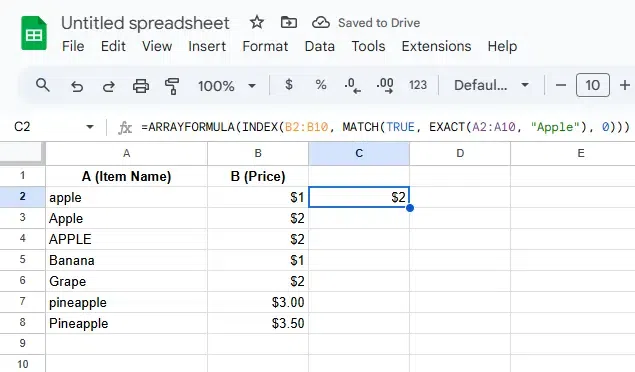
By default, VLOOKUP in Google Sheets isn’t case-sensitive, which means it treats "apple" and "Apple" as the same. To make it case-sensitive, you can use a combination of functions like ARRAYFORMULA, INDEX, and MATCHto customize your lookup. This method ensures that the function distinguishes between uppercase and lowercase letters.
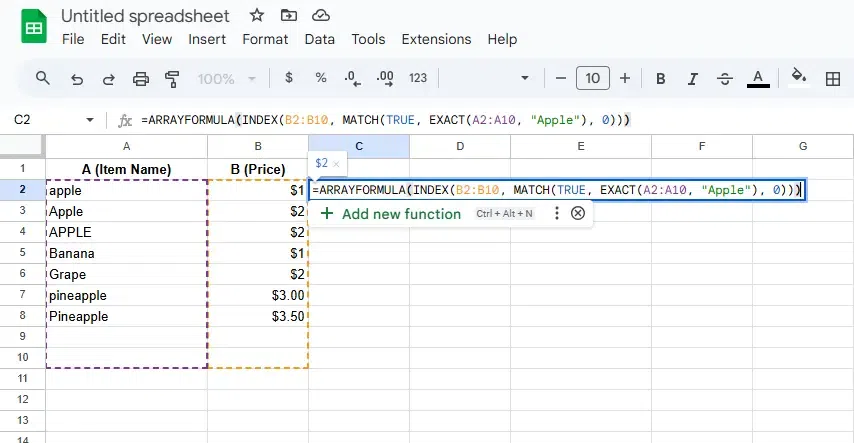
You can use the following formula to perform a case-sensitive lookup in Google Sheets:
=ARRAYFORMULA(INDEX(B2:B10, MATCH(TRUE, EXACT(A2:A10, "Apple"), 0)))EXACT(A2:A10, "Apple"): This part of the formula checks if each cell in the range A2:A10 exactly matches the case-sensitive text "Apple". The EXACT function ensures that "apple" and "Apple" are treated as different values.MATCH(TRUE, EXACT(A2:A10, "Apple"), 0): The MATCH function looks for the first occurrence of TRUE (i.e., an exact match) in the array generated by the EXACT function. It returns the relative position of the matching value within the range A2:A10.INDEX(B2:B10, ): Once MATCH finds the position of the case-sensitive match, the INDEX function returns the corresponding value from column B2:B10.ARRAYFORMULA: This allows the formula to process entire arrays (ranges) at once, enabling it to evaluate the entire range A2:A10 and find the exact match.After entering the formula in the desired cell (for example, C2), press Enter. The formula will return the value from column B2:B10 that corresponds to the case-sensitive match in column A2:A10.
is_sorted to FALSE for exact matches.| Feature | VLOOKUP | INDEX-MATCH |
|---|---|---|
Left-side lookup | No | Yes |
Speed | Slower | Faster |
Complexity | Easier | More complex |
Using the VLOOKUP function in Google Sheets can sometimes result in errors, which can be frustrating. Below are common VLOOKUP errors and how to troubleshoot them:
Cause: The function cannot find the lookup value in the first column of the range.
Cause: The column index number exceeds the number of columns in the lookup range.
col_index_num argument to ensure it falls within the range's column count.Cause: Non-numeric values are used where numeric ones are expected.
Cause: The function attempts to divide by zero during calculations within the range.
Cause: VLOOKUP might return unexpected results when the lookup is not sorted or if duplicates exist.
TRUE as the fourth argument), ensure the first column is sorted in ascending order.Cause: VLOOKUP is not case-sensitive, leading to potential mismatches.
FALSE for more precise results.IFERROR to handle errors gracefully:=IFERROR(VLOOKUP(A1, B1:D10, 2, FALSE), "Not Found")By addressing these common issues, you can effectively troubleshoot and resolve VLOOKUP errors in Google Sheets.