 |
VOOZH | about |
|
VOOZH | about |
Bookmarks in Google Docs are a helpful way to quickly navigate through long documents or reference specific sections of your work. Whether you’re writing a report, an essay, or any other long document, using bookmarks allows for smoother navigation, saving time and improving the overall reading experience.
In this step-by-step guide, we will show you how to use bookmarks in Google Docs, including how to add a bookmark, link to a bookmark, and even remove a bookmark if you no longer need it. By mastering these features, you can enhance your workflow and make your documents more user-friendly for both you and your readers.
Adding a Bookmark in Google Docs is simply making an internal link inside the Document itself. It is a very handy yet easy-to-implement feature. To add a bookmark and link it with any text inside the document you have to complete these two parts:
To complete these two processes follow the simple steps given below.
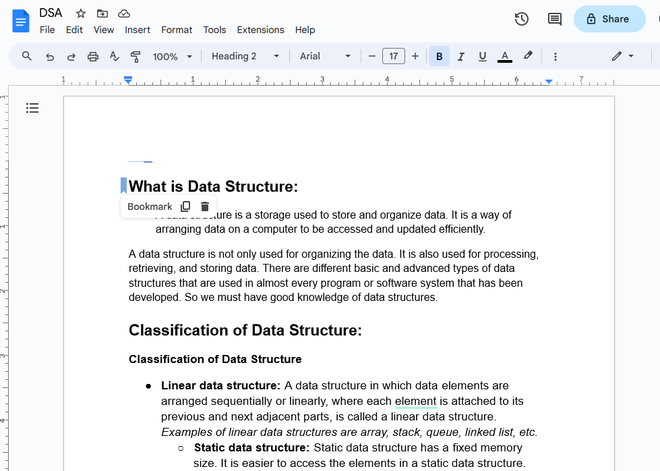
The first step to making Bookmarks in the Document is adding them to either a blank space or giving a name to it. Or you can add a bookmark to an already existing content.
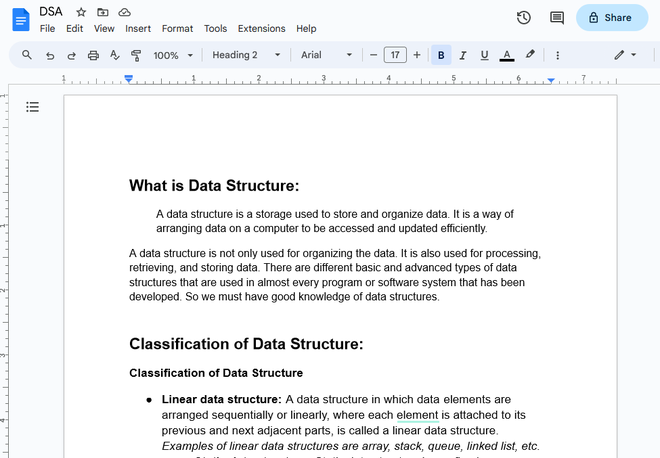
From the array of files shown after you open "https://accounts.google.com/v3/signin/identifier?continue=https%3A%2F%2Fdocs.google.com%2F&emr=1&followup=https%3A%2F%2Fdocs.google.com%2F&ifkv=AdBytiP-0BeMTEFn_-2G_PZ1Pu21RDQCemxxhPz38zMpaJlQmGcb7nZ4mLdzPJtuQih9n8T94YmC&osid=1&passive=1209600&flowName=WebLiteSignIn&flowEntry=ServiceLogin&dsh=S2084124670%3A1753268311174354" choose the file you want to edit and open it.
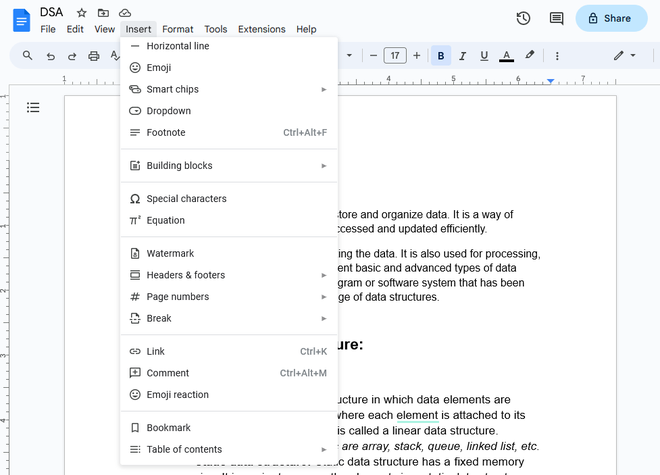
After setting the cursor to the position where you want to add the Bookmark(which can be an existing text or a blank space), go to the Top toolbar and click on the "Insert" menu.
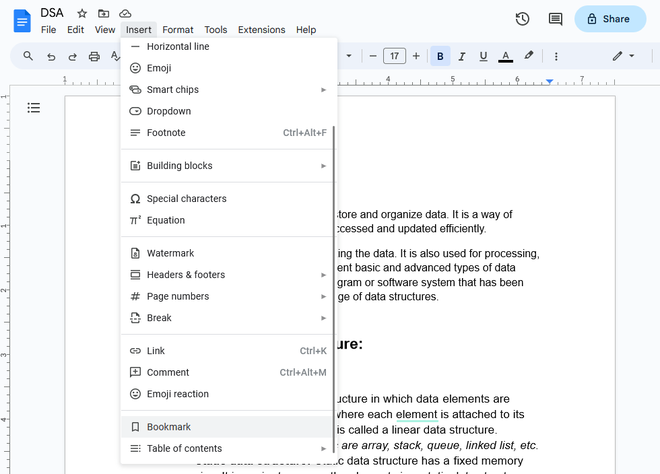
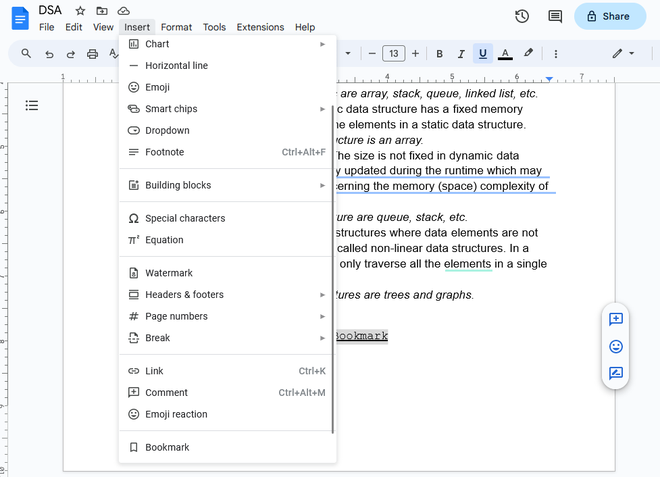
When "Insert" is clicked a dropdown menu will open and from the options in the menu, click on the "Bookmark" option.
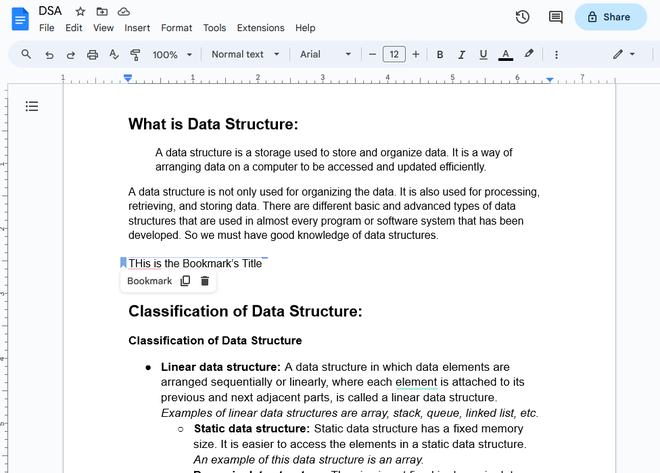
When a Bookmark is added to a blank space there is no name to the Bookmark and you can add a name to it.
Alternatively, when the Bookmark is added to already existing content, the text just turns into a bookmark.
This is the first approach for linking the Bookmark and in this, we create a link and then direct it towards the Bookmark. You can do that by following the below-given steps:
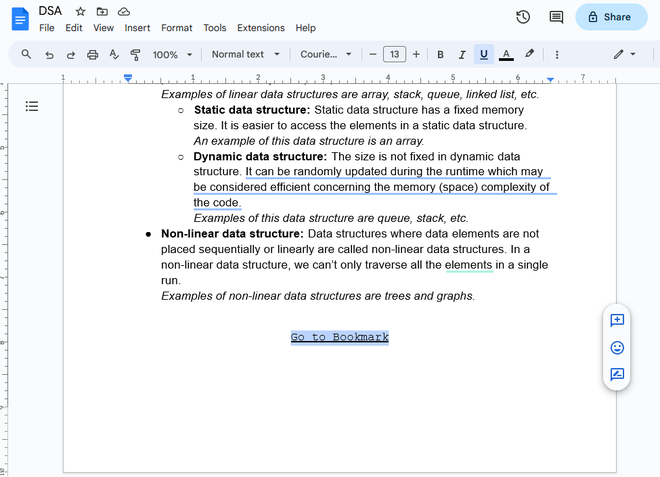
The link is mainly added to a text in the document, this makes this feature handy and practical. So, first, select the text that will become the link to the bookmark.
After selecting the text that will be the link to the Bookmark, go to the Top toolbar and click on the "Insert" menu.
When "Insert" is clicked a dropdown menu will open and from the options in the menu, click on the "Link" option.
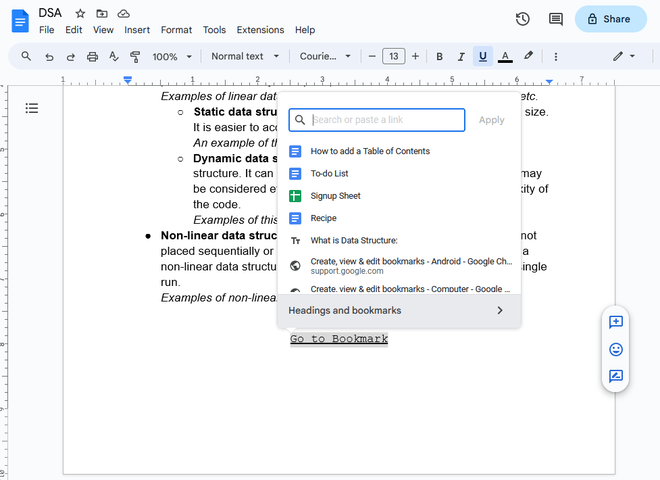
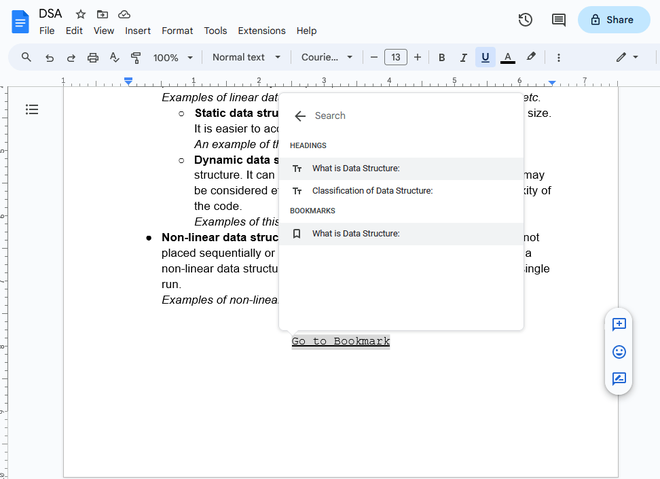
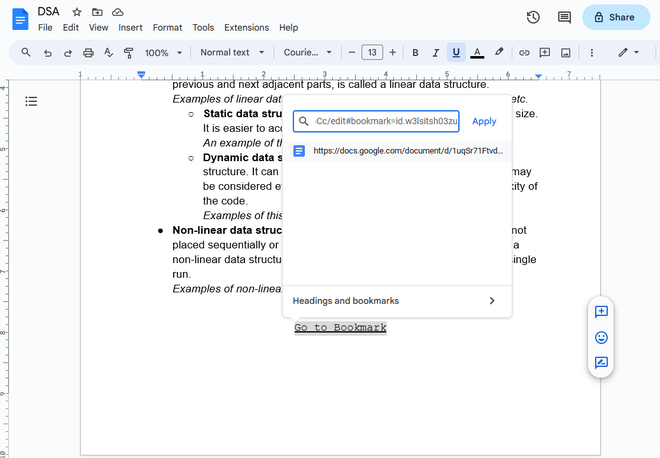
When the "Link" option is clicked, a layout for adding the address for the link will open up. From there click on the last option which is "Headers and bookmarks".
When the list of Bookmarks and headings open up, look out for the Bookmark you want to add and then click on that bookmark.
This is the alternative approach to adding the link to the Bookmark. This approach works by copying the link of the bookmark and adding it to the link text.
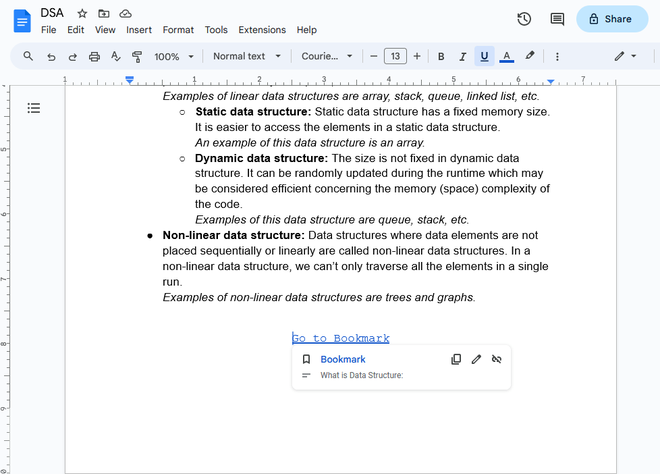
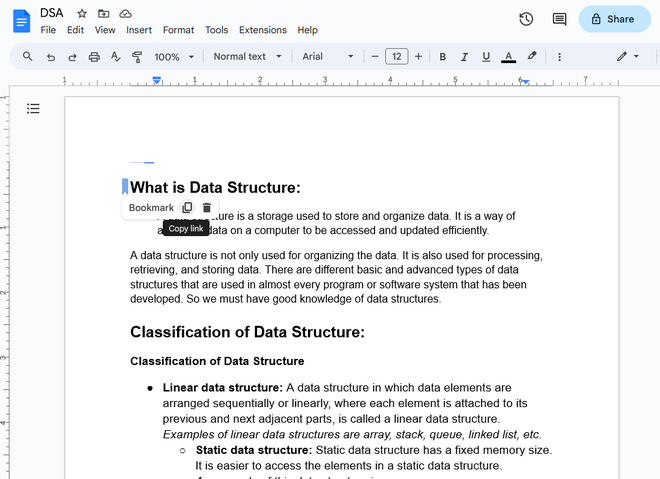
In some cases, you might want to copy the bookmark link and paste it elsewhere in the document. Follow the below steps to copy the link to the Bookmark.
Click on the Bookmark symbol beside the Bookmark name in your document and click on the "Copy Link" button. This will copy the link of the Bookmark to the clipboard.
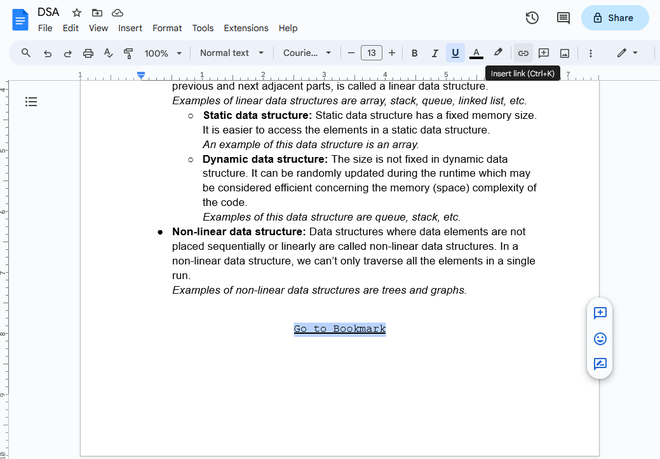
Choose the text that you want to make into a link. Then, you can either click the "InsertLink" button on the top toolbar or simply press "CTRL+K," and the text will become a link.
After clicking on the "InsertLink" a blank for the address to redirect the link will open up in a layout. Paste the address you have copied in the First step.
Google Docs doesn't have a direct keyboard shortcut for bookmarking. However, there's a workaround you can use. Follow these steps:
Step 1: Choose the text you want to Bookmark
Step 2: Simultaneously press "Alt + Shift + I" on your Keyboard to Access the Insert Menu
Step 3: Then, Press the letter B to Apply the Bookmark
To delete a bookmark in Google Docs when you no longer need it, follow these steps:
Bookmarks are an essential tool in Google Docs for organizing and navigating lengthy documents. By adding bookmarks, linking to them, and removing them when no longer necessary, you can significantly improve your document management. Whether you're a student, professional, or anyone who works with long Google Docs, understanding how to use bookmarks will enhance your productivity and streamline your writing process.
With the simple steps outlined in this guide, you’ll be able to navigate your Google Docs like a pro, ensuring efficient editing and a more organized reading experience.

-660.png)

.png)
.png)