|
VOOZH | about |
|
VOOZH | about |
Edit a PDF in Google Docs - Quick Tips
- Open your Google Drive.
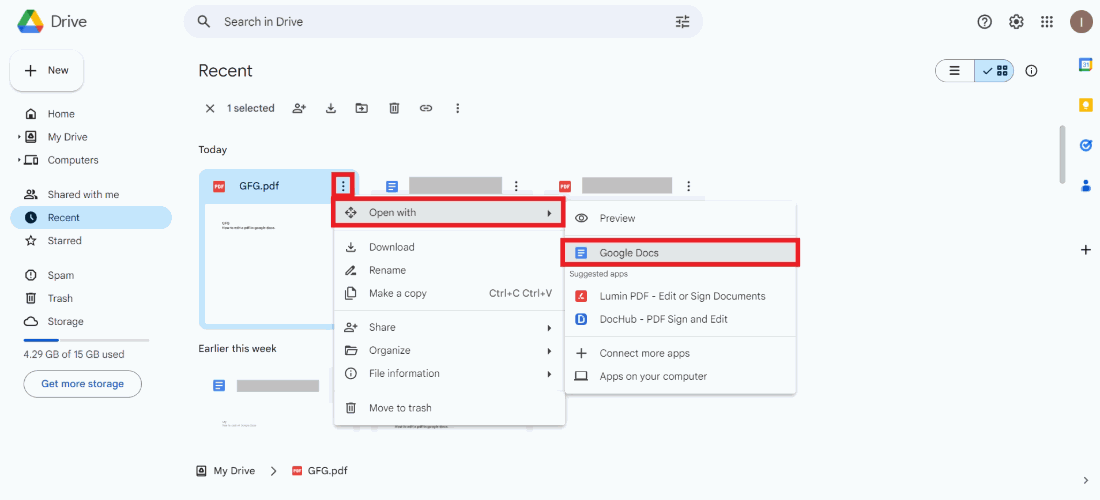
- Upload the PDF file you want to edit >> right click on the file.
- Choose "Open with" and select "Google Docs."
- Make your edits within the Google Docs interface.
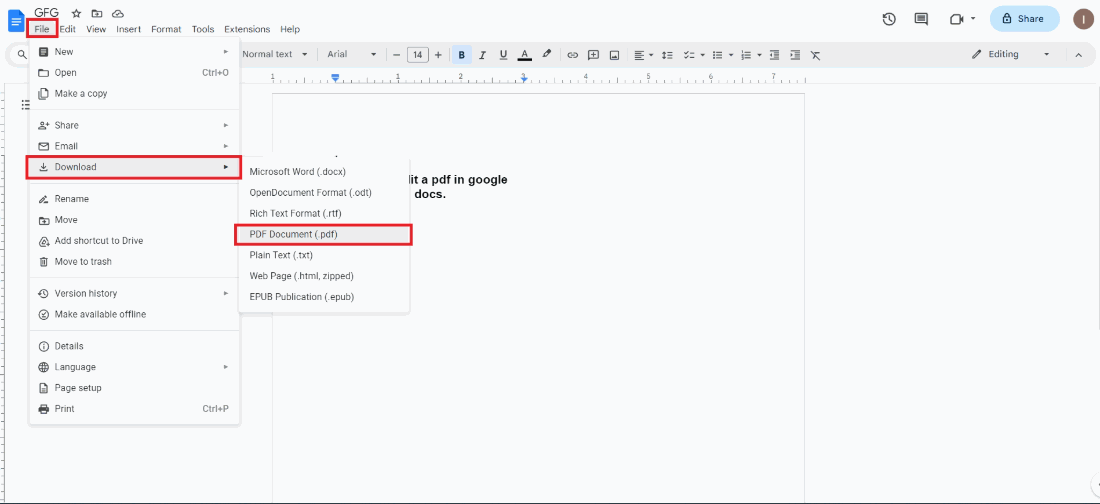
- Once done, go to "File" and select "Download."
- Choose the PDF format to save your edited document.
Editing PDFs can be a real headache, especially when you don't have the right tools. Most people think they need expensive software to make simple changes to a PDF, but there's a much easier way—Google Drive and Google Docs. These free tools offer a simple solution to your PDF editing problems, right from your browser.
In this guide, we'll walk you through the exact steps to edit PDFs using Google Drive and Google Docs, making it easy for anyone to get the job done without spending a dime. Whether you're a student needing to tweak an assignment, a professional adjusting a report, or a small business owner editing documents, this guide is for you. Say goodbye to costly PDF editors and discover how to use Google Docs for PDF editing quickly and efficiently.
👁 How-to-Edit-a-PDF-in-Google-Docs
Table of Content
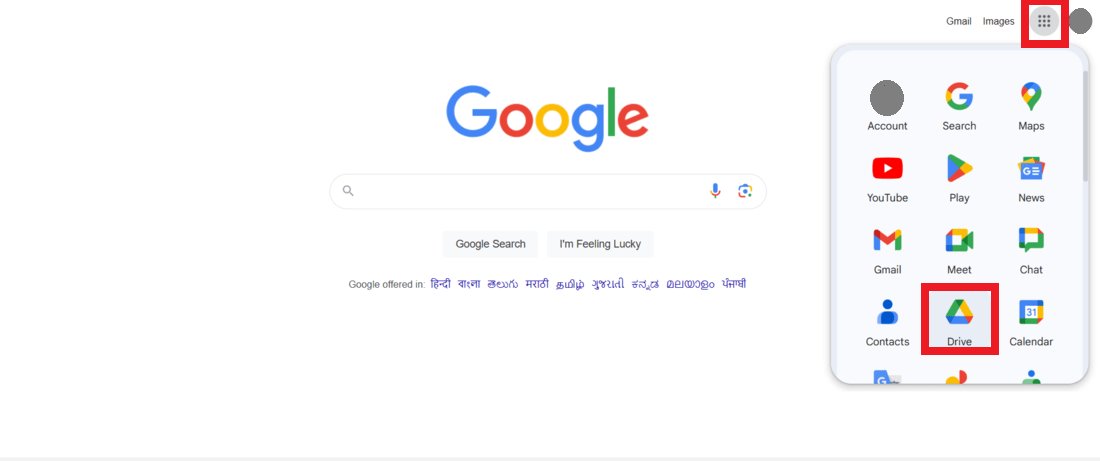
On the Google Home Page, click on the Bento menu icon; from the dropdown, click on the Google Drive icon to open the Google Drive home page.
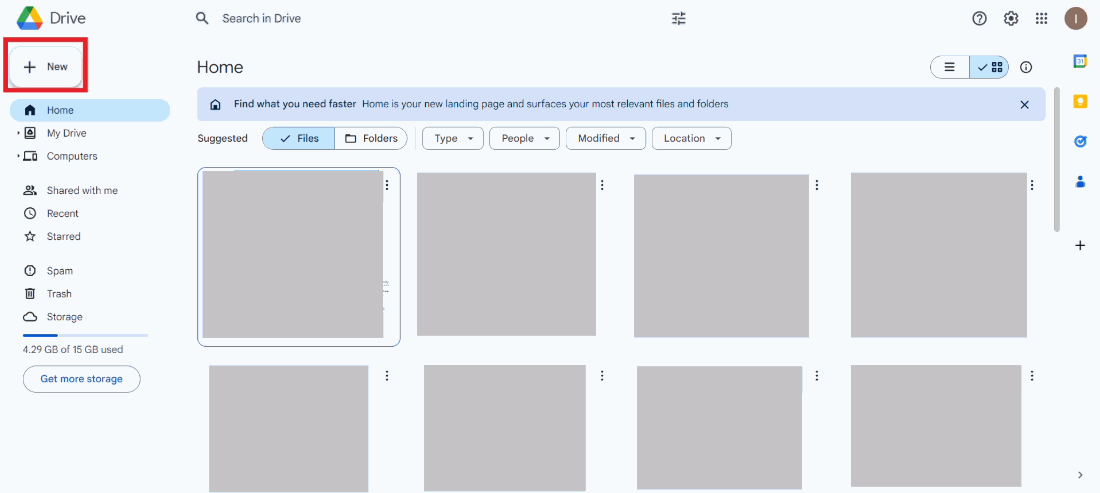
In the top-left corner, click the "New" button.
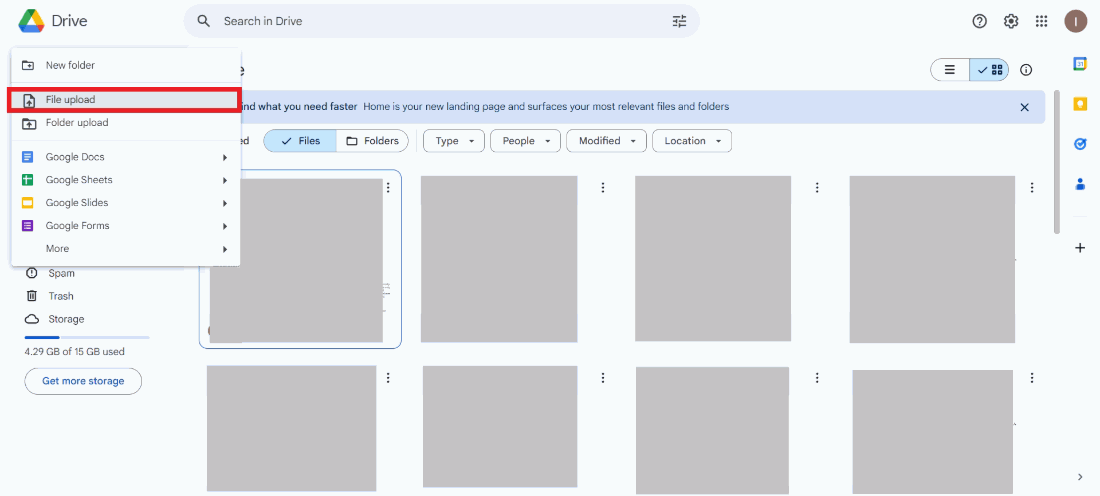
From the dropdown, click "File upload" and choose the pdf file that you want to edit.
Once the pdf gets uploaded to Drive, click on the three dots next to the pdf name, from the dropdown click on "Open with", then select "Google Docs".
The pdf will now be opened in Google Docs. Edit the document as per requirement.
When your editing is complete, download your document as a new PDF. Navigate to the menu bar at the top click "File", from the dropdown, click "Download", then click "PDF Document(.pdf)".
Sometimes, editing PDFs in Google Docs might not be enough, especially for more complex files. Luckily, there are third-party apps that work well with Google Drive and offer more features for editing. Here are some of the best options:
Here's a table of the top 5 best apps to edit PDFs:
| APPS | Category | Standout Feature | Best For |
|---|---|---|---|
| PDFescape | PDF Editor | Easy form filling and annotation | Basic editing and forms |
| Lumin PDF | PDF Editor | Text and image editing | Quick and simple edits |
| DocHub | PDF Editor | Signature and image tools | Signing and basic edits |
| Smallpdf | PDF Toolkit | Wide range of PDF tools | Comprehensive edits |
| Kami | Education Tool | Annotation and markup tools for school | Students and teachers |
For more details about each app, please check their respective official websites or try them out from Google Drive. Using these best apps for PDF editing can save you time and give you more editing options, making your work easier and more efficient.
Editing PDFs can be easy and smooth if you follow these tips and best practices:
By following these tips, you can make sure your PDF looks great and stays high-quality while editing in Google Docs.
To edit a PDF in Google Drive using Google Docs, all you need are a few easy steps. First, upload your PDF to Google Drive. Then, open it with Google Docs, make your changes, and save it again. That’s it! You’ve learned a simple, free way to make basic edits to PDFs.
If you need more advanced editing, Google Docs might not do everything you want, but it’s great for quick and simple fixes. Don’t be afraid to explore other tools if your editing needs grow.
Ready to try it out? Edit a PDF with Google Docs today and see how easy it can be! Share your experience or tips with us. Who knows, you might discover a new favorite tool!