|
VOOZH | about |
|
VOOZH | about |
The line of best fit represents the relationship between two variables in a scatter plot, allowing for predictions. It minimizes the distance between the actual data points and the predicted ones. The line of best fit can be straight or curved, depending on the data's spread. Tools like Google Sheets make finding the line of best fit easy.
Before Adding a line of best fit in google sheets you need to create a scatter chart. Follow the below steps to learn how to create a Scatter chart in Google sheets
Highlight the data you want to plot, ensuring you include both the X (independent variable) and Y (dependent variable) values.
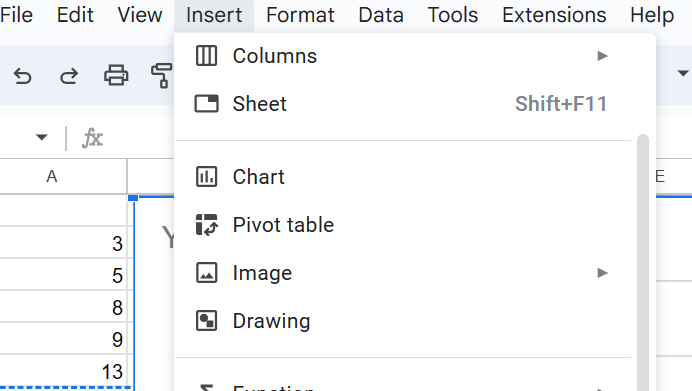
Click on Insert in the top menu and Select Chart from the dropdown menu. Google Sheets will automatically create a chart based on your selection.
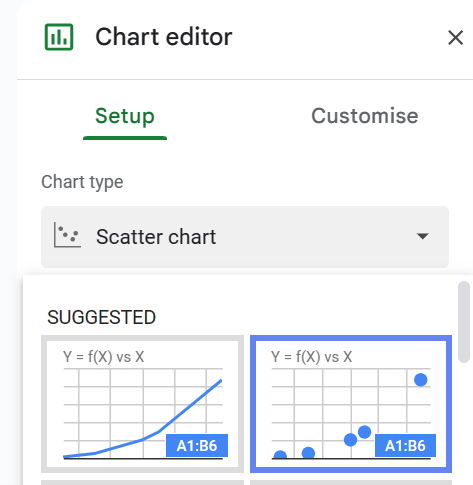
In the Chart Editor on the right, go to the Setup tab and From the Chart type dropdown menu, select Scatter chart.
Switch to the Customize tab in the Chart Editor to modify chart elements like titles, axis labels, and point styles.
If desired, you can add a trendline by selecting Series in the Customize tab and checking the Trend line option.
Once you're satisfied with the chart, click outside the Chart Editor to close it. You can resize or move the chart as needed within your spreadsheet.
To determine the line of best fit in Google Sheets, you don’t need to rely on an equation. Instead, you can achieve this by making a few straightforward customizations to your scatter plot.
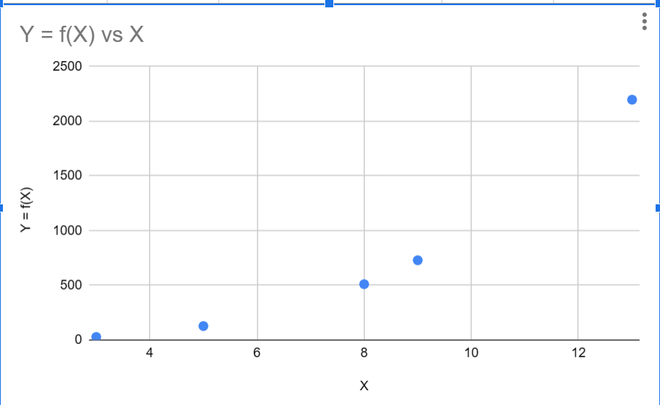
Before adding a line of best fit, we need a scatter plot of the data for which we require the best-fit line. Now, for demonstration purposes, we shall use the following data.
If you want to learn How to Create a Scatter Plot of Some Data Click here
| X | Y = f(X) |
|---|---|
| 3 | 27.247 |
| 5 | 127.141 |
| 8 | 509.875 |
| 9 | 728.709 |
| 13 | 2196.798 |
Now open a new spreadsheet in Google Sheets and add the above data to the spreadsheet. Then, click on Insert in the toolbar and then choose Charts
Now, this will create a default line chart and open the chart editor. Here, the first option will be to select the chart type from a drop-down menu. From this menu, select the scatter chart option.
Now, our plot will look as follows:
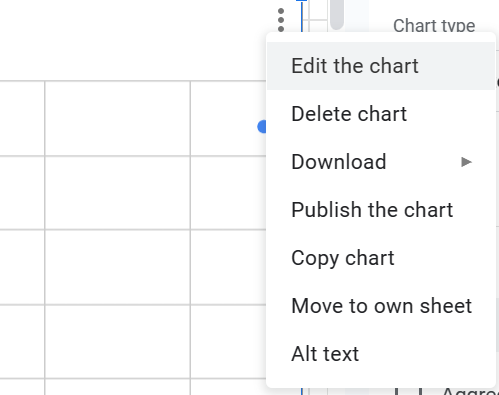
Now, that we have our plot, we can add the line of best fit to our data. To do the same, we need to open the chart editor, which can be accessed by clicking on the three dots icon on the top right corner of the chart and then, choosing Edit the chart.
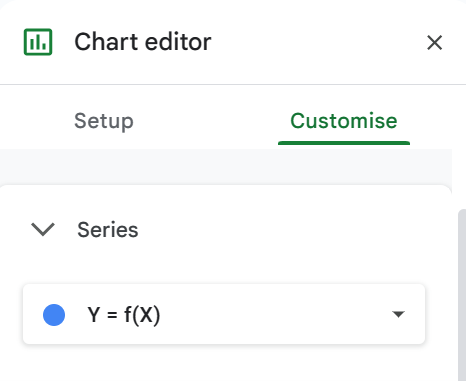
Now, in the chart editor, select Customize from the horizontal options, and under the Customize section, select Series as shown in the figure below.
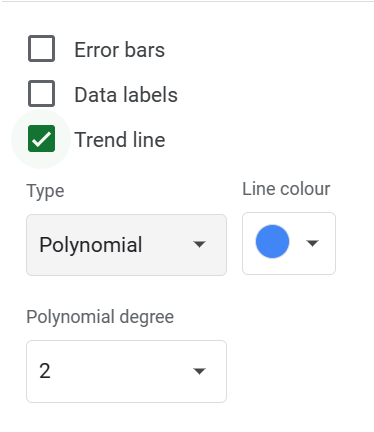
Now, under the Series section, check the trend line option to add a trend line (line of best fit) to your chart. The default nature of the trend line is linear; which is not always the best option with the majority of real-life data. Thus, for the best fit in most cases, we should keep the trend line as a polynomial. This can be done by changing the type of trend line to Polynomial, as shown in the figure below.
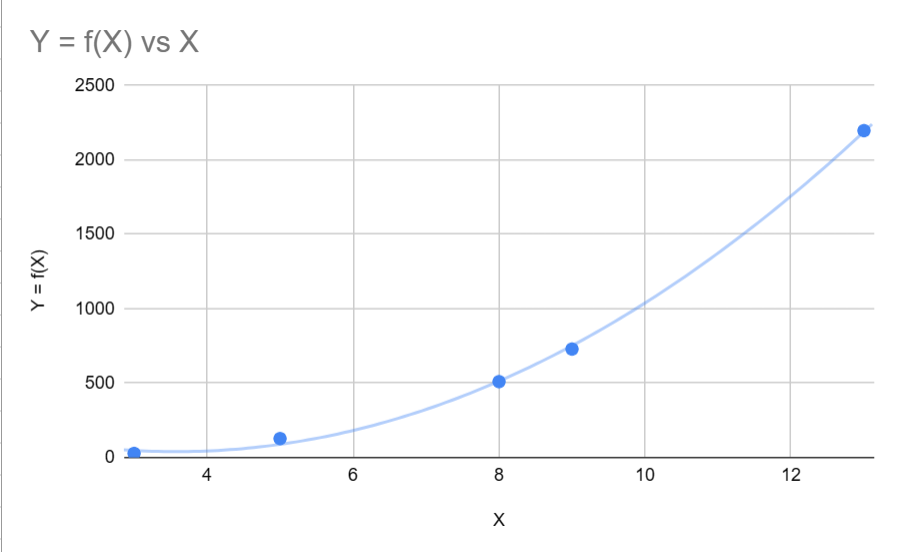
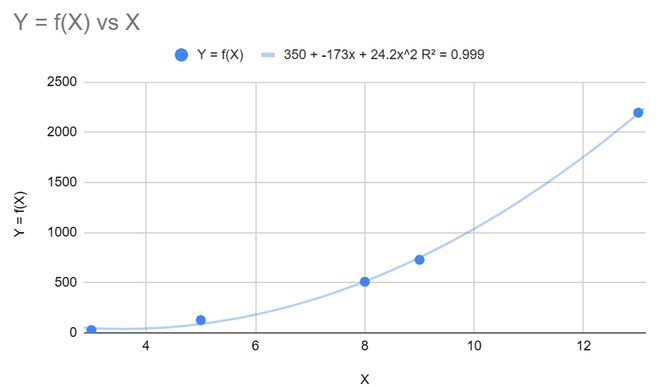
Once this is done, a line of best fit will be added to your chart. A thing to be noted is that Google sheet smartly detects the degree of polynomial of best fit however, this can be changed by the user according to their will. Now, our chart will look something like this.
Note: The blue curve represents the line of best fit for the data we used in this example.
Now, for those who need extra insights into their data, they can get the equation of the best-fit line used and also the R^2 value of the line. The R^2 value represents how well the best-fit line fits the given data. The closer the value is to 1, the better the fit. Absolute 1 means the line fits the data. To add these values, we only need to choose the options in the chart editor.
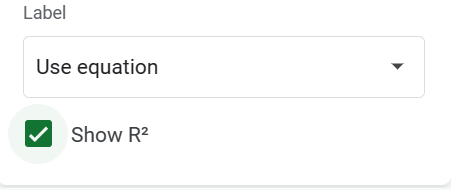
Under the Trendline Checkbox, there are options for Label and a checkbox for \bold{r^2}. Set the label to Use Equation from the dropdown menu and tick the checkbox for R-squared value.
Once, the above steps are done, the graph should look like this:
As we can see, the graph now displays the equation of the best-fit curve and the R-squared value.