|
VOOZH | about |
|
VOOZH | about |
Creating tables in Google Sheets is a fundamental skill for organizing, analyzing, and presenting data effectively. Whether you're managing budgets, tracking inventory, or preparing reports, well-structured tables enhance readability and enable features like sorting, filtering, and conditional formatting.
Tables transform raw data into a structured format, making it easier to:
Google Sheets doesn't have a one-click "Format as Table" like Excel, but you can achieve similar results with formatting tools.
For this guide, use this sample dataset in cells A1:D6 (copy-paste into Google Sheets):
Product | Quantity | Price | Status |
|---|---|---|---|
Apples | 50 | 1.5 | In Stock |
Oranges | 30 | 2.0 | Low Stock |
Bananas | 100 | 0.8 | In Stock |
Pears | 20 | 1.8 | Out of Stock |
Grapes | 40 | 3.5 | In Stock |
Learn how to create a table from scratch in Google Sheets, starting with data preparation and ending with final adjustments to ensure your table looks polished and professional.
Enter your data into the spreadsheet cells where you want your table to reside. Perform the operation only after the formatting the rows and columns.
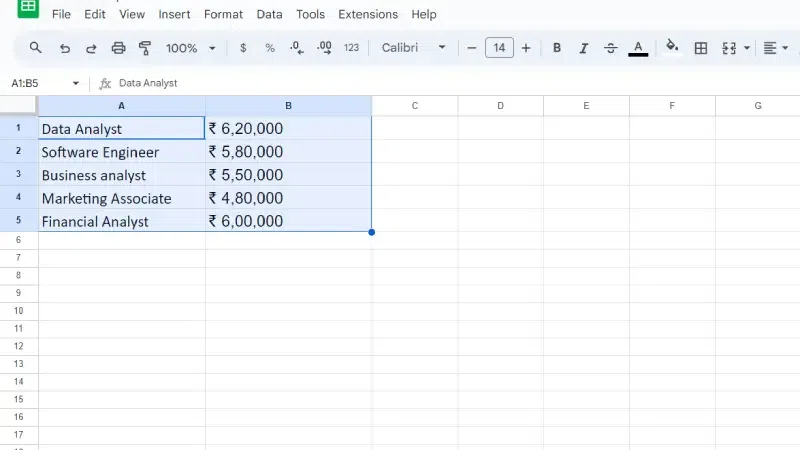
Drag your cursor to highlight all the cells that will be part of your table. This includes both your headers (first row) and the data itself.
👁 Table in Google SheetsGo to the "Format" menu and select "Borders." Choose a border style that visually defines your table (e.g., solid outline).
Highlight the header row (first row) and bold the text using the formatting options on the toolbar. Use the Font option to change the fonts. Use the B and I shortcuts on the toolbar or navigate to the Format menu and then click Text. Also, use the Fill color shortcut on the toolbar to fill colors in the columns and rows. Use the Border shortcut on the toolbar.
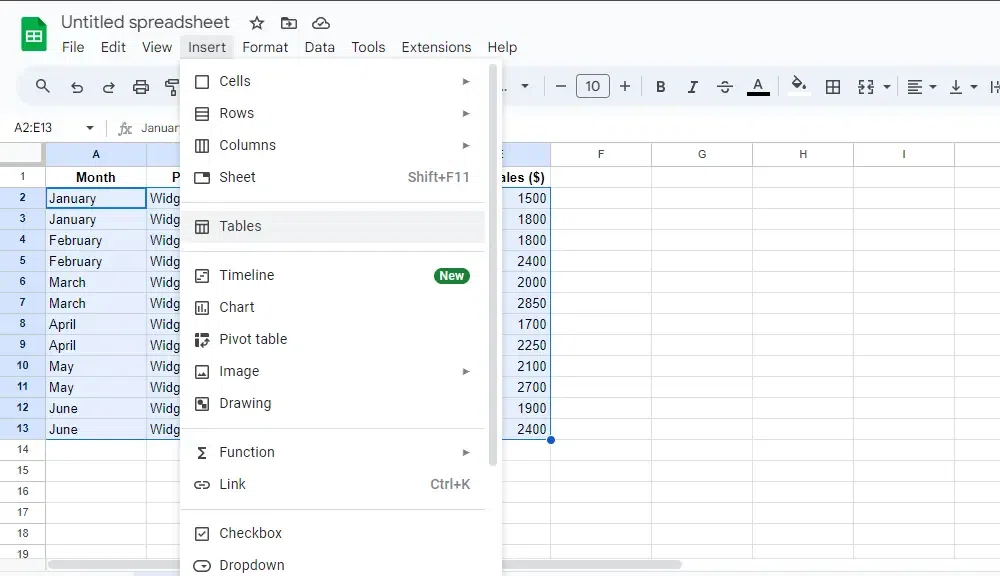
Click on the insert option and add rows and columns as per your need.
Check the results in your Google Sheet.
While Google Sheets doesn't have a replica of Excel's "Format as Table" feature, you can achieve a similar result with a few extra steps.
Start by opening your Google Sheets document where you want to create the table.
Highlight the cells that will be used for your table, including headers.
Go to the “Format” menu, select “Alternating colors,” and choose a style to apply a table-like appearance.
Customize table features such as headers, borders, and text alignment to match your needs.
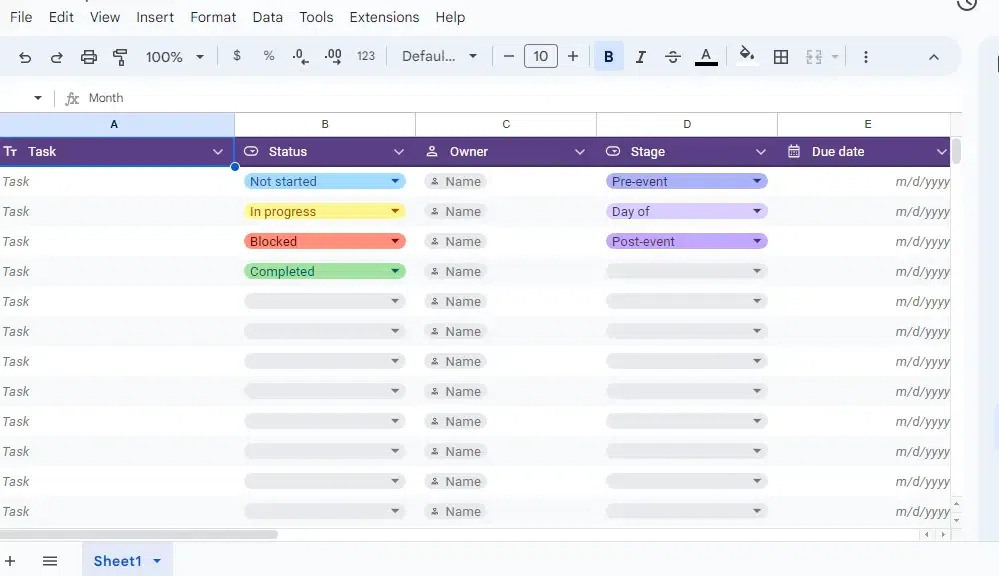
Then using the toolbar, search for 'Format as Table' and do formatting and functionality like Making Headers and resizing the image and table name as per your need. Overall, creating a table in Google Sheets provides similar functionality to Excel tables with a slightly different approach. With a little practice, you'll be creating well-formatted and functional tables in no time!
While Google Sheets lacks an exact “Format as Table” feature like Excel, you can achieve a similar result with the “Alternating colors” feature.
Start by opening your Google Sheets document where you want to create the table.
Select the cells that will make up your table, including both headers and data.
Go to the “Format” menu and select “Alternating colors.” Choose a style that suits your needs and apply it to your selected range.
Adjust the formatting options for headers, borders, and text to enhance the table's appearance and functionality.
Once your table is created, sorting and filtering can help manage and analyze data efficiently.
Select your table range, go to the “Data” menu, and click “Create a filter” to add filter icons to your headers.
Click on the filter icon in the header and choose how you want to sort your data (e.g., ascending or descending).
Use the filter options to display only the data that meets your criteria.
Conditional formatting can help highlight specific data points in your table.
Highlight the cells in your table where you want to apply conditional formatting.
Go to the “Format” menu and select “Conditional formatting.” Set up rules to format cells based on their values (e.g., color scales, text colors).
Adjust formatting rules to fit your data analysis needs.
Also Read:

.webp)
.webp)
.webp)
.webp)